

Verifying batch addresses
The batch address verification procedure allows you to match or verify a subsection or all of the addresses in your iMIS database.
NoteThis procedure updates a large number of the database records; therefore, it must run with only one user logged into the system.
- Go to Customers > Manage Accumail > Verify addresses:
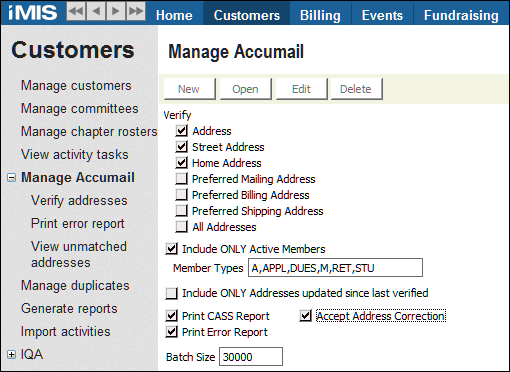
- Check the addresses you want to verify.
- Check the Include ONLY Active Members box if you want to ignore all inactive, suspended, or deleted member records.
- Enter specific member types, separated by commas, in the Member Types box if you want the program to only verify those types of members.
- Select the Include ONLY Addresses updated since last verified box to verify those addresses that have been updated since the last time an address verification was performed.
- Select the Print CASS Report and Print Error Report boxes if you want to print the U.S. Post Office 3553 CASS report and an error report. The CASS report will print to your default printer, while the error report will print to the destination you have currently selected for your iMIS session. The CASS report gives you the number of addresses that met the specified criteria and the percentage successfully matched. The error report lists the addresses that did not match and a brief description of the problem.
- Check the Accept Address Correction box if you want to standardize your addresses to meet U.S. Post Office preferences. For example, with address correction, Avenue is changed to Ave, and streets that have alias names will be changed to the Post Office-accepted name.
- Click Run.
NoteYou might be required to include the CASS report with your mailings; therefore, make sure to make copies of the report. You can generate a current error report at any time by selecting Customers > Manage Accumail > Print error report from the main menu.
Updated 6 months ago
Did this page help you?