

Register for an event window
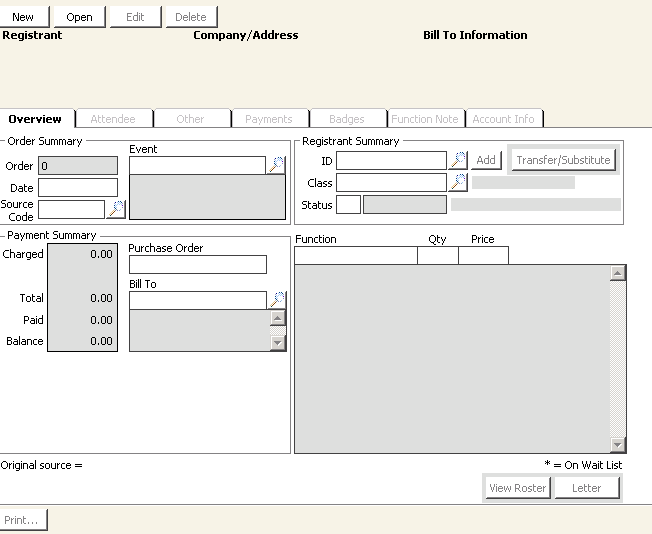
To register a customer for an event
- From Register window, click New.
- If you already have an ID selected, it automatically populates the ID field.
- Otherwise, enter or look up a customer ID.
- Register the customer for an event. For more information about registering customers, see the iMIS Events guide.
- Click Save.
- Select Process customer requests.
The event registration (ME) is a new line item on the Process customer requests window. The system keeps a running total of the Balance field in the Total Due field.
NoteYou can double-click on any line item on the Process customer requests window to view and edit data specific to that item. For example, if you double-click the ME (event) Type line item, the Register a customer window displays with the event the customer requested. You can also edit the registration by deleting a line item or adding another function.
Example: To pay for an order and a registration with one credit card payment
If you have added an event registration (ME) and placed an order (OE) for the active contact, you need to process only one credit card payment for the two open line items (ME and OE).
- Select Enter and edit payments to open the Enter and edit payments window.
- All transactions processed for this customer display when All is the View on the Process customer requests window.
- The line items listed on the Process customer requests window are listed on the Enter and edit payments window for the Current Batch, if any.
- By default, items entered during the current session (except Fundraising and credit balance line items) are checked for payment when you open the Payment Entry window from the Process customer requests window. You can deselect any item and apply a partial payment.
- Enter a credit/debit card code in the Check/CC field and complete the customer’s card information.
- Click Save to apply the Pay Amount to the checked items.
- Close the window to return to the Process customer requests window, which now shows the line items with a zero balance.
After you apply the payment, you can view the items and transaction history:
- Open the customer’s event registration record in the Process customer requests window by double-clicking on the event line item.
- Select AR/Cash > Credit card reporting > Search credit card info, and enter the customer ID or Credit Card # to search for and review the customer’s credit card payment history window.
Updated 6 months ago