

Set up chapters window
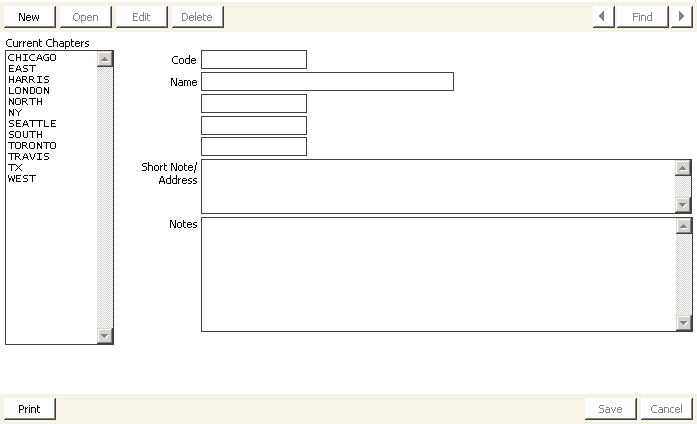
Current Chapters
Lists the codes assigned to each chapter.
Code
(required) Use this field to assign a unique code to each chapter. This field holds a maximum of 15 characters.
Name
Use this field to assign a name to each chapter.
Chapter prompts
Specify codes for three groups that correspond to the chapter hierarchy. You define the labels that display for these fields on the Customer Setup - Basic Options window
- Use the first field to enter a code for the highest level grouping of your chapter hierarchy (if applicable). For example, if you have a chapter organizational structure containing several sub-groupings, the Region code could represent the highest level.
- Use the second field to enter a code for the second-highest level grouping of your chapter hierarchy (if applicable).
- Use the third field to enter a code for the third-highest level grouping of your chapter hierarchy (if applicable).
Short Note/Address
Specifies miscellaneous notes about a chapter, as well as an address for the chapter.
Print
Prints information stored in the Chapter Description table.
To define a chapter code
- From Set up chapters window, click New.
- Enter an abbreviation for the chapter in the Code field.
- Enter the full name of the chapter in the Name field.
- (optional) Enter a code in the three fields between the Name and Short Note/Address fields.
- (optional) Enter a note or address for the chapter in the Short Note/Address field.
- (optional) Enter a note for the chapter in the Notes field.
- Click Save.
To modify a chapter code
- From Set up chapters window, select the Chapter code you wish to modify.
- Click Edit.
- Edit the fields you wish to change.
- Click Save.
To delete a chapter code
- From Set up chapters window, select the chapter code you wish to delete.
- Click Delete.
Updated 6 months ago
Did this page help you?