

Set up an exposition window
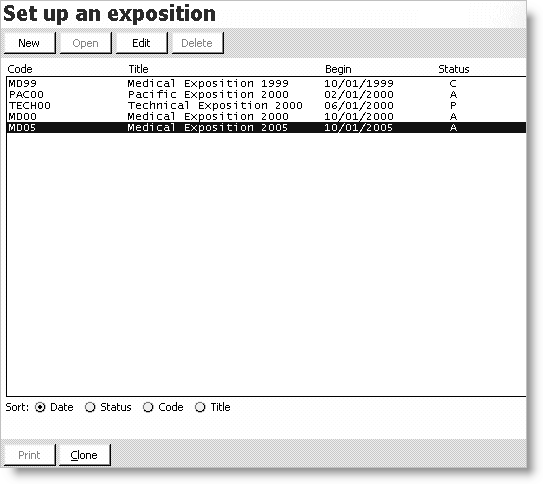
Code
Displays the exposition code.
Title
Displays the exposition title.
Begin
Displays the exposition's start date.
Status
Displays the exposition's status:
- P = Pending (default, still in the planning stages)
- F = Frozen (currently locked from order)
- C = Closed (orders no longer accepted)
- X = Canceled
Sort
Enable the appropriate options for sorting the listed expositions.
Clone button
Click to create a copy of the selected exposition.
To view and sort the list of expositions
- From Exposition, select Set up an exposition to open the Set up an exposition window.
- Sort the list by enabling the appropriate Sort option:
- Date organizes the expositions chronologically by start date.
- Status organizes the expositions alphabetically by status code, displaying all open, active expositions (with A = Active status codes) first, followed by the closed, pending, and canceled expositions.
- Code organizes the expositions alphabetically by exposition code.
- Title organizes the expositions alphabetically by exposition title.
See these related topics:
- To clone an exposition (how to create a new exposition by copying an existing exposition)
- To define an exposition
- To modify an exposition
Updated 6 months ago
Did this page help you?