

Managing Back Issue Requests
Once you have created the BACKISSUE activity type, you can enter and manage back issue requests.
Issues/Back Issue Requests window
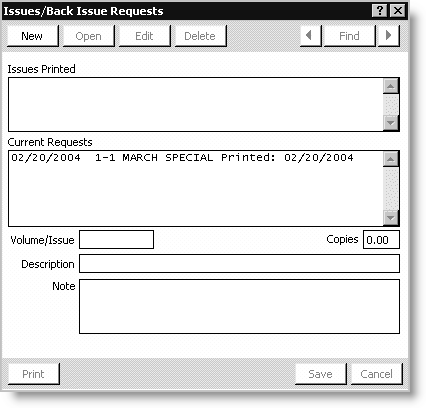
Issues Printed
List of requests for which Issue Labels have been printed
Current Requests
List of requests for Back Issue Labels (updated with Printed: MM/DD/YYY after labels have been printed)
Volume/Issue
Specifies the PUB volume/issue number requested
Copies
Specifies the number of copies requested
Description
(optional) Specifies a description.
Note
(optional) Specifies a note.
To enter a back issue request
- From Customers, select Manage customers, find a customer record, and select the Billing tab.
- Double-click the subscription item to open the Dues/Subscription Item Detail window.
- Click Back Issues to open the Issues/Back Issue Requests window.
- Click New.
- Place the cursor in the Volume/Issue field and enter the volume and issue the member is requesting.
- Enter the number of Copies.
- (optional) Enter a Description.
- (optional) Enter a Note.
- Click Save to update the record
- Click New to continue to enter back issue requests.
To edit a back issue request
- From Customers, select Manage customers, find a customer record, and select the Billing tab.
- Double-click the subscription item to open the Dues/Subscription Item Detail window.
- Click Back Issues to open the Issues/Back Issue Requests window.
- Select the line item to edit from the Current Requests list.
- Click Edit.
- Make your changes.
- Click Save to update the record.
- Edit additional requests as necessary.
To delete a back issue request
- From Customers, select Manage customers, find a customer record, and select the Billing tab.
- Double-click the subscription item to open the Dues/Subscription Item Detail window.
- Click Back Issues to open the Issues/Back Issue Requests window.
- Select the line item to delete from the Current Requests list.
- Click Delete.
- A message displays asking you to confirm the deletion. Click Yes.
Updated 6 months ago
Did this page help you?