

E-Mail Overlay report specification
The subject and message body of issue status update e-mail messages are defined in the E-Mail Overlay report specification. The message body is specified in the Parameters field on the Detail Report Parameters window. The following parameters can be entered in the Parameters field:
- [Service_Request.ServiceReference] - This parameter is replaced by the issue reference in the e-mail message body.
- [Service_Request.Title] – This parameter is replaced by the issue title in the e-mail message body.
- [Service_Request.Status] – This parameter is replaced by the issue status in the e-mail message body.
The issue status update e-mail subject header is prefaced with Re: your Issue followed by the issue reference and issue title.
The following is an example of the contents of the Parameters field on the Detail Report Parameters window:
OLWA Foundation
Issue Management Notification
Your Issue (Ref. # [Service_Request.ServiceReference]) [Service_Request.Title] has been submitted and has been assigned a status of
[Service_Request.Status].
Thank you,
QLWA Foundation
This will result in an issue status update e-mail message body similar to the following:
QLWA Foundation
Issue Management Notification
Your Issue (Ref. # 14) Test has been submitted and has been assigned a status of InProcess.
Thank you,
QLWA Foundation
To create the E-Mail Overlay report specification
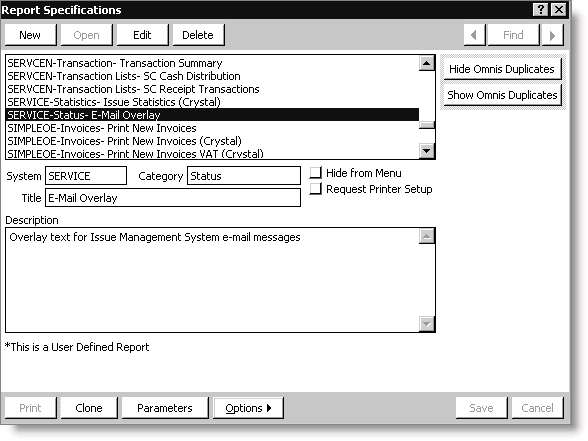
- Select Utilities > Report Specs to display the Report Specifications window.
- Click New.
- Enter SERVICE in the System field.
- Enter Status in the Category field.
- Enter E-Mail Overlay in the Title field.
- Enter Overlay text for Issue Management System E-mail messages in the Description field.
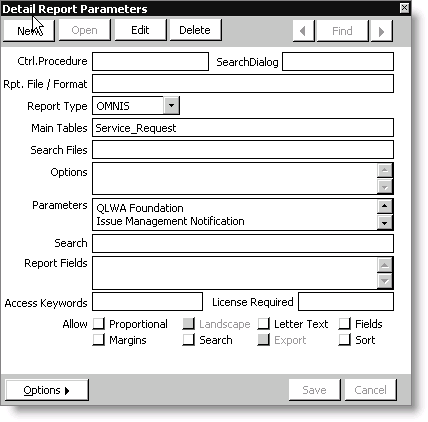
- Click Parameters to display the Detail Report Parameters window.
- Enter Service_Request in the Main Tables field.
- Enter the text, including the desired issue parameters ([Service_Request.ServiceReference], [Service_Request.Title], and [Service_Request.Status]), to include in issue status update e-mail messages in the Parameters field.
- Click Save.
Updated 6 months ago
Did this page help you?