

Set up activity types window for Events
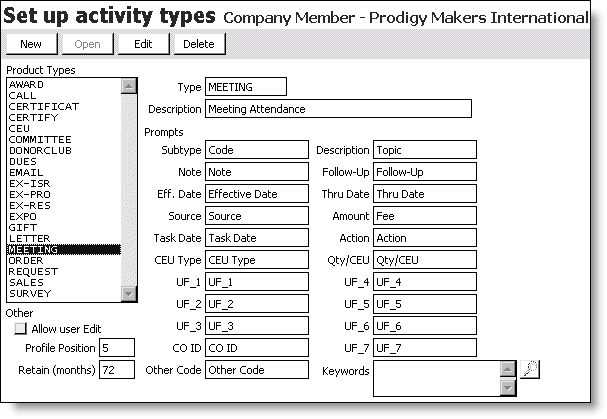
Product Types
Lists all of the defined activity types.
Type
Specifies an activity type prompt.
Description
Specifies a description prompt for the activity type.
Prompts
- Subtype - Specifies a subtype prompt.
- Description - Specifies a description prompt for the subtype.
- Note - Specifies a note prompt.
- Follow-Up - Specifies a follow-up prompt.
- Eff Date - Specifies an effective date prompt.
- Thru Date - Specifies a thru date prompt.
- Source - Specifies a source prompt.
- Amount - Specifies an amount prompt.
- Task Date - Specifies a task date prompt.
- Action - Specifies an action prompt.
- CEU Type - Specifies a CEU type prompt.
- Qty/CEU - Specifies a CEU quantity prompt.
- UF1 - UF3 - Use these fields to enter prompts for the values entered in the Char 1 - Char 3 fields on the Event System Preferences window.
- UF4 - UF5 - Use these fields to enter prompts for the values entered in the Number 1 - Number 2 fields on the Event System Preferences window.
- UF6 - UF7 - Use these fields to enter prompts for the values entered in the Date 1 - Date 3 fields on the Event System Preferences window.
- CO ID - Specifies the company ID prompt.
- Other Code -Specifies another code prompt.
Keywords
Specifies keywords (use the lookup icon to open the Select ACCESS_KEYWORDS value(s) window and search for defined keywords.
Other
- Allow user Edit - Enable to allow users to edit activity records.
- Profile Position - Specifies the profile position.
- Retain (months) - Specifies the number of months the activity record will be retained.
To view event activities for a registrant
- Select Customers > Manage customers to open the Customer Portfolio.
- Find the registrant's record.
- Select the Activities-All tab.
- Select MEETING from the drop-down list under the Sort by options.
NoteMEETING activities, which are created when events are closed, do not include fundraising information, such as GIFT activities generated by a fundraising function registration.
- Double-click an event to open the Activity Detail window.
Updated 6 months ago
Did this page help you?