

Latest Release: May 2026
The May 2026 release (10.8) builds on the Learning Contracts and AI Test Generator features introduced in February, expanding their capabilities while also delivering key updates to Test configuration and Price Plan functionality. Additional enhancements to administrative privileges and reporting help reduce administrative effort and improve the management of learning at scale.
Our commitment to improving the overall learner experience across TopClass has brought about updates to certificate templates and to maintain alignment with accessibility standard WCAG 2.0 Level AA.
Key Enhancements
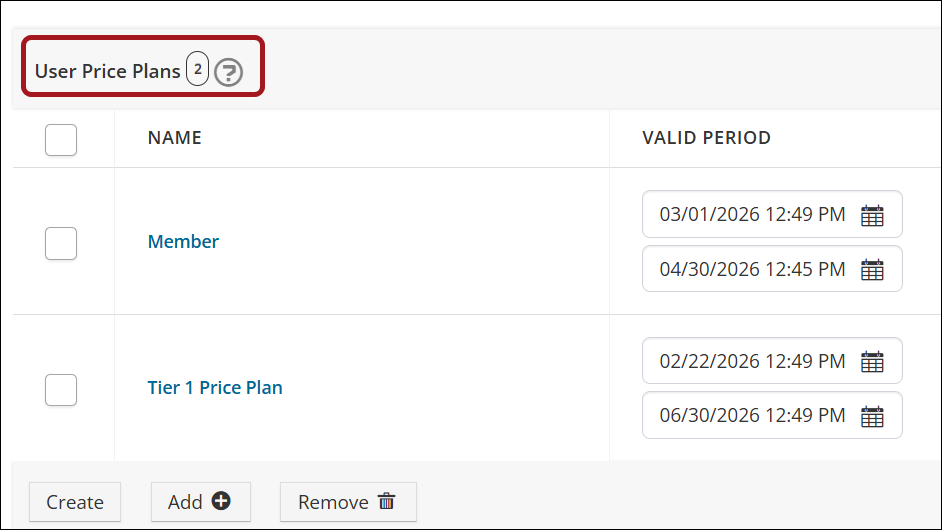
Assigning Multiple Price Plans to Users
Users can be assigned multiple price plans. When a user with multiple price plans browses the Catalog, the system automatically applies the lowest-priced valid plan available to them, ensuring they can purchase the activity at the best rate or enroll at no cost. Enhancements to the Sales and Completed Transactions reports allow for reporting on price plans. See Assigning multiple price plans to users for details.
Processing Large Video Transcriptions with AI
Following the successful beta launch of the TopClass AI Test Generator in the February release, enhancements have been made to allow for the transcription of longer videos (over five minutes). The AI Generator runs the transcription in the background so that admin users can perform other tasks while waiting. Once processing is complete, admins are notified that the transcription is ready. See AI Test Generator for details.
Expanded Learning Contracts Capabilities
Learning Contracts were introduced in the February release, and significant enhancements have been made to create an even better user experience. The focus was to align Learning Contract functionality with existing functionality in terms of Group Actions, Valid Periods, and Auto-Enrollments. Contract Admin rights have also been extended to allow for Restricted Access and Renaming of Learning Contracts.
Review the following notes to learn more about the expanded Learning Contracts capabilities:
- Associating a Learning Contract with a group – If the Learning Contract is linked to a group and it is the first time a user enrolls in any activity through the Learning Contract, they are automatically added to the group. This allows managers to monitor the groups' progress in activities through the Manager Dashboard.
- Aligning Learning Activity valid periods with the Learning Contract valid period – Super Administrators can choose to align the valid period of associated Learning Activities with the Learning Contract valid period. When enabled, if a Learning Contract has a defined valid period, valid periods for associated Learning Activities (Online Activities only) are automatically adjusted to reflect the Learning Contract valid period.
- Restricting Learning Contract access – A new setting on the Learning Contract allows administrators to restrict who can access the Learning Contract. Configure invitation codes to allow only those who are explicitly invited to redeem the code. This ensures that invitation codes cannot be shared outside of the users chosen by the Contract Admin.
- Auto-enrolling students in a Learning Contract Learning Activity – When a user is invited to a single activity Learning Contract (Online Activity only) and redeems the invitation code in the Learning Contract Invitation widget, the user is automatically enrolled in the online activity and can bypass the need to manually enroll.
- Renaming the Learning Contract – To assist Contract Admins in tracking and managing their Learning Contracts, Learning Contracts can be renamed via the Learning Contract Dashboard. The name change is reflected consistently across dashboards, lists, and reports.
Using TopClass Learning Contracts via iMIS Integration
TopClass users with an iMIS integration can now create a Learning Contract directly from their iMIS shopping cart. By bulk purchasing seats in a Learning Activity, users can create and manage Learning Contracts, which provides a scalable way to distribute and manage learning access across their organization. See Using TopClass Learning Contracts via iMIS integration for full details.
Creating Custom Menu Items
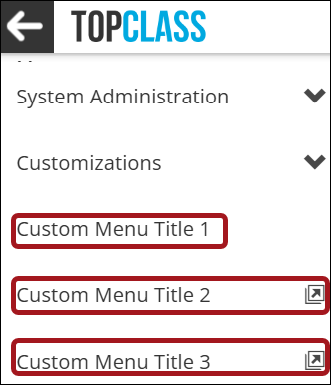
Super Administrators can add up to three custom menu items into the menu navigation panel, making it easier to direct users to specific resources. See Creating Custom Menu Items for details.
Enhancements to Test Setup, Results, & Feedback
Based on client feedback and suggestions, the following enhancements have been made to the TopClass test settings:
- Separating 'Hide Test Feedback' into two separate settings – The Hide Test Feedback setting has been separated into two new settings: Hide Test Score and Hide Pass/Fail Message. Administrators can choose to show either, both, or none to the learner.
- Flagging questions for review enhancement – When a test is configured to display as all questions on one page, it is now possible for learners to mark specific questions For Review so they can move on and then review all flagged questions before submitting the test for grading.
- Controlling answer visibility for failed tests – Administrators can choose to hide the full answer breakdown when a user fails a test by enabling the Hide full answer for test failure setting. When enabled, users only see the answers they selected and whether each answer is correct or incorrect, without additional detail.
- Hiding question text for unanswered questions – Administrators can choose to hide question text from learners in the review summary for unanswered or flagged questions. When this option is enabled, learners must open each question individually to view the full question text.
Granting Additional Privileges for Admin Users
Super Administrators can grant Admin users access to additional areas of TopClass, allowing them to perform specific administrative tasks without providing full platform access. Available privileges include the following:
- Reports menu – Allows admin users to view, create, or edit Reports and Scheduled Reports.
- Customizations menu – Allows admin users to access the customizations menu, which includes areas such as branding, landing page, and login page.
- Read Only Users – Allows admin users to view users in the Users list screen but prevents them from creating or editing any user profiles.
These options allow Super Administrators to delegate responsibilities while maintaining control over broader platform permissions. See User privileges for details.
Additional Enhancements
- Maintaining WCAG 2.0 Level AA accessibility standards (Manager and Instructor Screens) – To maintain WCAG 2.0 Level AA accessibility standards, updates were made to the Manager and Instructor screens.
- Enhancements to My Credit Report – To align the My Credits Report with standard transcription documentation, a dynamic credit total column has been added, and user identification (name) is included on exported versions.
- Enhancements to the Test Responses report – The Test Responses report has been enhanced with a new Question Title column and the Test Title filter has been improved. Previously, if a test was linked to multiple online activities, duplicate test title records could appear in the report. This has been resolved — only a single test title record is displayed, regardless of the number of linked activities.
- Changes to ILT Sessions List report – An Assigned Instructors column has been added to the ILT Sessions List report so that administrators have increased visibility of ILT session stakeholders in one place.
- Allowing partition admins to use general partition catalog categories on activities – A new system setting can be enabled to allow partition admins to use general partition catalog categories on learning activities. This will negate the need for admins to duplicate catalog categories in each partition.
- Configuring Personify SSO integration through TopClass – The Personify integration bridge and SSO can now be configured directly in TopClass, allowing system administrators to connect the two platforms more easily. See Using the TopClass – Personify Bridge for details.