

Using the Gradebook
The TopClass Gradebook is a feature to track and manage learners’ performance in an online activity, including grades, assignments, test scores, etc. It serves as a centralized place to review progress, assess learning outcomes, and display results.
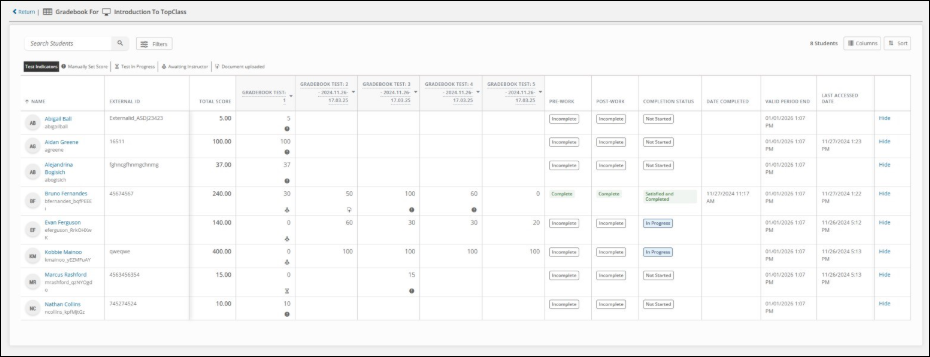
Enabling the Gradebook
To enable the use of the Gradebook in TopClass, submit a Support ticket.
When enabled, Administrators and Super Administrators can enable the Gradebook on individual online activities.
NoteGradebook functionality is only available for online activities.
To enable the Gradebook on an online activity, do the following:
- Within the online activity, go to Resources > Gradebook.
- Set Enable Gradebook to Yes.
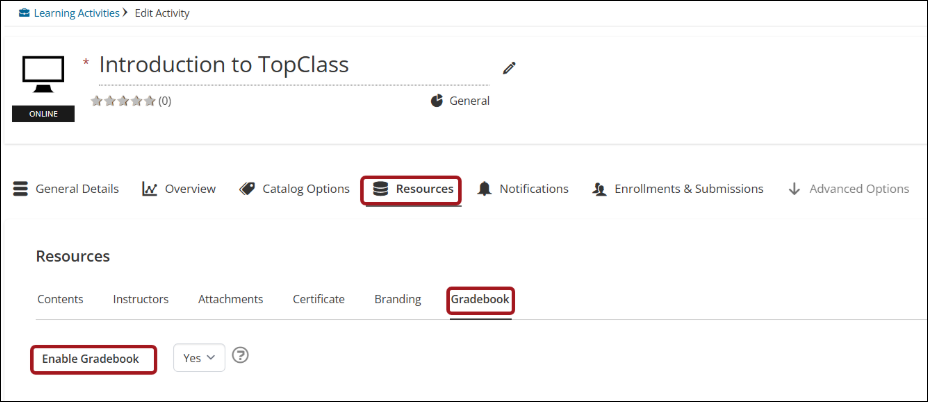
ImportantLearners that are 'In Progress' or have completed the activity prior to Gradebook activation will not be displayed.
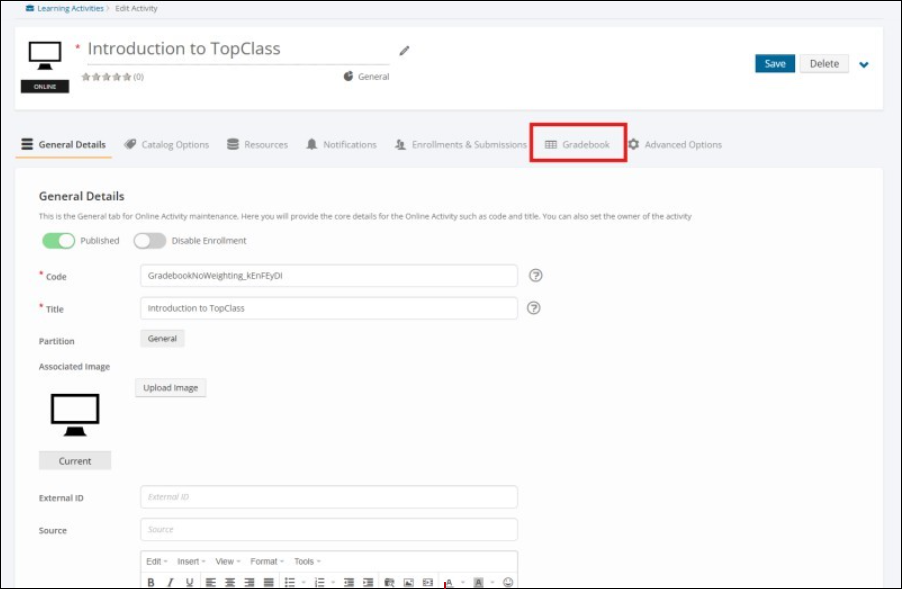
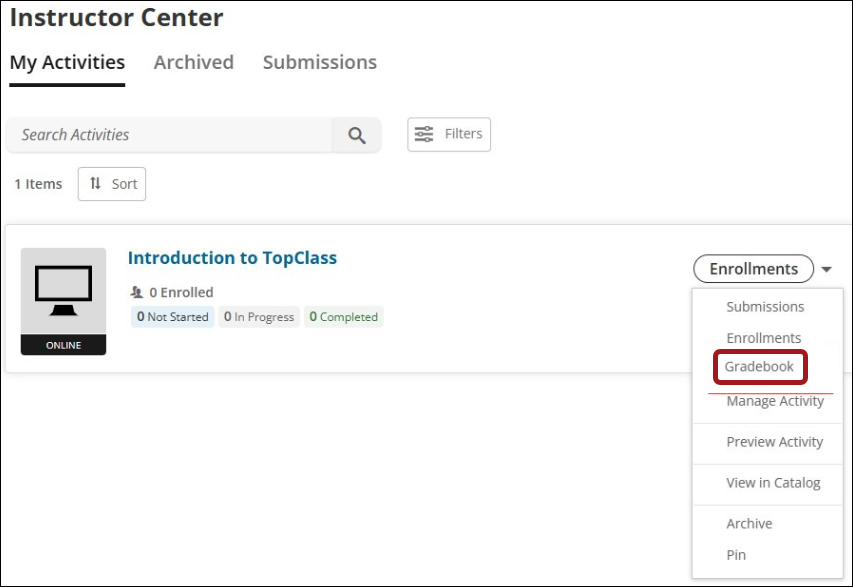
When enabled, a Gradebook tab appears on the online activity. Super Administrators, Administrators, and Instructors can access the Gradebook via:
-
Activity Maintenance screens for Administrators and Super Administrators.
-
The Instructor Center for Instructors.
Viewing the Gradebook as an Admin or Instructor user
Gradebook Interface
- Frozen Headers and Columns:
- The top row (column headers) and left-side columns (First Name, Last Name, Username, External ID) are frozen for easy navigation.
- Row Management:
- Users can hide rows in the Gradebook and unhide all hidden rows as needed.
Gradebook Content and Customization
- Dynamic Test Columns:
- One column per test in the online activity is automatically added. Columns update automatically when new tests are created.
- Customizable Column Order:
- To customize column order, do the following:
- Within the online activity, go to Resources > Gradebook.
- Use the Sort Gradebook drop-down to sort by:
- Student Content - The test will display on the Gradebook in the same order that the test appears to the learner in the content navigation screen.
- Alphabetically - The tests will display on the Gradebook in alphabetical order.
- Test Type - The test will display on the Gradebook in order of Test Type (alphabetically) and then by test alphabetically within each test type.
- To customize column order, do the following:
- Editable Test Names:
- Super Administrators, Administrators and Instructors can rename test columns in the Gradebook without affecting test names elsewhere (i.e. If the test name is changed in the Gradebook, it will not change anywhere else in the system.
- Completion Indicators and icons:
- Tracks Pre-Work and Post-Work (Complete/Incomplete/ N/A).
- Icons are used to identify the following:
- Tests In Progress
- Manually set Highest Scores.
- Testing awaiting instructor grading.
- Where a document has been uploaded as part of a submission.
- Completion Status displays the OOTB Status of the Activity (e.g. In Progress, Not Started, Completed etc.)
Score Management
- Highest scores displayed:
- Each row shows the learner’s highest score for that test.
- Manual score editing:
Submission Details
- Test attempt details:
- Clicking a score opens a detailed view of student test attempts, including:
- Attempt Details
- Submission and Highest Scores
- Evaluate Attempt link
- Clicking a score opens a detailed view of student test attempts, including:
- Evaluate submissions:
- The Evaluate link directs users to the submission grading screen.
- Test Information:
- Total test points available
- Test weight percentage
Student Enrollment and Completion
- Enrollment Management:
- Only the most recent enrollment data is displayed for students who unenroll and reenroll.
- Completion Statuses:
- Not Started, In Progress, Completed, Satisfied and Completed.
- Last Access Logic:
- Updated to show the last time a student launched the course and did something new within the Activity.
Viewing the Gradebook as a Learner
The My Grades report serves as a simplified version of the Gradebook, offering learners insights into their performance in the course. The report includes details on test scores, along with the weighted score for each test based on the highest score the learner has achieved on a particular test. Additionally, it provides an overview of the learner’s performance across different test types.
NoteSuper Administrators and Administrators can determine if tests in each activity will be displayed on the report or not.
Accessing the My Grades Report
NoteThe My Grades report can be activated only when the Gradebook is active on an online activity.
To activate the My Grades report for learners, do the following:
- Within the Activity, go to Resources > Contents.
- Set Show Students “My Grades” to Yes.
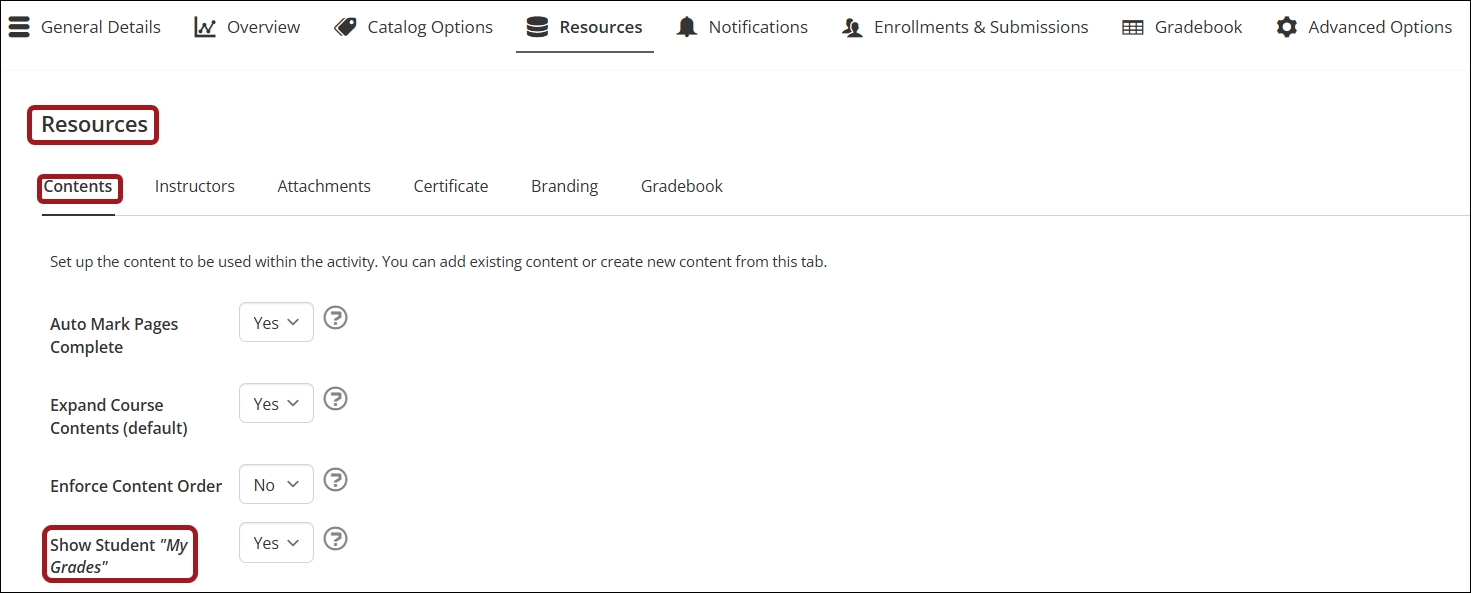
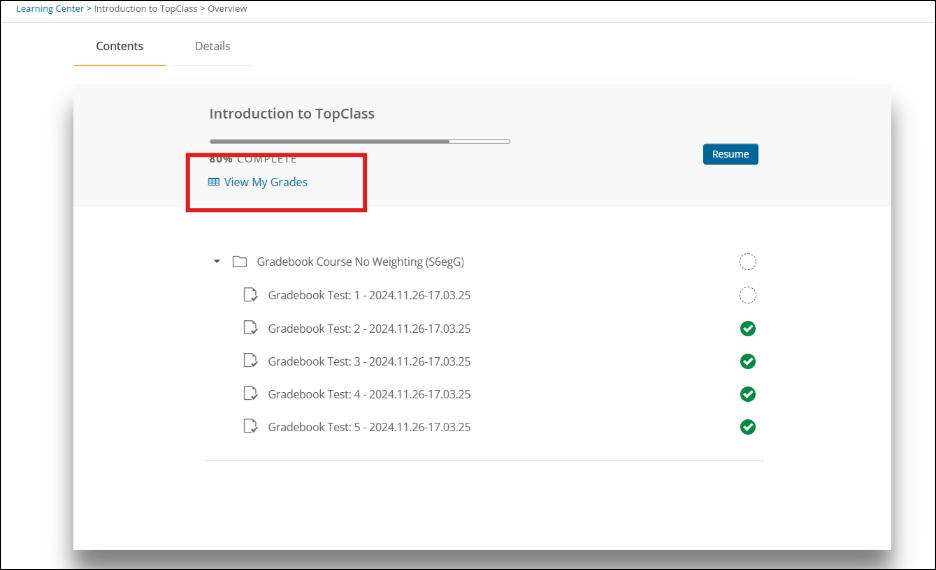
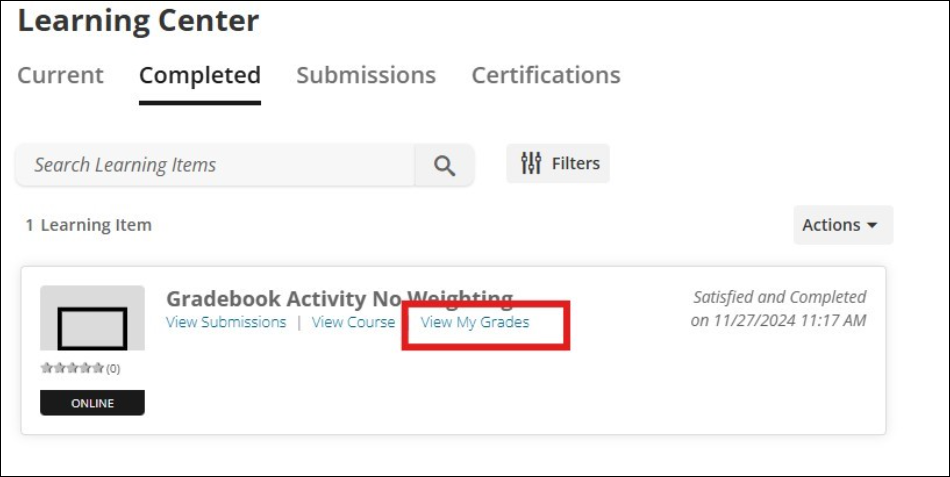
The report can be accessed from two different locations, depending on the learner's status within an activity.
-
If a learner status is “In Progress” in an activity, the report can be accessed from the online activity homepage.
-
If the learner status is “Satisfied and Completed” the report can be accessed from the Completed tab of the Learning Center, in addition to the activity homepage.
Understanding the My Grades Report
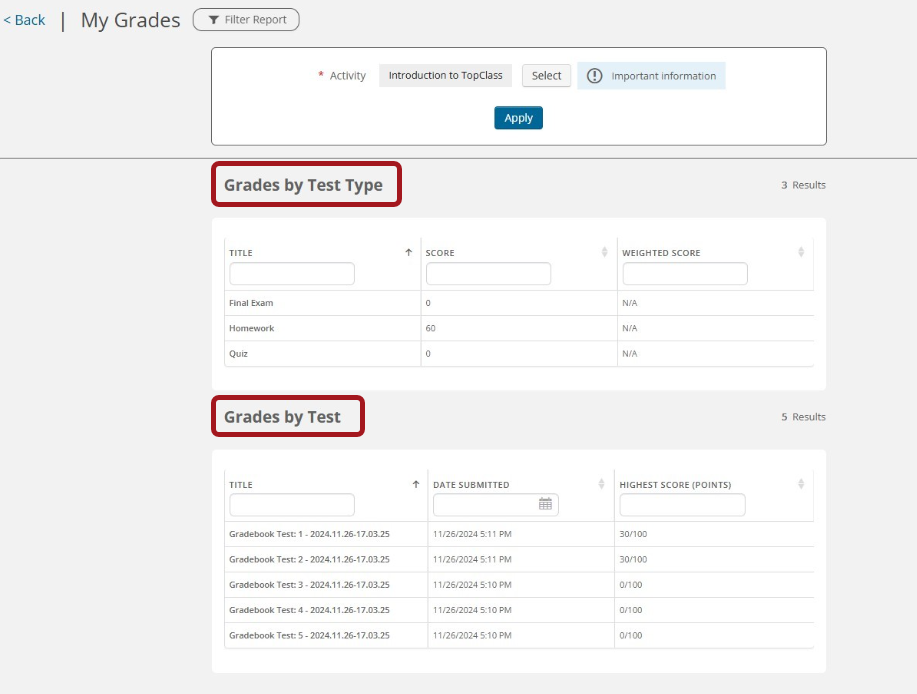
When navigating to the My Grades Report from an activity, the activity filter will be pre-populated with the activity the learner navigated from, and the report will display data relating to that activity.
Grades by Test Type lists the test types that have been assigned to tests in this activity.
NoteFor details on assigning test types, see Creating and Configuring Tests.
The overall score achieved will be displayed, along with the weighted score achieved by the learner in the test type.
- The Score is calculated based on the sum of the highest scores the learner has achieved for each test in the test type for the activity.
- The Weighted Score is the sum of the weighted scores the learner has achieved for each test in the test type for the activity.
Grades by Test lists the learner’s highest score for each test in the activity along with the datetime submitted.
- The Highest Score displays the highest score the learner has achieved along with the total points possible.
Updated about 2 months ago