

Setting up grace periods for Certification Paths and Certification Programs
Administrators can configure Certification Paths and Certification Programs to have a grace period for students, allowing enrolled students to have additional time to complete the Certification Path or Certification Program after the original expiration date. Depending on the configuration settings for the grace period, students can also pay fees and enroll in optional courses.
Configuring grace periods
To configure grace periods for all Certification Paths within a Certification Program, do the following:
- Go to Activities and Learning > Certification Programs.
- Find and select the Certification Program.
- Scroll to Completion, Maintenance and Ownership, then expand the drop-down.
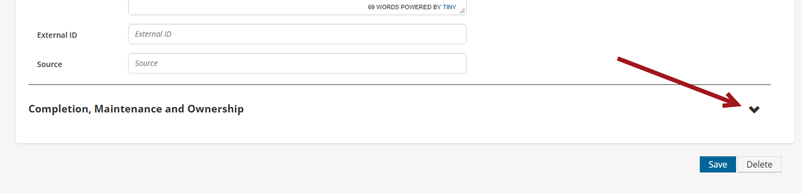
- Configure the Grace period in days and Grace period credit mode settings:
- Grace period in days – Defines how many days the grace period will last. For example, inputting 7 sets the grace period’s length to seven days.
- Grace credit mode – Sets the credit acquisition mode for the grace period. The options are:
- Claim Credits– Allows the student to only enter credits attained before the Certification Path expiry date (completion due by date), such as External Training records.
- Record Credits – Allows the student to only earn credits until the grace period’s expiration date.
- Claim Credits & Pay Fees – Allows the student to pay any associated fees with the Certification Path and enter credits completed before Certification Path expiry date (completion due by date), such as External Training records.
- Record Credits & Pay Fees – Allows the student to pay fees and earn credits until the grace period's expiration date.
- Complete All – Allows the student to complete any item in the Certification Path until the grace period's expiration date.
- Click Save.
Individual Certification Paths can have their own grace period settings that differ from the default settings for a Certification Program. Select an individual Certification Path, then follow the previous procedure starting from step 3.
Updated 5 months ago
Did this page help you?