

Configuring social media links and widgets
You can add Instagram, Facebook, and X links and widgets to the landing page and login page after configuring some settings.
Configuring social media links
Social media Contact Us links will appear on the landing page and login page footer, and the navigation shortcuts/ menus.
To configure social media Contact Us links, do the following:
-
Go to System Administration> System Settings.
-
Click on Social Media.
-
Set Show organisation social media Contact Us links to Yes.
-
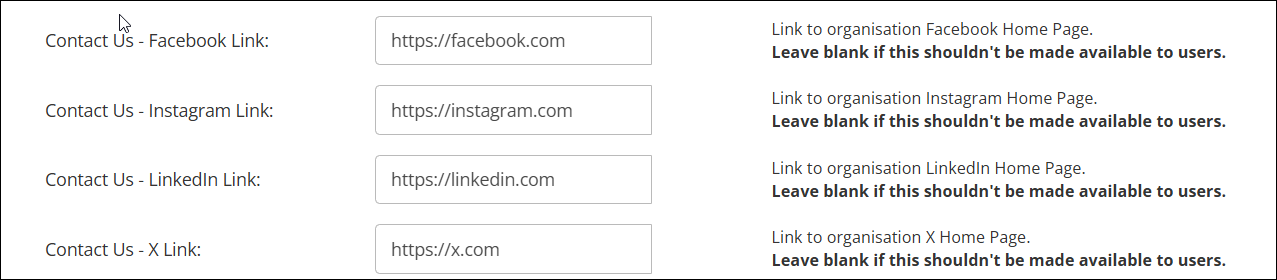
Enter the organization social media homepage link in the relevant fields.
-
Click Save.
NoteWhen enabled, social media Contact Us links will automatically appear on the landing page footer and the navigation shortcuts/ menus. To add social media Contact Us links to the login page footer see Configuring the Login Page for details.
Configuring social media widgets
Social media widgets will appear in the widget panel on the landing page and login page.
To configure social media widgets, do the following:
Instagram
To set the Instagram account feed used in the Instagram widget, do the following:
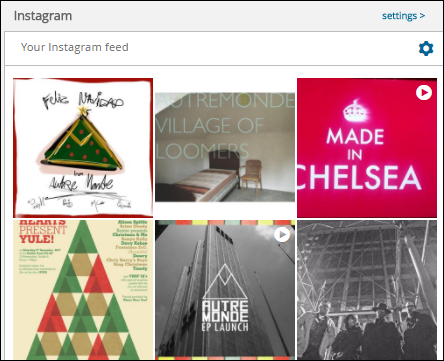
- In a browser window, go to SnapWidget.
- Follow the steps to create a new Instagram widget.
- In TopClass, go to System Administration > System Settings.
- Click Social Media.
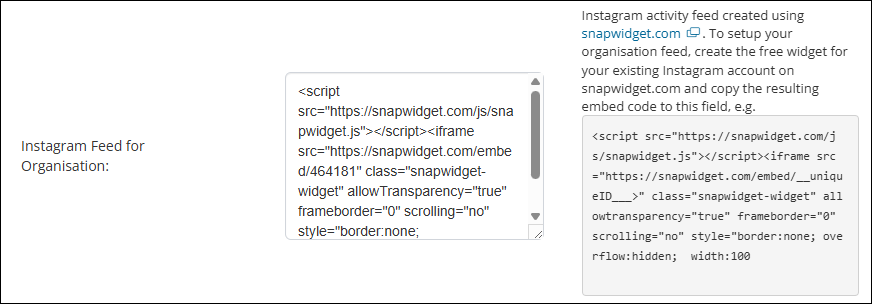
- In the Instagram Feed for Organisation field, input the code snippet created in SnapWidget.
- Click Save.
Facebook
The Facebook widget displays the organisation's Facebook account feed.
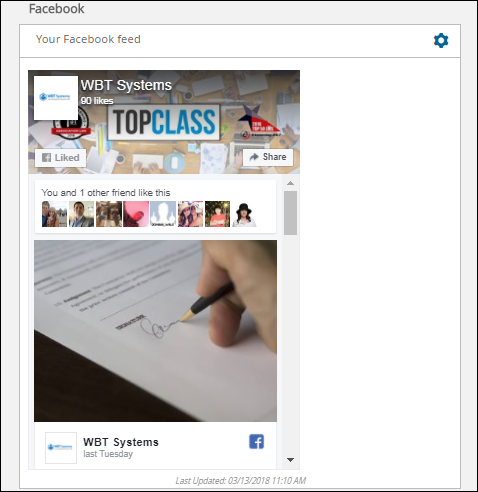
To set the Facebook account feed used in the Facebook widget, do the following:
- Go to System Administration > System Settings.
- Click Social Media.
- In the Facebook Feed for Organisation field, input the account handle.

- Click Save.
X
The X widget displays the organization’s X (formerly Twitter) account feed.
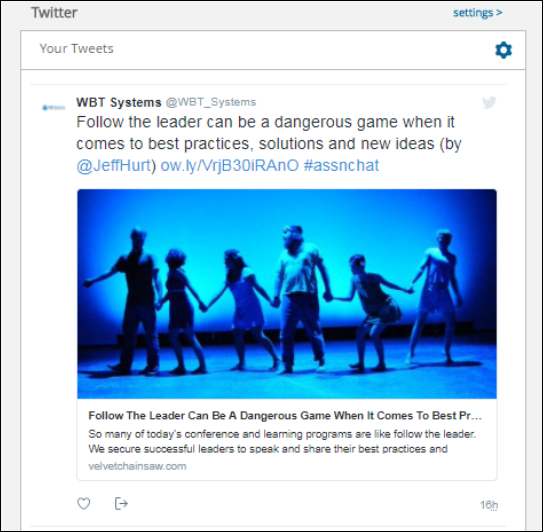
To set the X account feed used in the X widget, do the following:
- Go to System Administration > System Settings.
- Click Social Media.
- In the X Feed for Organisation field, input the account handle.

- Click Save.
NoteTo add social media widgets to the landing page and login page see Landing Page - Learning widgets and Configuring the Login Page for details.
Updated 5 months ago