

Using Peer Review assessments
TopClass Peer Review functionality provides administrators with the ability to assign up to four instructors to evaluate a learner's test submission.
Enabling Peer Review Settings
To enable Peer Review settings, do the following:
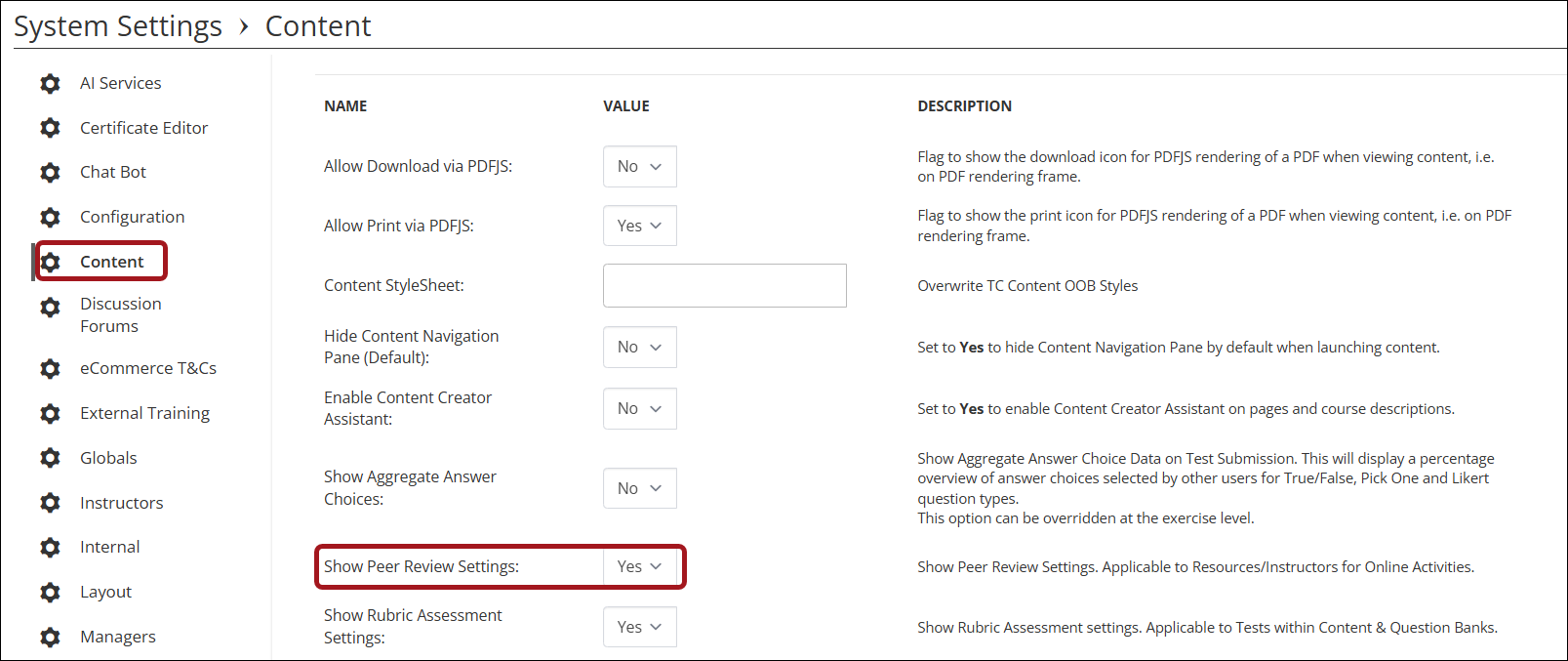
- Go to System Administration > System Settings.
- Under Content, change the Show Peer Review Settings to Yes.
Assigning Instructors for Peer Review
To assign instructors to peer review a learner's submission, do the following:
-
Go to the Learning Activity > Resources > Instructors.
-
Enable Peer Review.
-
Click Add and select all possible instructors for the learning activity.
-
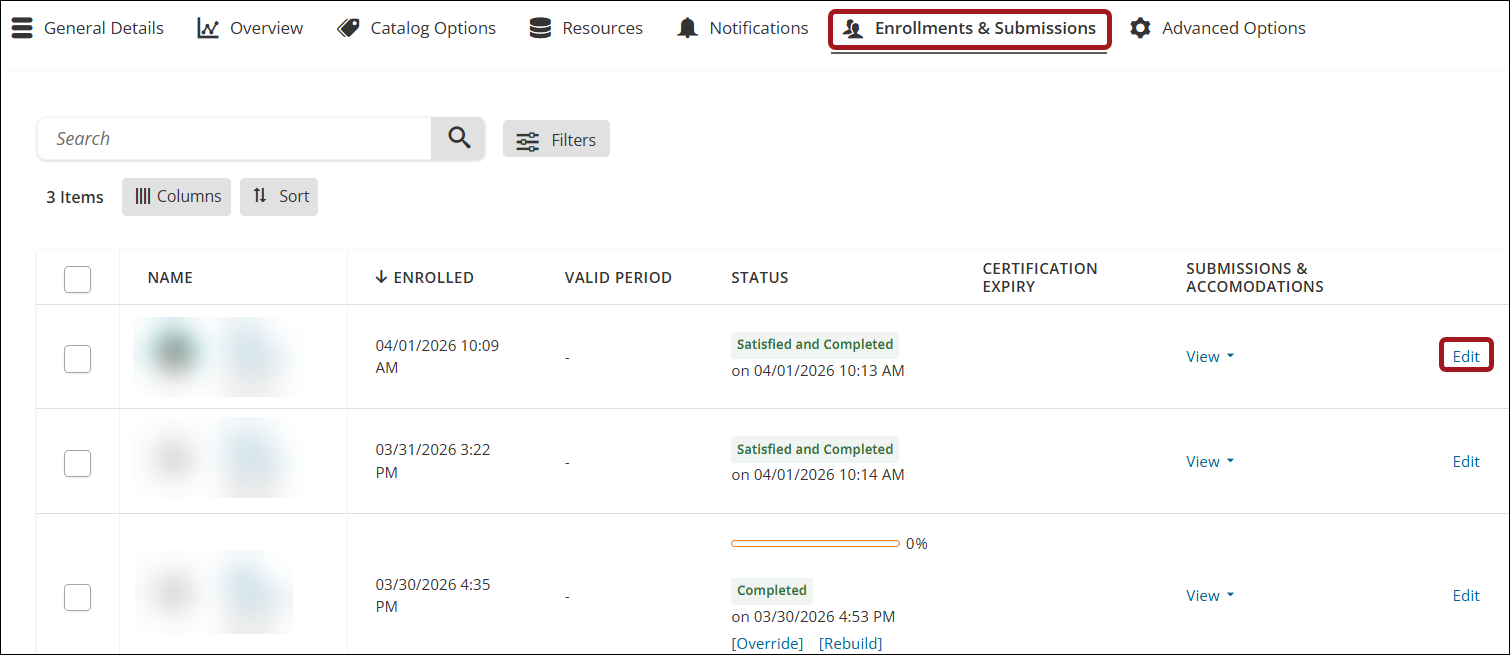
Click the Enrollments & Submissions tab.
-
Click Edit beside the relevant learner.
-
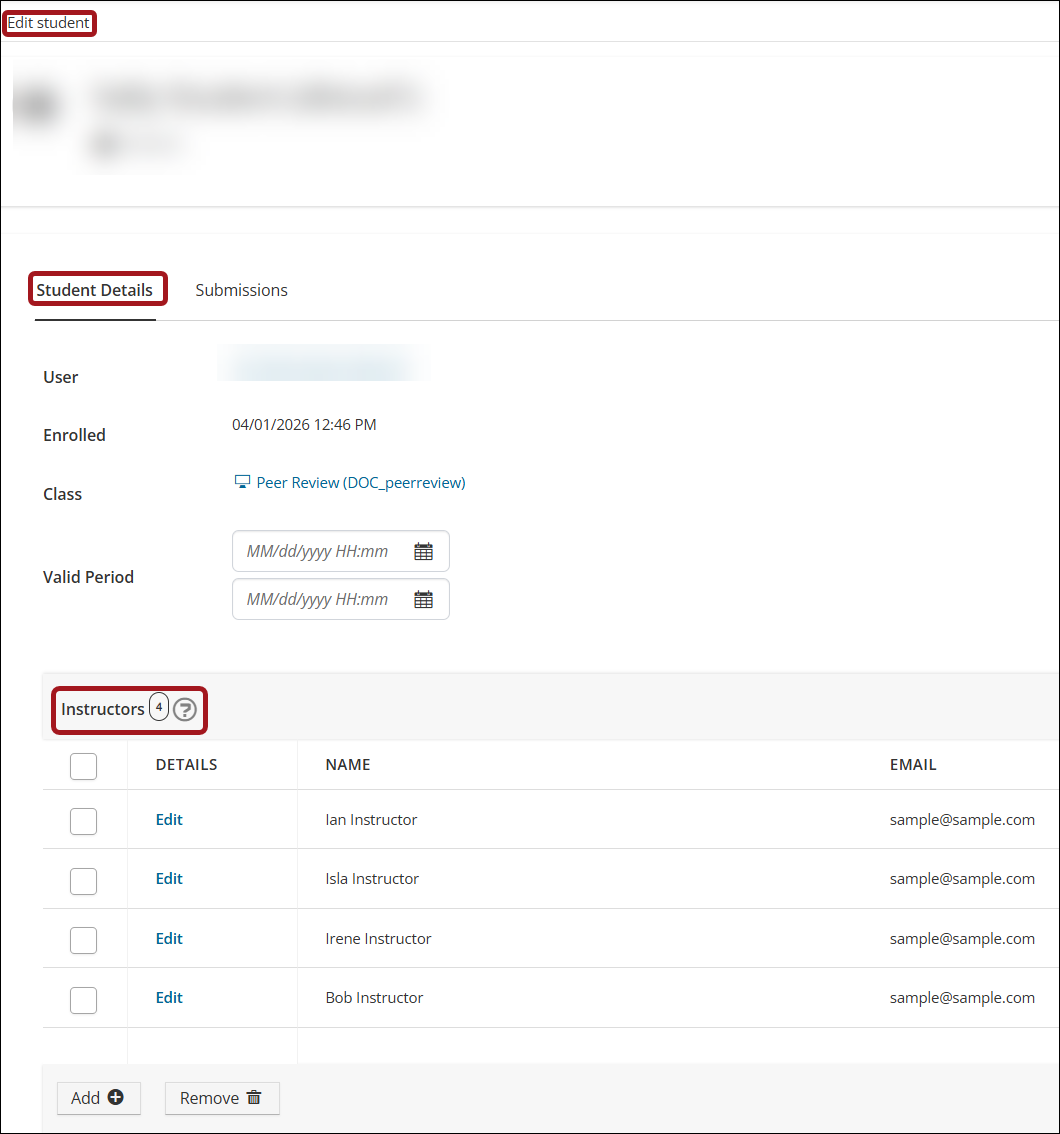
Under the Student Details tab > Instructor, click Add.
-
Click Save.
To navigate back to the learning activity, select Class.
Viewing the Peer Reviewed Submission as an Instructor
When a learner makes a submission for a learning activity marked as peer review, it will appear in the relevant instructors' Instructor Center.
To view and assess submissions as an instructor, do the following:
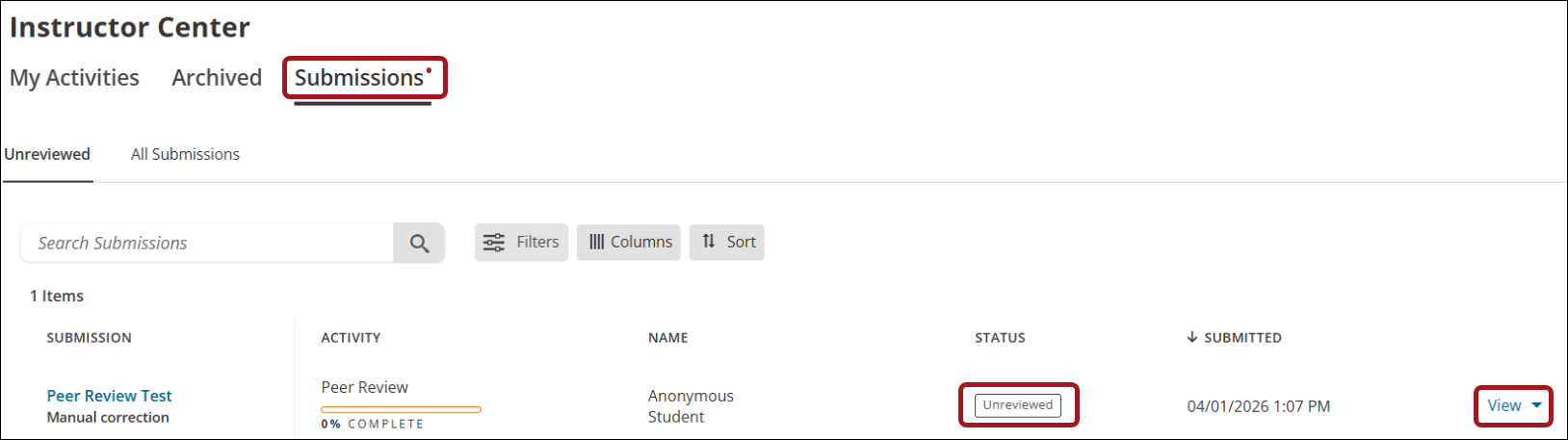
- Go to Instructors Center > Submissions.
- Use the Unreviewed tab to view submissions awaiting assessment, or the All Submissions tab to view reviewed and unreviewed submissions.
- Select View beside the relevant learner.
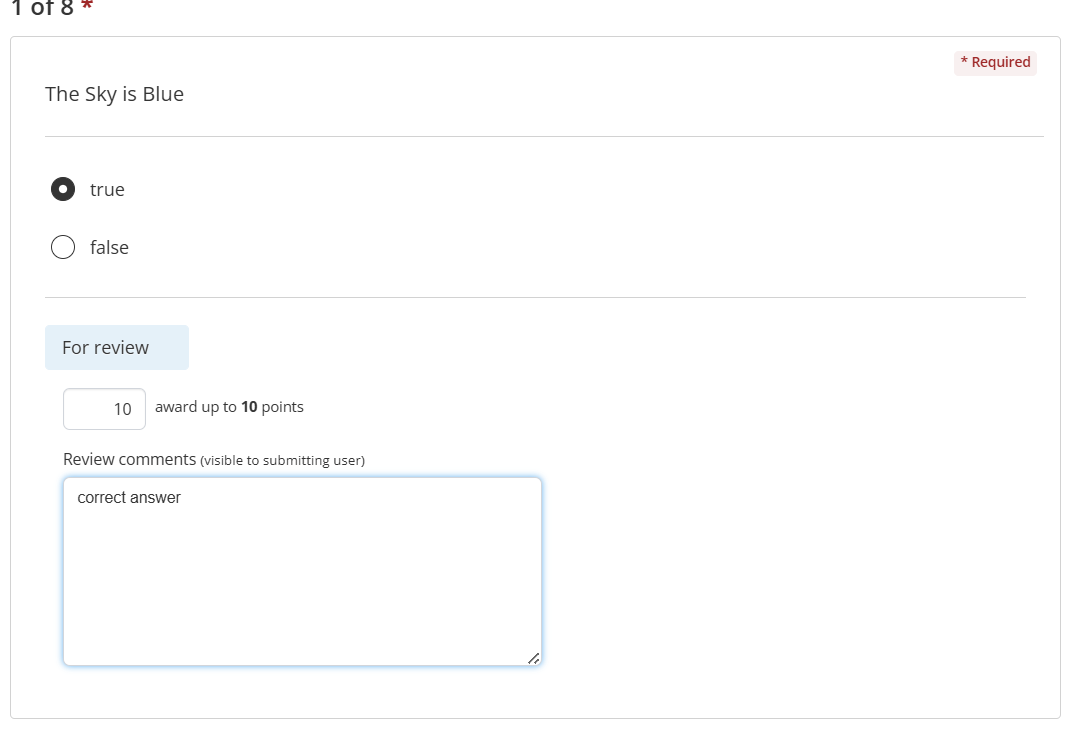
- The instructor will see each answered question and a For Review section.
- Enter the Points to be awarded.
- Enter Comments for the submitting learner.
- When all questions have been graded, click Submit.
The learner will receive a notification each time an instructor grades their submission. Instructor comments (not scoring) can be viewed by the learner on their test submission.
Finalizing a Learner's Peer Reviewed Test Submission
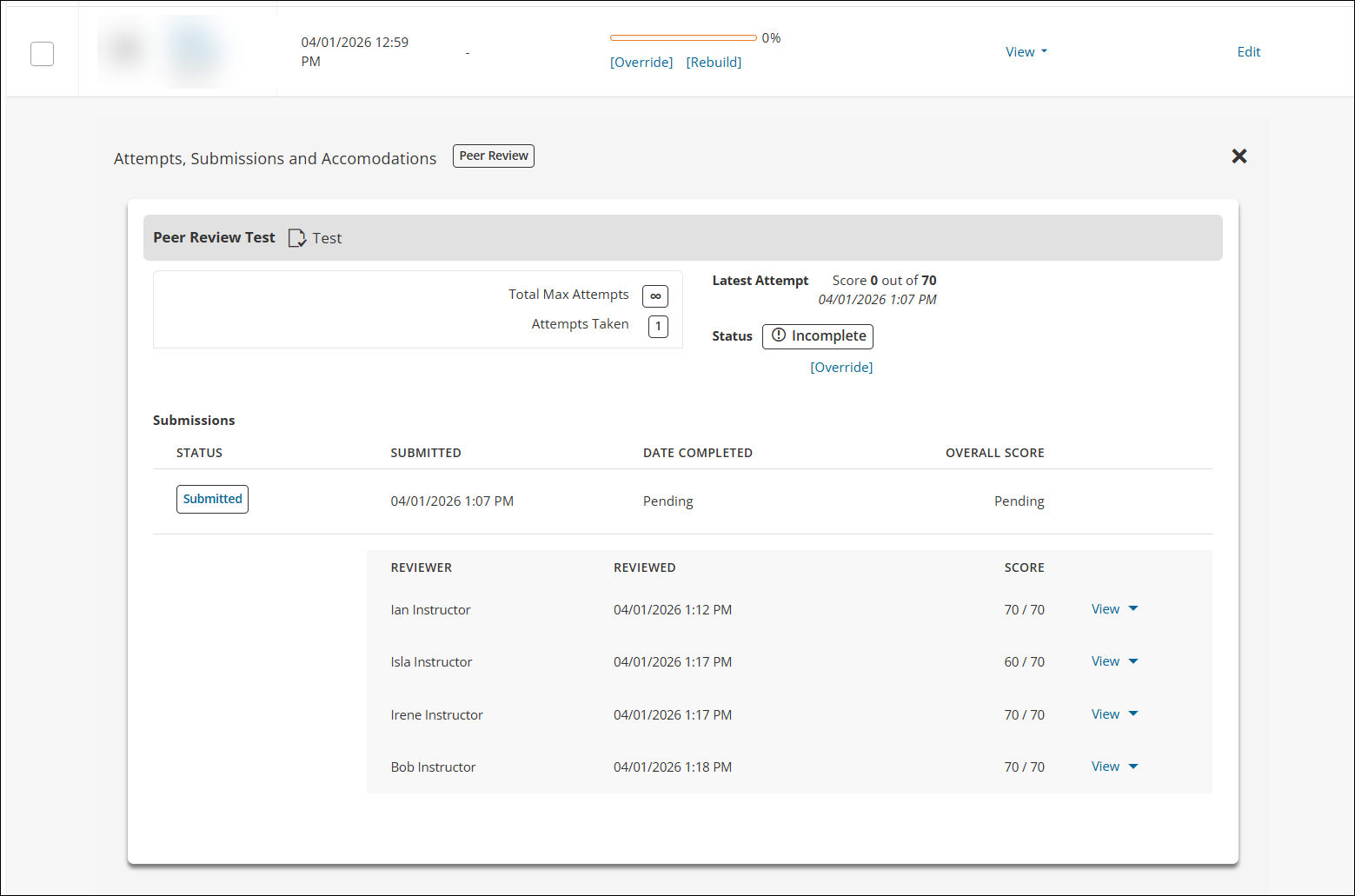
Administrators can track the submission grading via the Enrollments & Submissions tab on the learning activity.
Once all instructors have graded the test submission, the administrator can do the following:
- See an overview of the instructors' grading.
- Select View beside each instructor to see the learner's submission and the instructor's grading and comments.
- Click the More Options (caret) icon to Delete any grade outliers if necessary.
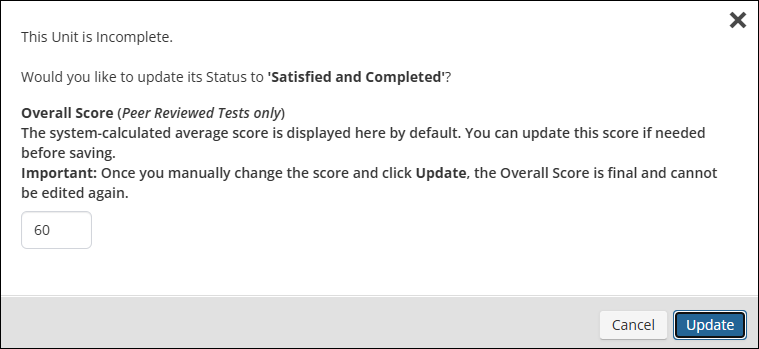
- Once satisfied, click Override.
- The average instructor grade appears by default. Administrators can update the grade, if necessary.
- Click Update to change the status to Satisfied and Completed and allow the submission to roll up.
Warning
Once the submission has been rolled up, the the overall score is final and cannot be edited again.
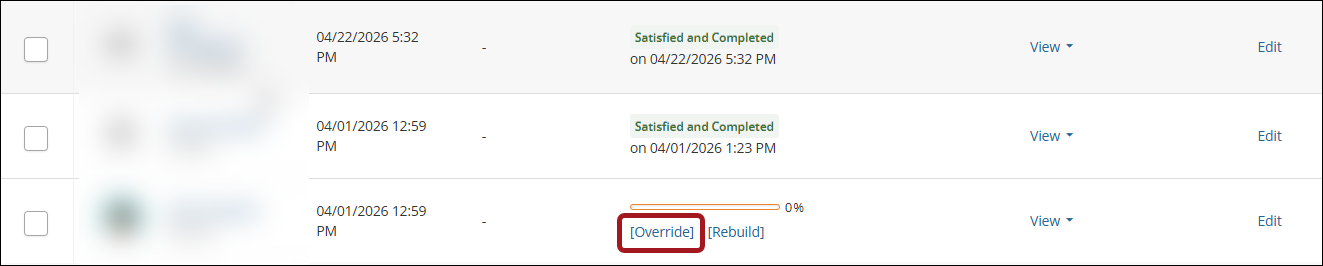
When all individual submissions has been marked as Satisfied and Complete, the learning activity status must be manually updated.
-
Click Override next to the learner on the Enrollments & Submissons tab.
-
Click Save.
-
The activity will roll up and be marked as Satisfied and Complete.
Updated 25 days ago