

Creating certificates
Creating a certificate template
Creating certificate templates provides a pre-designed layout for course completion awards, cuts down on administrative load and ensures brand consistency.
To create a certificate, do the following:
-
Go to Resource Management > Certificates.
-
Click Create.
-
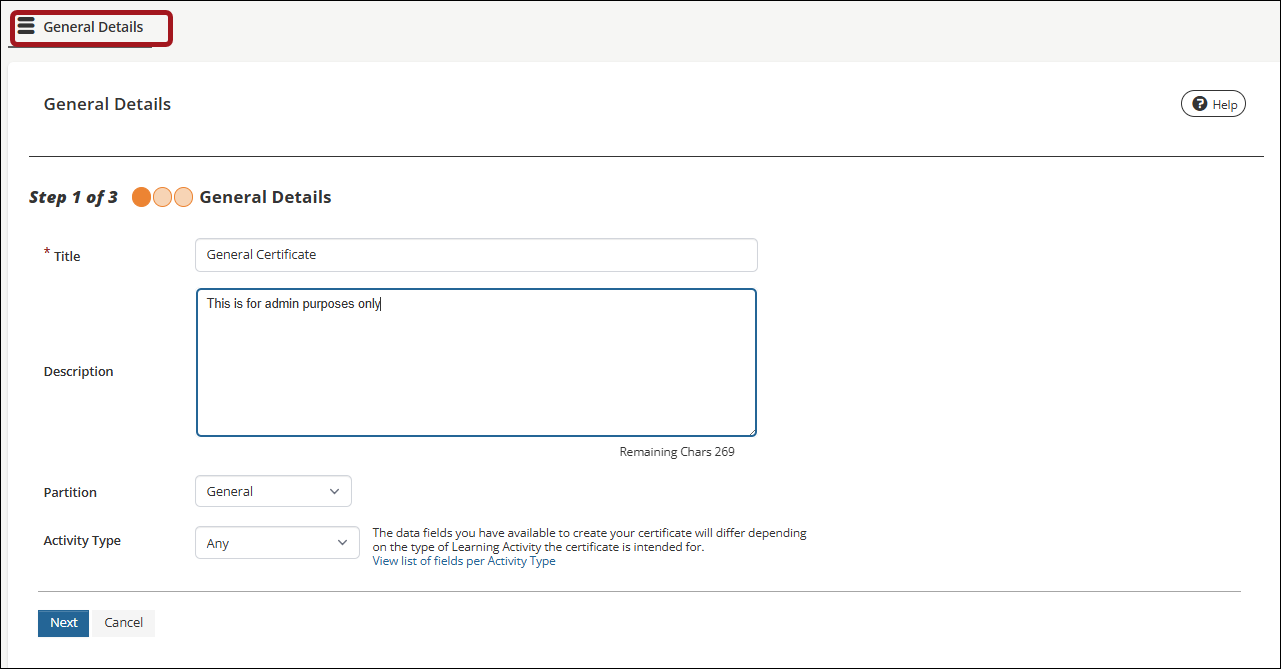
Under the General Details tab, complete the following:
- Enter a Title for the certificate..
- Enter a Description for administrators.
- Indicate the Partition where the template can be accessed from.
- Select the Activity Type that the certificate will be available to.
-
Click Next.
-
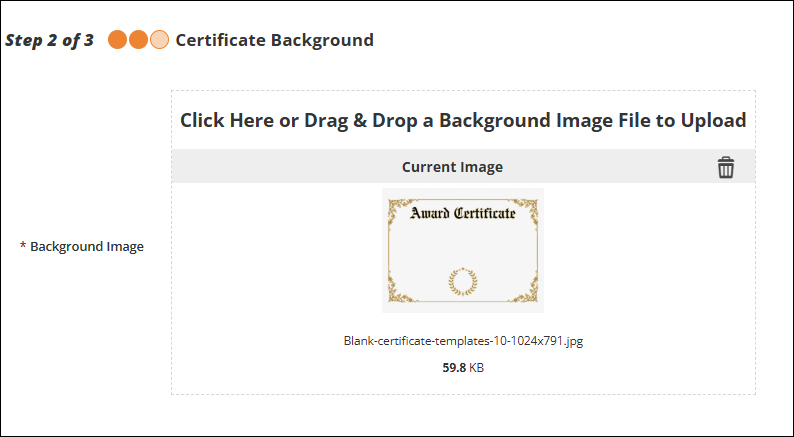
Insert a Background Image for the certificate.
-
Click Next.
-
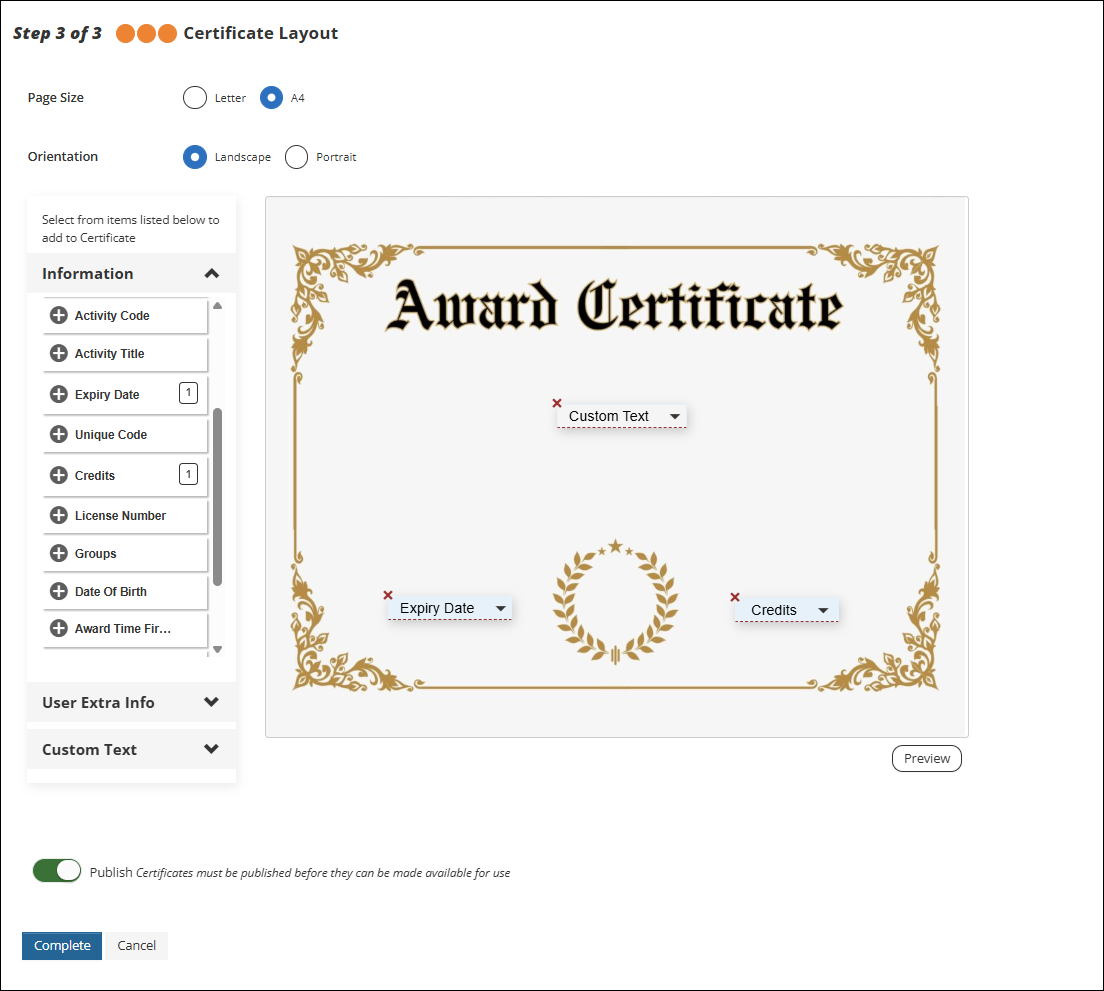
Under Certificate Layout, do the following:
-
Select the Page Size: Letter or A4.
-
Select the Orientation.
-
Add Variables from the left panel lists. Once added, drag and drop the variables into the correct position on the certificate. Use the [x] button to remove unwanted variables.
-
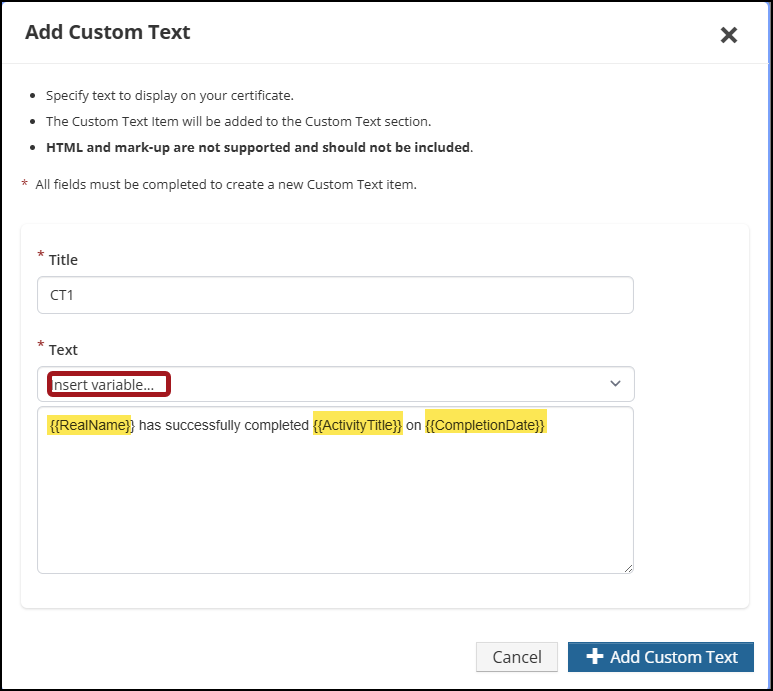
Select Add Custom Text to create customized text to be used on the certificate:
-
Enter a Title for the custom text.
-
Enter the Text to appear. Certificate variables can be included directly into custom text.
-
Click Add Custom Text.
-
-
Click Preview to check variable alignment and review any changes made.
-
Enable the Publish toggle to make certificate available for use.
-
-
Click Complete.
Adding a certificate to an activity
To add a certificate to an activity, do the following:
- Go to the Activity.
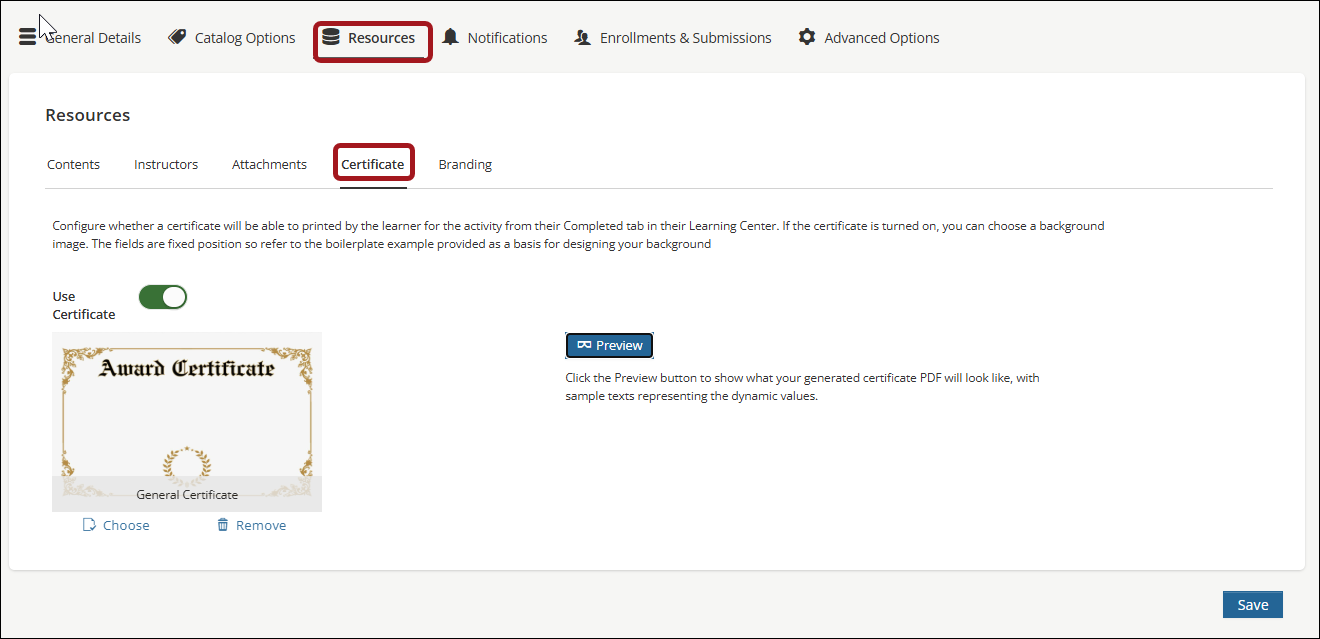
- Under the Resources tab, go to Certificates tab.
- Enable the Use Certificate toggle.
- The default TopClass certificate will appear.
- Click Choose and select the certificate to be used.
- Click Preview to show what the generated certificate PDF will look like, with sample texts representing the dynamic values.
- Click Save.
Updated 25 days ago