

Configuring the Cookie Policy
A Cookie Policy is required to comply with data privacy laws, national and international. It ensures transparency about how user data is tracked, stored and used, and allows users to manage their consent.
To configure the Cookie Policy, do the following:
-
Go to Customizations > Cookie Policy.
-
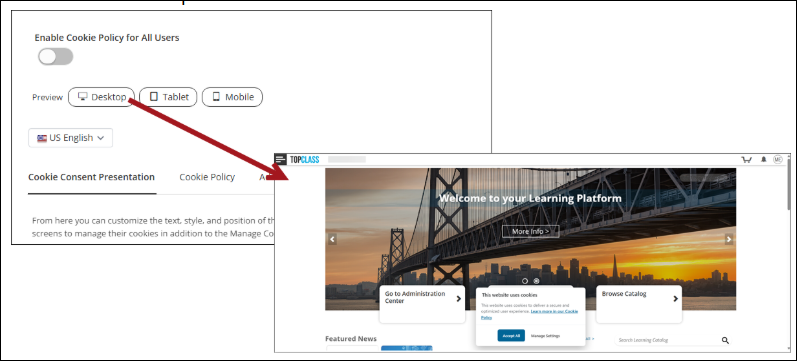
To enable the Cookie Policy for all users, toggle Enable Cookie Policy for All Users to On.
To review the look-and-feel of the Cookie Policy, Save the changes, then choose a Preview option.
-
Language is set as the system default. Use the drop down to add the Cookie Policy for other language variations.
-
To customize the Cookie Policy, navigate the following tabs:

Use the settings on the Cookie Consent Presentation tab to do the following:
-
Select the Cookie Consent Dialog Size:
- Box – The Cookie Policy appears in a small pop-up centered on the screen. Its vertical position is at the top or bottom, based on the selected Screen Alignment.
- Partial – The Cookie Policy banner is centered and spans only the middle portion of the screen. Its vertical position is at the top or bottom, based on the selected Screen Alignment.
- Full-width – The Cookie Policy banner stretches across the entire width of the window. Its vertical position is at the top or bottom, based on the selected Screen Alignment.
-
Under Screen Alignment, set the position of the cookie consent dialog box:
- Bottom – Places the banner at the bottom of the window.
- Top – Places the banner at the top of the window.
-
Enter the Cookie Consent Message to be displayed to users.
-
Customize the color of the Accept Cookies, Reject Cookies and Manage Settings/Cookie Icon buttons within the cookie consent dialog box.
-
To Show Manage Cookie Icon to users on all screens, toggle On.

Use the settings on the Cookie Policy tab to do the following:
-
Set the Cookie Consent Link Text. This specifies the clickable text displayed for the link to your Cookie Policy. This is the text users select to view the full Cookie Policy (for example, Cookie Policy, Learn more, or View details).
-
To edit the Cookie Policy, click Edit Content:
-
Use the Policy Details tab to enter and format the policy.
-
Use the Cookie Details tab to set up any additional cookie details.
WarningUsers will always be shown the required Cookie Details for TopClass. The required Cookie details cannot be modified.
The Additional Cookie Details section will only be visible to end users if additional cookies are configured, e.g. Google Analytics.
-
-
Alternatively, the Cookie Policy URL field can be used to redirect users to an externally hosted Cookie Policy.

Use the Advanced tab to Reset to default settings.
Remember to Save all changes.
Updated 3 months ago