

AI Test Generator
The AI Test Generator helps administrators quickly create draft test questions using AI, based on the following:
- All content within a course,
- A single course item,
- Custom text provided by the user from any source, or
- Video content
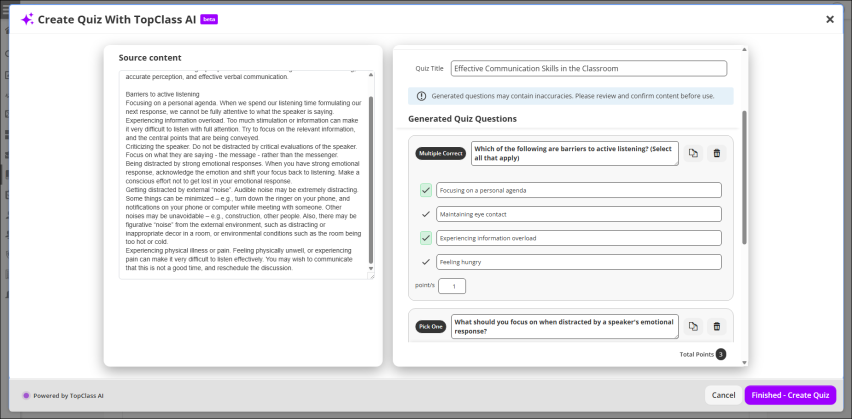
After questions are generated, administrators can review, refine, and add them directly to a test, streamlining the assessment creation process while maintaining full control over the final content. When used with videos, the AI Test Generator can create captions and test questions. The video’s spoken content is first converted to text, which is then used to generate captions and assessment questions.
The AI Test Generator is intended as a starting point for test creation. Generated questions can be edited, removed, or supplemented before publishing to ensure they align with organizational standards and learning objectives.
NoteTopClass includes optional AI-powered features designed to enhance the learning and administration experience. When enabled, AI is used only to support specific application functionality. No personal, private, or identifiable user data is shared with or retained by AI services. All AI usage within TopClass adheres to TopClass data privacy, security, and compliance standards. See the AI addendum in your TopClass Subscription agreement for more information.
Enabling the AI Test Generator
To enable the AI Test Generator, do the following:
- Go to System Administration > System Settings.
- Click the AI Services tab.
- Ensure Enable AI Services is toggled on.
- Set the AI Test Generator value to Yes.
- Click Save. AI services are now available.
Using the AI Test Generator with content and videos
To use the AI Test Generator to create a new test, do the following:
-
Go to Activities and Learning > Content.
-
Open the course.
-
Create a test using any of the following:
All content within the course
- Click the Actions button, then choose Add Course Content.
- Select the AI Generated Course Quiz/Test option.
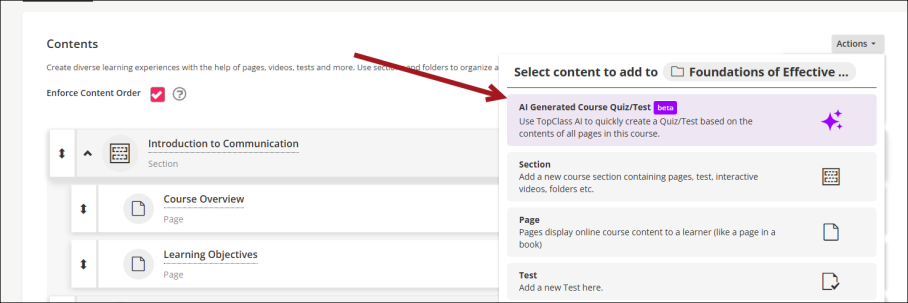
- All content from the course is loaded into the Source content area.
A single course item
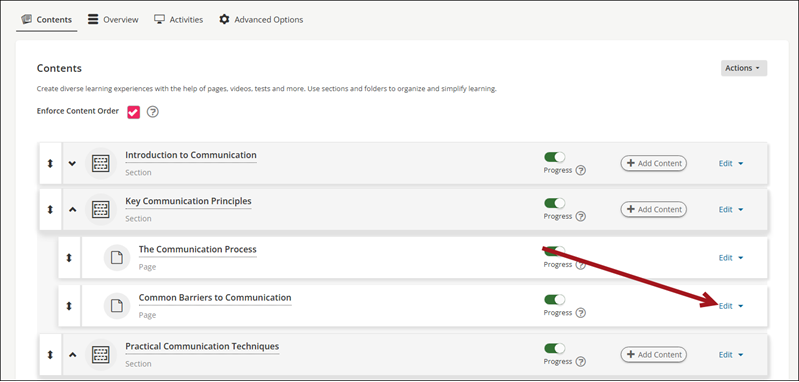
- Select Edit on the related content from which you wish to create a test.
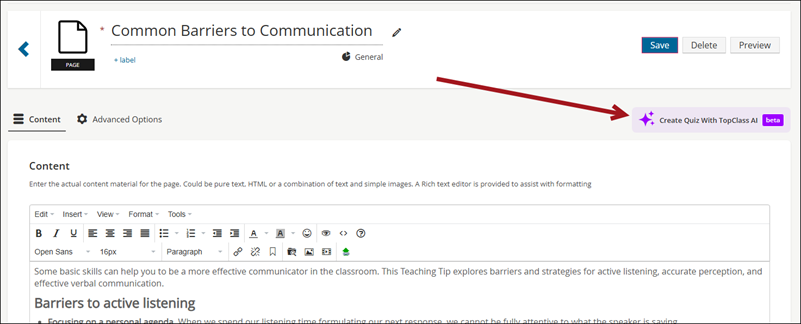
- Click Create Quiz With TopClass AI. The content from the page is loaded into the Source content area.
Custom content
- Click the Actions button, then choose Add Course Content.
- Select the AI Generated Quiz/Test option.
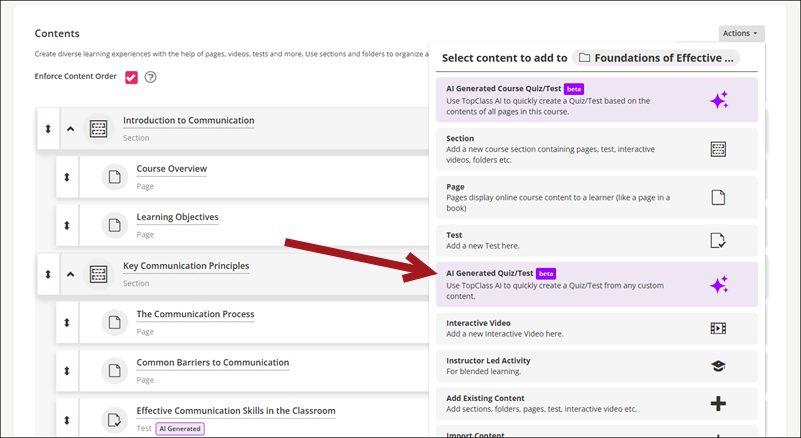
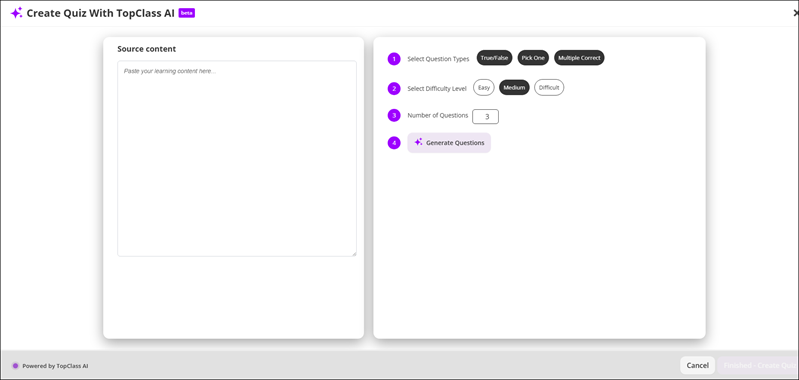
- This opens the quiz generation window with no Source content. Paste the custom content into the Source content text field.
A video
Warning
When you upload a video, our system may use AI to automatically create a transcript and captions. While this technology is very helpful, the results may not always be perfect. Here are a few reasons why:
Audio quality matters - Background noise, low volume, echo, or people speaking over one another can make it harder for AI to interpret speech accurately;
Accents and speaking styles vary - Strong accents, very fast speech, unclear diction, or informal language can lead to misinterpretations;
Technical or specialized terms - Product names, acronyms, industry jargon, or uncommon words may be transcribed incorrectly if they're not widely recognized;
Multiple speakers - AI may struggle to distinguish between different voices or correctly attribute who said what;
Visual context is limited - AI mainly relies on audio. If meaning depends on visuals (e.g., pointing, diagrams, on-screen text), the transcript may miss that nuance.
Please review the transcript and captions before releasing them to students. Small edits can significantly improve the quality of any Test Questions, or captions generated from the transcript.
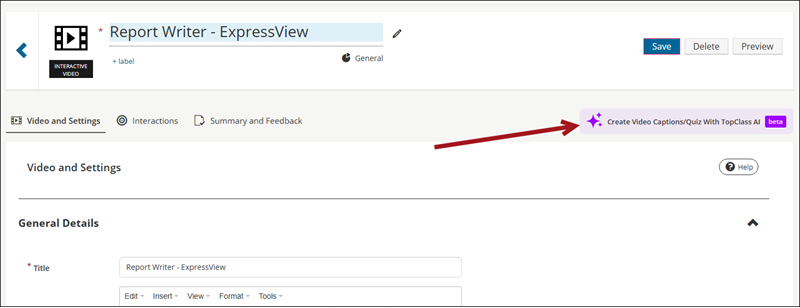
- Locate the video content, then select Edit.
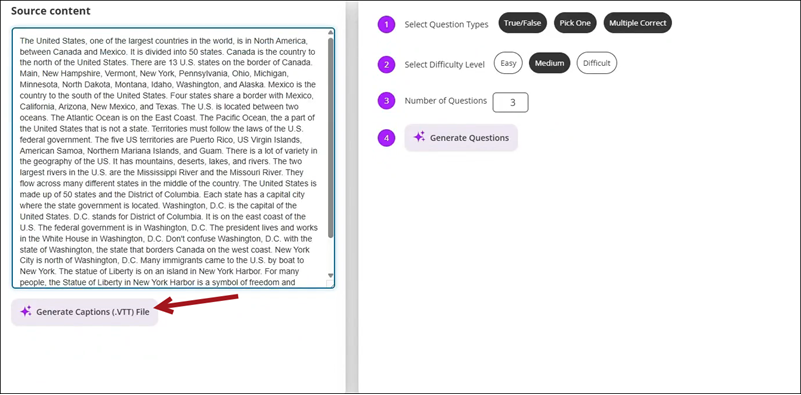
- From the Video and Settings tab, click Create Video Captions/Quiz With TopClass AI. The video’s spoken content is converted to text that appears in the Source content section.
- Click Generate Captions (.VTT) File to create captions for the video. The file can then be associated with the interactive video by clicking Assign Captions (.VTT) File to Video.
-
The following question configuration options are available:
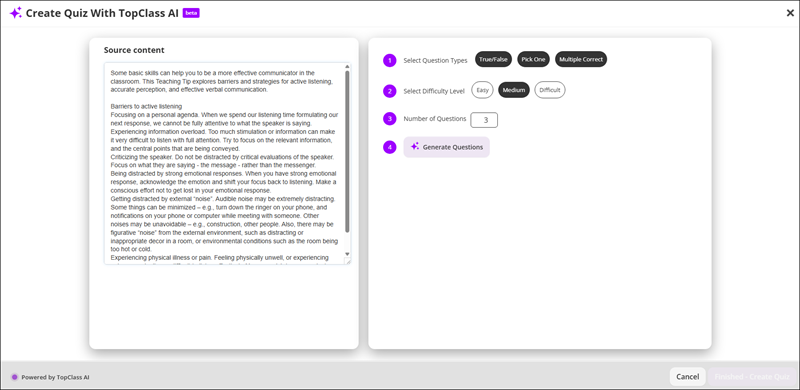
- Select Question Types – The types of questions the AI generator will create. All types are selected by default. The available options are:
- True/False - Generates a question that requires the learner to select either True or False.
- Pick One - Generates a multiple-choice question where the learner must choose one correct answer.
- Multiple Correct – Generates a question that may have more than one correct answer.
- Select Difficulty Level – Choose the difficulty of the questions: Easy, Medium, or Difficult.
- Number of Questions – Specify how many questions you want the AI to generate.
- Select Question Types – The types of questions the AI generator will create. All types are selected by default. The available options are:
-
Click Generate Questions.
-
Once generated, you can review and edit the following:
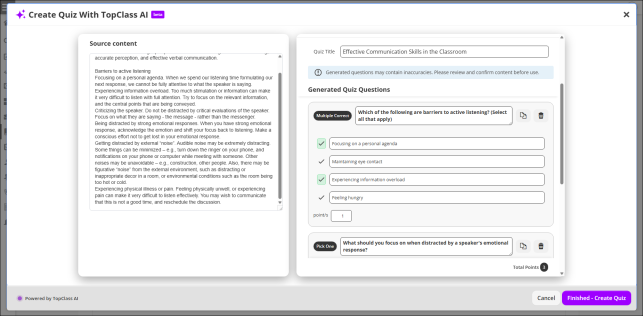
- Quiz Title - Update as needed.
- Generated Quiz Questions – Review each question and answer for accuracy. Make edits where necessary.
- Point/s - Each question is assigned one point by default. Adjust the points per question as needed.
- Copy - Use the copy button to duplicate a question. The copy appears immediately below the original.
- Delete – Use the delete button to remove a question from the quiz.
-
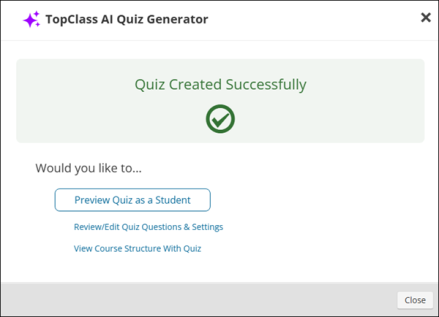
After the test is carefully reviewed, click Finished – Create Quiz. You can then do one of the following:
- Close the pop-up window,
- Preview the quiz as a student,
- Continue editing questions and settings, or
- View the course structure with the newly added quiz.
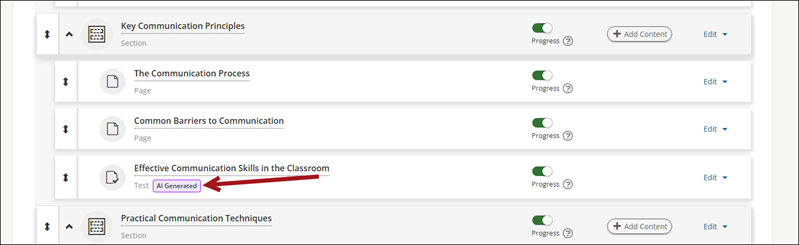
Quizzes created with AI will display a badge indicating they were AI-generated.
Updated about 2 months ago