

Cross Selling
Cross selling gives administrators the option to promote other activities, products, etc. from the catalog that are associated to the current activity a learner is interested in. Optionally, administrators can also offer discounts on these promoted items.
Setting up items for Cross Selling
Do the following to set up items for cross selling:
- Go to Activities and Learning > Learning Activities.
- Open the activity you would like to apply a cross sell offering to.
- Click the Catalog Options tab.
- Click the Promotions and Marketing sub tab.
- From the Cross Sell area, click Add.
- Choose the activities to promote.
- Click Submit.
- (optional) Enter a percentage discount on each promoted offering’s price in the associated Discount field.
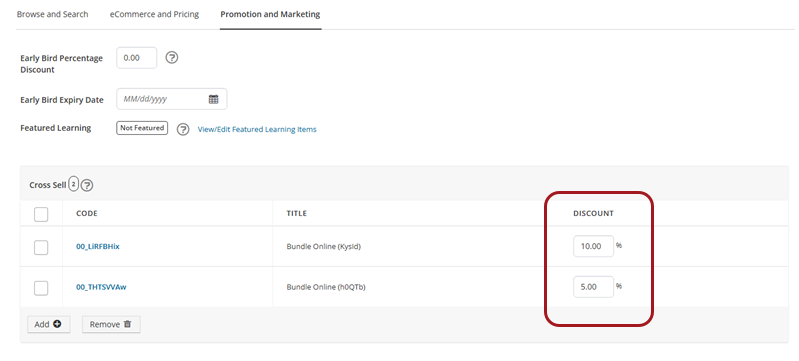
- To remove any Cross Sell offering from the list, select the check box beside that offering’s name, click Remove and confirm when prompted.
Presenting cross-sell promotions to learners
When a learner adds an item to their shopping cart, any defined cross-sell promotions for that item appear within the cart.
From there, the learner can choose to add the promoted offering to their cart as well. If a discount is associated with the promotion, it is automatically applied when the learner purchases the original item.
Example
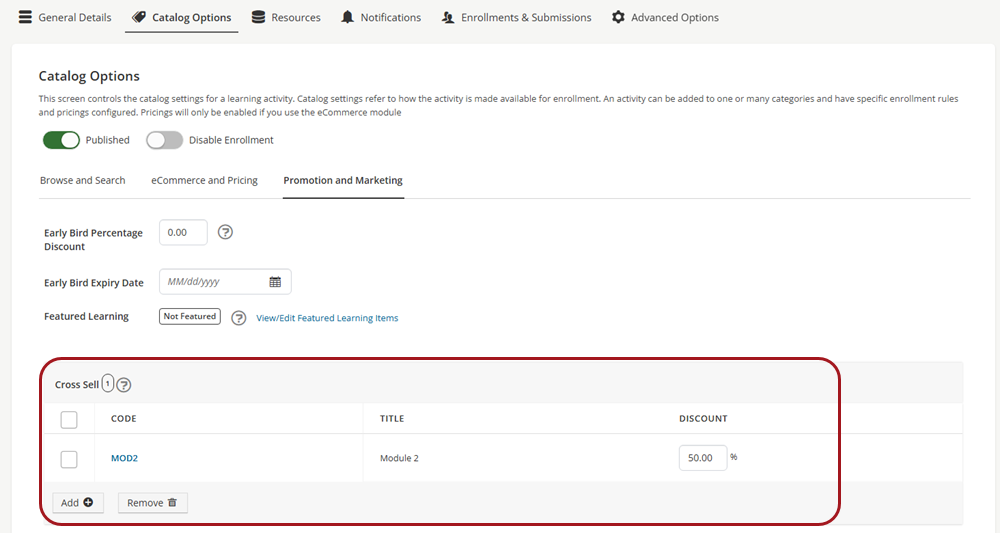
An administrator would like to setup a discounted promotion to learners for Module 1 in TopClass. They will add a 50% discount to Module 2 if learners purchase both activities at the same time.
The default price of Module 2 is 50.00 USD.
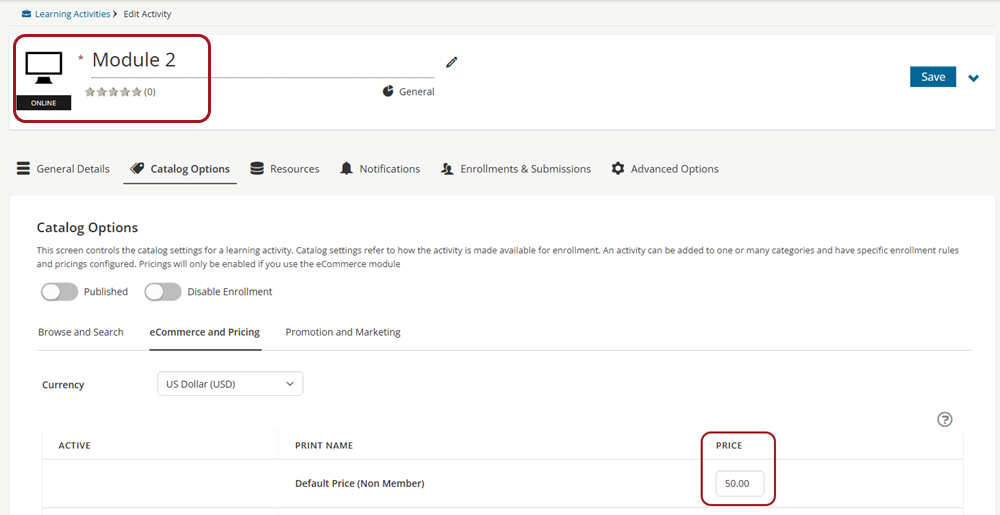
If a learner adds Module 1 to their shopping cart, they will see the option to add Module_2 also at a 50% discount. In this example if they purchase both Module 1 and Module 2 together it will cost only 75.00 USD instead of 100.00 USD separately.
Updated 5 months ago