

Merging User Accounts
Super administrators and administrators with privileges can merge two user accounts together.
For example, a learner may have the following:
- An old account containing completed learning records and other details
- A newer account with required learning and/or completed learning
Merging these accounts combines all records into a single user account, ensuring no data is lost.
WarningMerging user accounts cannot be reversed. Remember to confirm both the source and destination user accounts before merging.
To merge user accounts, do the following:
-
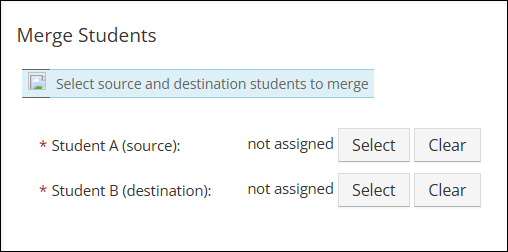
Go to System Administration > Merge Students.
-
Under Student A (source), click Select and choose the source user.
NoteThe source user account will be removed after the merge and the completed learning information from this user account will be transferred to the destination account.
-
Under Student B (destination), click Select to choose the destination user.
NoteThe destination user account will remain after the merge and will contain both the preserved user information and the transferred completed learning information from the source user account.
-
Click Merge Students.
Troubleshooting Merge Scenarios
Why Your Merge May Have Failed
Review the following issues to understand why a merge may fail.
| Issue | Source User | Destination User | Result | Error | Resolution |
|---|---|---|---|---|---|
| Source user has administrator permissions | Student + Admin | Student | Merge not allowed | Merge is not possible: The source user 'Student A' has administrator permissions | Remove administrator permissions from the source user, complete the merge, then reassign permissions if needed. |
| One or both users are currently logged in | Student | Student | Merge not allowed | Merge is not possible: Cannot merge currently logged in user | Ask the user to log out, then retry the merge. |
| Both users are enrolled in the same activity (in progress) | Student (enrolled) | Student (enrolled) | Merge not allowed | Merge is not possible: The source user is enrolled in activities where the target user is also enrolled | Remove one user from the activity enrollment, then retry the merge. |
When Merging is Successful
The following situations outline successful merge scenarios.
| Situation | Source User | Destination User | Result |
|---|---|---|---|
| Destination user has administrator permissions | Student | Student + Admin | Merge successful |
| Both users have completed the same activity | Student (completed activity) | Student (completed activity) | Merge successful; both completion records are retained |
| Re-enrollment is enabled and both users have activity history | Student (completed and re-enrolled) | Student (completed activity) | Merge successful; all completion records are retained |
Updated 4 months ago