

Importing SCORM content
TopClass supports the import of SCORM 1.2 content packages in zip file format.
NoteArticulate Connected Packages for SCORM 1.2 content are supported in TopClass.
As Connected Packages is currently an Articulate Labs feature and remains under active development, customers should continue to monitor Articulate's release communications for any future enhancements or changes to the capability. Visit Articulate 360 for details.
To import SCORM content do the following:
- Go to Activities and Learning > Content.
- Click Import.
- Use Select File to choose the SCORM package.
- Select whether to Mark Scorm/ Tincan/ Aicc as Non-Scorable Content and ensure the content package is not classified as an assessment. For example, SCORM packages used for content delivery and information only. Non-scorable content will not appear on the Submissions tab in the Learning Center and will be excluded from reports used for assessment data.
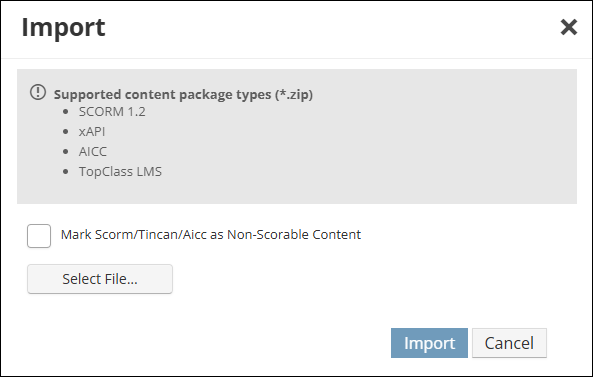
- Click Import.
The following message will appear on screen as the SCORM package is imported.

Once uploaded, the SCORM package appears in the content list.

- Click Edit to do the following:
- Add an Introduction to appear to learners before the SCORM exercise begins.
- Use the Settings tab, to configure the following:
- Total points for Test
- Satisfy Score
- Hide Pass/Fail Message
- Hide Test Score
- Test Type
- Test Pass Result Message
- Test Fail Result Message
- Mark Scorm/Tincan/Aicc as Non-Scorable Content
See Creating and Configuring Tests for details on each setting.
- Under Advanced Options, do the following:
- Use the Advanced tab to Add Action to the SCORM. See Creating and Configuring Tests - Triggering Additional Actions Once a Test Has Been Completed for details.
- Under the Extra Info tab, configure the following:
- Content Embeddable - Should the content be embedded within the TopClass window.
- If embedded, set the Content width.
- If embedded, set the Content height.
- Content Full Screen - If content is in a pop-up, should the pop-up be full screen by default.
- Auto launch Single SCO Courses from Student Pages - If the course has only a single SCORM object in it, should it auto launch from the main learning page when the Launch button is clicked, or take the learner into the standard content navigation window area, where they must follow normal links to launch.
Updated about 1 month ago
Did this page help you?