

Learning Widgets
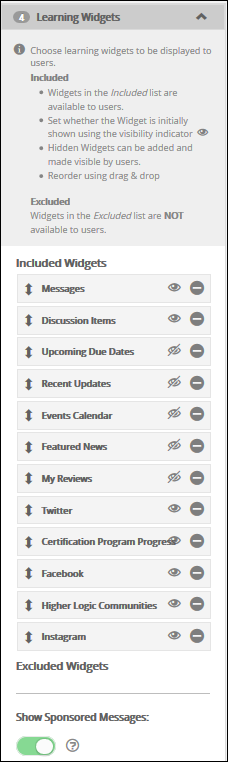
Learning Widgets are interactable widgets that are visible to users on the Landing Page. Administrators can configure and customize Learning Widgets.
To customize the Learning Widgets on the Landing Page, do the following:
- Go to Customizations > Landing Page.
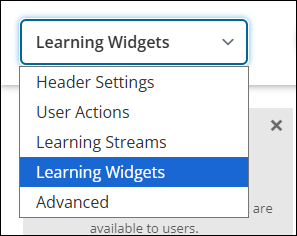
- Choose Learning Widgets from the drop-down.
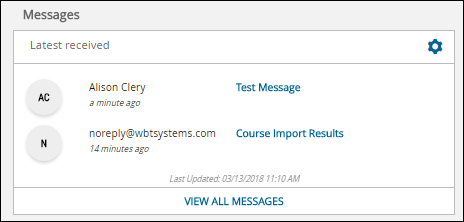
Messages
The Messages widget displays the user's most recent messages in their TopClass mailbox. View All Messages directs to the user's full mailbox.
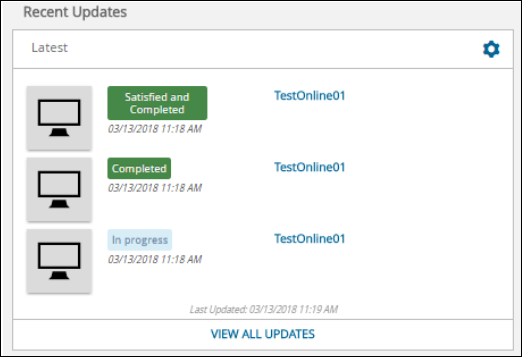
Recent Updates
The Recent Updates widget displays the user's most recent updates to their enrolled Activities.
Badges Showcase
Displays a list of learning badges achieved.
Contact Us
Displays the contact details for the organization administering TopClass.
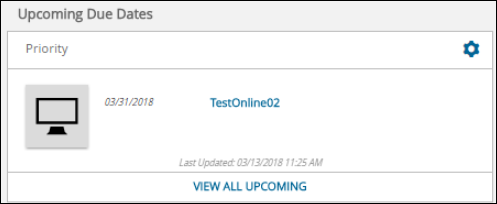
Upcoming Due Dates
The Upcoming Due Dates widget displays a list of the user's upcoming assignment due dates.
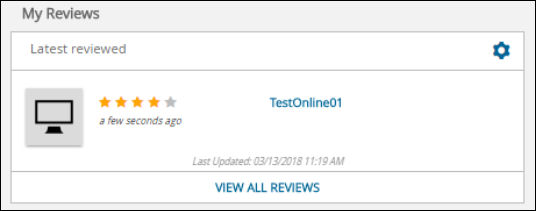
My Reviews
The My Reviews widget displays the user's most recent reviews they have posted.
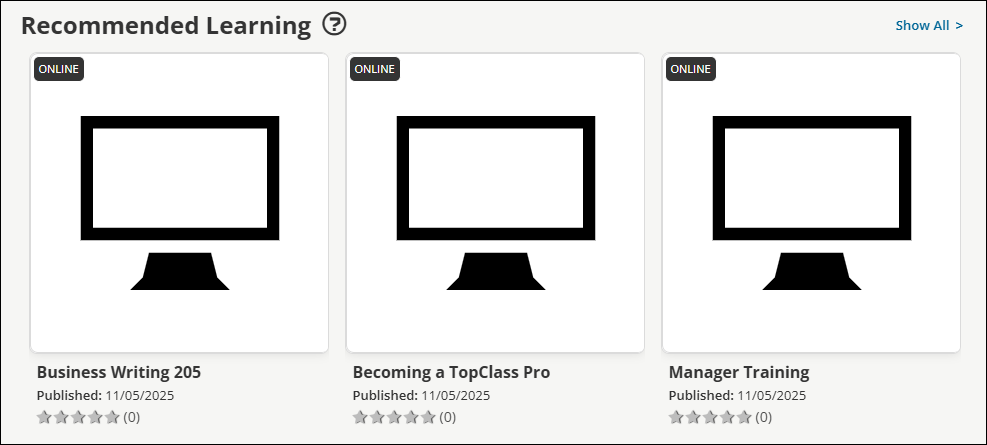
Recommended Learning
The Recommended Learning stream displays a list of all activities recommended for a user based on their engagement with Learning Activities and other content.
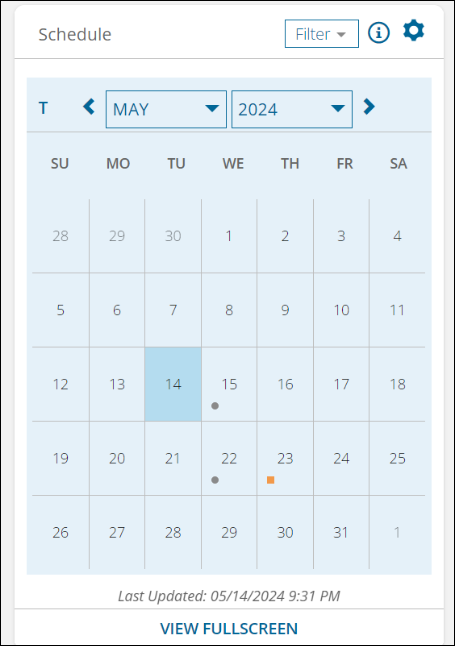
Events Calendar
The Events Calendar widget displays a calendar view of the user's upcoming events and assignment due dates.
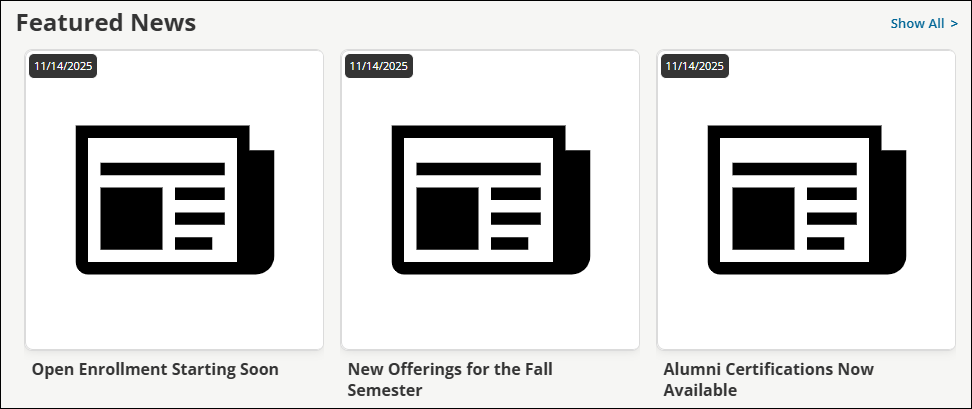
Featured News
The Featured News stream is similar to a blog, where administrators can add news items that are displayed on all users' Home pages in the Featured News stream.
Higher Logic Communities
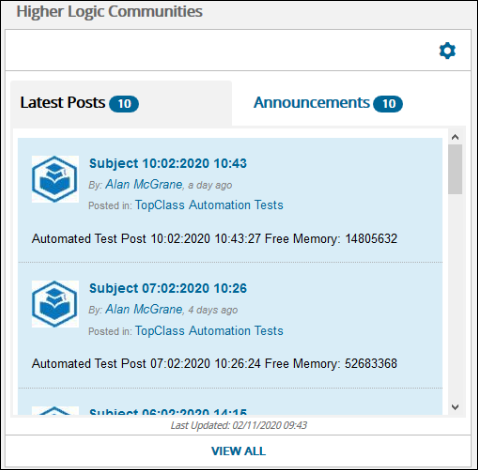
The Higher Logic Communities widget displays a feed of the latest posts and announcements in the user's Higher Logic community.
Certification Program Progress
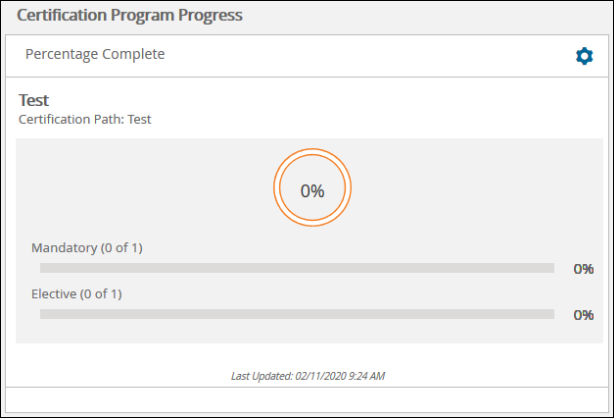
The Certification Program Progress widget provides information on the user's progress through their Certification Programs.
Discussion Items
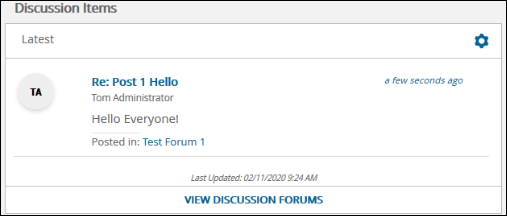
The Discussion Items widget displays a feed of the latest Discussion Forum posts that the user has access to. View Discussion Forums directs the user to the Discussion Forums.
My Credits Tracker
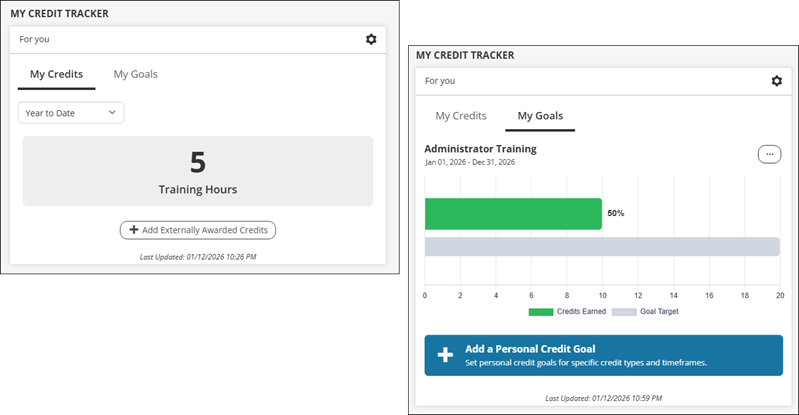
The My Credit Tracker widget gives learners a centralized way to track earned credits without relying on certifications. The widget provides a clear, at-a-glance view of credits earned by type within a configurable timeframe, helping users stay informed and motivated throughout the year.
To support ongoing learning objectives, users can also set personal credit goals directly within the widget. Goals can be defined by credit type and timeframe (for example, earning a specific number of CPD credits within a calendar year). Progress toward each goal is visually tracked, making it easy for users to see how close they are to achieving their targets.
See Using the My Credit Tracker widget for more information.
X
The X widget displays the organization’s X (formerly Twitter) account feed.
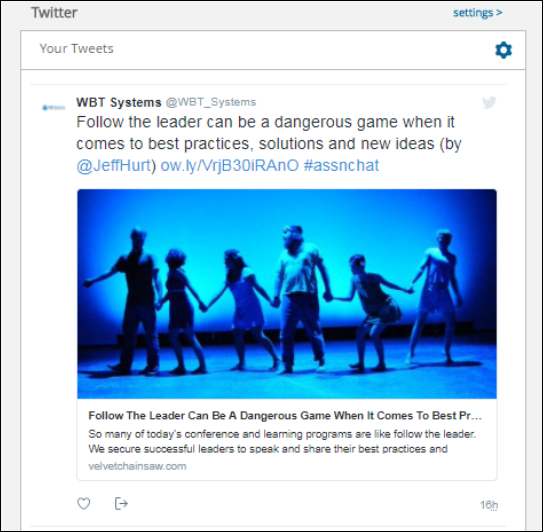
To set the X account feed used in the X widget, do the following:
- Go to System Administration > System Settings.
- Click Social Media.
- In the X Feed for Organisation field, input the account handle.

- Click Save.
Facebook
The Facebook widget displays the organisation's Facebook account feed.
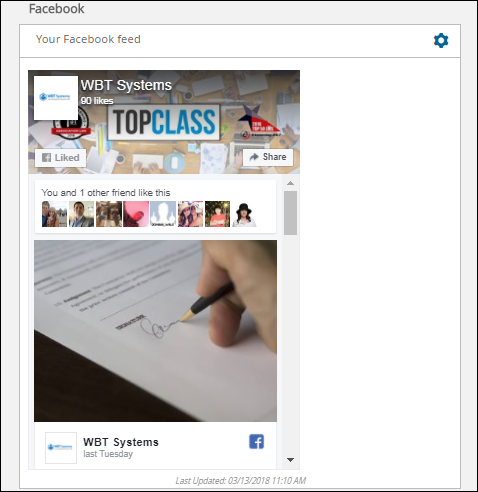
To set the Facebook account feed used in the Facebook widget, do the following:
- Go to System Administration > System Settings.
- Click Social Media.
- In the Facebook Feed for Organisation field, input the account handle.

- Click Save.
Instagram
The Instagram widget the organisation's Instagram account feed.
To set the Instagram account feed used in the Instagram widget, do the following:
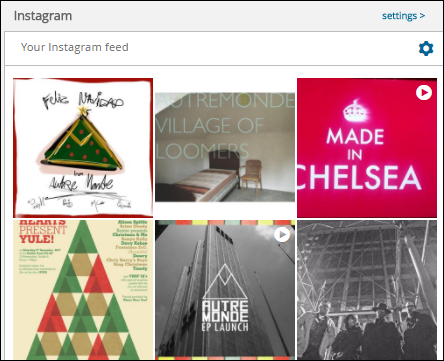
- In a browser window, go to SnapWidget.
- Follow the steps to create a new Instagram widget.
- In TopClass, go to System Administration > System Settings.
- Click Social Media.
- In the Instagram Feed for Organisation field, input the code snippet created in SnapWidget.
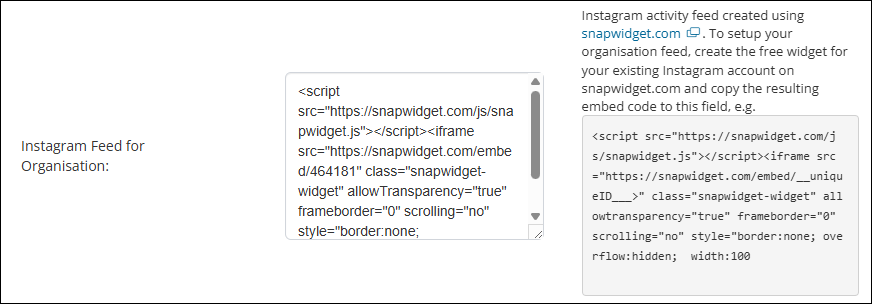
- Click Save.
Sponsored Messages
Toggle on Show Sponsored Messages to enable Sponsored Messages in the Learning Widgets list. Sponsored Messages appear at the top of the Learning Widgets list.
Show Catalog Search Bar
Toggle on Show Catalog Search Bar to enable a Search Learning Catalog search bar in the Learning Widgets list.
Customizing Learning Widgets
Learning Widgets can be reordered using drag-and-drop controls in the Included Widgets list. Learning Widgets that are not included are listed in the Excluded Widgets list.
Select the Remove from Included Widgets (minus sign) icon to remove a widget from the Included Widgets list. Select the Add to Included Widgets (plus sign) icon to add a widget to the Included Widgets list.
Updated 3 months ago