

Replacing a SCORM exercise
If you need to replace your SCORM exercise—perhaps to fix a typo or add a new slide—this update is done outside of TopClass. Once you have your updated zipped file, follow the steps below to replace your SCORM exercise.
Replacing a SCORM exercise
Do the following to replace a SCORM exercise:
- Go to Activities & Learning > Content.
- Navigate to the SCORM folder.
- Within the Contents tab, locate the SCORM exercise.
- Select the Edit arrow icon to reveal the Replace SCORM button, then click it.
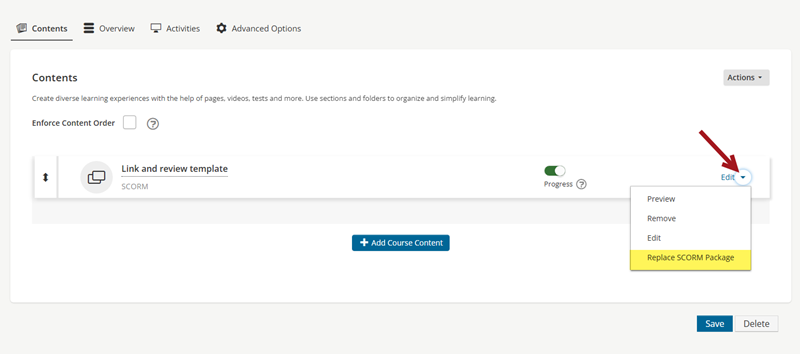
- A pop-up will appear asking you to select a file. Choose your newly exported zipped SCORM file.
- Click Import.
- Your screen will refresh. To return to your course folder, click the Return to Content button. This will take you back to the Course Materials tab of your content folder.
NoteYou can replace a SCORM exercise with a new version of the same exercise (for example, replacing The Ocean SCORM with an updated The Ocean SCORM). You cannot replace it with a completely different SCORM (for example, How to Bake Cookies).
Student View After Replacing SCORM
- Enrolled but not started: Students will see the newly replaced SCORM.
- In progress: If a student has already started the old SCORM, TopClass does not recommend replacing it if possible. Learner progress may vary depending on the changes:
- Minor updates, like correcting a typo, usually do not affect learners.
- Adding or removing slides/pages may reset learner progress. TopClass cannot guarantee that in-progress students will not be affected.
- Completed: Students who have completed the old SCORM will see the new version, but their completion status will not be affected.
Updated 5 months ago
Did this page help you?