

Creating Custom Menu Items
Super Administrators have the ability to add up to three Custom Menu Items.
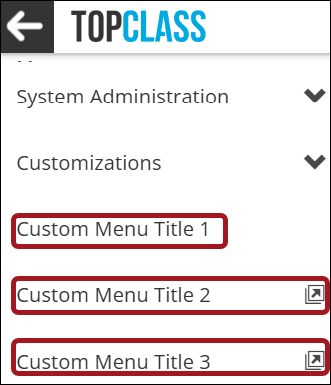
To add a Custom Menu Item, do the following:
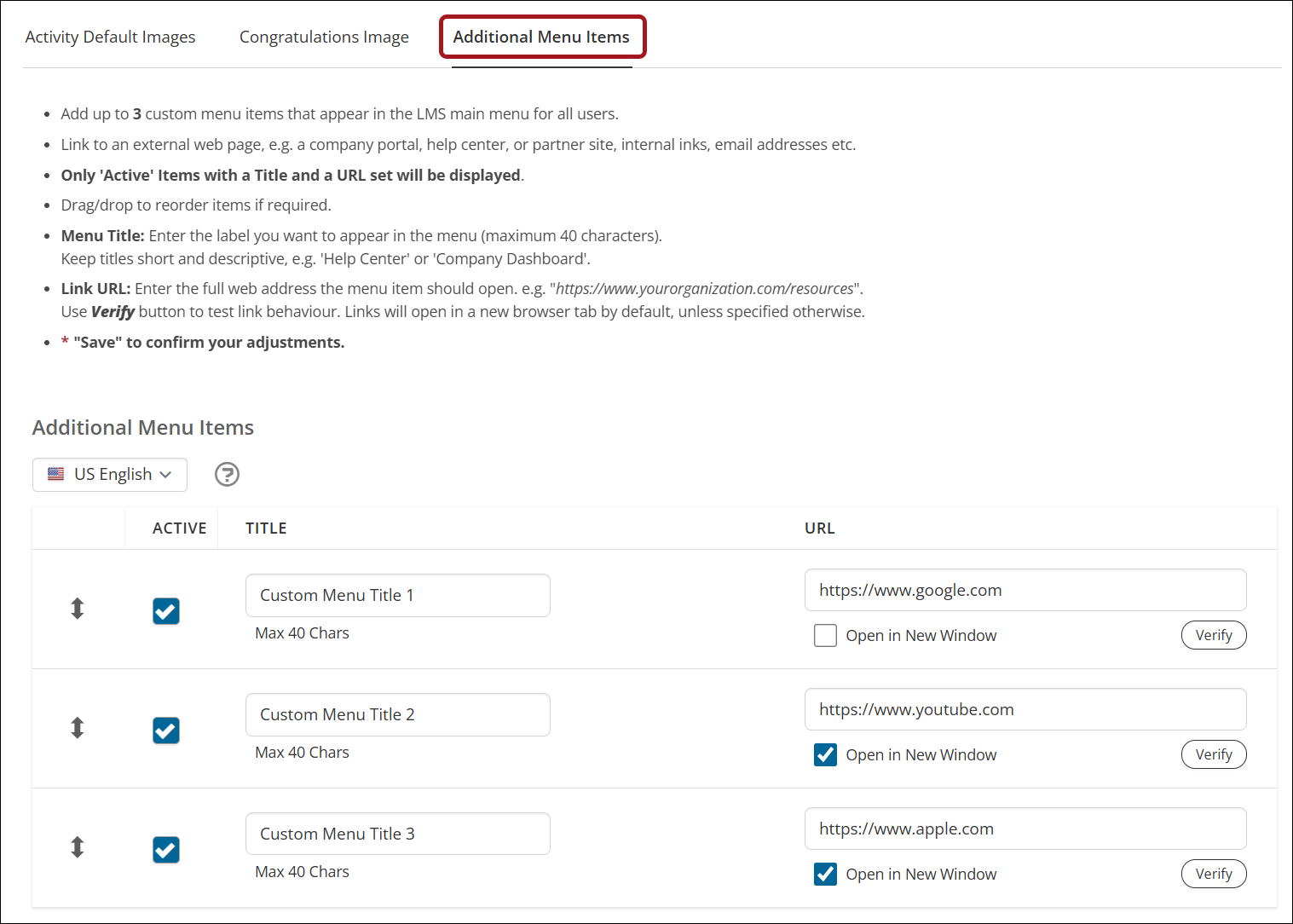
- Go to Customizations > Additional Settings > Additional Menu Items tab.
- The Language drop-down selection defaults to the system default language. Use the language drop-down to add custom menu Title text for other language variations (optional).
Note
If a user has set their default language different to the system default and the language Title text version for the custom menu item has been set, the user will see the language variation Title text. If not, the user will see the system default language Title text version.
NoteThe URL is shared across all languages.
- Edit each custom menu item by doing the following:
- Check the Active flag to enable the custom menu item.
- Give the item a Title.
- Enter the URL link.
- Check the Open in New Window flag to open the link in a new window (optional).A new window icon will automatically appear in the Menu beside this link for users if selected.
- Click Verify (optional) to test the URL link destination.
- Click Apply Changes.
NoteUse the sort arrow icons to re-order the links.
Updated 4 months ago
Did this page help you?