

Customizing Alerts branding settings
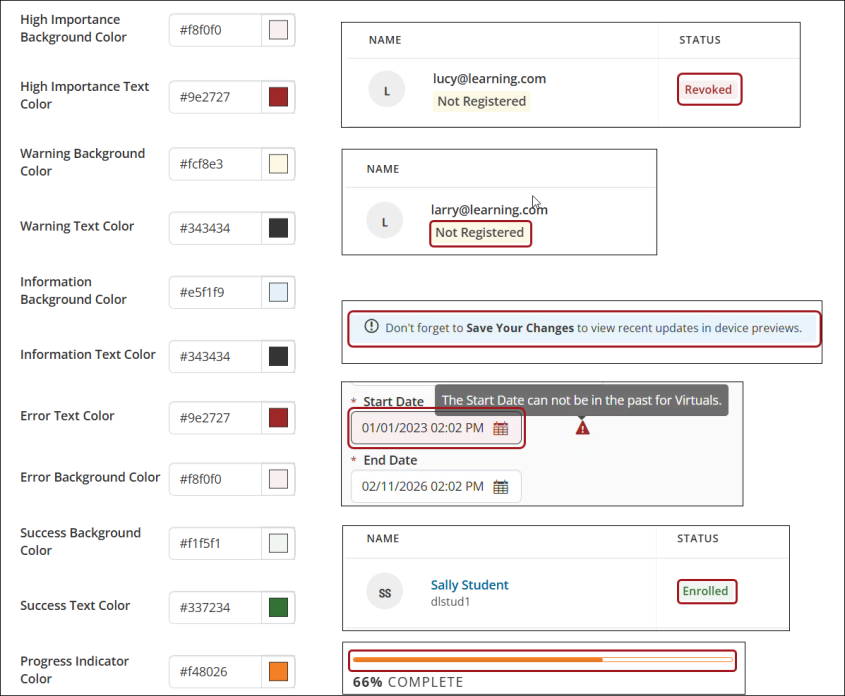
From the Alerts branding tab, you can customize the appearance of system alerts and notifications in TopClass to align with your organization’s branding while maintaining clear visual cues for users. These settings allow you to define background and text colors for high importance, warning, information, error, and success messages, as well as set the color of progress indicators.
By applying hex color codes, you can ensure alerts remain distinct and easy to recognize, reinforce visual hierarchy, and create a consistent, branded experience across all user interactions.

To customize the branding of the alerts, do the following:
-
Go to Customizations > Branding.
-
Click the Alerts tab. Use these settings to modify the appearance of Alerts, Banners, and Status Messages:
NoteIt is recommended to use color combinations that conform to Accessibility Color contrast tests.
-
Click Save. The appearance of the alerts is automatically updated upon saving.
-
To reset a single customization, click Reset. To restore all branding settings to the system defaults, click Reset All at the top of the page.
Updated 5 months ago