

Proctoring in TopClass
TopClass integrates with Integrity Advocate to bring proctoring to TopClass tests and interactive videos. This allows for learners to be recorded while taking a TopClass test or viewing an interactive video, which is then reviewed by the team at Integrity Advocate to determine if the attempt was valid or invalid in relation to the rules specified in your Integrity Advocate account/license.
Enabling proctoring settings
To enable proctoring on TopClass and sync your Integrity Advocate account, submit a Support Ticket.
The following are required to sync your Integrity Advocate account:
- API Key
- API ID
NoteIntegrity Advocate must be advised of your TopClass URL so that it can be added to their allow list.
Configuring proctoring for tests
To configure proctoring on a test, do the following:
- Go to Test Settings > Test Setup.
- Set Proctor Exam to Yes.
- Click Save.
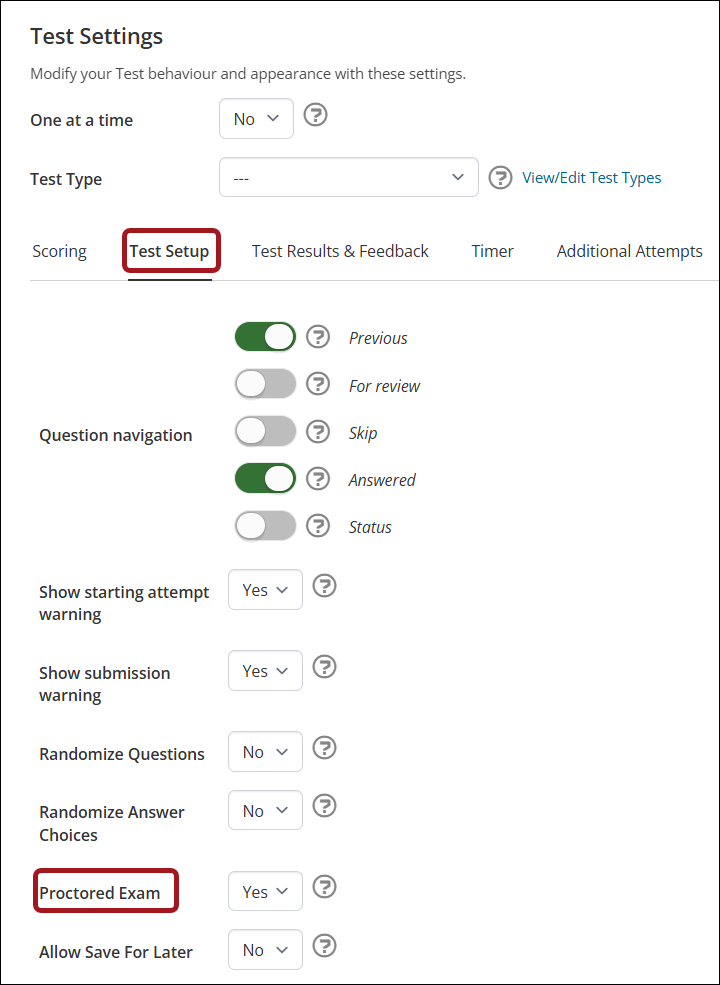
Use the Introduction tab to add explanatory text about the proctored exam for the learner.
NoteIt is not possible to preview the proctoring process for a test once set up. Admin users must enrol into an activity and take the content to see the Integrity Advocate proctoring workflow.
Configuring proctoring for interactive videos
To configure proctoring on an interactive video, do the following:
- Go to Video and Settings > Additional Settings.
- Enable Proctored Video.
- Click Save.
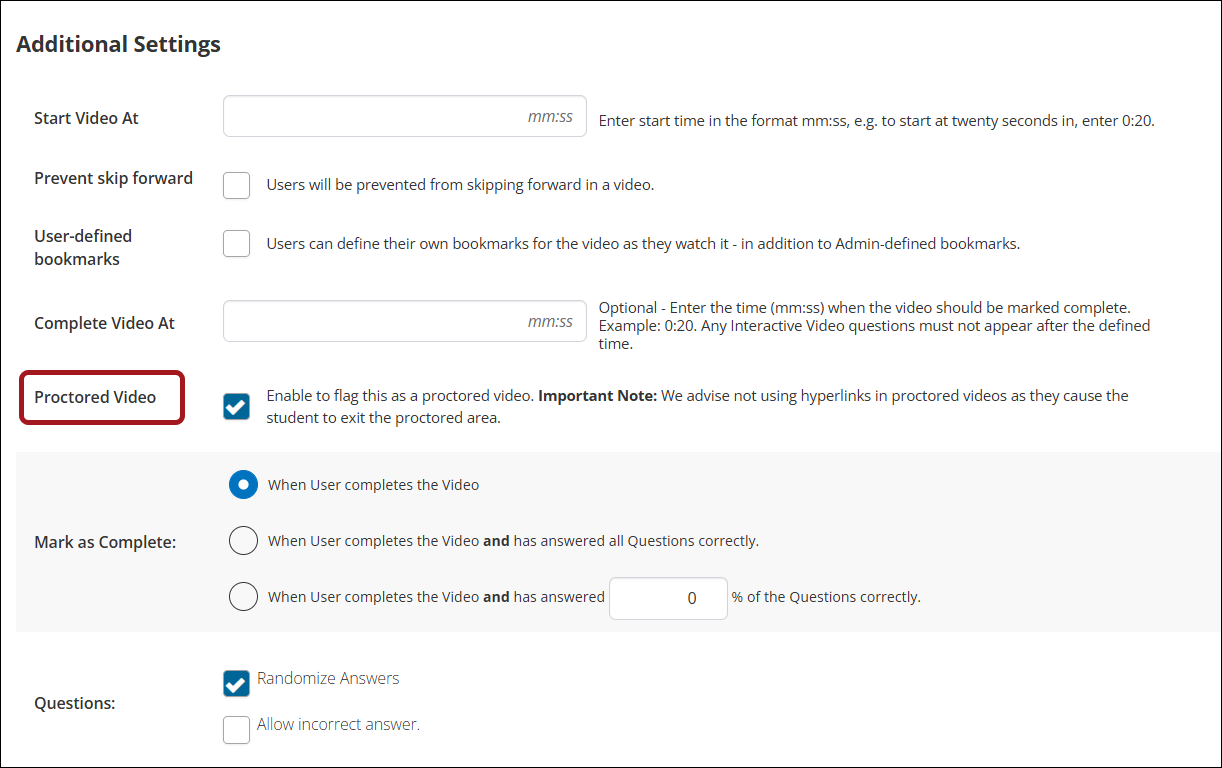
Use the Description field under General Details to add explanatory text about the proctored exam for the learner.
NoteIt is not possible to preview the proctoring process for a test once set up. Admin users must enrol into an activity and take the content to see the Integrity Advocate proctoring workflow.
NoteIt is advised not using hyperlinks in proctored videos as they cause the learner to exit the proctored area.
Managing proctored content
When proctoring is enabled, a new Integrity Advocate tab will be displayed on all Online Activities and Blended Activities. This tab contains an admin widget provided directly by Integrity Advocate that will be automatically filled out with necessary information.
To access the Integrity Advocate tab within an online or blended activity, go to Advanced Options > Integrity Advocate.
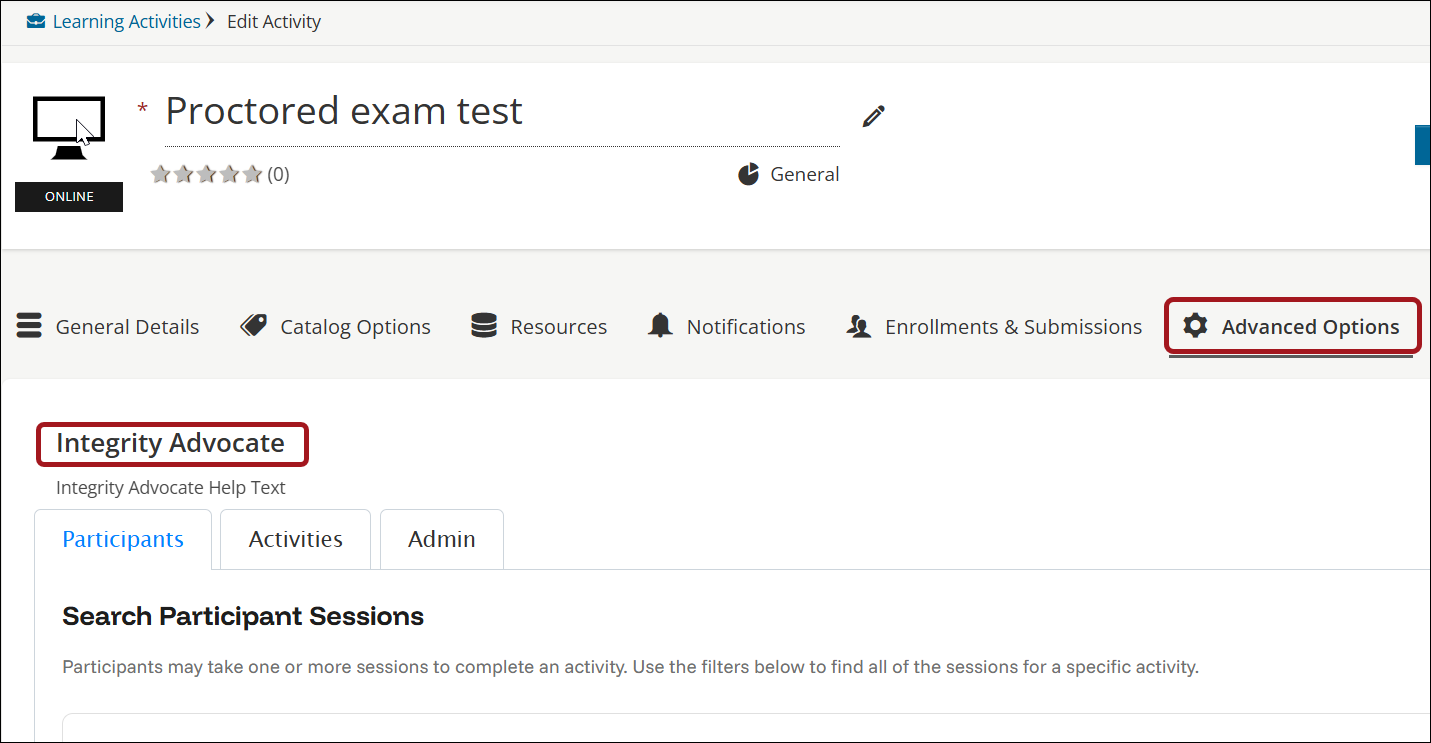
The following tabs are available within the admin widget:
- Participants tab
- Activity tab
- Admin tab
Participants Tab
When the activity is live and learners have completed the associated proctored test or interactive video, a list of participants (enrolled learners), their status and their session start and end dates will be displayed on the Participants tab.
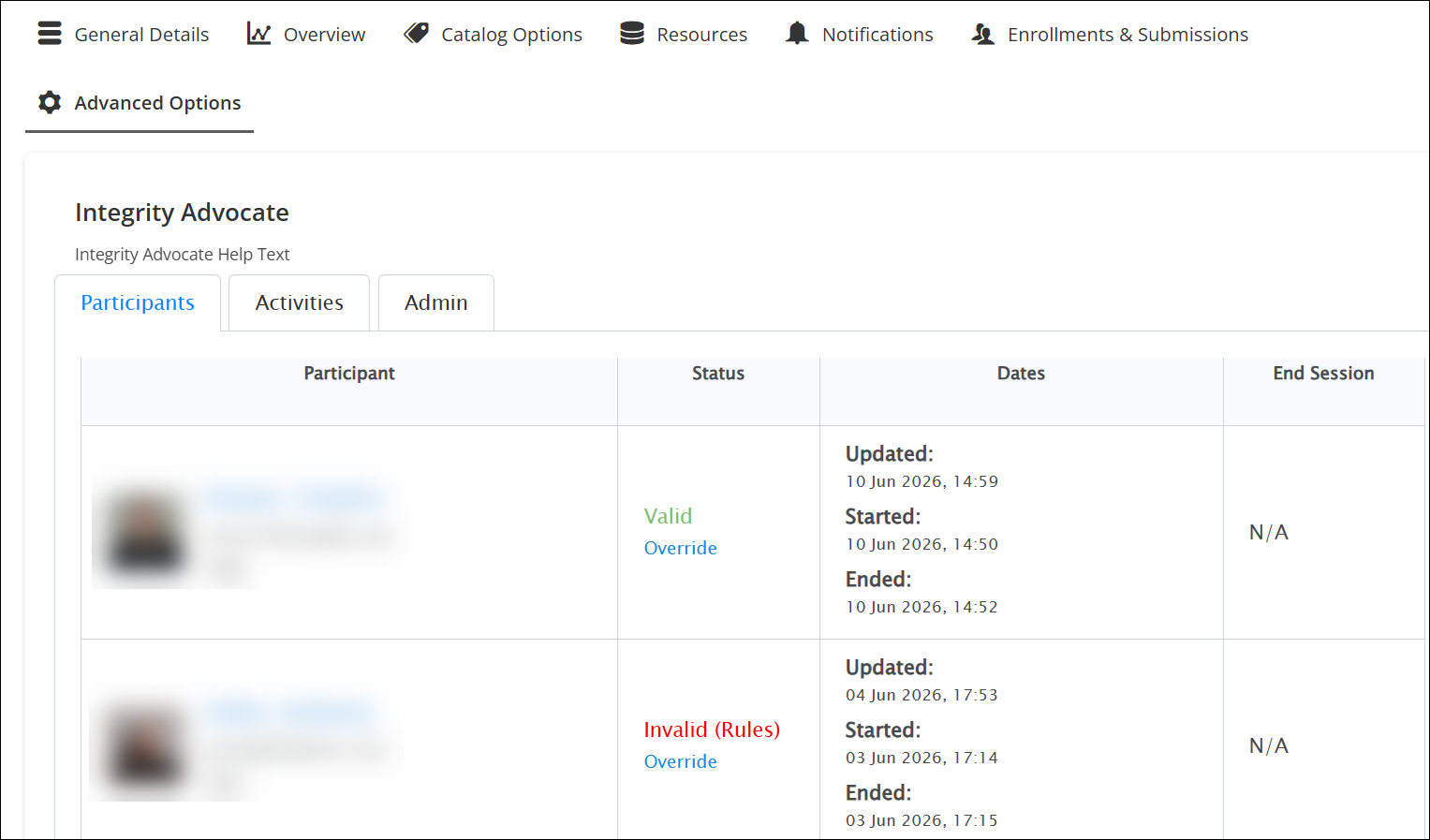
NoteIf a learner re-enrols in an activity with a proctored element and takes the test again, the learner will show up again for their latest attempt on the Participants tab.
Activities Tab
The Activities tab displays a list of tests and interactive videos within the associated content, that have proctoring enabled.
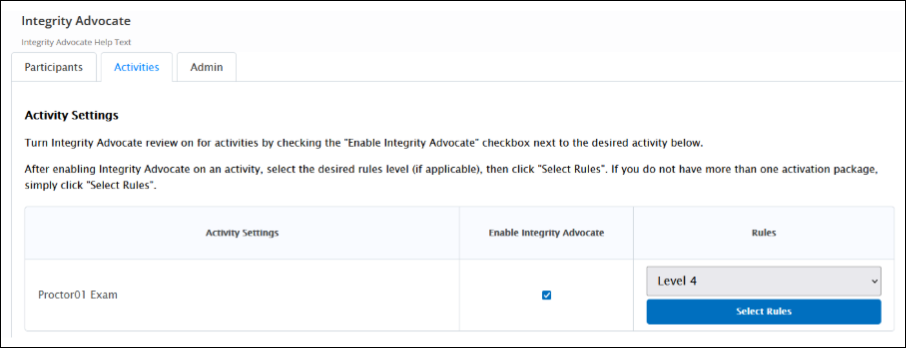
To configure the proctoring settings for each associated test and/or interactive video, do the following:
-
Check the Enable Integrity Advocate checkbox to enable the Integrity Advocate integration.
-
Select Rules that apply to the specific test or interactive video proctoring scenario.
Admin Tab
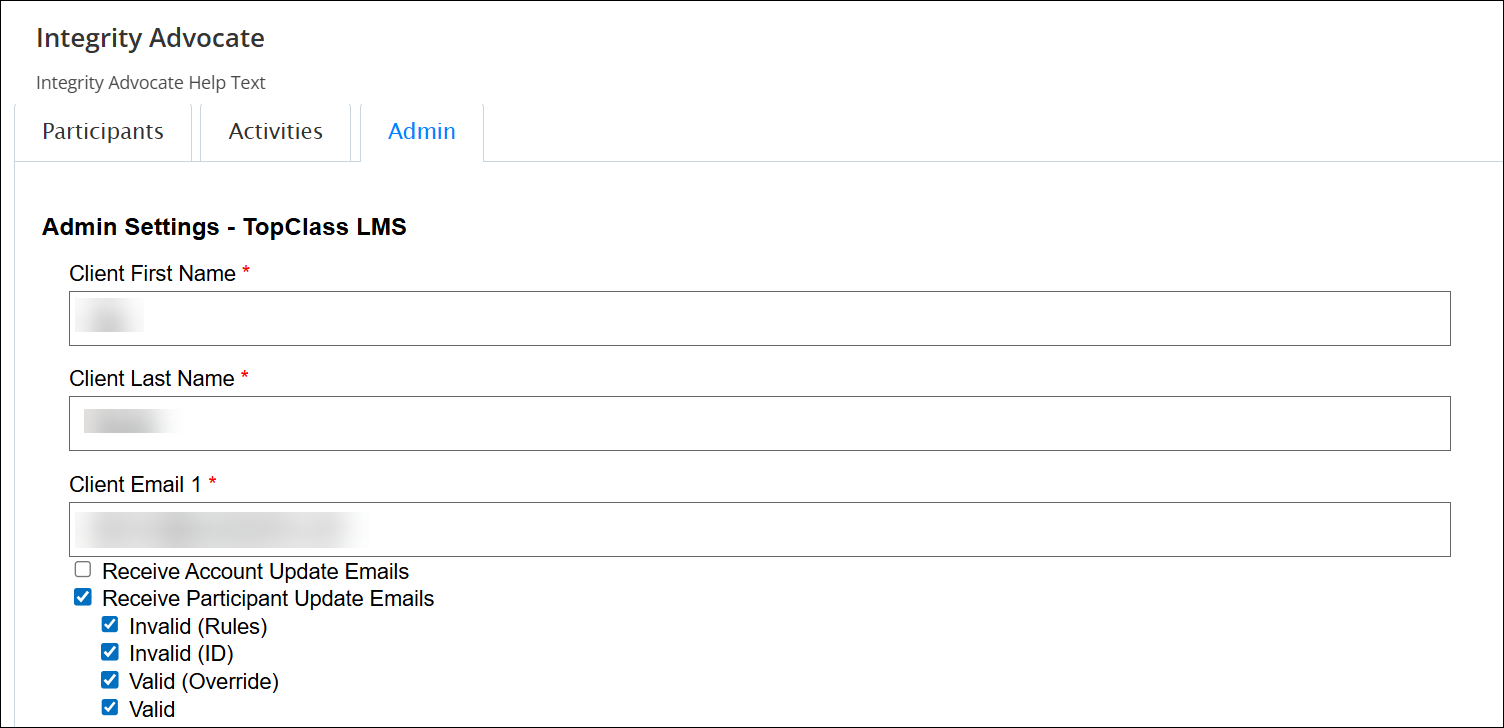
The admin tab displays information relevant to the organization that has purchased Integrity Advocate. For example, client details and license information.
Completing proctored sessions as a learner
From the learners’ perspective, there is minimal change to the content workflow. When the learner clicks to begin a proctored test or proctored interactive video, they will be presented with some information, rules and verification processes from Integrity Advocate. The learner will remain in the TopClass window while this process takes place.
Once the learner has completed the rules and verification steps for Integrity Advocate, the test will begin as normal. As part of the proctoring, the learners’ screen and camera will be recorded and a small window with a view of the learner, in their camera, will appear on the screen.
When a learner submits a proctored test or proctored interactive video, they will not see the results page. A submission verification message will be displayed, the proctoring session will end, and the camera view will disappear.
If a learner tries to navigate away from the proctored test or proctored interactive video, they will see a warning that they are leaving and if they accept, the proctoring session will end.
NoteOn the Participants tab, the session will remain set as In Progress. A super administrator can manually end the session and submit it for proctoring review by clicking End Session.
If the learner chooses to stay in the test instead of navigating away, the session will continue until they submit the test or complete the interactive video.
The status of the test or interactive video will remain as Awaiting Review until a valid or invalid response have been received from Integrity Advocate following a manual review.
NoteFor content progress, once the learner has submitted a proctored test, if this was the last item in the activity, the activity will remain In Progress until results are received and the test is rolled up as Complete.
NoteIf the learner is taking content with enforced order, they will be unable to proceed on to the next item until the proctoring results are received and the test is rolled up as Complete.
Communication from Integrity Advocate to Learners
Integrity Advocate provides some messaging to learners around their proctoring results.
Invalid proctoring review
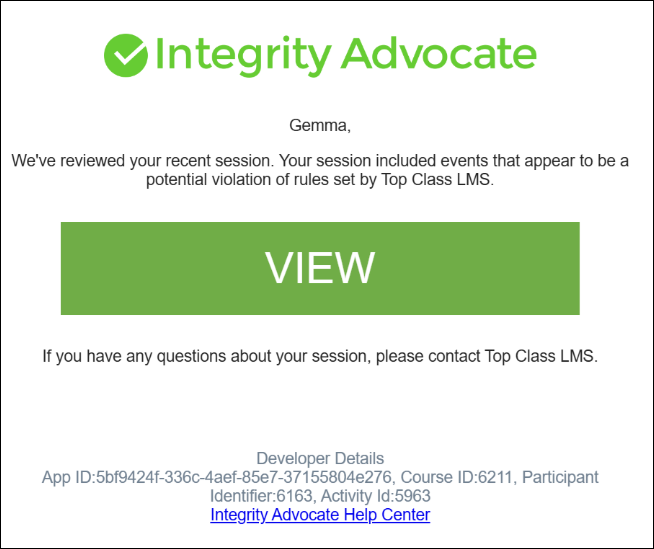
If a proctoring review of a submission is returned as invalid, the learner will receive a direct mail from Integrity Advocate to explain this along with a link to show the rules violations.
Overriding of proctoring review record
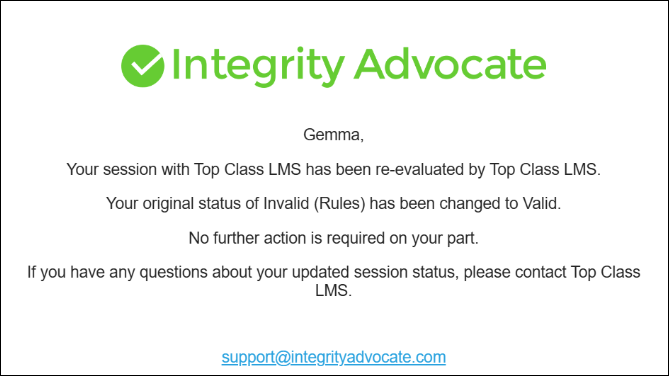
If an override is performed within the Integrity Advocate widget (Participants tab) on a learner's submission for an invalid record, Integrity Advocate will send an email to the learner to let them know their record has been overridden for proctoring.
Proctoring validation and test results
Test status and the ability of learners to review the test results page on the Submissions tab, depend on the learner’s grade and the response returned from Integrity Advocate.
| Test Result | Integrity Advocate Review Response | Behavior |
|---|---|---|
| Pass | Valid | Test status: Complete Learner can review test submission on results page |
| Invalid | *Test status: Awaiting Review Learner cannot review test submission on result page. | |
| Fail | Valid | Test status: Incomplete Learner cannot review test submission on result page. |
| Invalid | *Test status: Awaiting Review Learner cannot review test submission on result page. |
NoteIn the case of manually corrected tests, if a response is returned from Integrity Advocate before correction, the status will remain as Awaiting Review.
NoteIf a super administrator or administrator overrides an invalid Integrity Advocate proctoring response, the test submission will remain unavailable.
Additional attempts
All additional attempts for a proctored test and all additional views of a proctored interactive video will be subject to the standard proctoring process.
NoteIf a learner attempts to retake a proctored test or view a proctored interactive video before a response has been returned from Integrity Advocate for the previous attempt, the learner will be blocked and unable to take the test or view the interactive video.
Overriding activities with proctored tests and/or proctored interactive videos
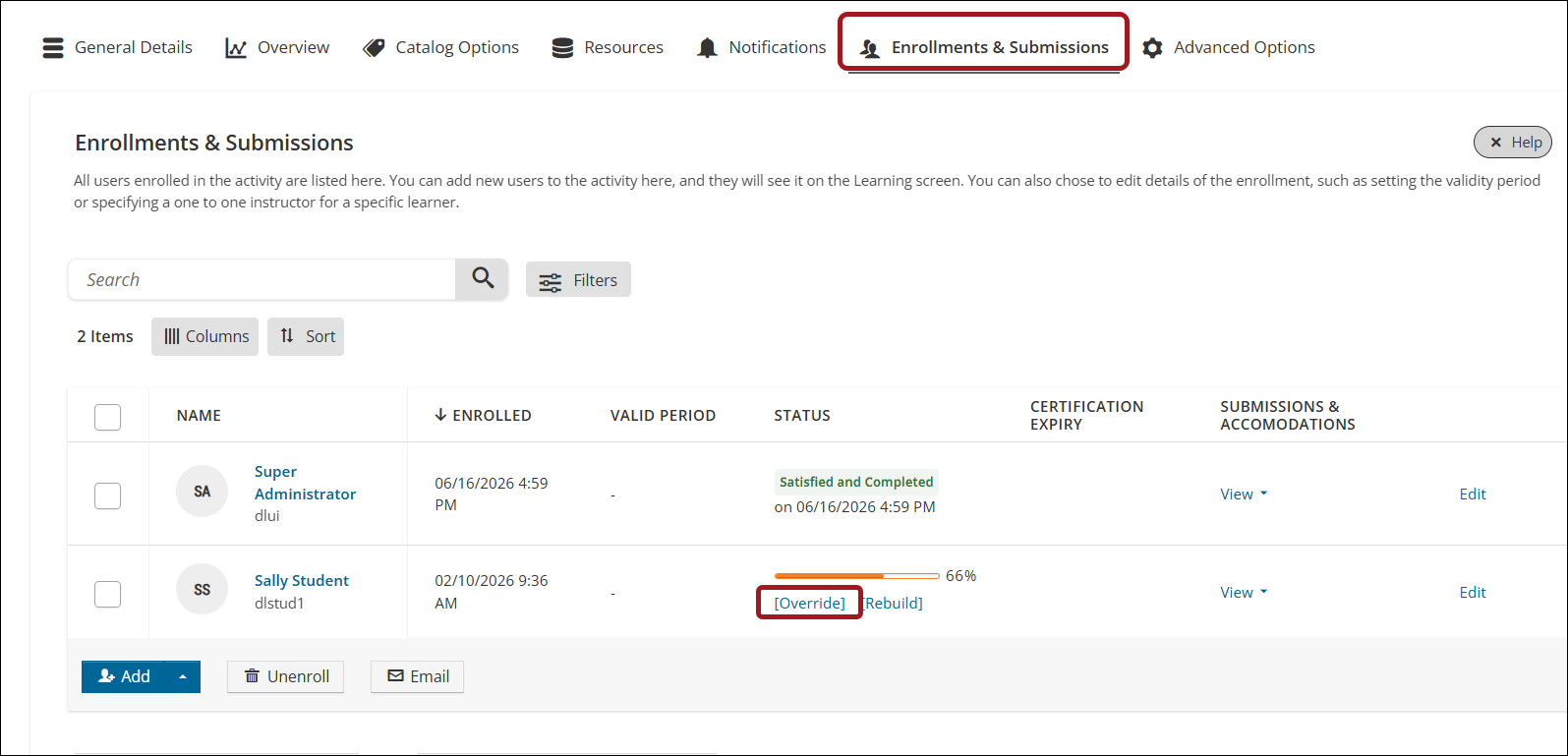
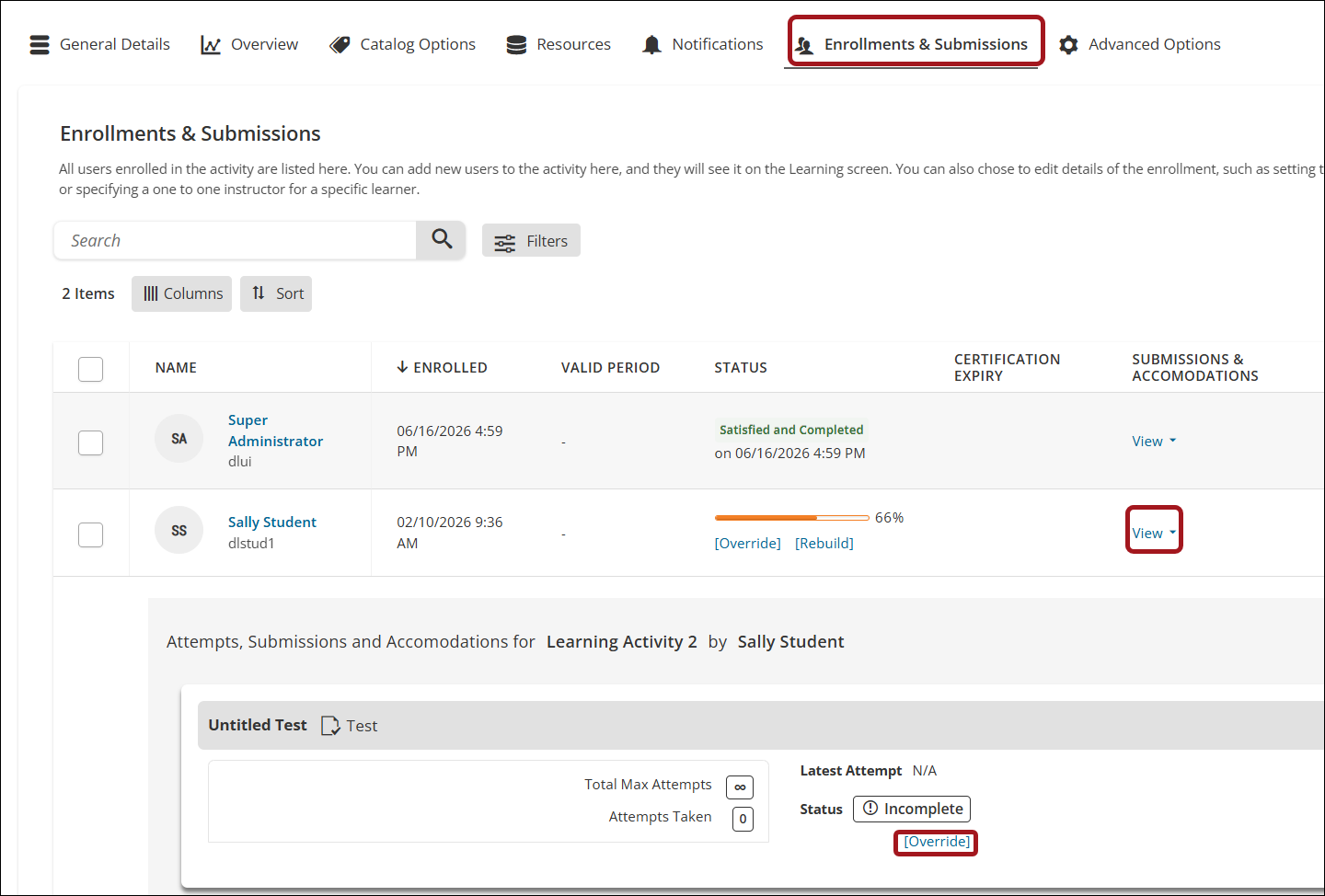
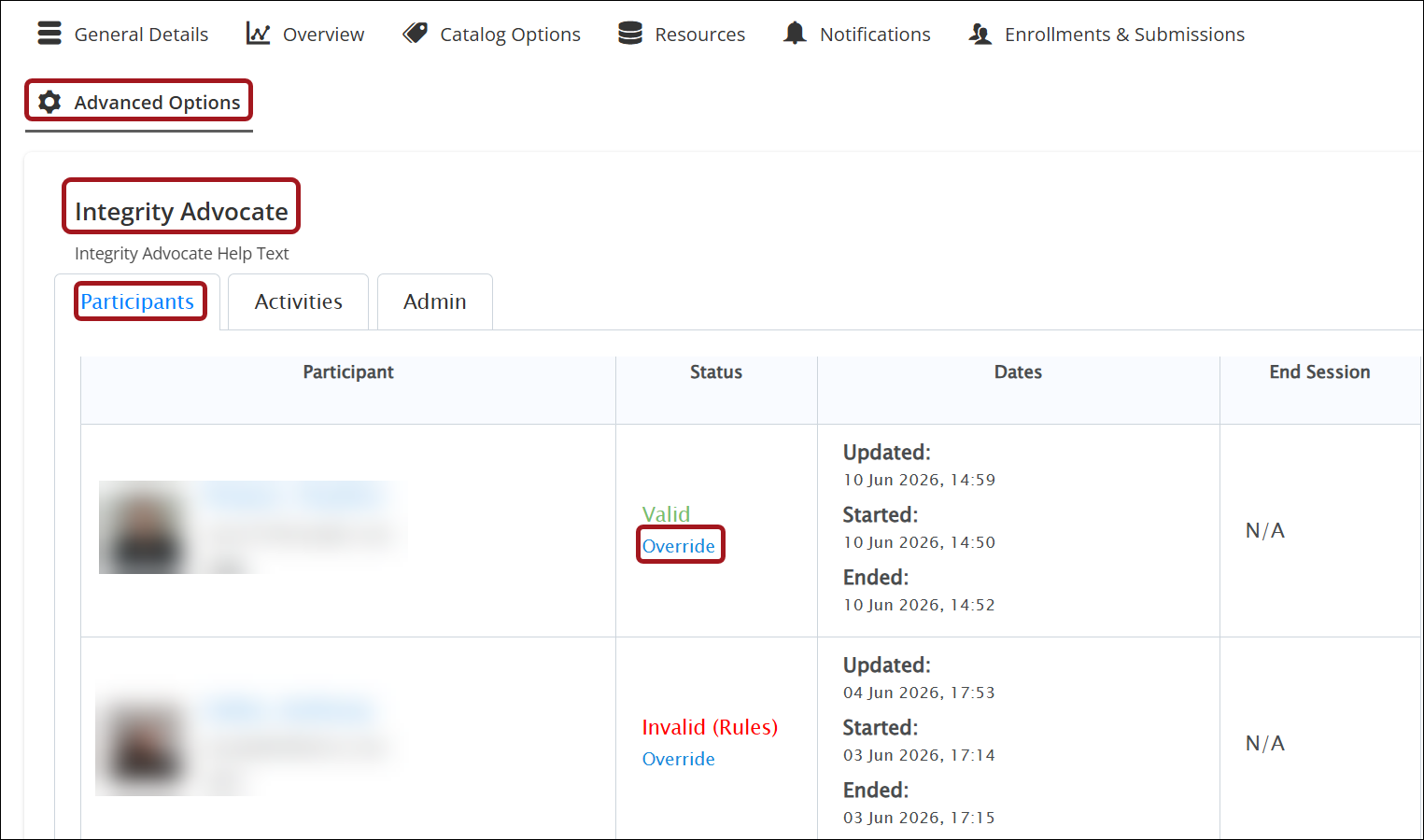
There are three override options for activities with proctored tests.
- TopClass Activity override - available on the Enrollments & Submissions tab of the activity.
- TopClass Test override - available on the Enrollments & Submissions tab of the activity, under the View caret for each test.
- Integrity Advocate Test override - available on Advanced Options > Integrity Advocate > Participants tab on the activity.
Updated 3 months ago