

Assigning the manager role to a user
You can assign the Manager role to any user. Managers can oversee individual users and/or groups of users.
When you group users and assign them to a manager, those users appear under a new Team screen. This screen is visible only to users with the Manager role and allows them to review their team’s progress and set learning objectives.
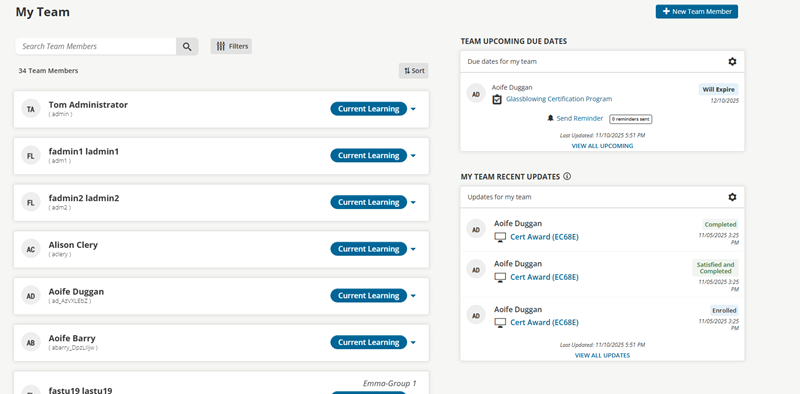
Do the following to assign the manager role to a user:
- Go to Resource Management > Users.
- Search for the user, then select their name.
- From the General Details tab, scroll down to the Security and Roles section.
- From the Type setting, enable Manager.
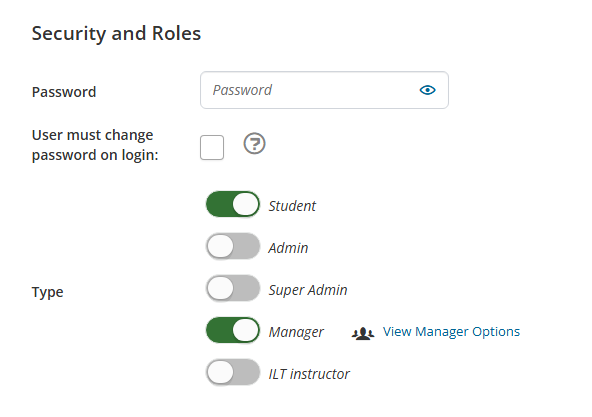
- Click Save.
- Click the Manager Options tab.
NoteThe default settings for all managers are defined in System Administration > System Settings > Managers. You can update the manager’s settings here to override those defaults.
- Define the following for the manager:
- Access Manager Reports – Selecting Yes enables the manager to have access to the manager reports under Reports.
- Create and edit managed users – Selecting Yes enables the user to create and edit managed users/team members from the Team Dashboard. Only select Must assign to managed group if this user directly manages one or more groups to assign users to.
- Manage indirect Users – Applicable only to Manager users who have assigned Managed Groups and where a group or organization hierarchy exists. If set to No, the manager can view and interact only with users directly assigned to their top-level managed groups. If set to Yes, the manager can view and interact with users directly assigned to their managed groups and with all users in any subgroups under those top-level managed groups (i.e., indirectly managed users).
- Allow Override Learner Status – If set to Yes, managers can override a learner’s test status for Online Activities when viewing their managed users through Current Learning. If set to No, managers cannot override a learner’s test status for Online Activities when viewing their managed users through Current Learning.
- Allow Add Test Attempts – If set to Yes, managers can add additional test attempts for individual tests within Online Activities when viewing their managed users through Current Learning. If set to No, managers cannot add additional test attempts for individual tests within Online Activities when viewing their managed users through Current Learning.
- Allow Add Time Accommodation for Time Tests – If set to Yes, managers can add additional time for each learner per timed test within Online Activities when viewing their managed users through Current Learning or Submissions. If set to No, managers cannot add additional time for learners per timed test within Online Activities when viewing their managed users through Current Learning or Submissions.
- Allow Manager to Transfer User Groups – If set to Yes, managers can transfer their managed users from one of their managed groups to another group they manage. If set to No, managers cannot transfer their managed users between the groups they manage.
- Managed users – Add or remove users as being under the responsibility of the Manager role.
- Managed Groups – Add or remove groups as being under the responsibility of the Manager role. The manager role gets responsibility for all users in the group and all sub-groups of the group.
- Click Save.
To begin managing the team, the manager can click Team from the main menu. See Video: Manager’s Team Screen for more information.
Updated about 2 months ago
Did this page help you?