

2024 Release Notes
August 2024 (10.7.1)
Shipping
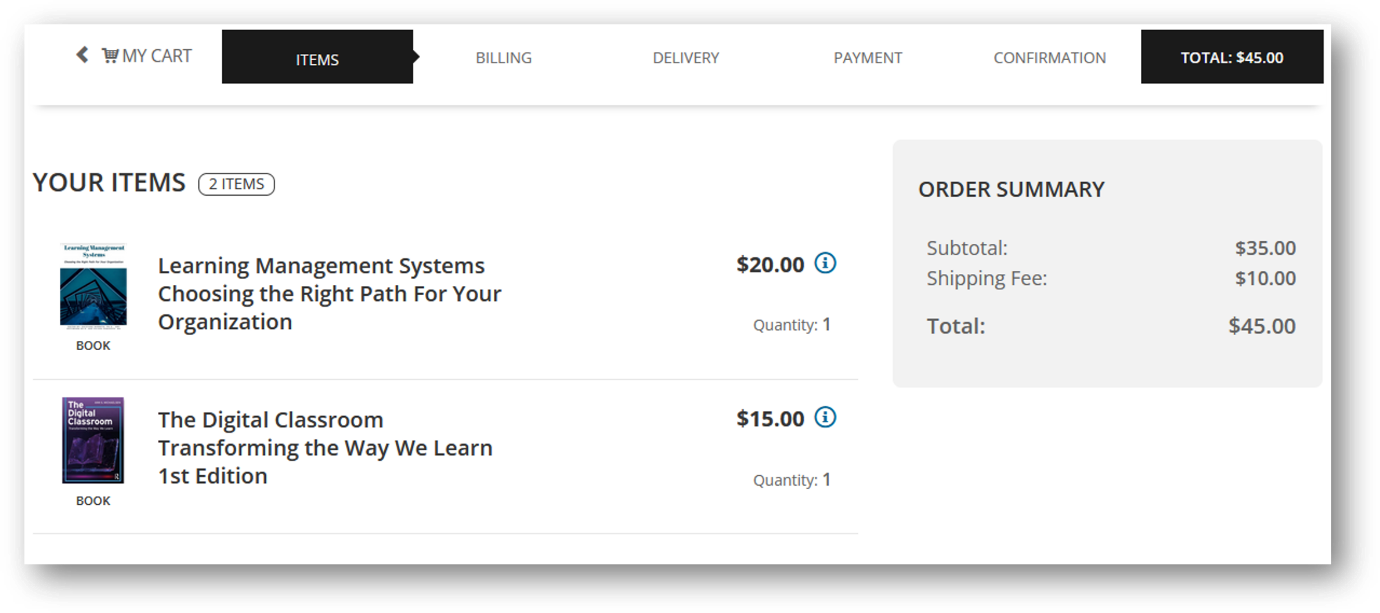
Addition of the option to use weight-based shipping calculation or flat rate shipping for TopClass products.
- Only for use with TopClass Shopping Cart and Catalog.
- Calculated Shipping Rate
- The weight based calculated shipping allows you to set weights on physical products being sold through TopClass, and then set up weight bands for different countries at different prices.
- For example you can set a weight band of 1-20 pounds for shipping to anywhere in the United States for a fee of $5 and then could set up a separate weight band of 1-20 pounds again, shipping to anywhere else in the world for $10.
- When a learner attempts to purchase products, TopClass will calculate the total weight of the applicable items in the shopping cart and apply the correct weight band fee for their weight and shipping country combination.
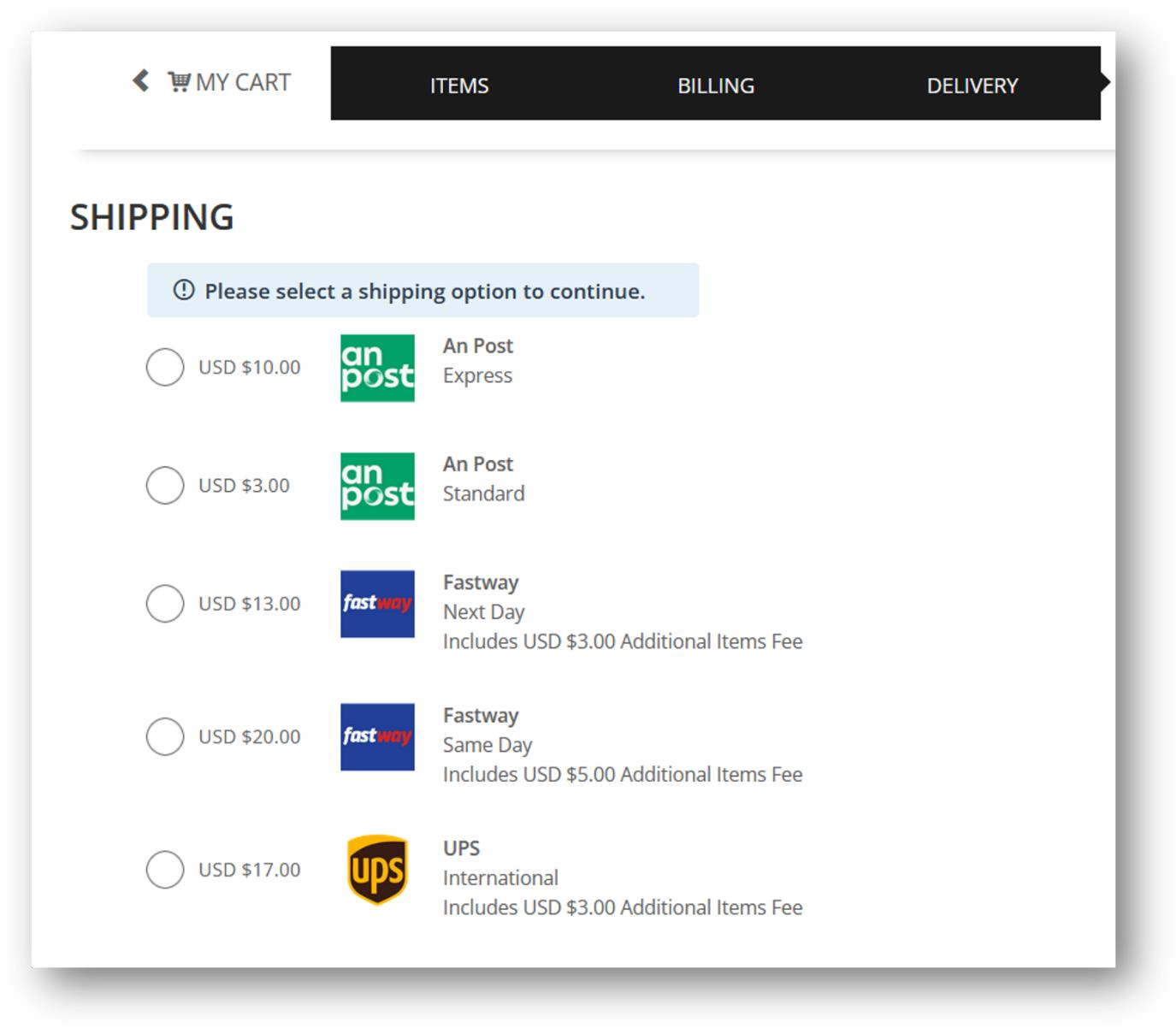
- Flat Rate Shipping
- With the flat rate shipping, there are no weight calculations. You can add different carriers available to TopClass, such as UPS, FedEx, FastWay, and so on.
- For each of the carriers, you can set up the delivery options available, for example standard delivery, next day delivery, air mail, and so on. And you determine the fee for each of these options for each country.
- When a learner attempts to purchase products, TopClass will present the user with the delivery options that are available for the country they are trying to ship the products to, and if there are multiple options available, then can select the one they want.
- It is also possible to add an additional item fee for flat rate shipping if a learner is purchasing multiple products at one time.
- Updates to Product details to include fields for weight, height, width and depth
- Shopping Cart UI refresh
- Additional setting option for mandatory Terms and Conditions acceptance on checkout
Calculated Shipping Rate Shopping Cart View:
Flat Rate Shipping Shopping Cart View:
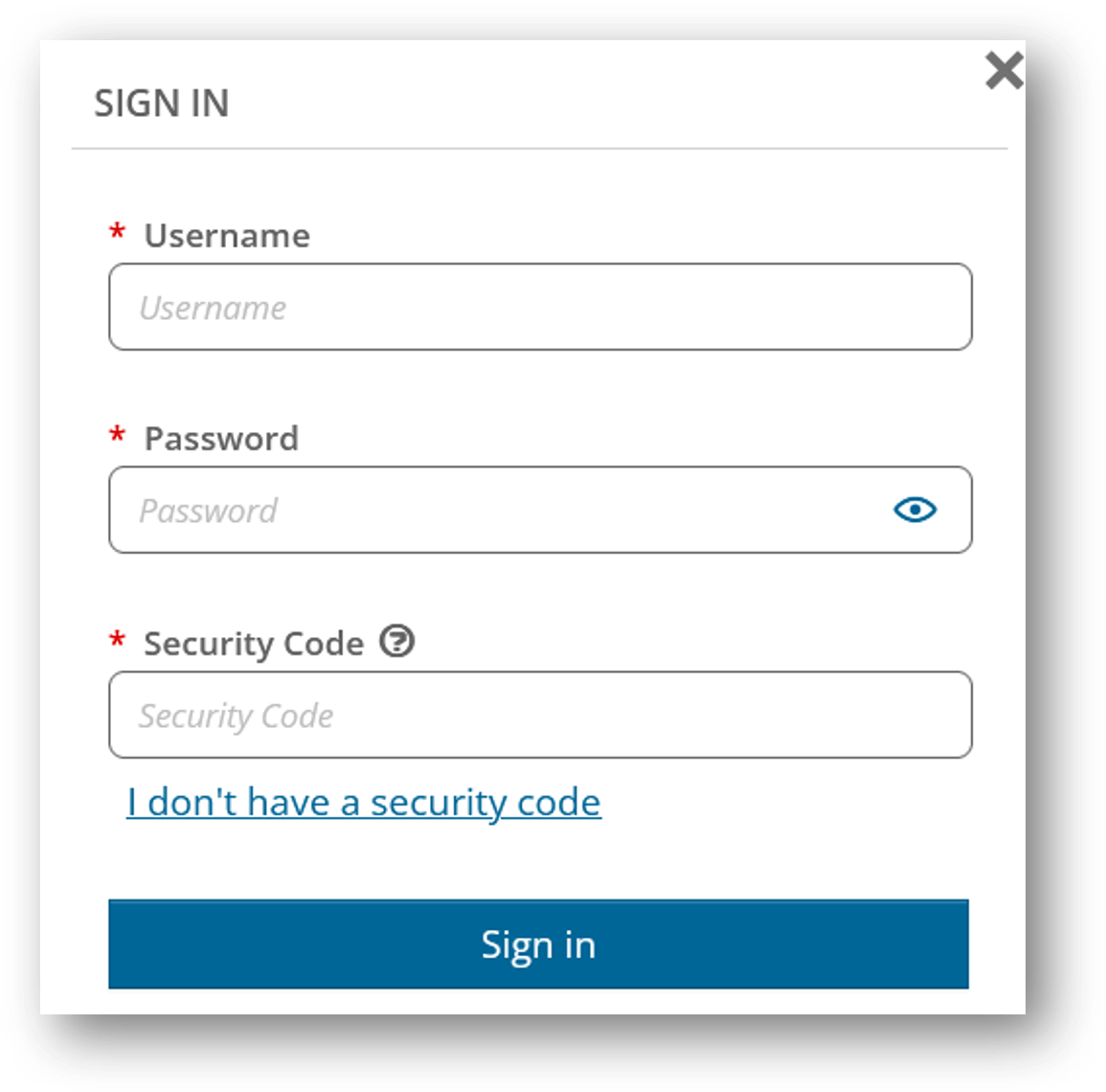
Two-Factor Authentication
2FA adds an extra layer of protection to your account when logging in directly to TopClass.
- With 2FA enabled, you need to provide two forms of verification when logging in, making it significantly harder for unauthorized users to access your account.
- Once enabled at a system level, users will be prompted to set up 2FA on login. They can choose to skip this step up to 3 times before being required to complete the 2FA setup in order to login.
- 2FA can be enabled for all users in the system, for Super Admins only, or can be left off if not required.
UI Updates
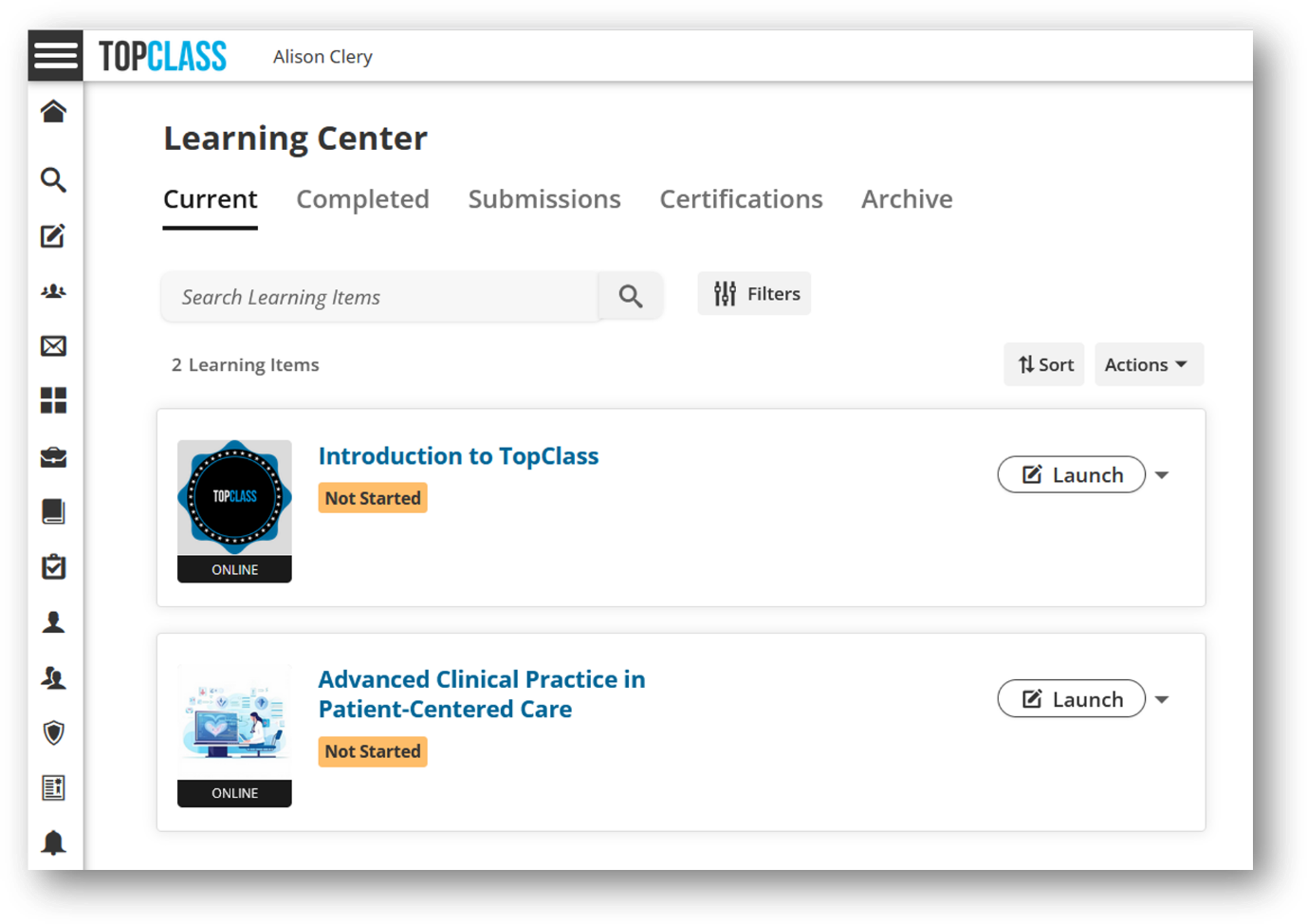
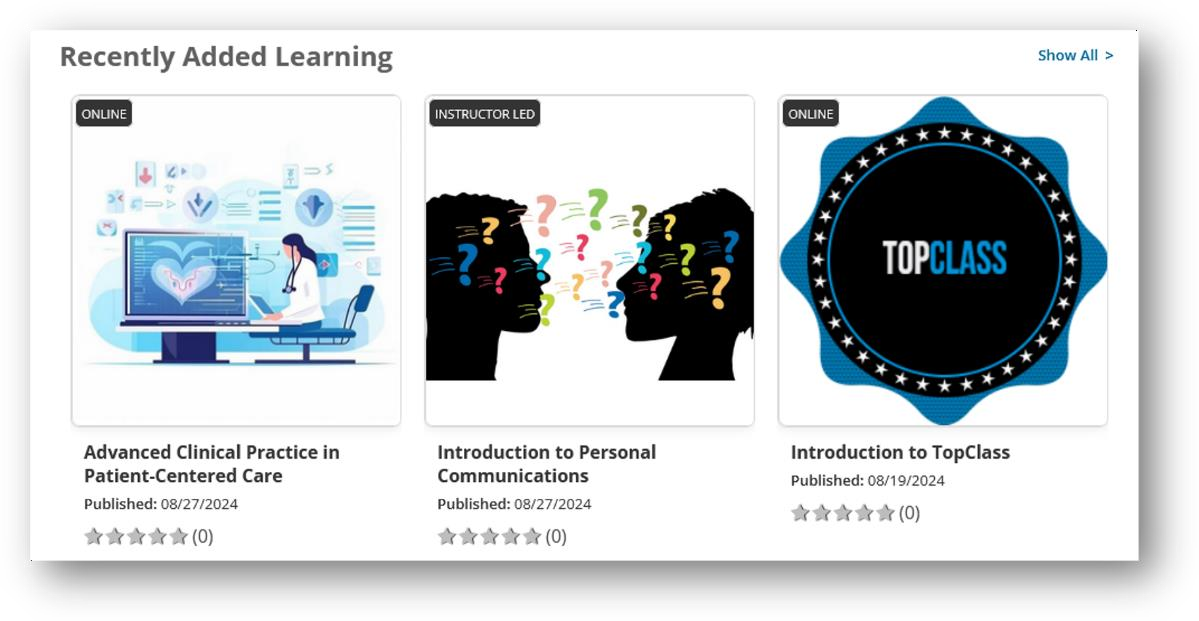
Review and update of student screens for a more modern UI look and feel.
- Our refreshed UI offers a cleaner, more modern look that reduces visual clutter and highlights key information.
- We've made several adjustments to ensure our product is more accessible to all users, including better contrast and larger clickable areas.
- The focus has been on the learner screens, such as the learning center, the landing page, the main menu and the shopping cart checkout process.

Highlight New Features
With each TopClass upgrade, Super Admins will be notified through a popup of the main new features in the version just released along with a link to the release notes.
- These updates can also be accessed by Super Admins through a new menu item called What’s New.
Badges Widget
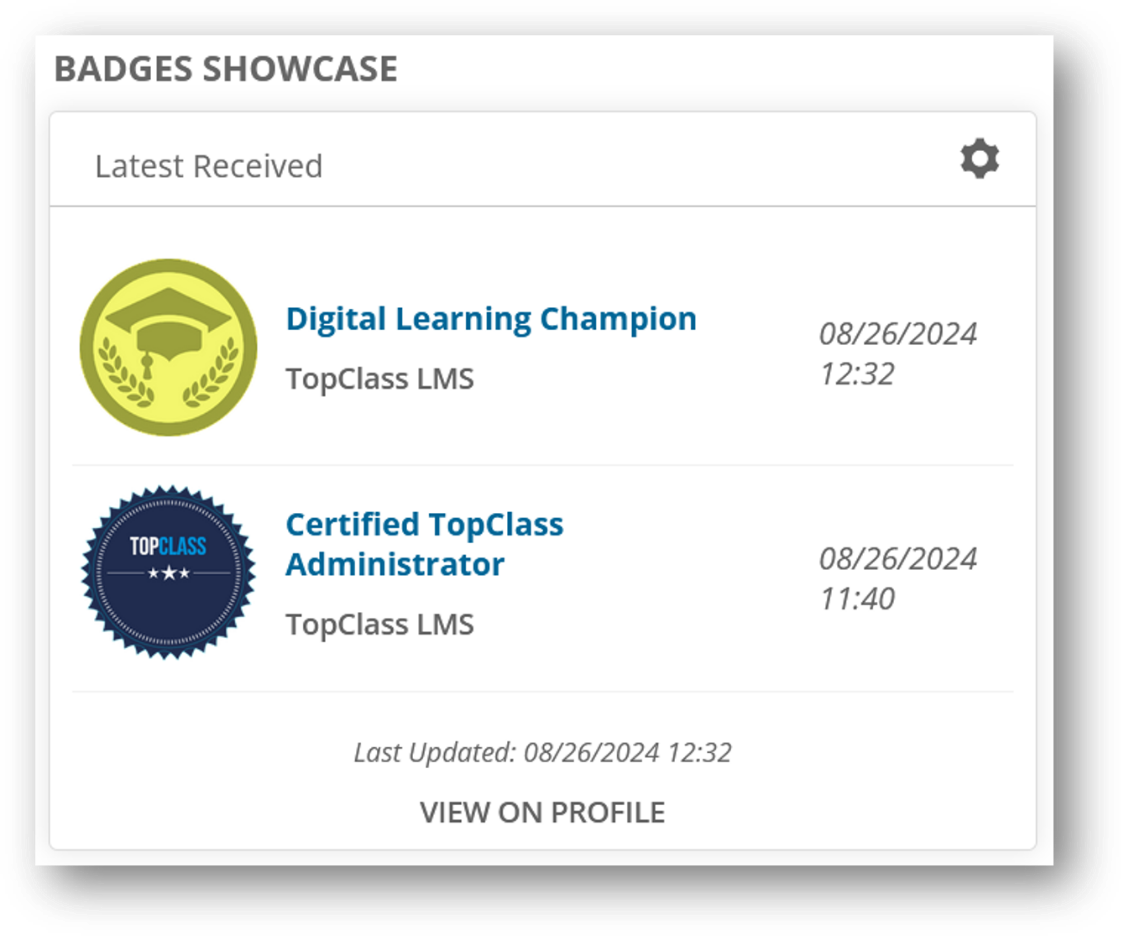
A new badges widget has been added to show in the Learning Center to display the learners most recently earned badges.
- If you are using badges in your system, you can enable this widget to show for leaners to give them quicker access to view the badges that they have earned in TopClass.
- Learners will be able to view the same badge information from this new widget that they can also see currently from their profile.
Share to LinkedIn
On the learner profile, there is a new open to publish earned badges to LinkedIn.
- Learners can share the badge information to their LinkedIn profiles by clicking the new button, signing into their LinkedIn account if they aren’t already, and then clicking save.
- The badge information will be pre-filled into the form on the LinkedIn side and any required updates can be made before saving.
- For anyone viewing the learners LinkedIn profile, they will find the new badge under the Licenses & Certifications section.
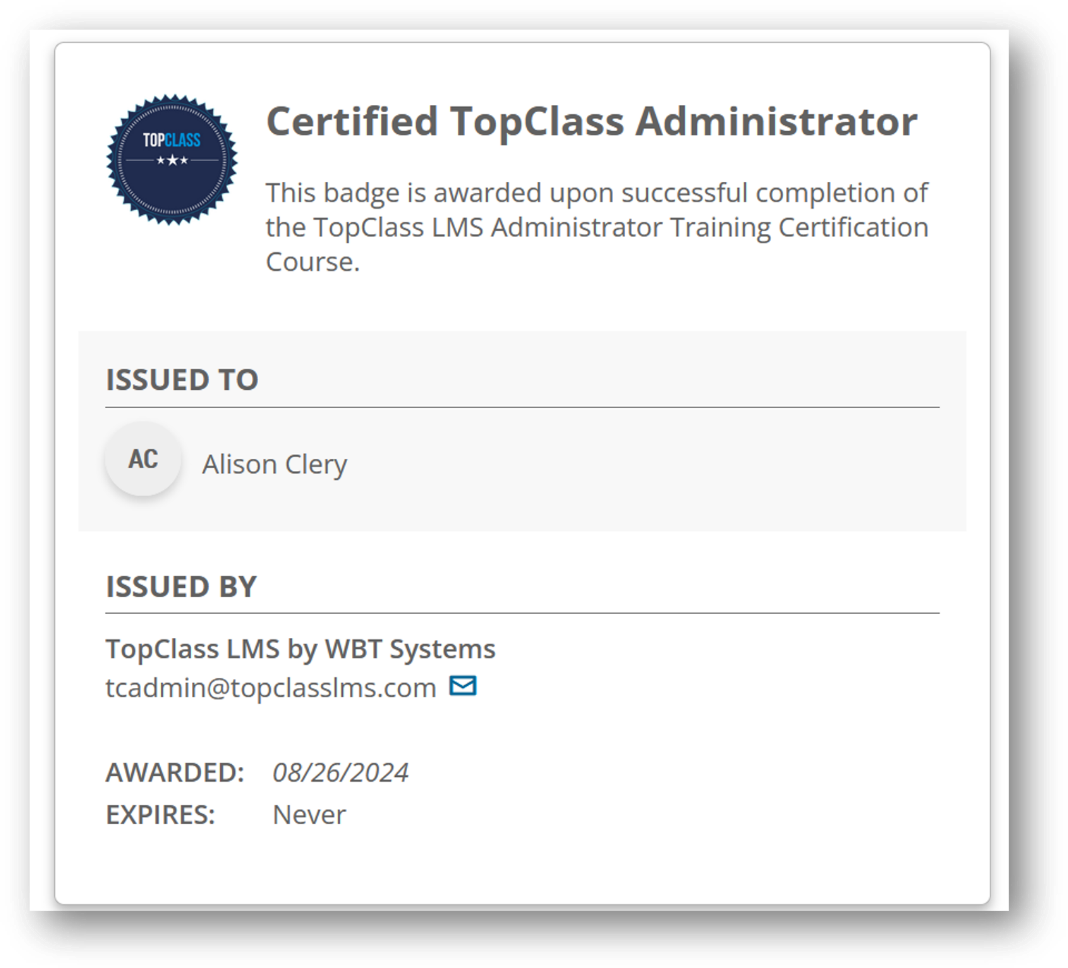
- The Show Credential button in LinkedIn will take learners to a new anonymous screen in TopClass to display the full badge information, including the badge description, issuer, award date and expiry date.
- There is no system setting required to enable this functionality, it is available by default to all learners along with earned badges, if you are using badges in TopClass.
Learning Center Archive
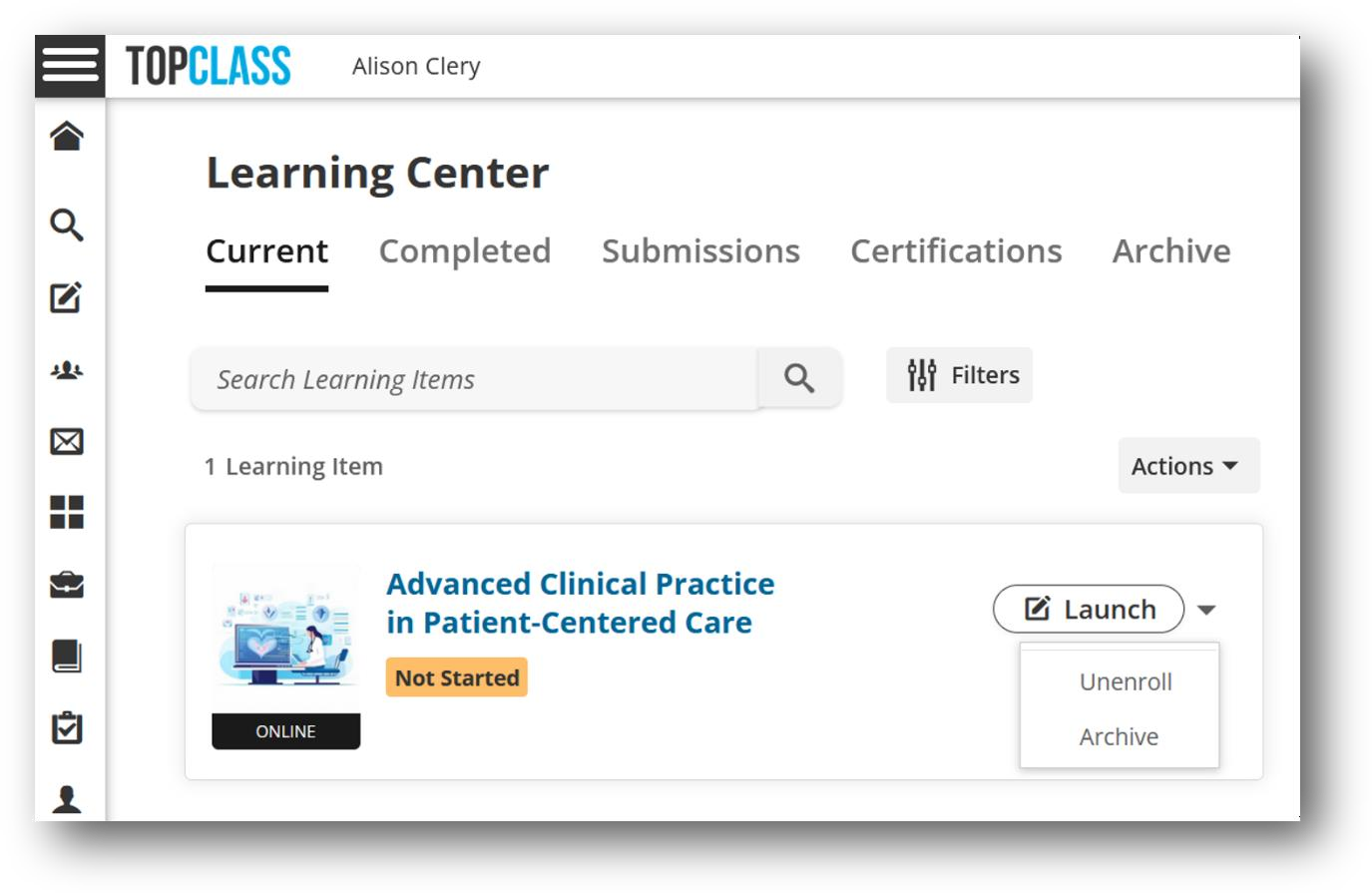
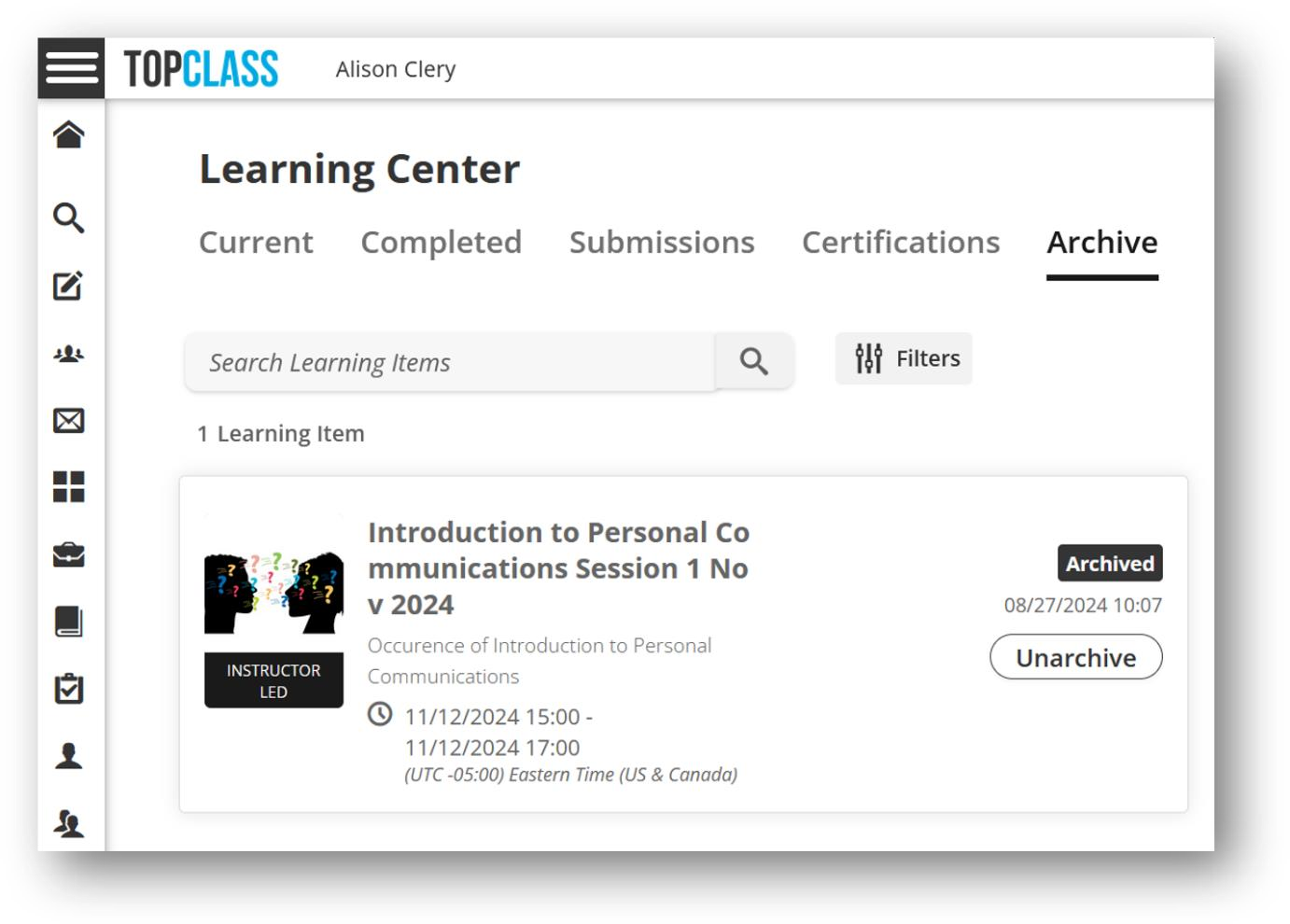
Learners can archive items from their current learning or certification programs tabs.
- Ability to manually archive items on Current Learning which will move them into a separate tab, e.g. an ILT session in which Postwork has not and will not be done.
- Ability to manually archive items on the Certification Programs tab.
- Automatic movement of an Online Activity with an expired valid period to a new archive tab based on a time delay.
- An extra tab on the Learning Center, for smaller screens, a ‘More’ option will appear to
- contain any tab items that will not fit on screen, e.g.
Integrations
Redirect to Offering Overview Using External ID
For clients using AMS/CRM integrations, this change allows a way to link to an Offering Overview using the Activity External ID, instead of the Activity Code which is currently used.
Salesforce OAuth SSO Support
OAuth (open authorization) for Salesforce with TopClass.
SAML SSO Improvements
- Support for multiple SAML certificates.
- Processing metadata to create users.
Multiple iMIS Vendors
Ability to have multiple iMIS vendors in a single instance of TopClass and configure different vendors for different syncs.
Enhancements
Content Branding
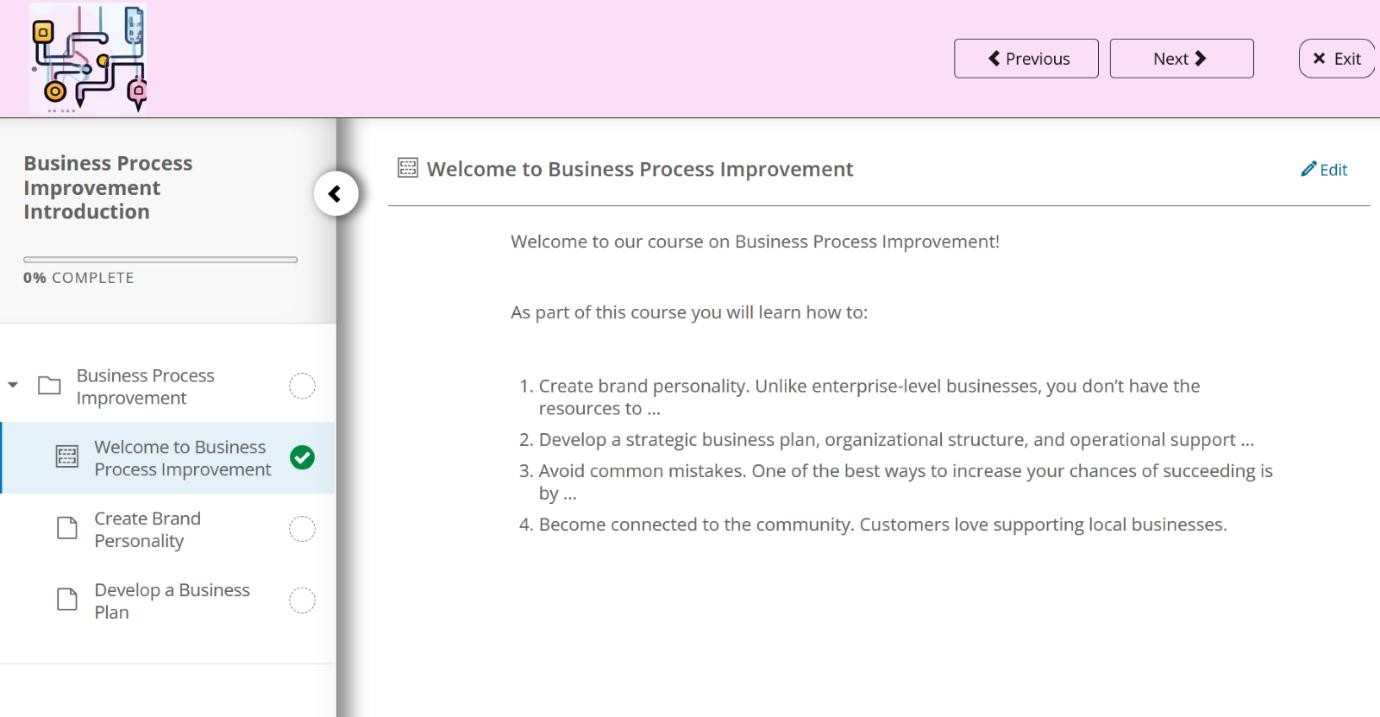
Super Admins can now determine course specific branding that will display to learners while they are taking content for a specific course.
- This includes a header with a course specific logo that replaces the system header and logo, only while viewing the course content.
- The header and logo will also be displayed on the activity overview screen.
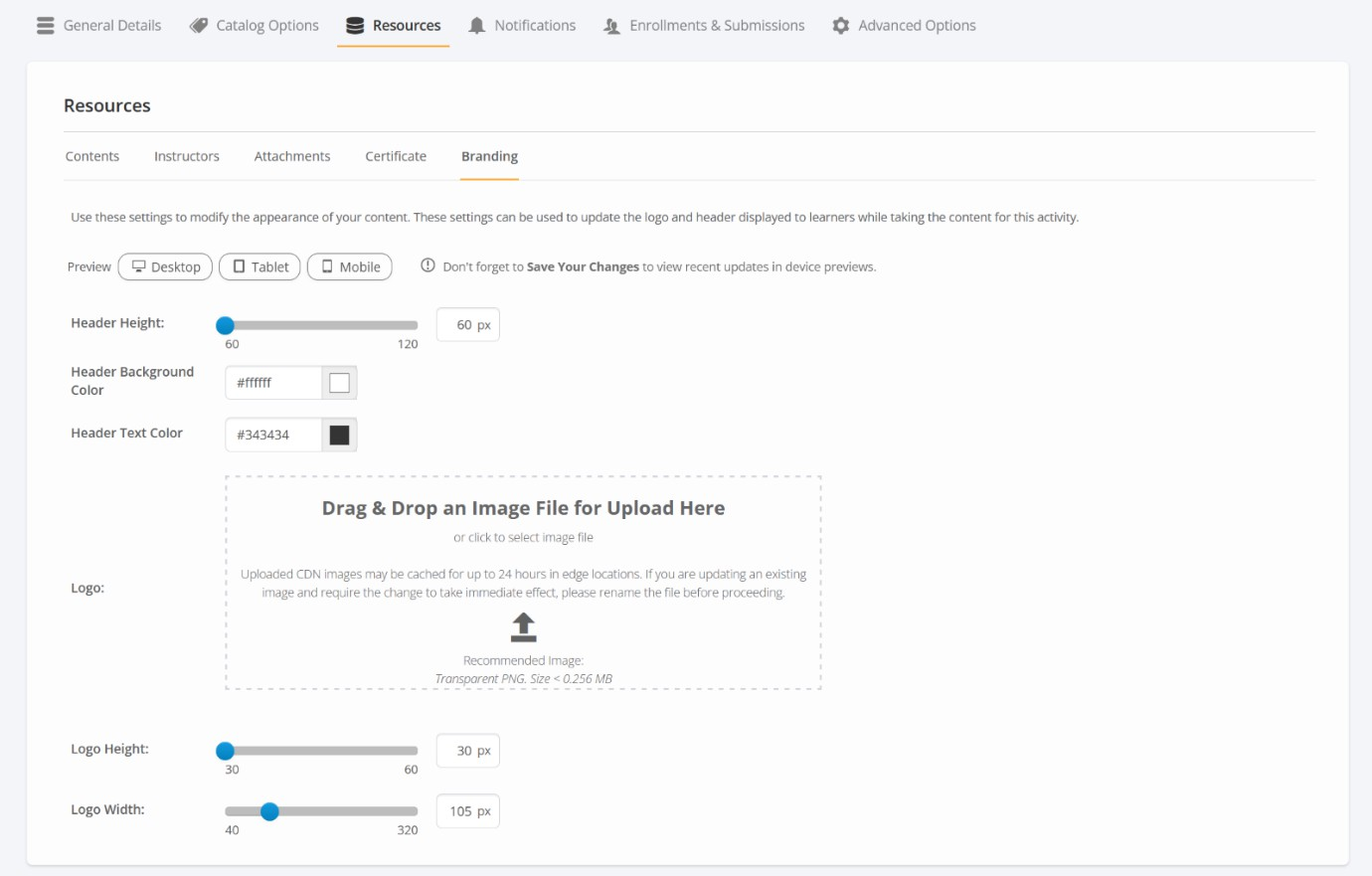
Example on the activity overview screen:
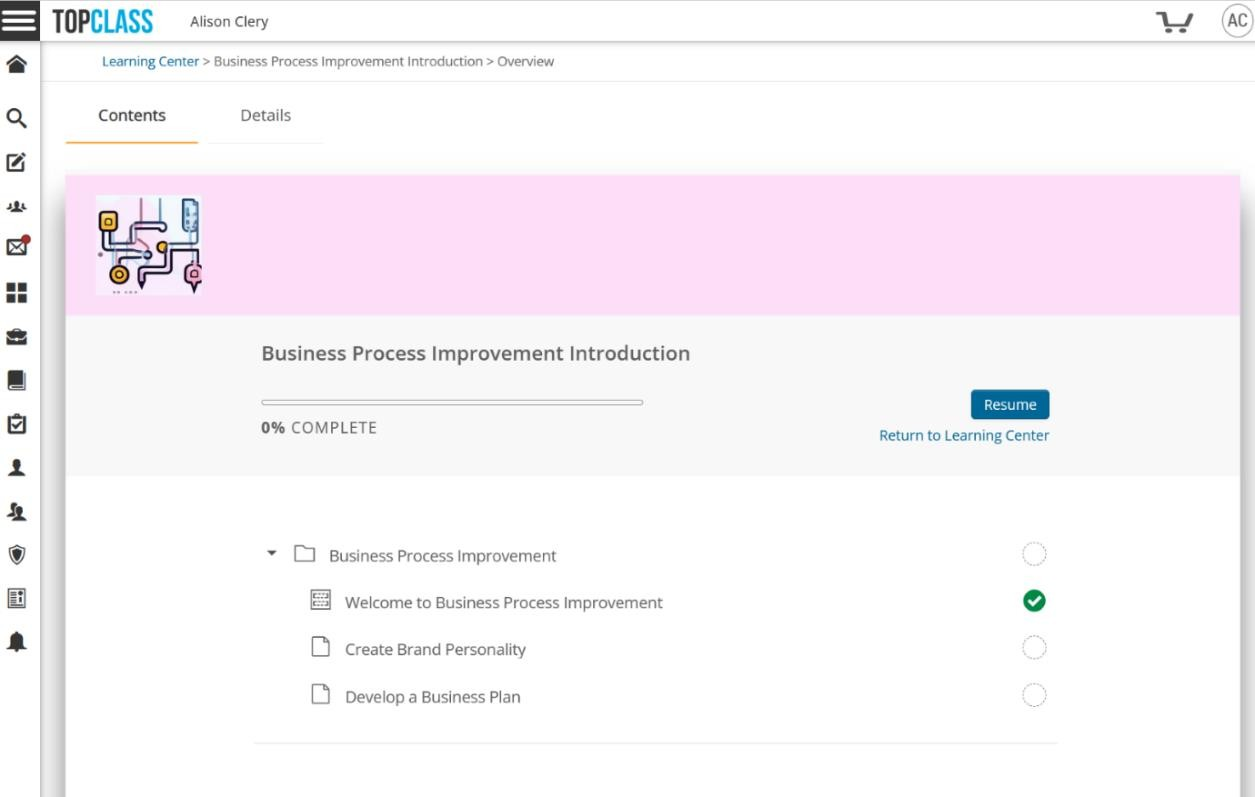
Example while actively taking content:
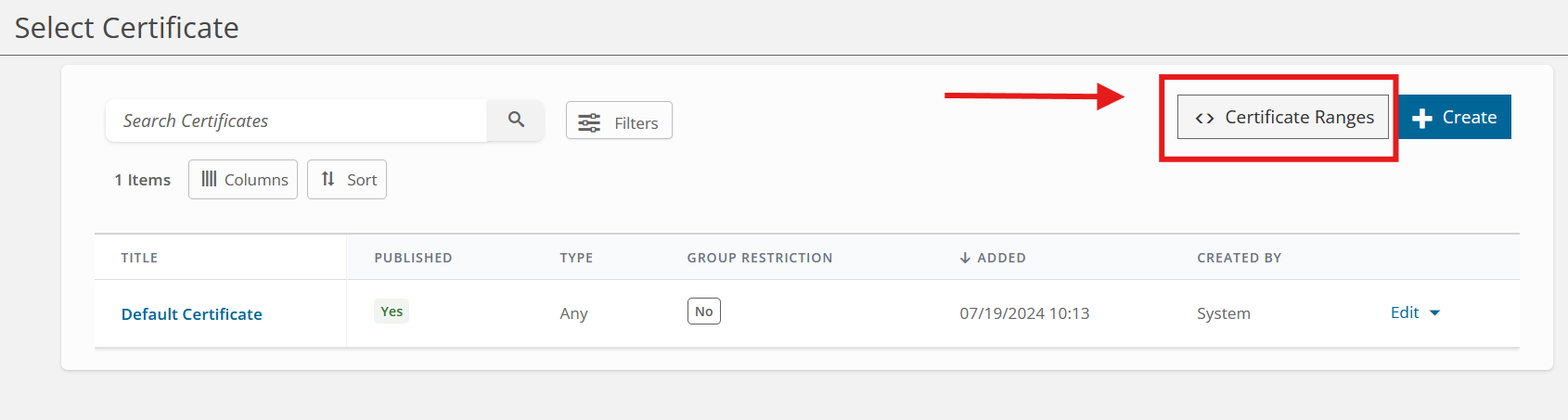
Certificate Ranges
An option to specify ranges of numbers to be awarded on certificates for specific activities. This gives learners their own certificate award number, applied sequentially upon completion, on each certificate awarded per activity.
- This can be enabled under System Settings > Certificate Editor.
- The Certificate Ranges setup can be accessed from the Certificate list screen once enabled.
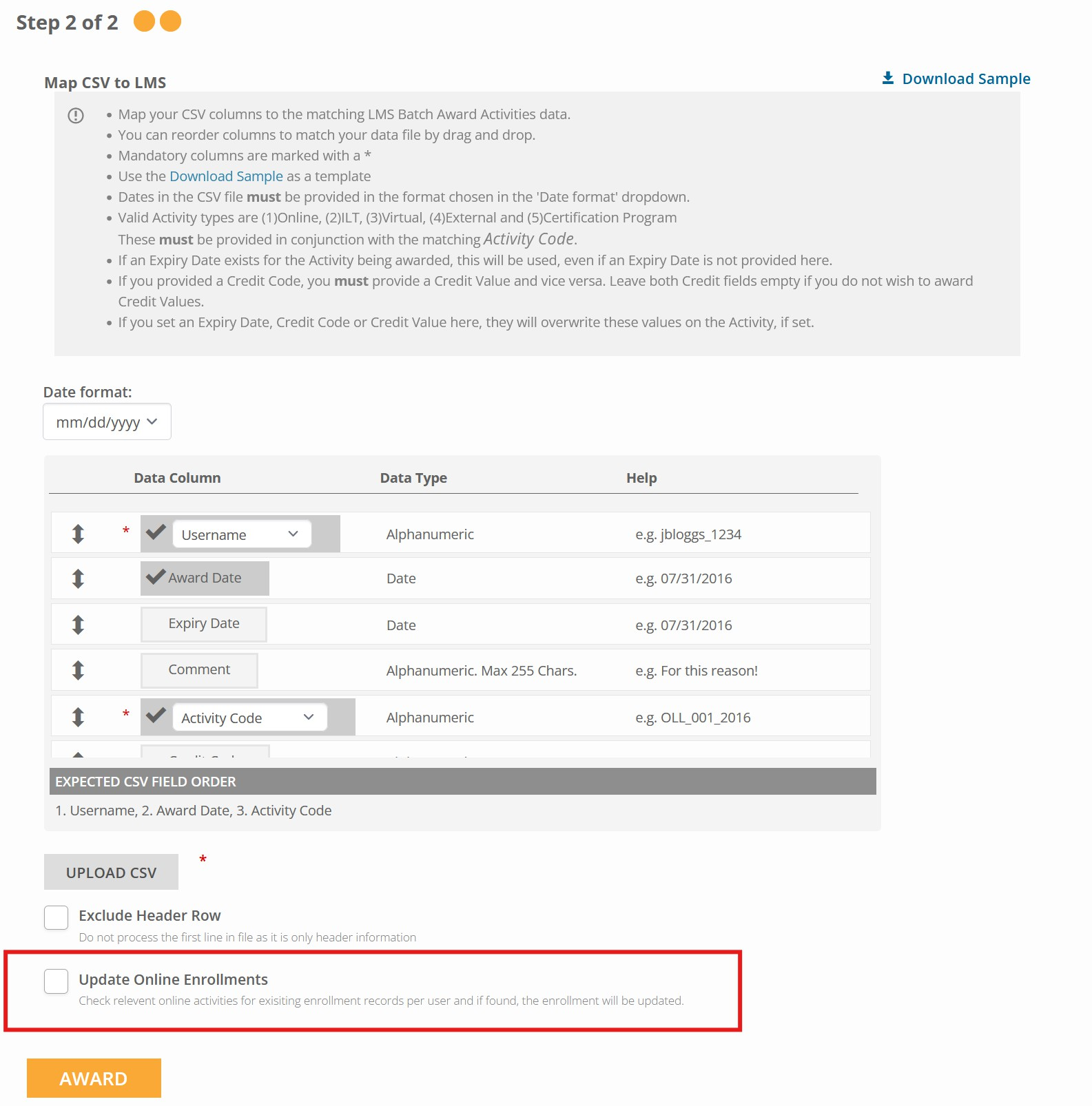
Batch Award Update Online Activity Enrollments
A new option on batch awarding of Online Activities to check if a learner is currently enrolled/in progress in the Online Activity being awarded and, if so, mark that record as Satisfied and Completed.
Certification Program Updates
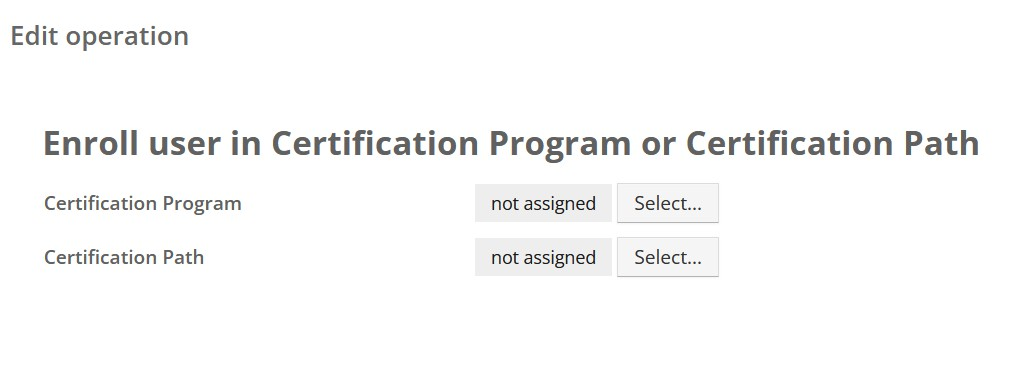
Group joining/leaving operations to include a new option to add learners to a Certification Program
- A new option has been added to Group operations to allow learners to be enrolled in a Certification Program with or without also being added to a Certification Path, when the group operation is run.
- This can be used with joining operations, leaving operations or temporary operations.
- The operation is called Enroll user in Certification Program or Certification Path and can be found at the end of the existing list of group operations.
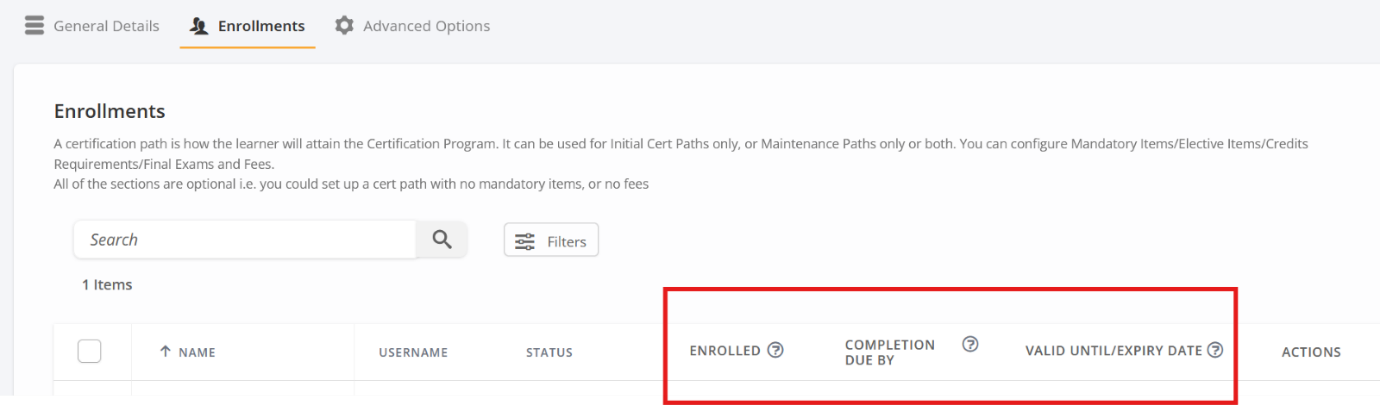
Update to labels and help text on Certification Path Enrollments for better understanding
- Some columns on the Certification Path > Enrollments screen have been renamed to be more user-friendly.
- Help text has also been added to the column names to further explain the intention of each item.
A new setting to determine if unpublished activities can be enrolled in through a Certification Program
- A new system setting is available under System Settings > Configuration called Certification Programs Unpublished Enrollment Allowed. This setting determines if the activities within a Certification Program path can be enrolled in even if they are unpublished.
- It is recommended that a thorough review is done between the client and their CSM/PM first before changing this setting.
- When using this setting, if clients do not want users to be able to enroll in an item in the cert path, it is possible to disable enrollment on that item.
Display the activity code on the Certification Path admin screens
- Super Admins can see the activity code as well as title now on the Certification Path admin screen when creating/editing Certification Paths.
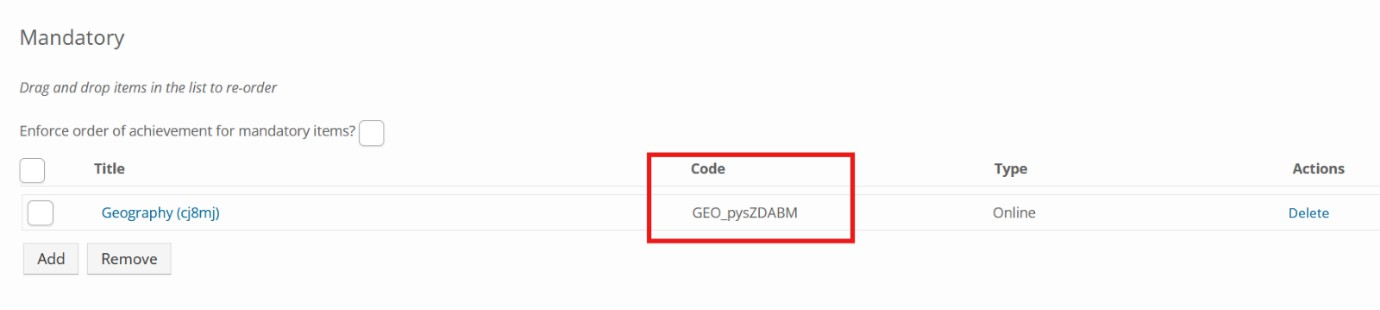
Link activities on Certification Program Admin side to the activities
- Super Admins can now go directly to an activity from within the Certification Path edit screen. When viewing the General Details tab of a Certification Path, the activity title is now linked and will send the user to the General Details tab of the activity once clicked.
External Training Improvements
Addition of generic extra info fields for External Training
- These fields can be shown to users on creation of an external training record for them to fill out, for example, these can be questions the learner must answer in order to claim a completion or any associated credits for an External Training Record.
- There are two new reports available to be able to report on what users enter into these extra info fields during creation of an External Training record.
A new setting has been added under System Setting > External Training to allow the ability enforce attachments as mandatory on creation of an External Training record.
Manager Updates
Manager Access to Reports
- Super Admins can now give Manager users access to reports.
- This can be set per manager user on the Manager Options tab.
- It can also be set for manager users in bulk through Batch Registration > I want to batch update managers.
- The following reports are available to manager users to run:
- Adhoc External Training Completions
- Badges
- Completed Learning by Group
- Completed Learning by User
- Completed Learning Credits by Group
- Completed Learning Credits by User
- Current Activities by Group
- Current Activities by User
- External Training Template Completions
- ILT Attendance
- Student Progress by Activity
- Student Progress by Certification Program
- Student Progress by Group
Manager Team Screen improvements
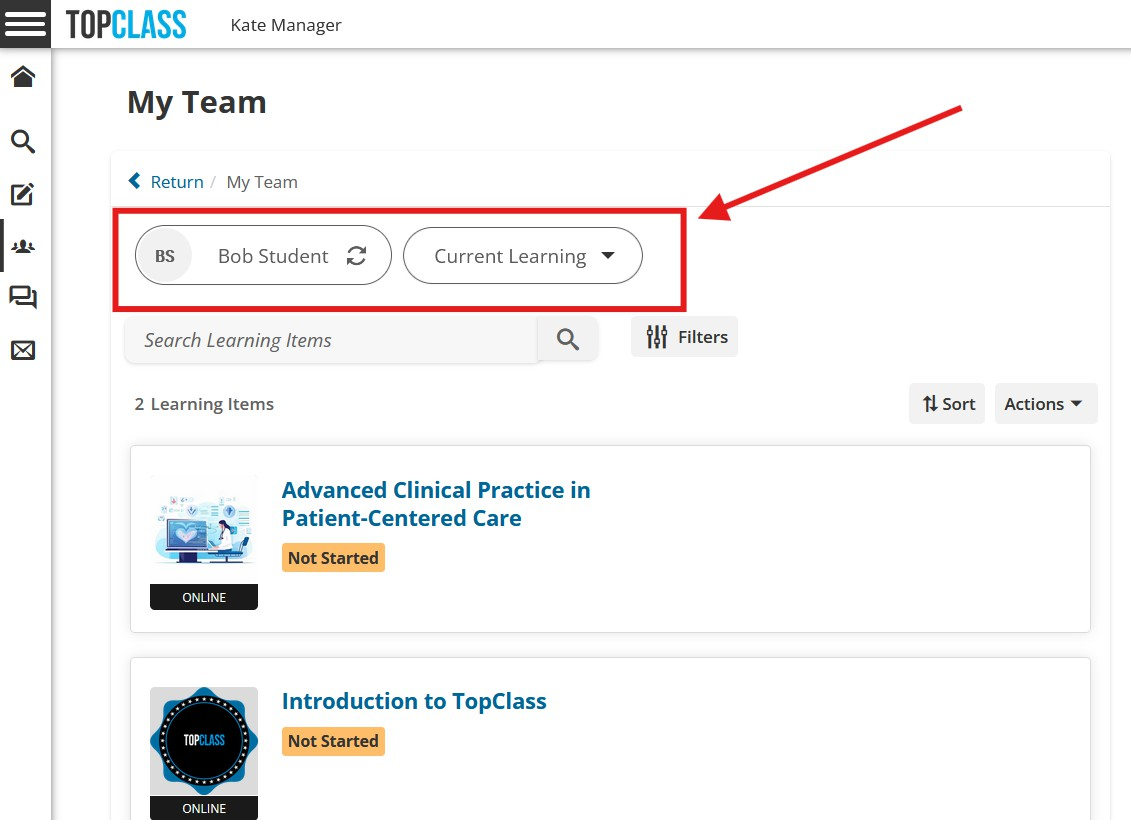
- When viewing a screen for a specific managed user, you now have the ability to quickly select another user and view the same screen for that user without having to navigate back to the Team screen.
- It is also possible to change between viewing different screens for an individual managed user without having to navigate back to the Team screen.
- As a manager, if you are creating external training for a managed user, you can quickly navigate to different users from that entry screen to create external training for multiple users with less steps.
Bulk email managed users
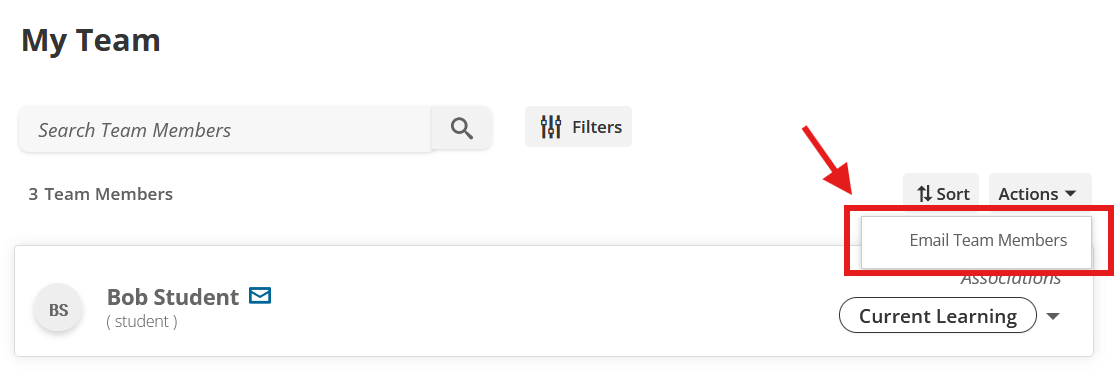
- A new setting under System Settings > Managers has been added to determine if manager users can email their managed users.
- If this is enabled, a new button labelled Email Team Members will be visible from Team > Actions.
Miscellaneous
General enhancements and bug fixes
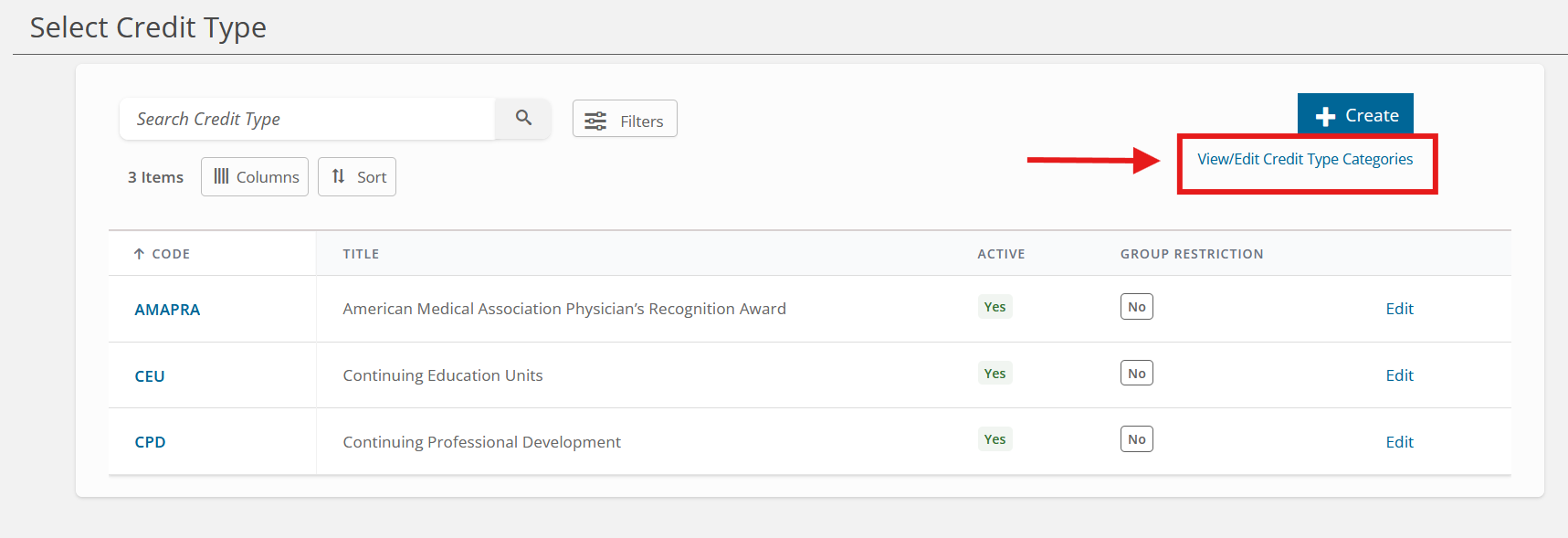
Credit Categories
- Ability to add new credit categories to TopClass, for selection when creating new credit types.
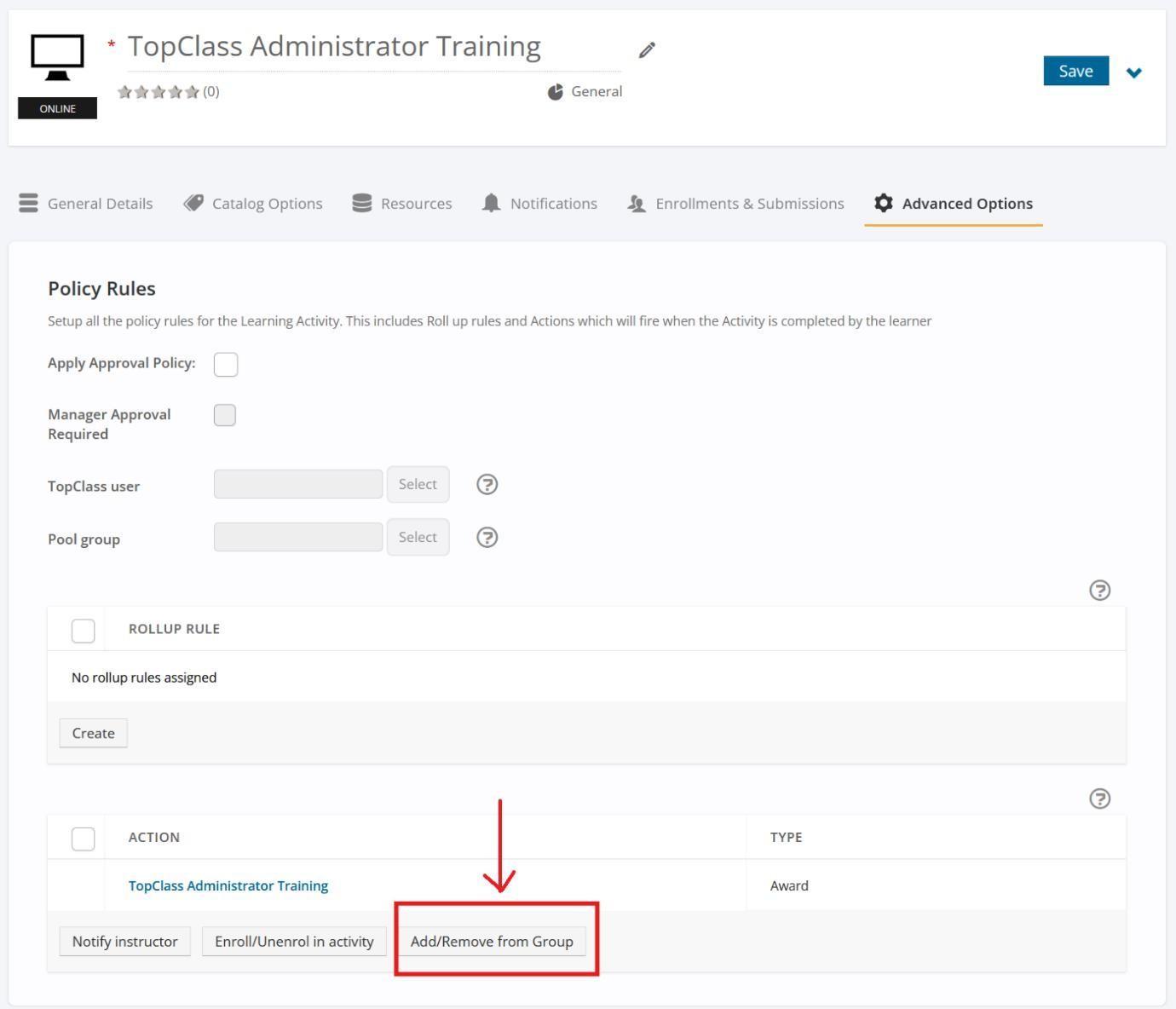
Add/Remove from Group for Activities
- Super Admins can set up automatic actions to add learners to a group or remove learners from a group when they are enrolled in an Online Activity or when they Satisfy and Complete an Online Activity.
- For ILT Activities that are set to trigger the rule when Attended, this also triggers for any learners set to Partial Attendance.
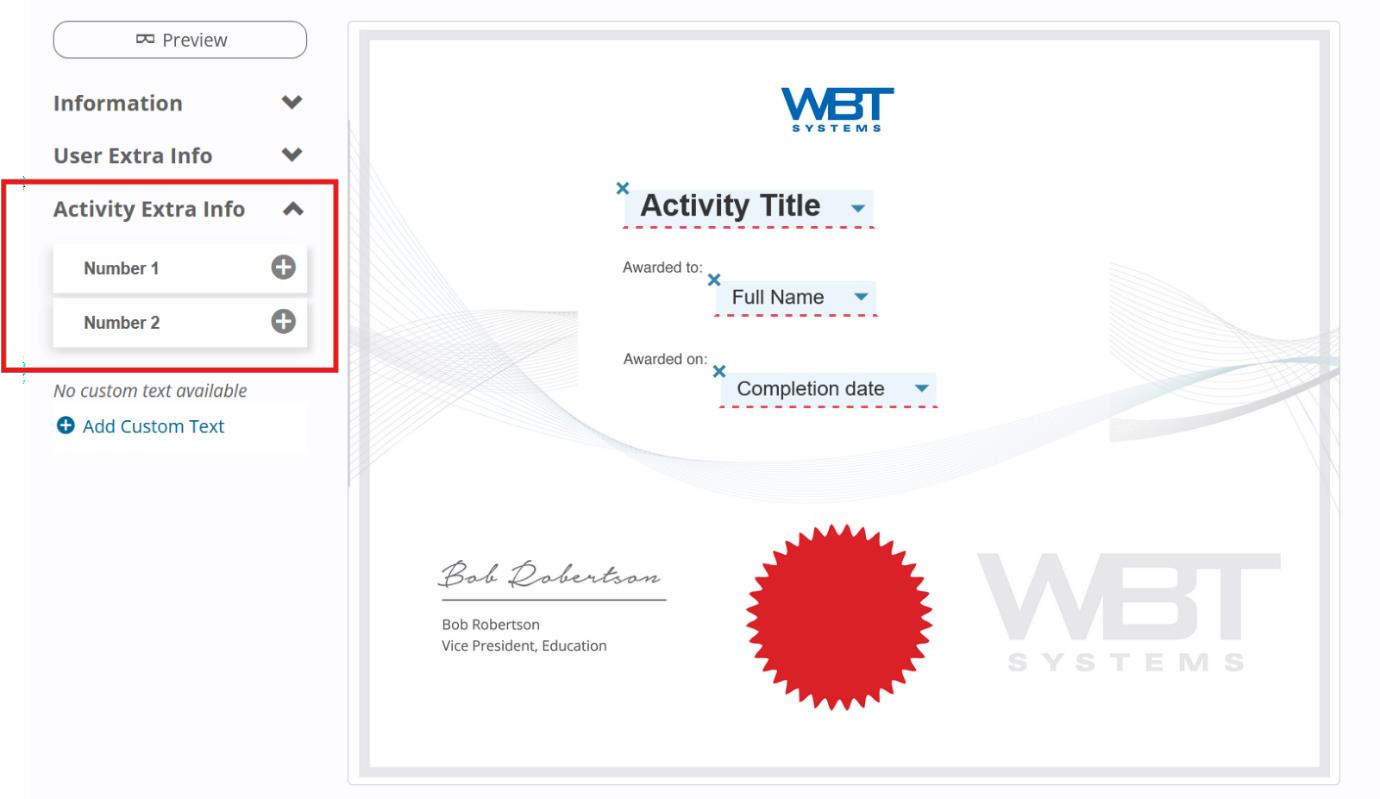
Offering Extra Info for Certificates
- Extra Info fields for offerings (activites) have been made available to show on Certificates under a new dropdown for Activity Extra Info.
Shopping Cart Icon Redirect
- For scenarios where the TopClass Shopping Cart is off, but Catalog Redirects are in place, Super Admins now have the ability to display a shopping cart icon in the TopClass header, and when clicked it will redirect to a link that can be specified in TopClass System Settings.
April 2024 (10.7.0)
Recommendations Engine
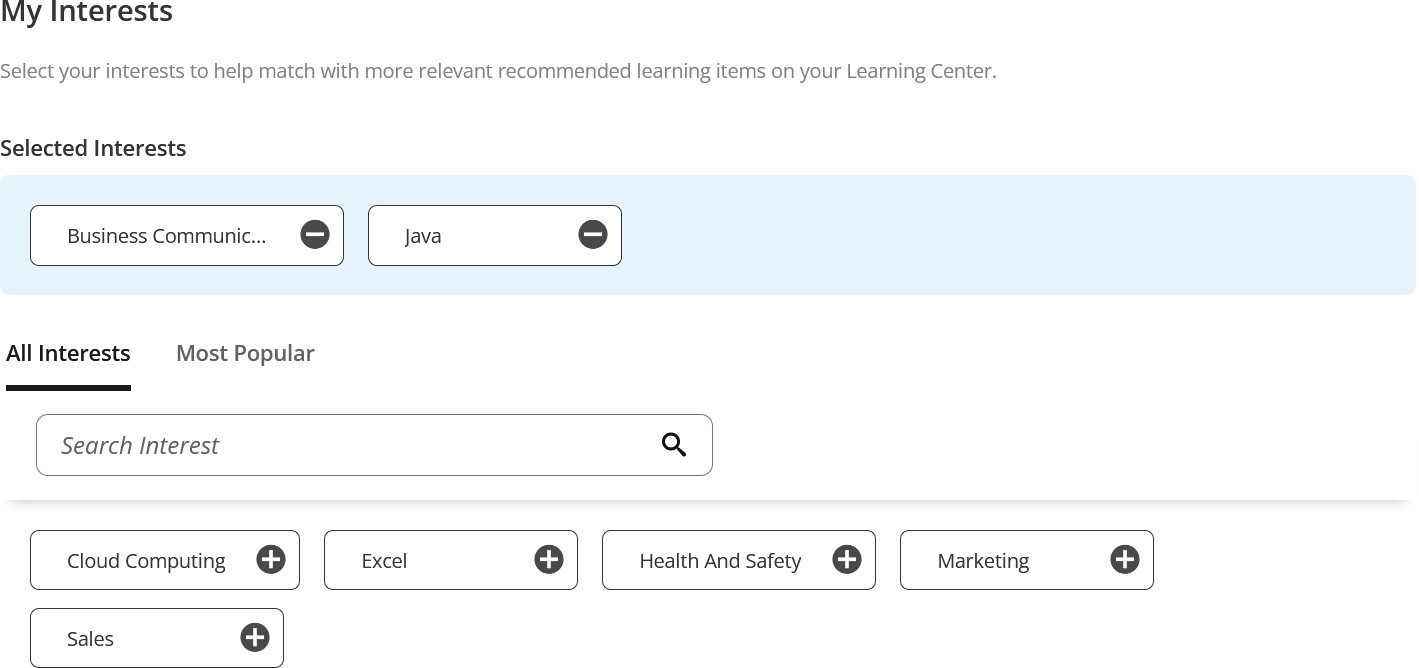
- TopClass now has a way for learners to get recommended activities based on a number of factors: learners can select areas of interest to them, managers can recommend courses to their managed users, activities can be set up to recommend to all learners by default, and certification programs can be automatically recommended to learners if they complete an activity that is linked to a certification program.
- The maximum number of items a user can be recommended is 30.
- Super administrators can determine the weighting on how each of these options feed into the recommendation calculations for learners, for example, if a customer wants manager recommendations to be considered more important, they can be weighted higher than default activities and learner interests.
- Manager recommendations will allow managers to recommend activities from the catalog and the Team screen. Managers will be able to see what they have recommended each learner on a new screen and see if the learner has enrolled or completed it. They can also remove activities they have previously recommended from the learners recommendation list.
- Topics of interest must be set up by Super Administrators before learners can use them to select as areas of interest on their profiles. Activities can be linked to multiple relevant topics of interest. There is a limit of 5 on the number of interests a user can select on their profile.
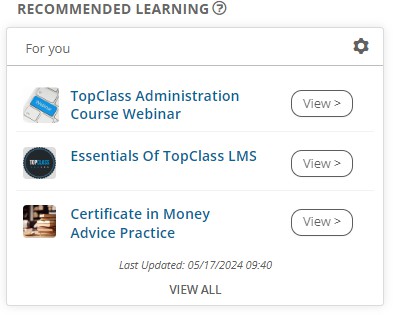
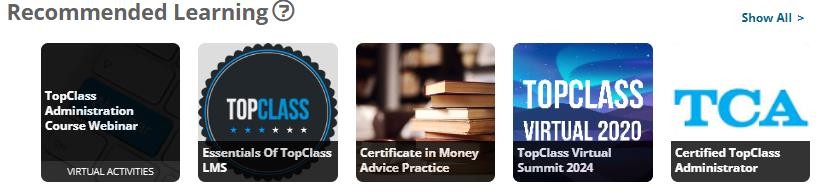
- Learners can view their recommended learning list from a new widget and a new stream on the Learning Center. A link to the learners' recommendations list can also be added to the congratulations popup at the end of online activities. A new batch notification has been added to alert learners of their recommended learning list. This batch notification is turned off by default and will need to be configured by Super Administrators before use.
- Recommended learning is shown as a new feature on the Getting Started screen.
Conference Self-Mark Attendance
For in-person conferences, learners can now be given the ability to mark their own attendance for the conference sessions. This Set Attendance button will only be visible to the learner after the End Date of the conference has passed.
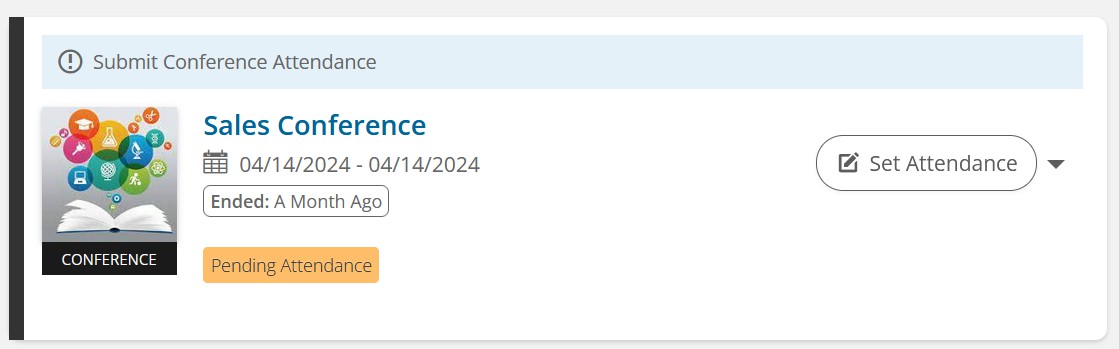
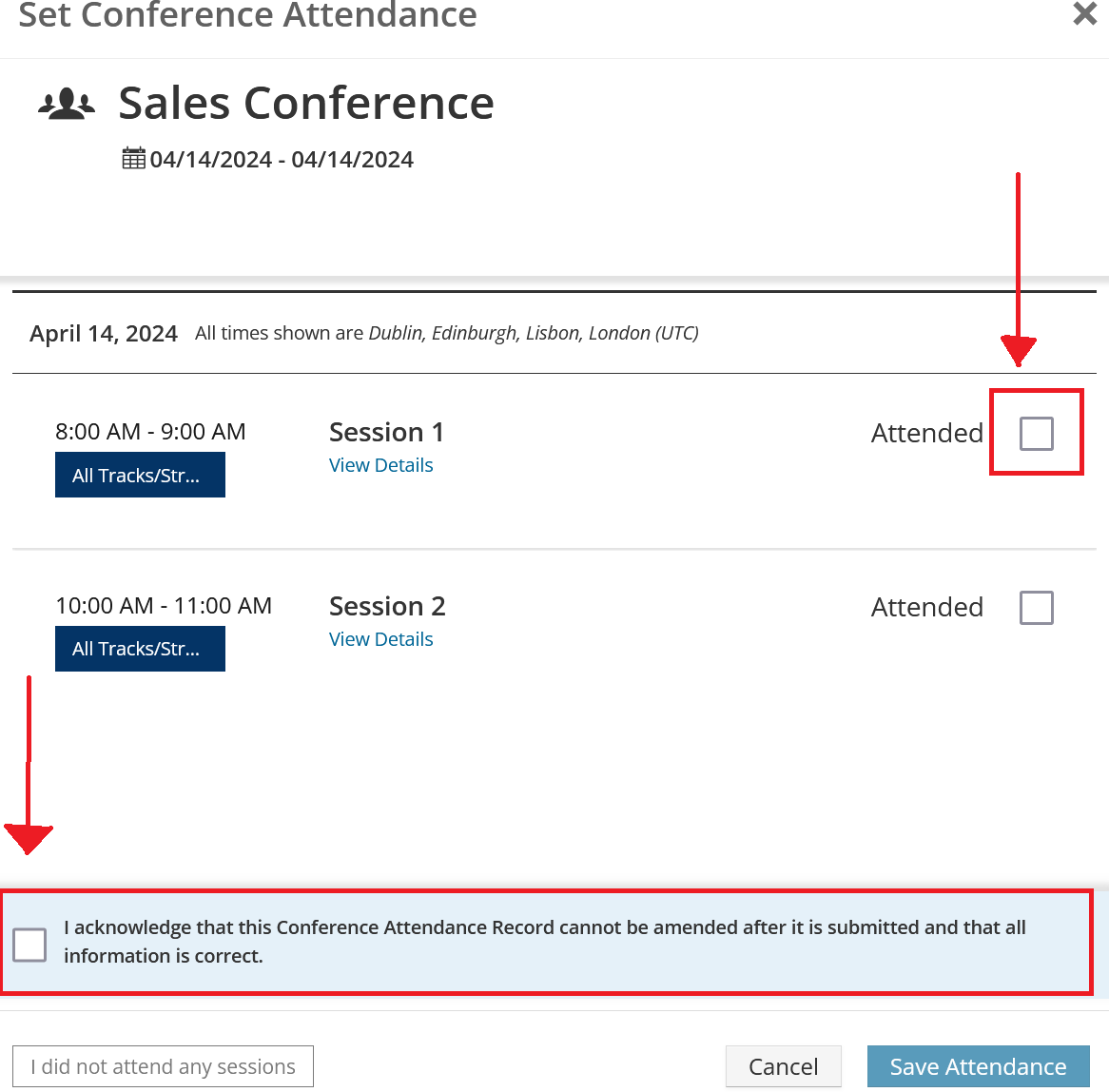
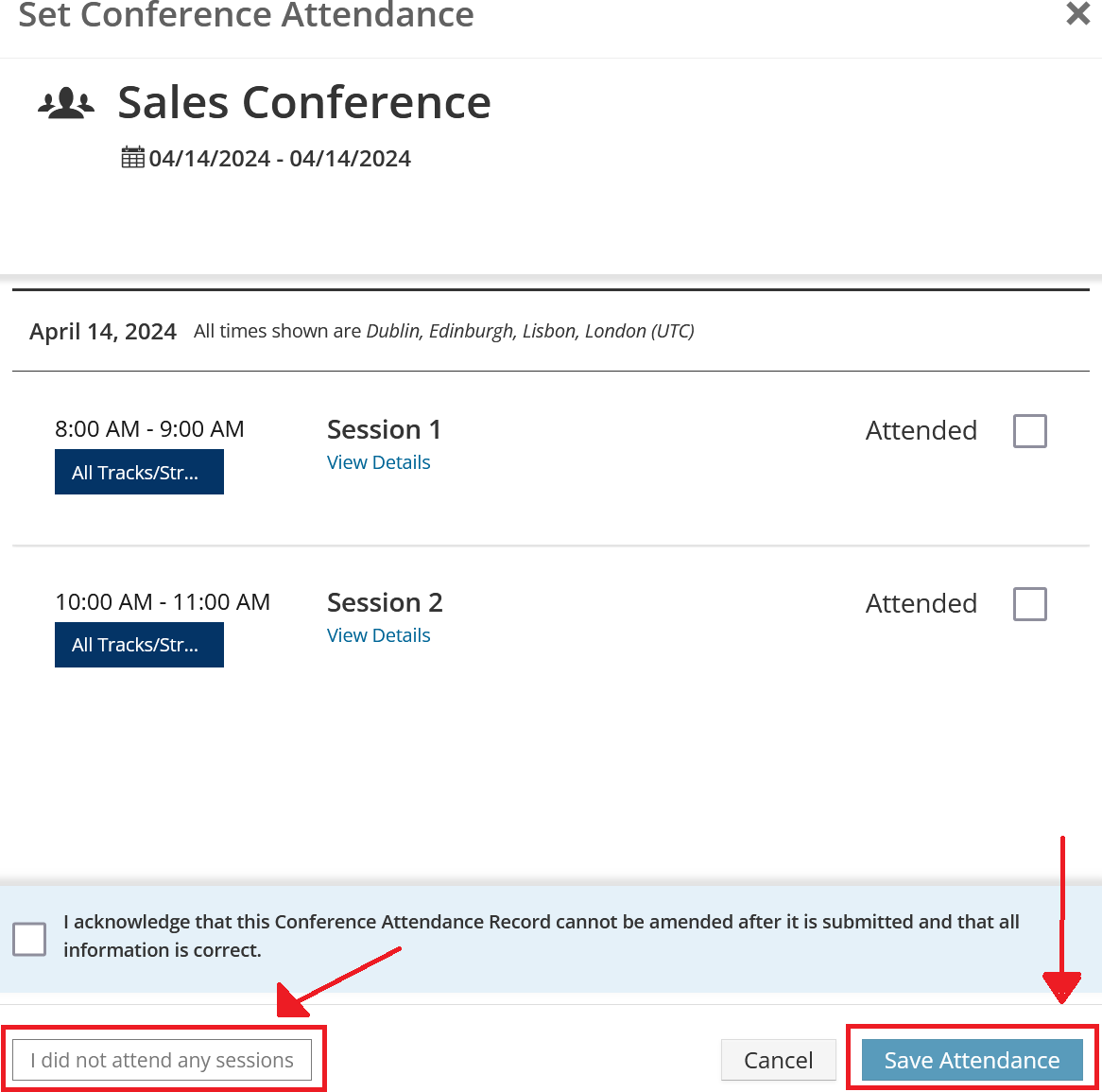
- Once the learner has submitted their attendance, they will no longer be able to go back in to change it. If a learner does not attend any sessions and submits, the conference will be set to No Show.
- Super Administrators can still change learner status manually from conference after learner has set it, which will override the learner selection and update their status on their Completed Learning screen. If the user has not yet set attendance, Super Administrators can set the learner attendance which will roll up the conference for the learner and they will not be able to mark their own attendance.
- A batch reminder notification is available to remind learners to mark their attendance is enabled on a conference, if they have not yet done so.
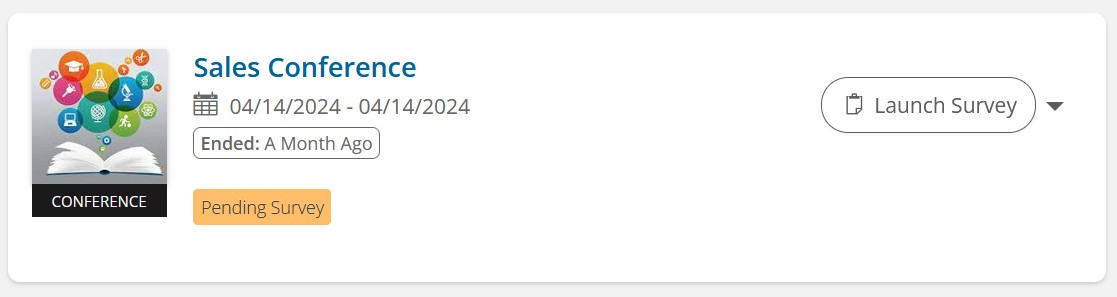
Conference Surveys
Learners can now be given an option to fill out a conference-specific survey after an in-person conference has ended. The questions can be set at conference level to have conference-specific questions, as well as session-specific questions for sessions the learner has attended.
Manager Create and Edit Users
A new setting is now available to allow managers to create and edit their own managed users. The setting is available on the Users and Groups Managed tab of the manager user and is defaulted to off.
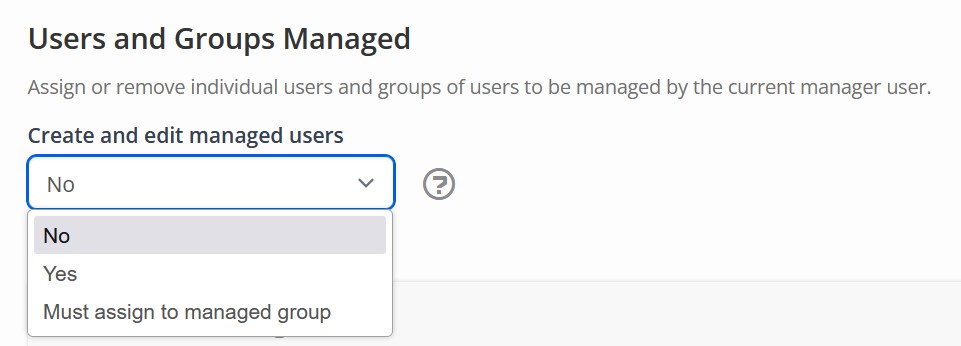
- The setting can be set on the user or can be set in bulk through a new batch registration option specifically for manager users. The options are Yes, No, and Must assign to managed group.
- Fields that can be set for users are limited. If a customer is using integrations with another system, the manager will be unable to edit the unique integration identifier for the user.
- Managers can be allowed to add users to their own managed groups during creation.
Certification Program External Training Templates
It is now possible to add an External Training Template as a requirement for completing the path of a Certification Program.
- External Training Template level approval has been added to allow Super Administrators determine a specific user or group of users to approve specific External Training Templates.
- A new checkbox has been added to External Training Templates to determine if a template can only be used as part of Certification Programs, or if it can also be attained outside a program, through the normal claiming of External Training.
- Title, Vendor and Description are now read-only when creating an External Training record from a template. Credits are also read-only if setting Allow Override of Credits for External Training is set to No.
- Sub-credit types being claimed through an External Training Template will now be read-only if system setting Allow Override of Credits for External Training is set to No.
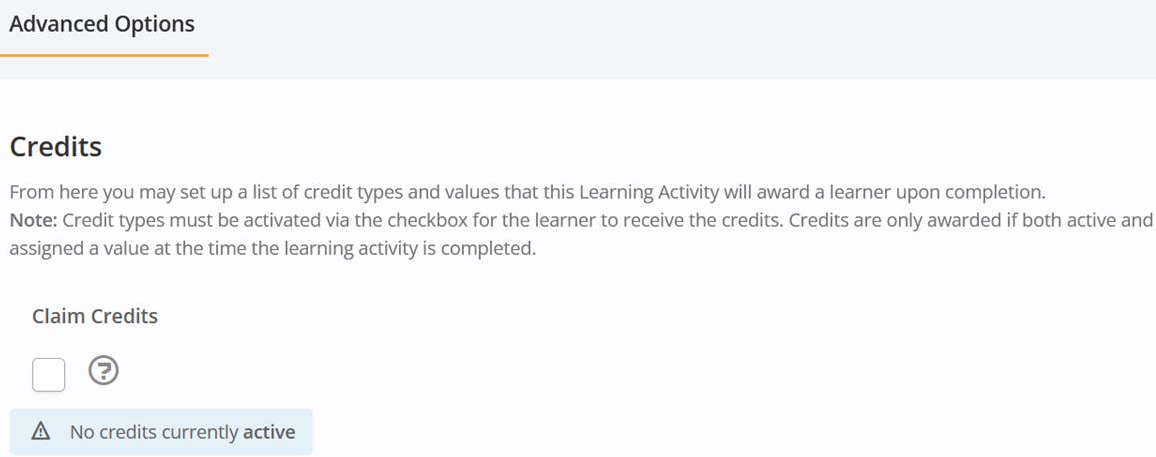
Claim Credits
Learners can now be given the ability to claim their own credits for an activity or product. This can be used with Online Activities, ILT Activities, and Products.
- Reminder notifications can be set up to send to learners to remind them to claim their credits. There will also be an option for learners to choose not to claim any credits.
Integrations
Stripe Updates
Updates to the Stripe API to include:
- Receipt Email.
- Activity Title and session title for ILT sessions as a comma-separated list in the Description.
- Metadata for Price Plan of user purchasing.
- Metadata for quantity of each activity being purchased [activity name (up to 490 characters then truncated), quantity]
- Example of payment with description:

-
Example of metadata:
Key Value Item 1 1 x Online Activity 12345 Test Item 2 6 x DVD 67890 Test
Enhancements
TopClass REST API Extensions
- ILT Class
- ILT Instance (session)
- ILT Student
- Online
- Online Enrollments
- Transactions
- Updates to include additional information
- New - Additional integration points for Salesforce.
- Online Enrollment JIT and Batch Syncs
- ILT Enrollment JIT and Batch Syncs
TopClass Reports
As part of the new TopClass Reporting Solution, the following items are now available:
- Reports Scheduling
- Under People Management category:
- Completed Learning by User
- Completed Learning by Group
- Completed Learning Credits by Group
- Completed Learning Credits by User
- ILT Attendance
- NARS
- Student Progress by Group
- Student Progress by Certification
- Waitlisted ILT Students
- Under Training Coordination category:
- Aggregate Survey Responses (Boolean, Pick One, Likert)
- Aggregate Survey Responses (Text)
- Aggregate Test Responses (Boolean, Pick One, Likert)
- Aggregate Test Responses (Text)
- Conference Survey Responses
- Statistical Item Analysis
- Test Analysis (Questions)
- Test Analysis (Tests)
- Test Analysis Charts
- Test Responses
- Test Response Cross-Tab Format
- Test Score
- Test Time Tracking
- Text Question Responses
- Under Finance category:
- Sales
- Sales Analysis
Show number of users registered for a session in Sessions Report:
- A new field has been added to the TopClass Sessions Report to display the number of users registered for each session. This new field includes a count of all users who show currently on the Enrollments tab of a session. Users with status of No Shows, Cancelled, or Waitlisted are not counted.
- A report is available to determine the percentage of users who have responded to each question, for specific question types only: Boolean, Pick One, Likert.
Miscellaneous
Upload Profile Picture from Device
- Learners can add a profile picture to their TopClass profile directly from their device camera.
Overdue Assigned Activities Notification
- A batch scheduled notification reminder sent to learners to remind them of an Assigned activity requiring completion.
User Profile Updates
- Some UI and layout updates have been made to the user profile screen.
Ability to mark content as not-scoreable
- The pre-existing content setting Hide Test Feedback is now available on external content, such as SCORM, xAPI, and AICC. When set to Yes, the score field will show as N/A on the learner's Submissions tab on the Learning Center. The pass/fail message will also be hidden on submission of the content.
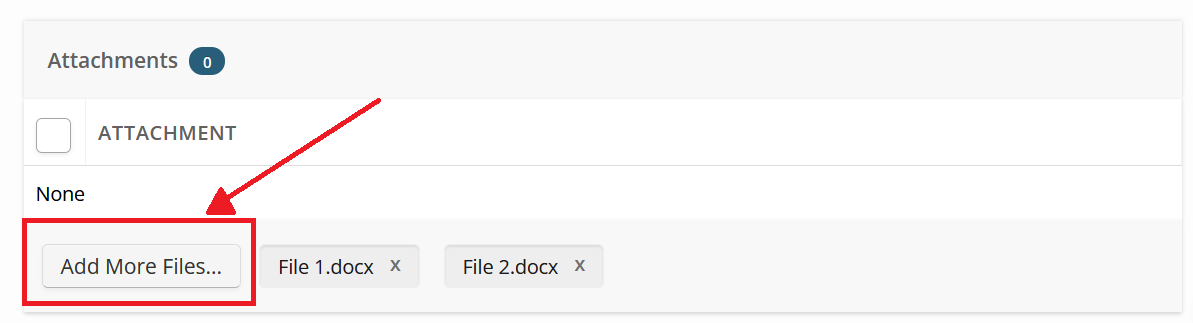
Add multiple attachments to external training
- When claiming External Training, learners can now upload multiple attachments associated with their External Training record, prior to creation, or prior to approval if approval is enabled.
DOB on Certificates
- User date of birth field is now available as a variable to use on certificates.
Information section for TopClass Tests
- A system setting, Show Test Introduction Within Test, is available to determine if the test information to carry through full test so that learners can access it at any time while taking the test.
Updated 3 months ago