

Batch Award – Customized awarding of activities
The Batch Award tool allows administrators to quickly award learning activities to multiple users at once. This feature is especially useful when activities or users have not yet been created in TopClass, or when each user requires different award details. Using the Customized Awarding of Activities option, you can upload a CSV file and efficiently create Completed Learning records in bulk.
This option supports more complex awarding needs. You can award activities to users who do not yet exist in TopClass, and you can also award activities that are not yet created in the system. This option is best used when:
- You need to perform an advanced or customized batch awarding task.
- You must assign different activities, award dates, expiry dates, or credit values to users.
- Some or all of the activities you plan to award do not exist in TopClass.
- You have a CSV file that includes valid usernames and activity codes.
Do the following to customize how activities are awarded:
- Go to Resource Management > Users.
- Click Batch Award.
- Click Customized Awarding of Activities.
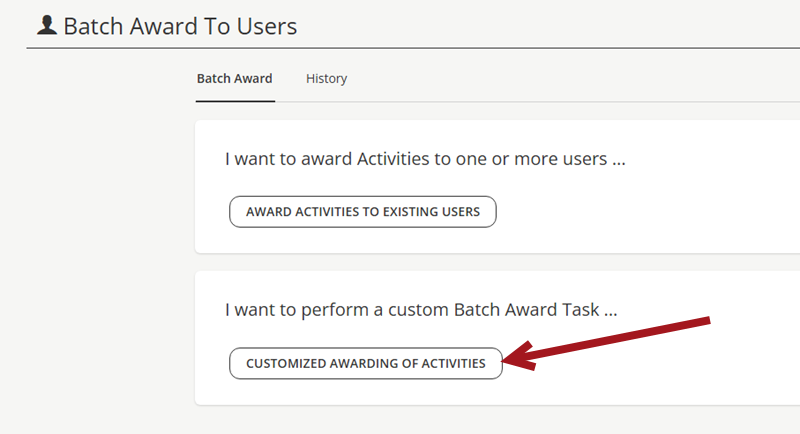
- Enter a Title. This is visible only to admins.
- Enable Credit users for Activities that DO NOT exist in the LMS using the Activity Code provided if you want to award users for activities that do not exist in TopClass using the provided Activity Code. If left unselected, users will not be awarded activities whose codes do not exist.
- Enable Award on this date for all users and enter a date to award the activities on a specific date. Only use this option if all items should be awarded to users on the same day.
- Click Next Step.
- Select the Date format.
- Choose which data fields you want included in the CSV file:
- (required) Username — The user’s TopClass username.
- (required) Award Date — Must match the selected date format and use
/separators. - Expiry Date
- Comment — If the activity does not exist, the user will see this comment. Otherwise, only admins can view it.
- (required) Activity Code — The unique TopClass activity code, or the activity title if the activity does not exist in TopClass.
- Credit Code — The TopClass credit type/code.
- Credit Amount
- Student ID — The user’s iMIS ID.
NoteSee the notes below for additional details when creating the CSV.
- Upload a CSV file with columns in the required order.
- Click Award when ready.
- Click OK, Got It to close the message. The page will refresh to the original screen view.
- On the History tab, you can review whether the process completed successfully. Select the title to view detailed results, including skipped or failed lines.
WarningThis process does not enroll users into the activity. However, it will award any certificate that is associated with the activity.
Map CSV to TopClass notes
- Map your CSV columns to the matching LMS Batch Award Activities data.
- You can reorder columns to match your data file by drag and drop.
- Mandatory columns are marked with a *
- Use the Download Sample as a template
- Dates in the CSV file must be provided in the format chosen in the Date format drop-down.
- Valid Activity types are Online, ILT, Virtual, External, and Certification Program
- These must be provided in conjunction with the matching Activity Code.
- If an Expiry Date exists for the Activity being awarded, this will be used, even if an Expiry Date is not provided here.
- If you provided a Credit Code, you must provide a Credit Value and vice versa. Leave both Credit fields empty if you do not wish to award Credit Values.
- If you set an Expiry Date, Credit Code, or Credit Value here, they will overwrite these values on the Activity.
- Valid Start Date is specific to Certification Programs/Paths. If this field is not provided, the Valid Start Date will be set to the Enrollment Date (i.e. the current date).
Updated 3 months ago