

Transferring users between groups as a manager
Managers can move users from one group to another, provided they have management rights over both groups. This allows managers to more efficiently and quickly manage their users.
The setting, Allow Manager to Transfer User Groups, enables administrators to decide if managers can move users between groups they already manage.
Allowing a manger to transfer users between groups
To grant a manager the permissions required to move users between groups they already manage, do the following:
- Go to Resource Management > Users, and search for the manager.
- Click the Manager Options tab.
- From the Allow Manager to Transfer User Groups setting, choose Yes.
- Click Save.
Transferring a user from one group to another
Managers can transfer a user from one group to another by doing the following:
- From the navigation, click Teams.
- From the My Teams list, search for the team member.
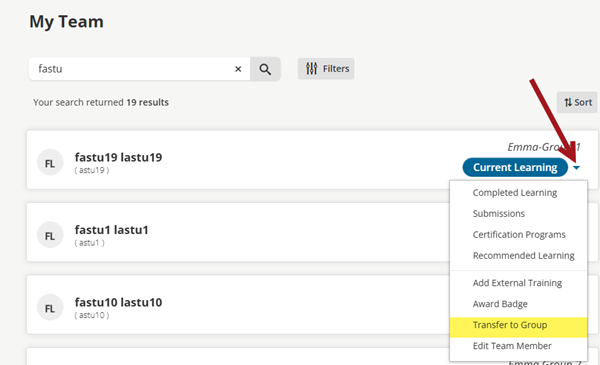
- Click the caret arrow next to the Current Learning button for the team member.
-
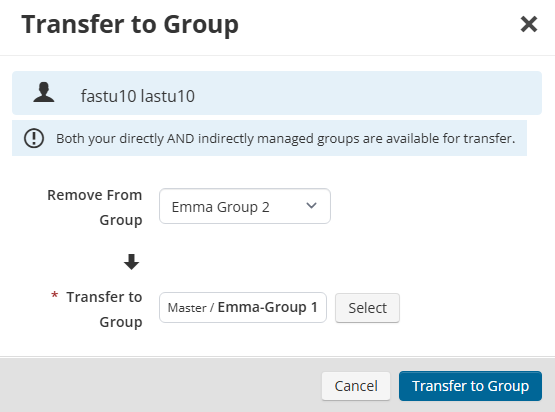
Choose Transfer to Group:
- Remove from Group – Select the group the team member will be removed from.
- Transfer to Group – Select the group the team member will be transferred to. Groups and sub-groups the manager already manages are the only groups available.
- Click Transfer to Group.
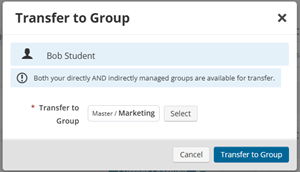
NoteManagers can also add a directly managed user (who is not currently a member of any group they manage) into one of their managed groups. When clicking Transfer to Group, the manager will only see the Transfer to Group option for that user.
Updated 5 months ago