

Using the My Credit Tracker widget
The My Credit Tracker widget gives learners a centralized way to track earned credits without relying on certifications. The widget provides a clear, at-a-glance view of credits earned by type within a configurable timeframe, helping users stay informed and motivated throughout the year.
To support ongoing learning objectives, users can also set personal credit goals directly within the widget. Goals can be defined by credit type and timeframe (for example, earning a specific number of CPD credits within a calendar year). Progress toward each goal is visually tracked, making it easy for users to see how close they are to achieving their targets.
Reviewing and updating credits
Do the following to review and configure the My Credit Tracker widget:
-
Navigate to the Learning Center. The My Credit Tracker displays on the right side of the page.
-
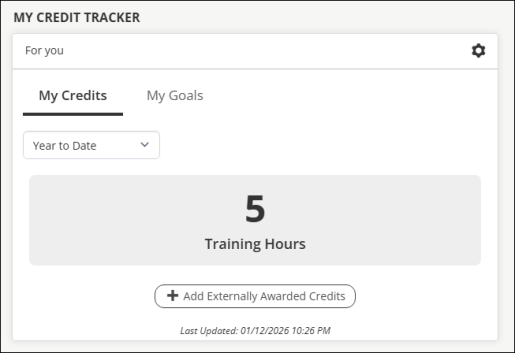
From the My Credits tab, update the drop-down filter to display credits for the year to date, the previous 12, 6, or 3 months, or a custom date range. Earned credits display depending on the selected filter.
-
Click Add Externally Awarded Credits to add external training:
- Use the provided search to search for the training.
- Select the Date Completed.
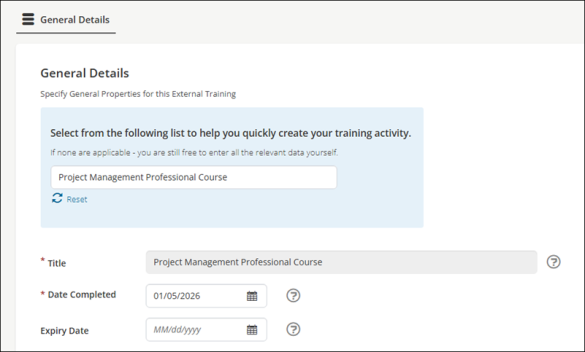
- If there is an expiration date associated with the training, select the Expiry Date.
- Enter the Vendor, such as the school or organization that provided the external training.
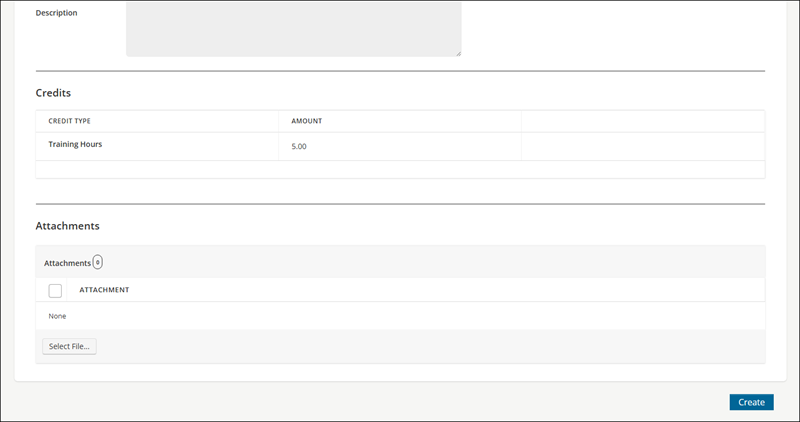
- Enter an optional Description to add more details about the training.
- From Attachments, upload any supporting documents, such as certificates, badges, or anything else you obtained from the training.
- Click Create.
- Navigate back to the Learning Center to confirm that the external training is now listed in the My Credit Tracker widget.
Adding goals
NoteEach learner may only have two goals defined in the My Credit Tracker widget.
Do the following to add goals using the My Credit Tracker widget:
- Navigate to the Learning Center. The My Credit Tracker displays on the right side of the page.
- Click the My Goals tab.
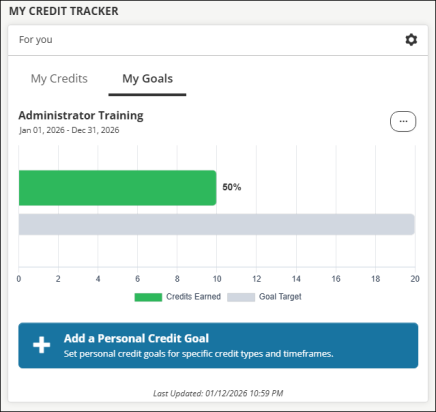
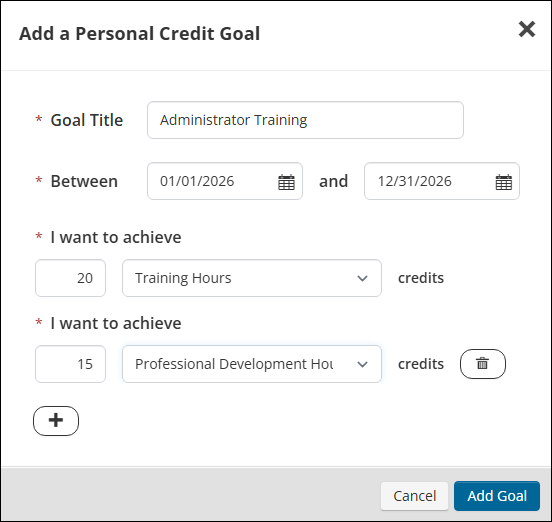
- Click Add a Personal Credit Goal:
- Goal Title – Enter the title of the goal.
- Between – Enter the target date range to have the goal completed. The start date can be in the past if needed.
- I want to achieve – Enter the target number of credits, then select the credit type from the drop-down.
- Click the add (+) icon to continue adding credits.
- Click Add Goal.
- The goal appears as a horizontal bar chart that displays two rows:
- Credits Eared – Amount and percentage of credits earned toward the goal. Hovering over the row, you can review the credits earned compared to the goal number, the start and end dates for the goal, and the credit types.
- Goal Target – The overall goal target. Hovering over the row, you will see the goal name, target total, and the credit type(s) defined.
- Click the Actions menu (...) to Edit or Remove the goal.
- Click Add a Personal Credit Goal to add a second goal. Each learner may only have two goals defined in the My Credit Tracker widget.
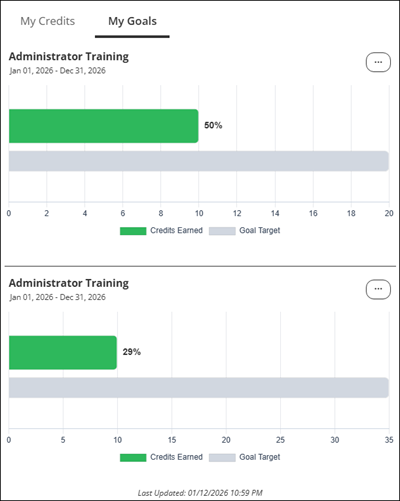
When goals are defined, the My Goals tab becomes the selected default tab for the My Credit Tracker widget.
Updated 5 months ago