

Configuring the Login Page
Use the Login Page customization settings to control the appearance and content of your TopClass login experience. You can choose between Advanced and Simple layouts:
- Advanced: Fully customizable layout with learning content and widgets
- Simple: Lightweight login experience with branding and optional content
Configure elements such as branding, banners, user actions, learning content, and footer details. A live preview on the customization page reflects your changes as you make them.
To configure the Login Page, do the following:
-
Go to Customizations > Login Page.
A live preview is visible on the customization page to show where and what changes have been made.
-
Select the Login Page Type (Advanced or Simple).
NoteThe drop-down menu is specific to the selected login page type.
Advanced
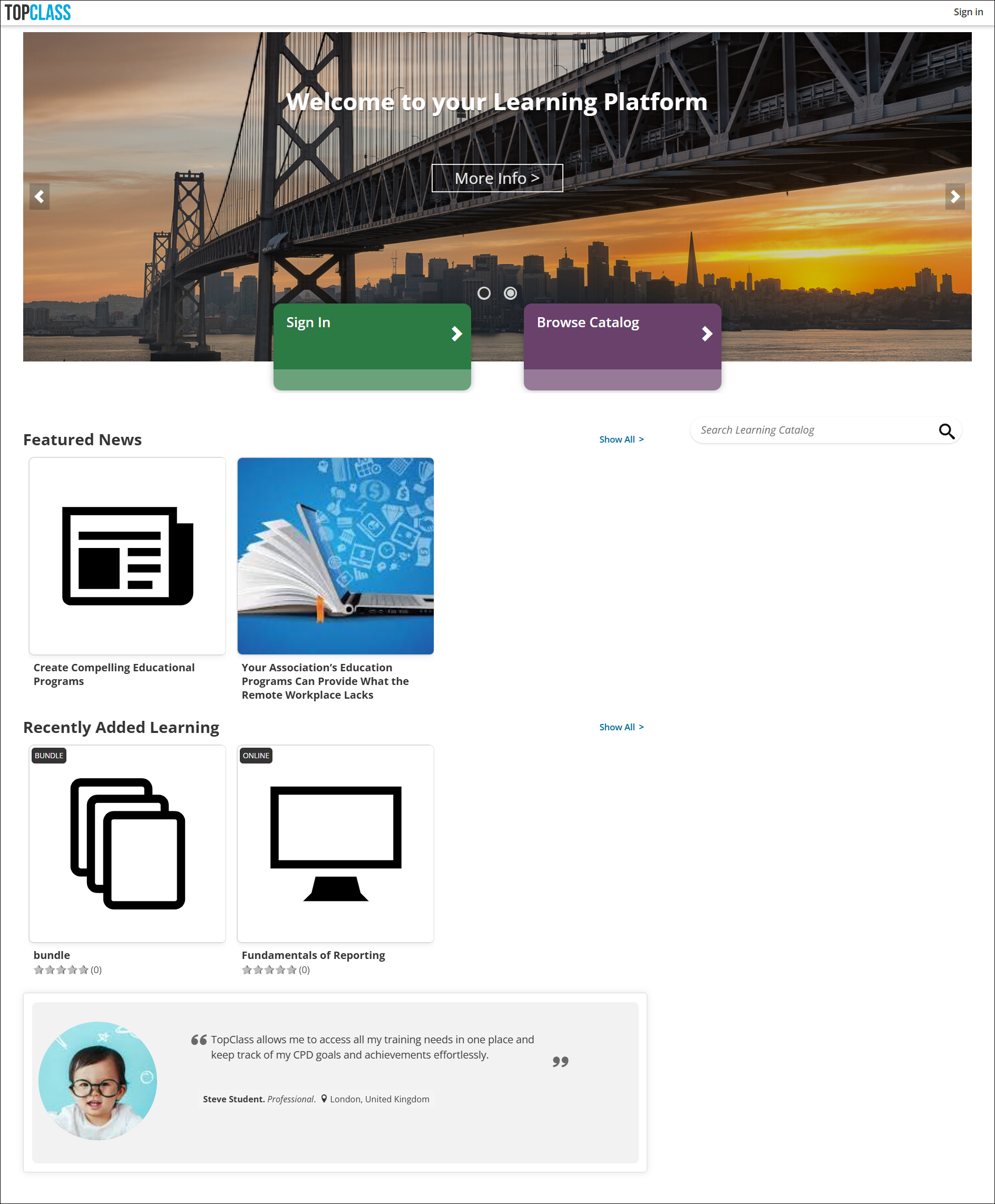
Customize the advanced login page type using the following drop-down options:
Background & Banner
- Set the Page Background Color.
Show Landing Page Banner
-
Toggle On to use saved landing page banner on login page.
-
Toggle Off to configure login page banner.
-
Show Custom Login Banner
-
If toggled Off, no banner will appear on the login page.
-
If toggled On, do the following:
- Use the Edit Content button to enter your login page banner content. Text, images, links, and videos can be added and formatted.
- Set the Custom Banner Background Color and Custom Banner Text Color.
- Toggle Custom Banner Shadow On to add a shadow effect.
User Actions
-
Set the user actions to appear on the login page. A maximum of two user actions can be added to the login page. The options are Sign In, Browse Catalog, and New User Action (set a custom URL link).
-
To modify the user action properties, select the Edit link and configure the following:
-
Background Color
-
Text Color
-
Use the Label options to customize the text on the user action button for each language variation.
NoteDefault labels are automatically translated. If you modify the text, translations must be updated manually.
-
Choose the Action for the user action e.g. Sign In, Browse Catalog or Custom URL.
NoteThe action for the Sign In and Browse Catalog user actions is preset and does not need to be changed.
-
Overview
Toggle Show overview to display an overview on the page, then configure the following:
- Use the Edit Content button to enter your login page overview content. Text, images, links, and videos can be added and formatted.
- Set the Overview Background Color and Overview Text Color.
- Toggle Overview Shadow On to add a shadow effect.
Learning Streams
- Select which learning streams appear on the login page and arrange their display order.
- Set the Stream Items Size.
Learning Widgets
-
Select which learning widgets are to be included on the login page and arrange their display order.
NoteIf included, ensure social media widgets have been configured. See Adding social media links and widgets for details.
-
Toggle Show Sponsored Messages On to show sponsors and advertisements.
NoteSponsored messages appear at the top of the widget panel. The location cannot be changed.
-
Toggle Show Catalog Search Bar On to show catalog search bar.
Footer
-
Toggle Show Footer on to display the footer, then configure the following:
-
Use the Edit Content button to enter your login page footer content. Text, images, links, and videos can be added and formatted.
-
Set the Footer Background Color and Footer Text Color.
-
Toggle Show Social Media Links to On to show social media links.
NoteIf toggled on, ensure social media links have been configured. See Adding social media links and widgets for details.
-
Advanced
Use the advanced section to do the following:
- Reset to default settings
- If there are multiple partitions, it is possible to apply all changes globally by selecting Copy these settings to ALL instances.
Click Apply Changes to save all changes.
Simple
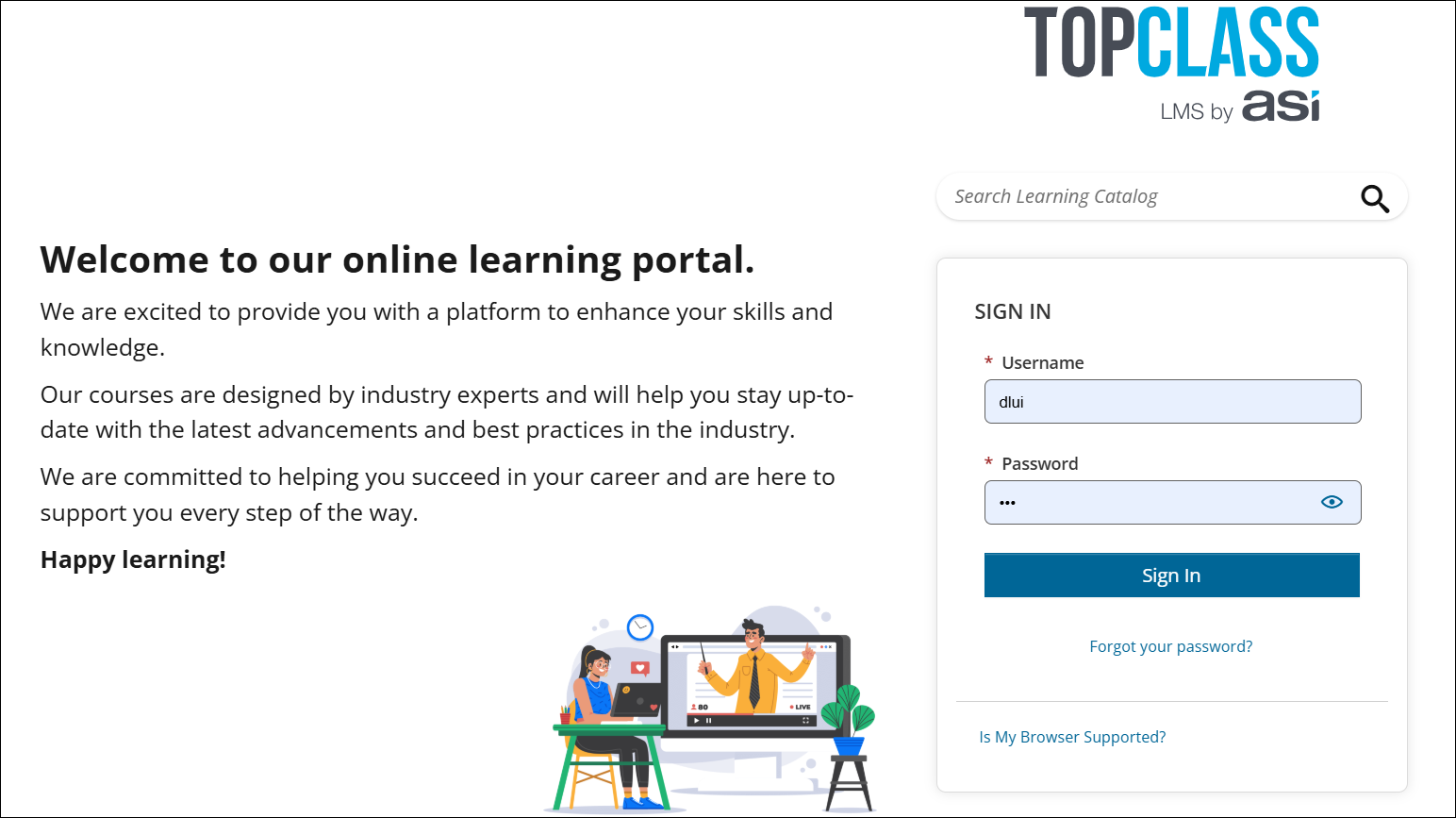
Customize the simple login page type using the following dropdown options:
General Settings
-
Set the login page positioning using the Alignment buttons.
-
Use the Sign In Label options to customize the text on the sign in dialog box for each language variation.
NoteDefault labels are automatically translated. If you modify the text, translations must be updated manually.
-
Toggle Show Catalog Search Bar to On to show catalog search bar.
Logo & Backgrounds
-
Change the Logo.
-
Set an Alt Text for the logo for screen readers.
-
Change the Background Image.
-
Set an Alt Text for the background image for screen readers.
-
Choose the Background Image Sizing.
TipFor best results, set to Cover for patterned background images and full screen images.
-
Set the Background Image Position.
-
If no background image is used, set the Background Color.
-
Use Apply Filter to set a filter.
-
Set an Image Credit Caption.
NoteIf set, the image credit caption will display when a user hovers over the login background image (on click for mobile devices).
Custom Content
Toggle Show Custom Content on to add custom content to the login page, then configure the following:
- Use the Edit Content button to enter your login page content. Text, images, links, and videos can be added and formatted.
- Set the Background Color and Text Color.
- Toggle Shadow to On to apply a shadow effect.
Footer
Toggle Show Footer on to display the footer, then configure the following:
-
Use the Edit Content button to enter your login page footer content. Text, images, links, and videos can be added and formatted.
-
Set the Footer Background Color and Footer Text Color.
-
Toggle Show Social Media to On to show social media links.
NoteIf toggled on, ensure social media links have been configured. See Adding social media links and widgets for details.
Advanced
Use the advanced section to do the following:
- Reset to default settings
- If there are multiple partitions, it is possible to apply all changes globally by selecting Copy these settings to ALL instances.
Click Apply Changes to save all changes.
Updated 5 months ago