

Moving course materials into new folders
TopClass includes a content management system that allows you to create different courses with pages, videos, tests, and other materials to present to your student learners.
As a Super Admin or an Admin user with the Course Materials privilege, you can create course materials from the content screen.
If you have created course material—such as a test or video—in the wrong course folder, or simply want to move it to a new folder, you can do so without deleting or recreating the item.
Do the following to move course materials:
- Go to Activities and Learning > Content.
- Select the Learning Content.
- Within your course content folder, on the Contents tab, locate the item you wish to move.
- Click the drop-down caret next to Edit.
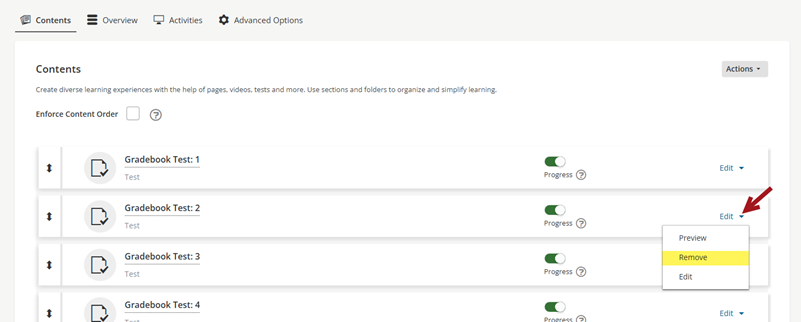
- Choose Remove.
NoteThis action removes the item from the folder but does not delete it. To delete an item entirely, select the title and then click Delete in the top right corner.
- Review the message, then click Remove.
- Navigate back to Activities and Learning > Content.
- Select the new course folder.
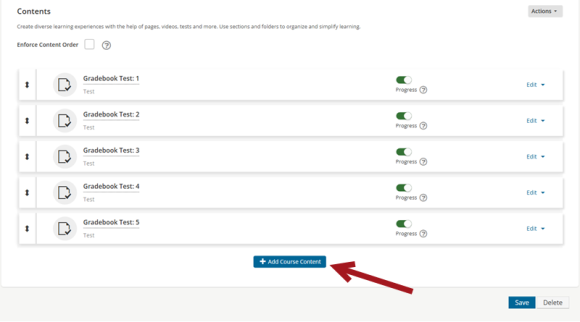
- Click Add Course Content.
- Choose Add Existing Content.
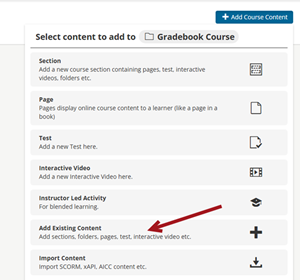
- Search for and select the course material item that was removed from the other course.
- Click Save.
Updated 5 months ago
Did this page help you?