

User Actions
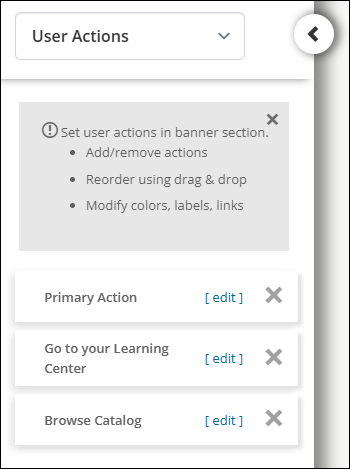
User Actions are tiles in the Learning Page's header that act as buttons that allow users to perform certain actions. By default, the User Actions are Primary Action, Go to your Learning Center, and Browse Catalog.
To customize the User Actions, do the following:
- Go to Customizations > Landing Page.
- From the drop-down, select User Actions.
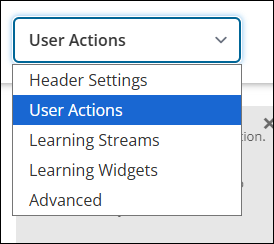
Customizing User Actions
User Actions can be customized by selecting the Edit link associated with each action.
Click the X icon to remove a User Action. If there are less than three User Actions defined, click Add User Action to add a User Action. Drag and drop User Actions to reorder them.
Primary Action
The Primary Action user action has the following settings:
- Background Color - The background color of the Primary Action tile, as defined by a hexadecimal color code.
- Text Color - The text color of the Primary Action tile, as defined by a hexadecimal color code.
Go to your Learning Center
The Go to your Learning Center user action has the following settings:
- Background Color - The background color of the Go to your Learning Center tile, as defined by a hexadecimal color code.
- Text Color - The text color of the Go to your Learning Center tile, as defined by a hexadecimal color code.
- Label - The language and label text associated with the Go to your Learning Center tile.
- Action - The action that happens when a user clicks on the Go to your Learning Center tile. Options include Browse Catalog..., Learning Center, and Custom URL. Selecting Custom URL allows the administrator to define a custom URL where the tile directs users.
Browse Catalog
The Browse Catalog user action has the following settings:
- Background Color - The background color of the Browse Catalog tile, as defined by a hexadecimal color code.
- Text Color - The text color of the Browse Catalog tile, as defined by a hexadecimal color code.
- Label - The language and label text associated with the Browse Catalog tile.
- Action - The action that happens when a user clicks on the Browse Catalog tile. Options include Browse Catalog..., Learning Center, and Custom URL. Selecting Custom URL allows the administrator to define a custom URL where the tile directs users.
Updated 5 months ago
Did this page help you?