

Setting time-based validity for online activities
Each online activity can have its own time-based validity set.
Do the following to set time-based validity for online activities:
-
Go to Activities and Learning > Learning Activities.
-
Search for and select the activity.
-
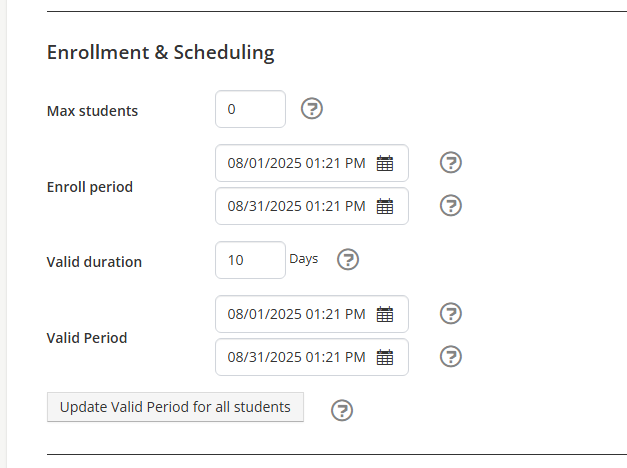
From the General Details tab, scroll down to the Enrollment & Scheduling section.
-
Update the following settings:
-
This is set on the General Details tab.
- Valid Duration – Set the number of days a learner has to complete the course after enrolling. Once this time period expires, the learner will no longer be able to access or complete the course. For example, if you set the valid duration to 10 days, each learner will lose access 10 days after their individual enrollment date if they have not yet completed the course.
- Valid Period – Set the valid period for the activity. Regardless of when the learner enrolls in the activity, the activity can only be taken during the fixed dates. If a date is not given, the activity is available infinitely.
-
Click Update Valid Period for all students. This updates the valid period and valid duration for all currently enrolled students. If both the Valid Duration and Valid Period are set, the shortest period is used.
-
Click Save.
Understanding how validity settings work
The two validity settings can be used simultaneously, taking the shorter of the two dates, for example:
- Valid Duration: 10 days
- Valid Period Start: 1st March
- Valid Period End: 31st March
With these settings defined, learners would be able to access the course as follows:
- A learner enrolling on the 2nd March will be able to take the course until the 12th.
- A learner enrolling on the 30th March will be able to take the course until the 31st.
NoteOnce a valid period is entered, Update Valid Period for all students must be clicked, or else learners that are already enrolled in this course will not be affected by the new validity periods.
Updated about 2 months ago