

Creating Learning Contracts via the Catalog
Any user can create a single activity learning contract by bulk purchasing seats in a learning activity via the TopClass Catalog. To appear in the catalog as a bulk purchase, the activity must have purchasing enabled.
Allowing the Learning Activity to be purchased as a Learning Contract
To allow a Learning Activity to be purchased as a Learning Contract, do the following:
-
Go to Activities and Learning > Learning Activities.
-
Search for and open the learning activity.
-
Click the Catalog Options tab.
-
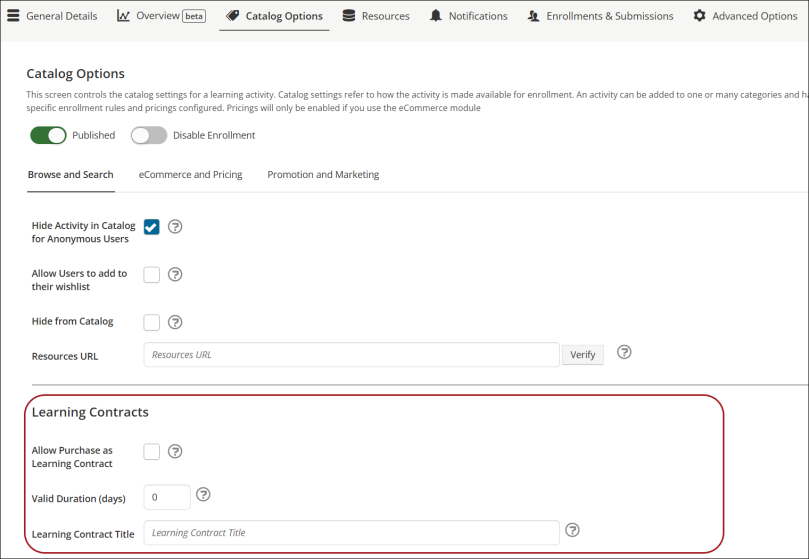
From the Learning Contracts section, enable Allow Purchase as Learning Contract.
-
Optionally define the Valid Duration (days). This is the number of days the Learning Contract is valid. The validity begins from the date of purchase.
-
Enter the Learning Contract Title that will appear to the contract admin. If left blank, the learning activity title is used.
-
Click Save.
Bulk purchasing of seats in a Learning Activity to create a Learning Contract
To bulk purchase seats in a learning activity and create a single activity learning contract, do the following:
-
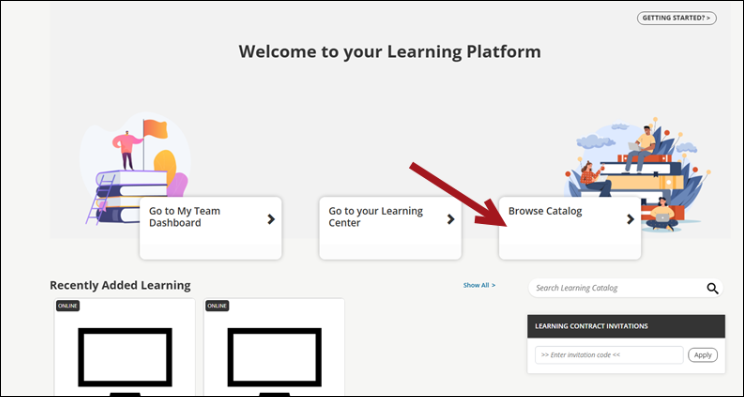
From the landing page, click Browse Catalog.
-
Search the catalog for the learning contract activity.
-
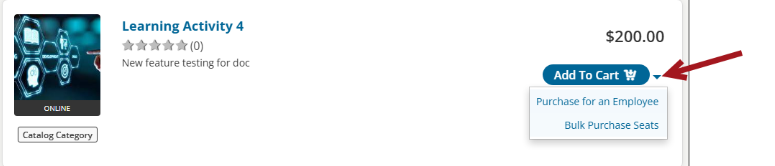
Click the More Options (caret) icon by the Add to Cart button.
-
Select Bulk Purchase Seats.
-
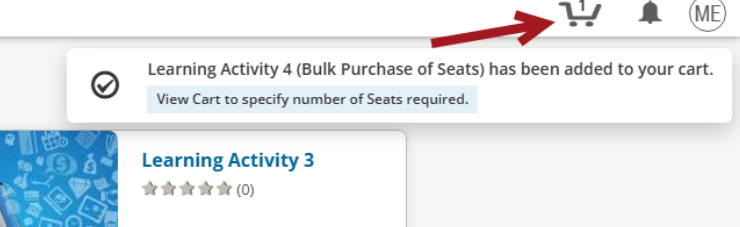
Click the Cart icon.
-
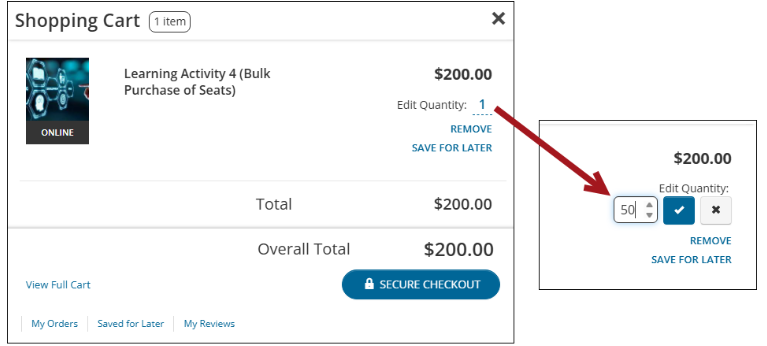
From Edit Quantity, update the number of seats to be purchased.
-
Click the Confirm icon, then click Secure Checkout.
NoteTo purchase two separate contracts of the same learning activity, you must complete a separate purchase transaction for each contract.
-
Enter the payment details, then submit the order.
Updated 5 months ago