

Adding late fees to Certification Paths
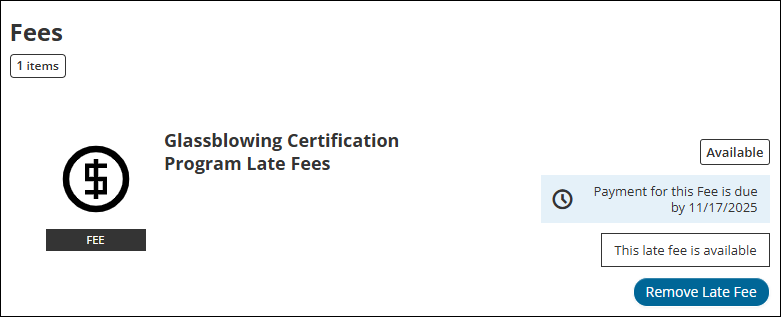
Late fees are fees that, depending on configuration, users can pay when they enter a grace period for a Certification Path or a relative date (either a student's enrollment date or start date). Late fees automatically apply when the grace period or relative date begins and are not visible to students until the grace period or relative date begins, at which point, the late fees appear in the student's Fees section.
Fees, including late fees, can be added to both Certification (initial) and Maintenance/re-certification paths. Administrators can also enforce the order in which a student must pay multiple fees in a path — see Certification path configuration for details on adding a Fees section to a path.
Creating a late fee
A fee must exist before it can be assigned to a Certification Path as a late fee.
To create a late fee, do the following:
- Go to Activities & Learning > Learning Activities.
- Click Create.
- Click Fees.
- Assign a Code and a Title for the fee.
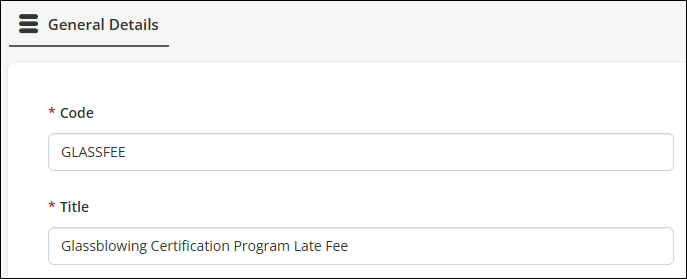
- Click Create.
- Toggle on Published.
- Click Save.
Adding the 'Fees' section and adding the late fee to the Certification Path
A Fees section must exist in the Certification Path before an administrator can add late fees.
Adding the fees section
To add a Fees section, do the following:
- Go to Activities & Learning > Certification Programs.
- Choose the Certification Program that contains the desired Certification Path.
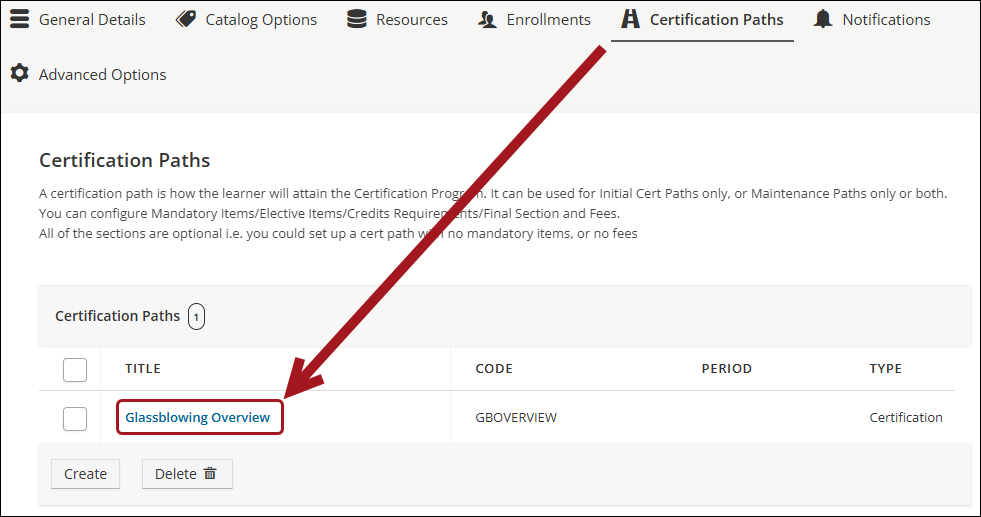
- Click the Certification Paths tab.
- Select the Title of the Certification Path.
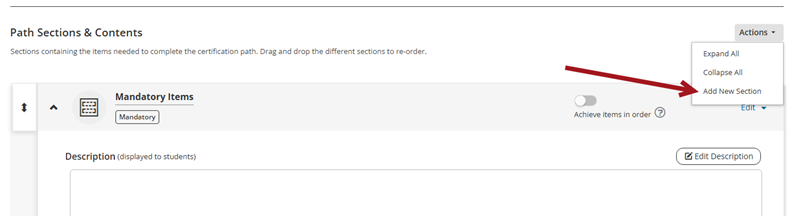
- From the Path Sections & Contents section, click Actions > Add New Section.
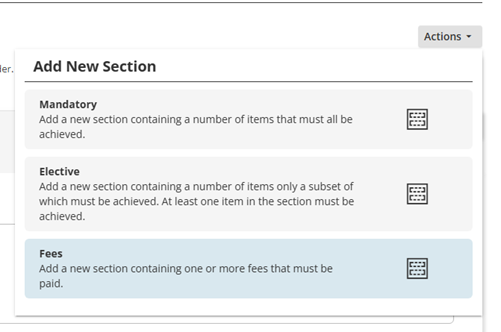
- Click Fees.
- Click Save.
Adding late fees to the Certification Path
To add late fees in the Fees section, do the following:
- From the Fees section, select Edit.
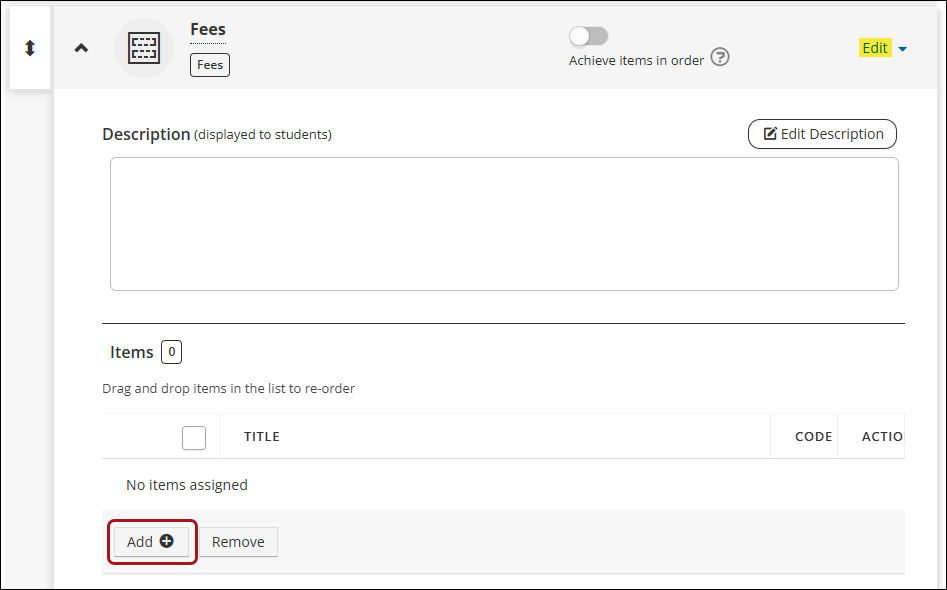
- Optionally, enter a Description to give learners additional context about what the fee covers — this text displays to learners alongside the fee.
- Click Add.
- In the Select from list dialog, select the late fee created in Creating a late fee.
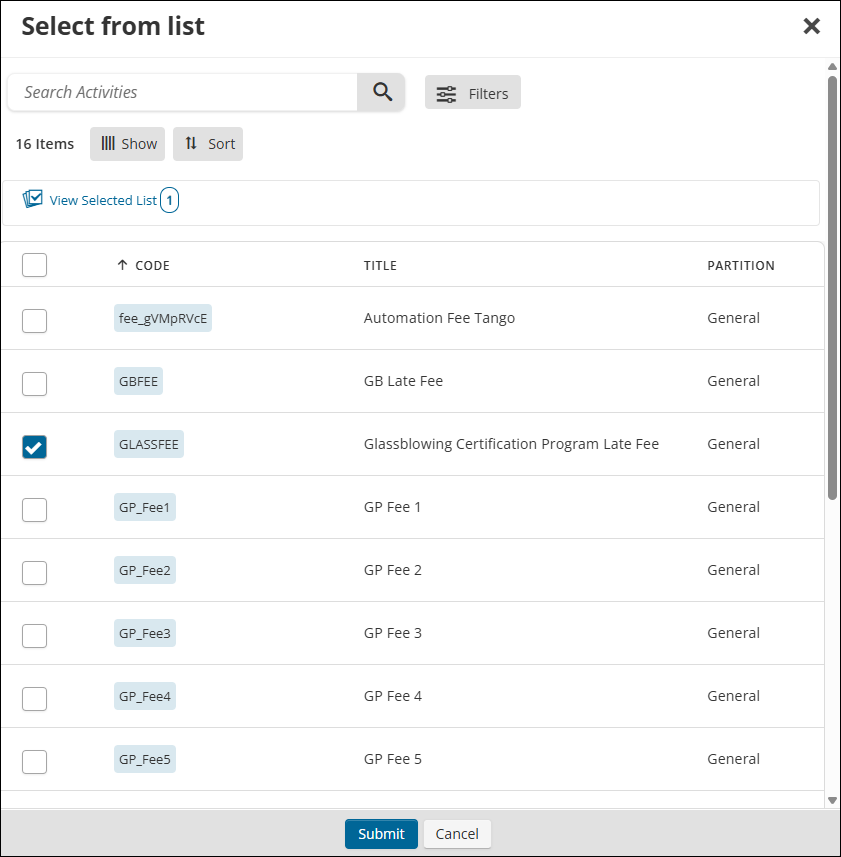
- Click Submit. The late fee appears as an item in the Items section.
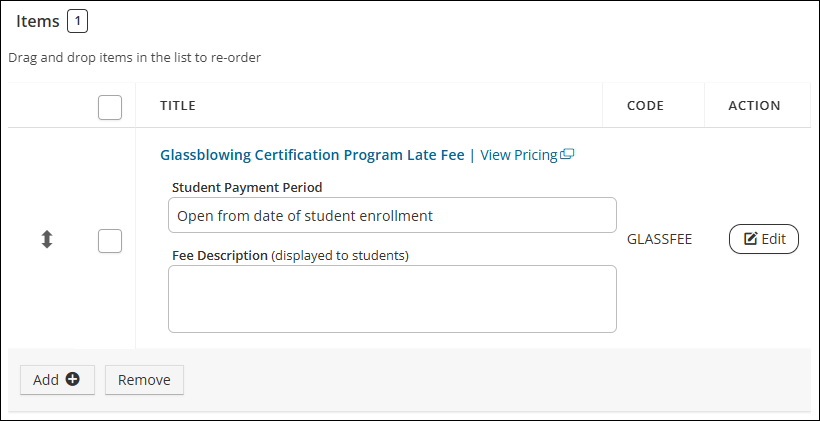
- Click Edit.
- Enable Late Fee. This is the fee that will be applied to the student if they fail to complete the certification in the allotted timeframe.
- Set Student Payment Period to one of the following:
- Within Grace Period - Students are required to purchase the late fee when they enter the specified grace period of the Certification Path. Administrators must configure a Certification Path to have a grace period before late fees can be set up and charged to a user. The Grace period mode must be set to either Record Credits & Pay Fees, Claim Credits & Pay Fees, or Complete All.
- Relative to Student Enrollment - Students are required to purchase the late fee within the relative date range specified after the student's enrollment date. Configure the following options, replacing X with the desired number:
- Relative Available After X Days - The fee is available to purchase X number of days from the student's enrollment date.
- Relative Available Until X Days - The fee is available to purchase until X number of days after the student's enrollment date.
- Relative to Student Valid Start Date - Students are required to purchase the late fee within the relative date range specified after the student's start date. Configure the following options, replacing X with the desired number:
- Relative Available After X Days - The fee is available to purchase X number of days from the student's enrollment date.
- Relative Available Until X Days - The fee is available to purchase until X number of days after the student's enrollment date.
- Fill in the Fee Description. This is what will display to learners, so that they understand what this fee is. Be sure to enter a clear and meaningful description.
- Click Apply.
- Click Save.
Once configured, students can view the start and end date for each fee directly in their certification path interface, and can be notified as those dates approach — see Certification program notifications for the Upcoming Fee Availability and Upcoming Fee Deadline notification triggers.
Applying and removing late fees manually to a student
Administrators can manually add late fees to a student who is enrolled in a Certification Path that has set up late fees.
Do the following:
- From the Enrollments tab of a Certification Path, click the Details link associated with an enrolled student.
- In the dropdown, select Make Available.
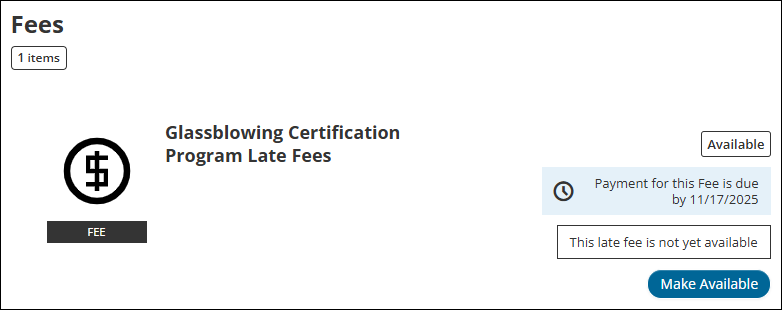
- In the confirmation dialog, select Make Available again.
Use the same procedure to remove late fees from a student, but in step 2 and 3, select Remove Late Fee instead.
Updated 2 months ago