

Using the Learning Contract Dashboard
When a user purchases a Learning Contract or they are assigned in the Contract Admin section by a system administrator, they become a Contract Admin, and a new Learning Contracts Dashboard will appear in their Main Menu.
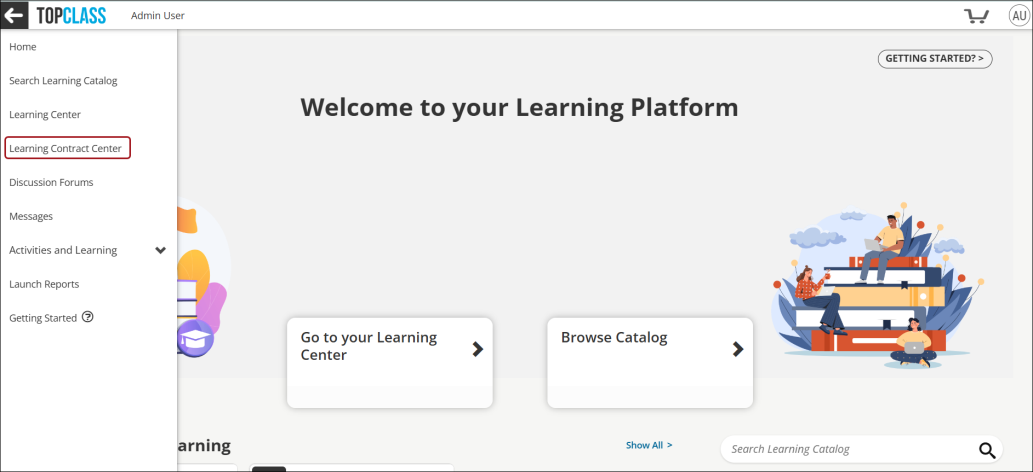
Navigating the Learning Contract Center
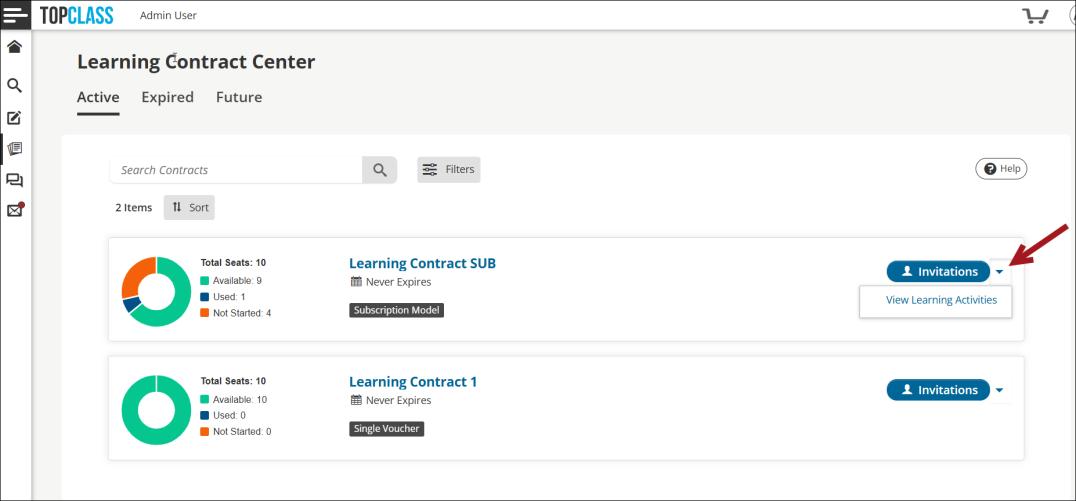
Within the Learning Contract Center, Contract Admins can view and manage their associated Learning Contracts. Learning Contracts are organized by status: Active, Expired, Future.
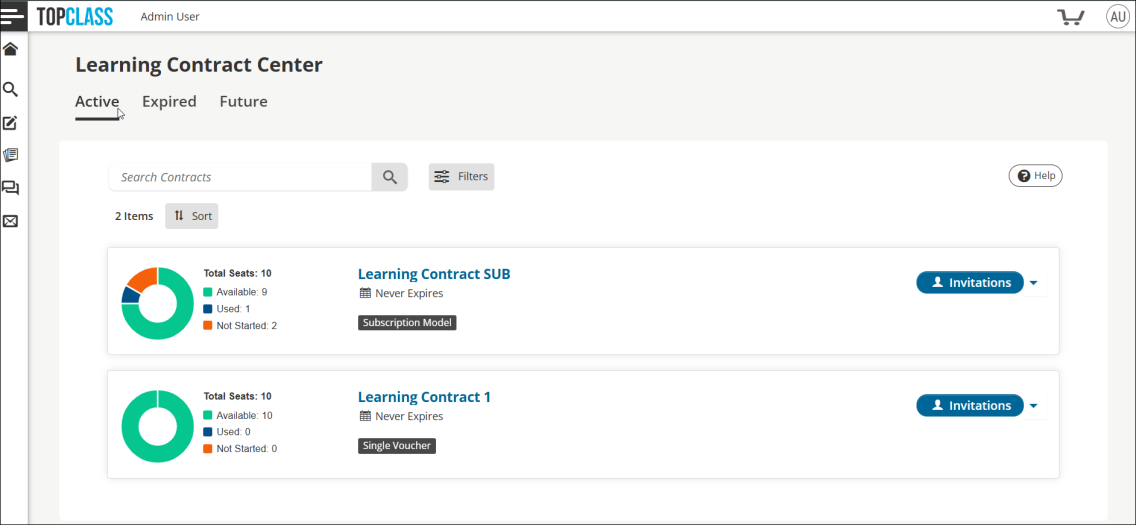
On the main dashboard screens, Contracts Admins are given the following information:
- Graphical breakdown of the Seats by status
- Title of Learning Contract
- Expiry Date, if applicable
- Type of Learning Contract (Voucher or Subscription type)
Managing Learning Contracts
Contract Admins can edit the name of the Learning Contract.
NoteThe name change is reflected consistently across dashboards, lists, and reports.
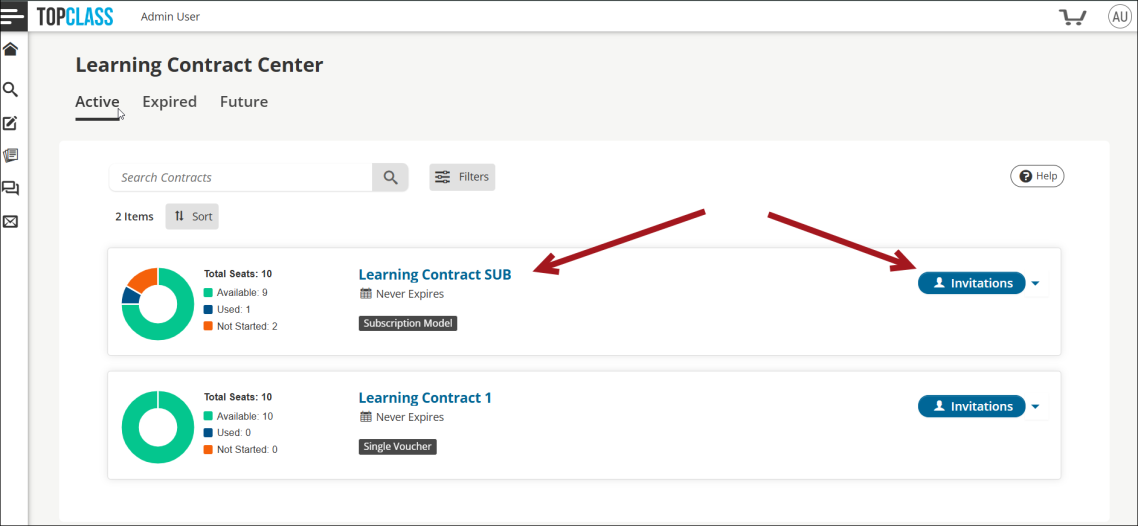
By clicking the Invitations button or the Learning Contract title, Contract Admins will be brought to the Learning Contract's Invitations dashboard screen.
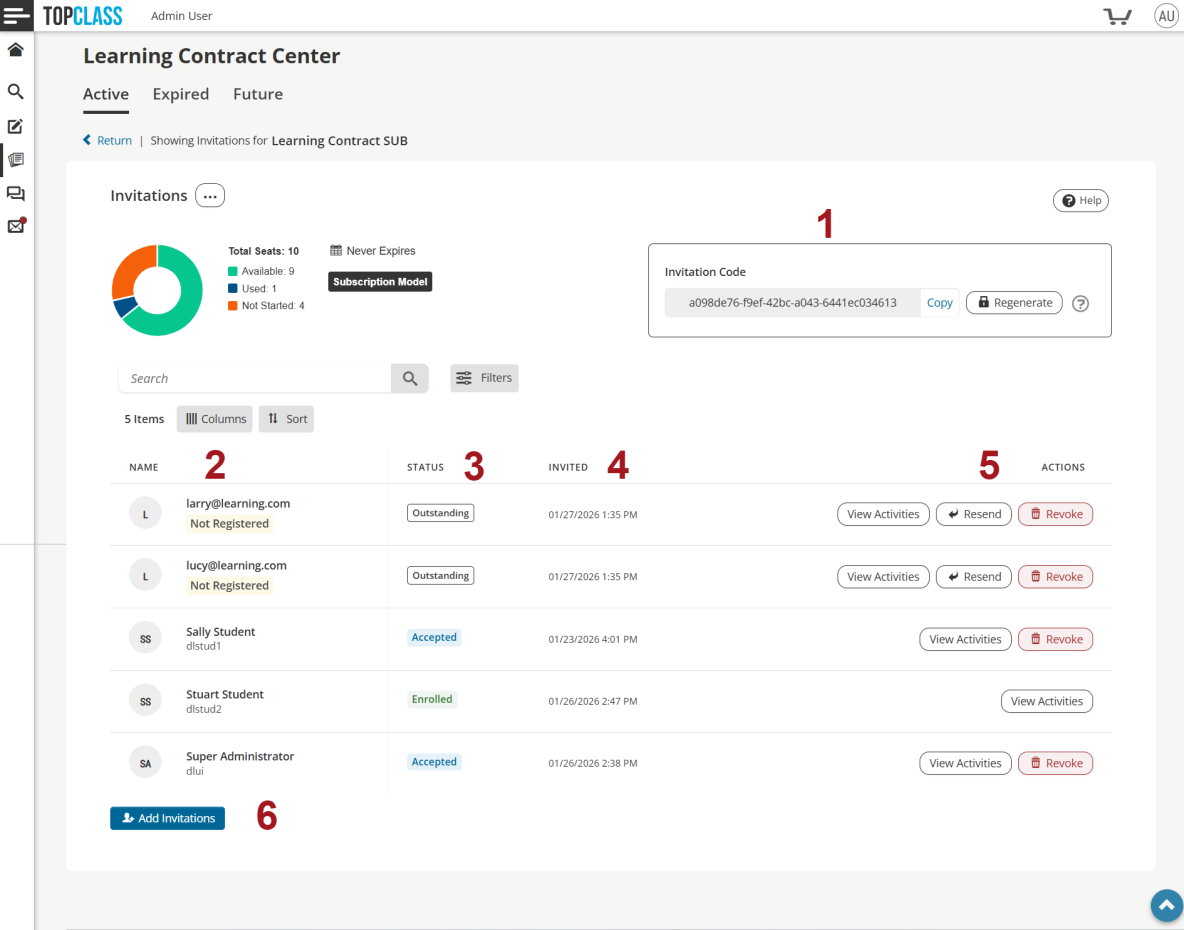
On the Invitations dashboard screen, Contract Admins can:
-
Copy the invitation code to send to additional users or click Regenerate to create a new unique invitation code.
-
View the list of users that have been sent an invitation code via TopClass.
-
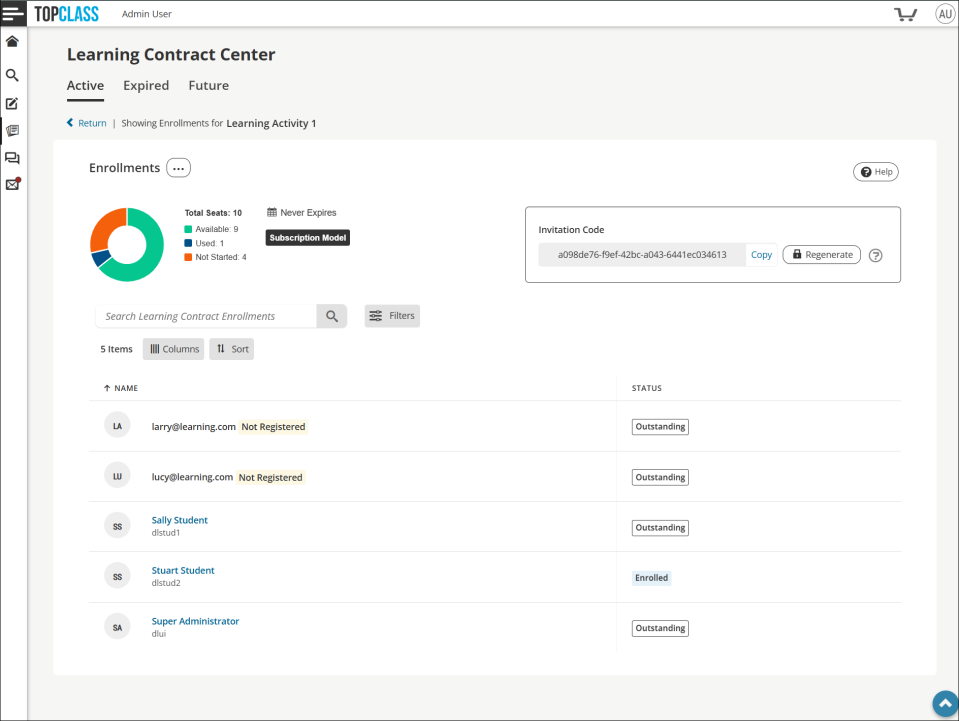
View the invitation Status:
- Accepted – Students who have redeemed the Learning Contract invitation but have not yet enrolled in a Learning Activity.
- Enrolled - Students enrolled in one or more Learning Activities via the Learning Contract.
- Not Registered - External Students invited without an account.
- Outstanding - Students invited but have not yet redeemed the Learning Contract invitation.
- Revoked – Students whose invitations have been revoked. Students can be re-invited if they have previously had the invitation revoked.
-
View the date and time user was Invited.
-
Perform a number of Actions on the invited users:
-
View Activities associated with the Learning Contract.
NoteFor Voucher type learning contracts, the Contract Admin can add additional activities, associated with the Learning Contract, to the invited user.
- Resend invitation – only available if user has not redeemed the code.
- Revoke invitation – only available if user has not enrolled in a course.
-
-
Add Invitations allows Contract Admins to send an automated Learning Contract Invitation email to users using a CSV file upload. See Inviting users to the Learning Contract for details.
Viewing Invited users by Learning Activity
From the main Learning Contract dashboard screen, Contract Admins can View Learning Activities by clicking the More Options (caret) icon beside the Invitations button.
Contract Admins can view a breakdown of all associated course options.
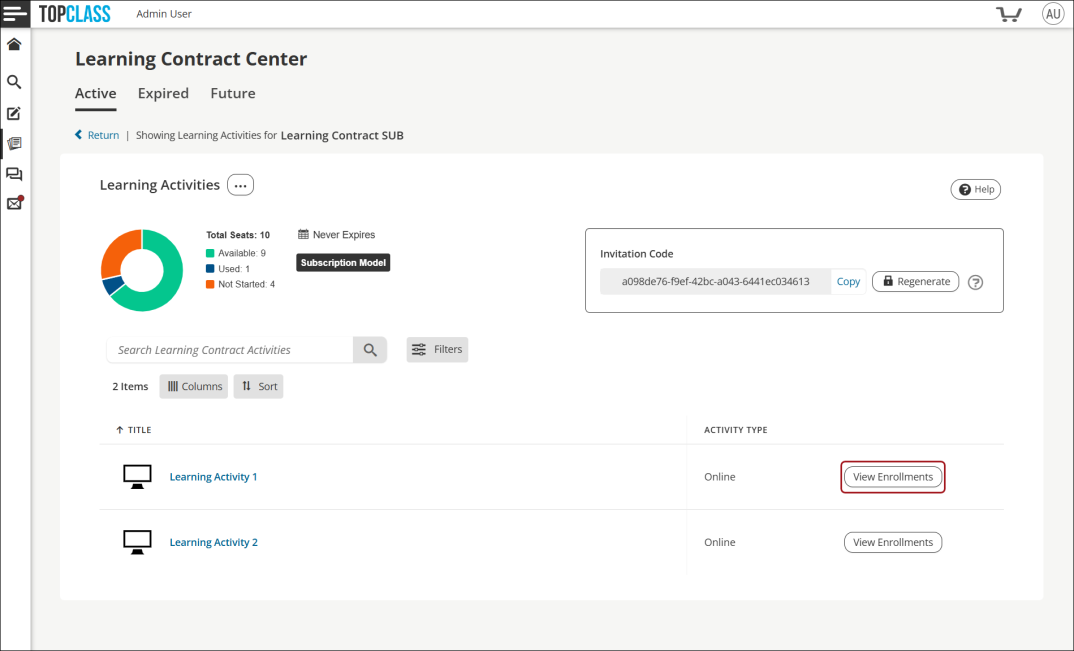
By clicking the View Enrollments button or the Learning Activity title, Contract Admins will be brought to each Learning Activity dashboard screen and can view the activity enrollment status of each invited user.
Updated 4 months ago