

Using Rubric assessments
A rubric is a type of scoring guide that sets out criteria and standards for different levels of performance and expectations for the assessment. Rubric assessments are utilised to ensure that the assessment and feedback will be reliable, robust, and transparent for both assessors (TopClass instructors) and students.
Enabling Rubric Settings
To enable Rubric settings, do the following:
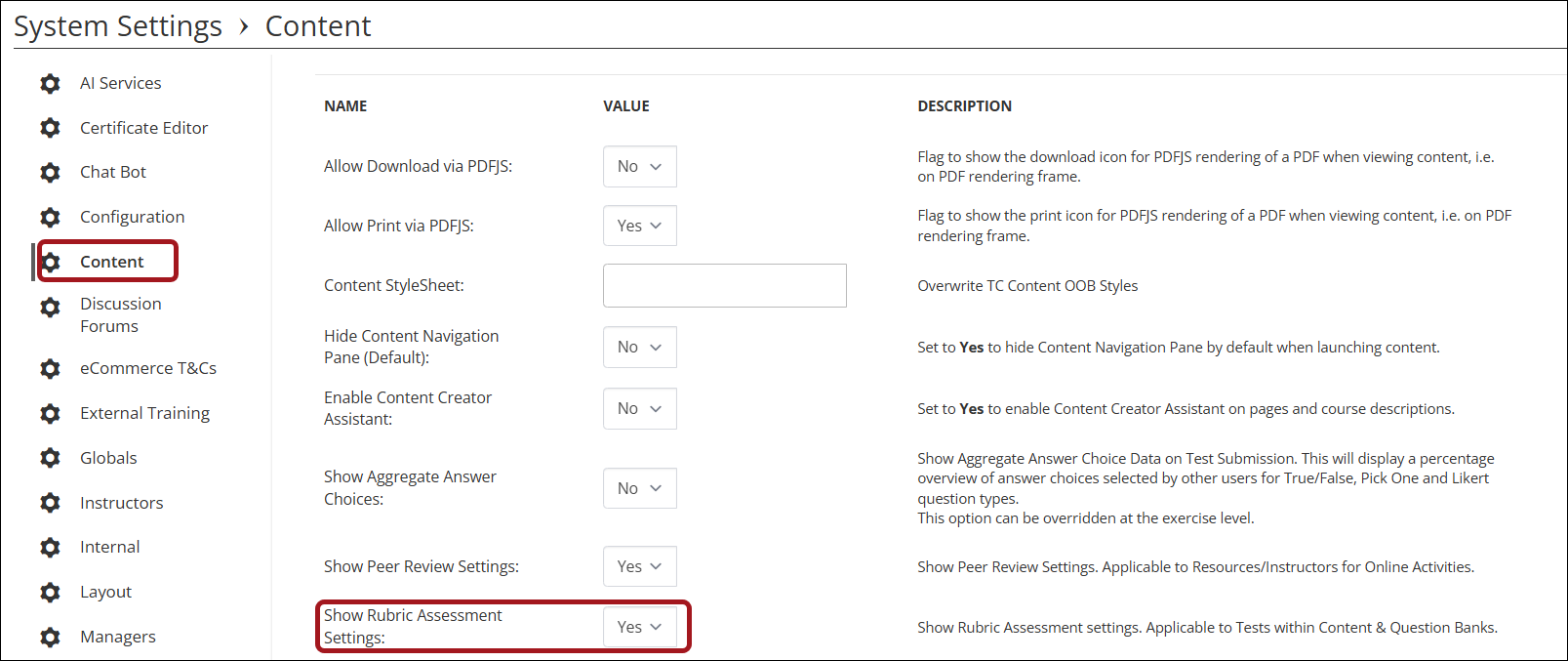
- Go to System Administration > System Settings.
- Under Content, change the Show Rubric Assessment Settings to Yes.
Creating a Rubric Question Bank
Question banks flagged as Rubric contain questions that the assessor must answer to evaluate the learners' test responses. To create a question bank with Rubric criteria, do the following:
- Go to Activities and Learning > Content.
- Click Questions.
- Click Create.
- Enter the Title of the question bank.
- Check the Rubric checkbox.
- Click Create.
- Under the Questions tab, click Add Question.
Adding a Rubric Assessment to a Test
To add a rubric assessment to a test, do the following:
-
Go to Activities and Learning > Content.
-
Select or create a course.
-
Under the Contents tab, click Add Course Content > Test.
-
Select Edit.
-
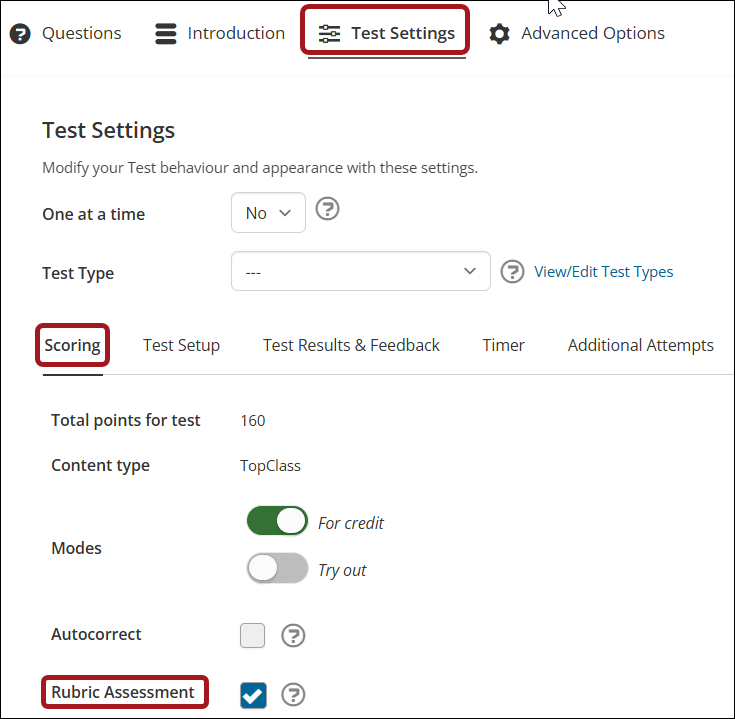
Go to the Test Settings tab > Scoring tab.
-
Check the Rubric Assessment box.
NoteTurn Autocorrect Off when using a rubric assessment.
-
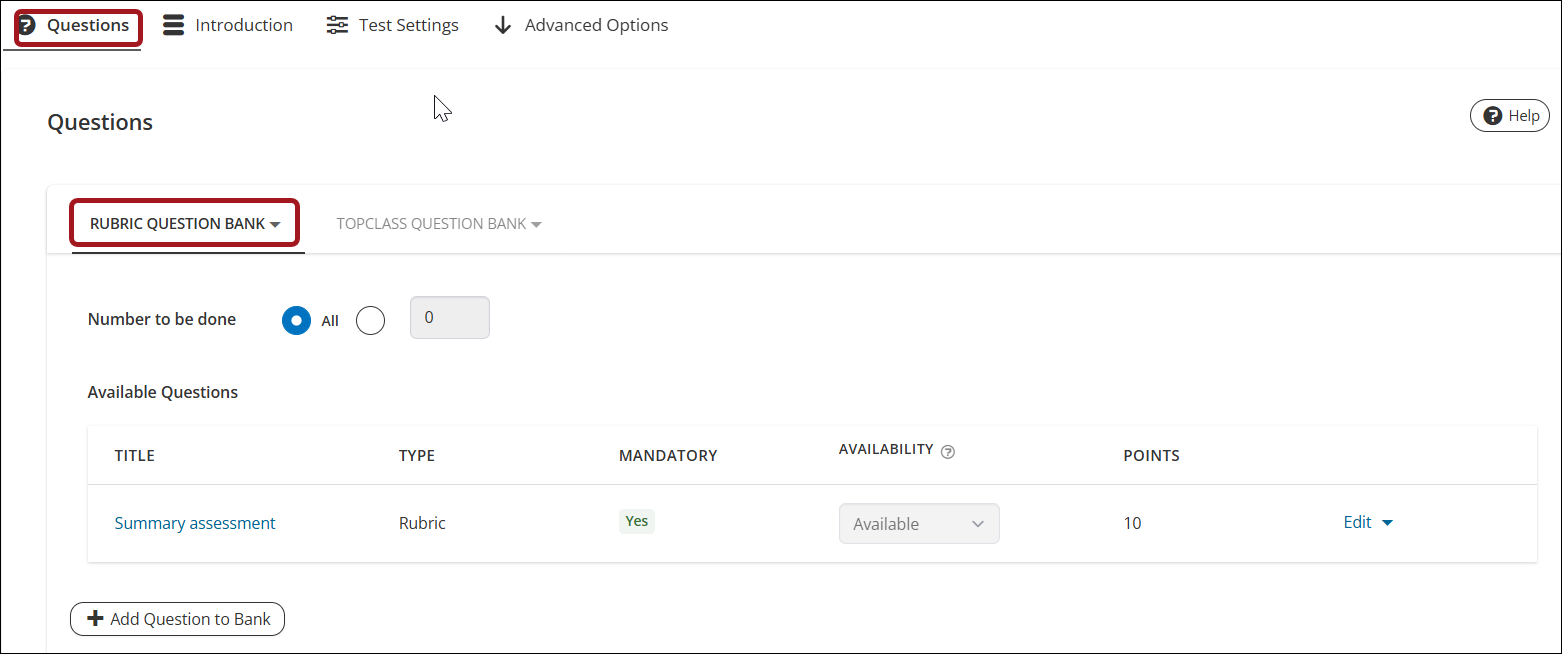
Click the Questions tab.
-
Add your question banks and at least one rubric question bank.
-
Configure the test settings. See Creating and Configuring Tests for details.
Assigning an Instructor to Complete a Rubric Assessment on a Test
There are two options to assign an instructor as a rubric assessor:
- Assign an instructor to assess all submissions for a learning activity.
- Assign an instructor to assess an individual learner's submissions.
Assigning an Instructor for a Learning Activity
To assign an instructor to assess all submissions for a learning activity with rubric criteria, do the following:
- Go to the Learning Activity > Resources > Instructors.
- Click Add Instructor.
Note
The user must be an admin to appear as an instructor.
- Select the Default radio button for the instructor.
Assigning an Instructor to an Individual Learner
To assign an instructor to assess an individual learner's submission for a learning activity with rubric criteria, do the following:
-
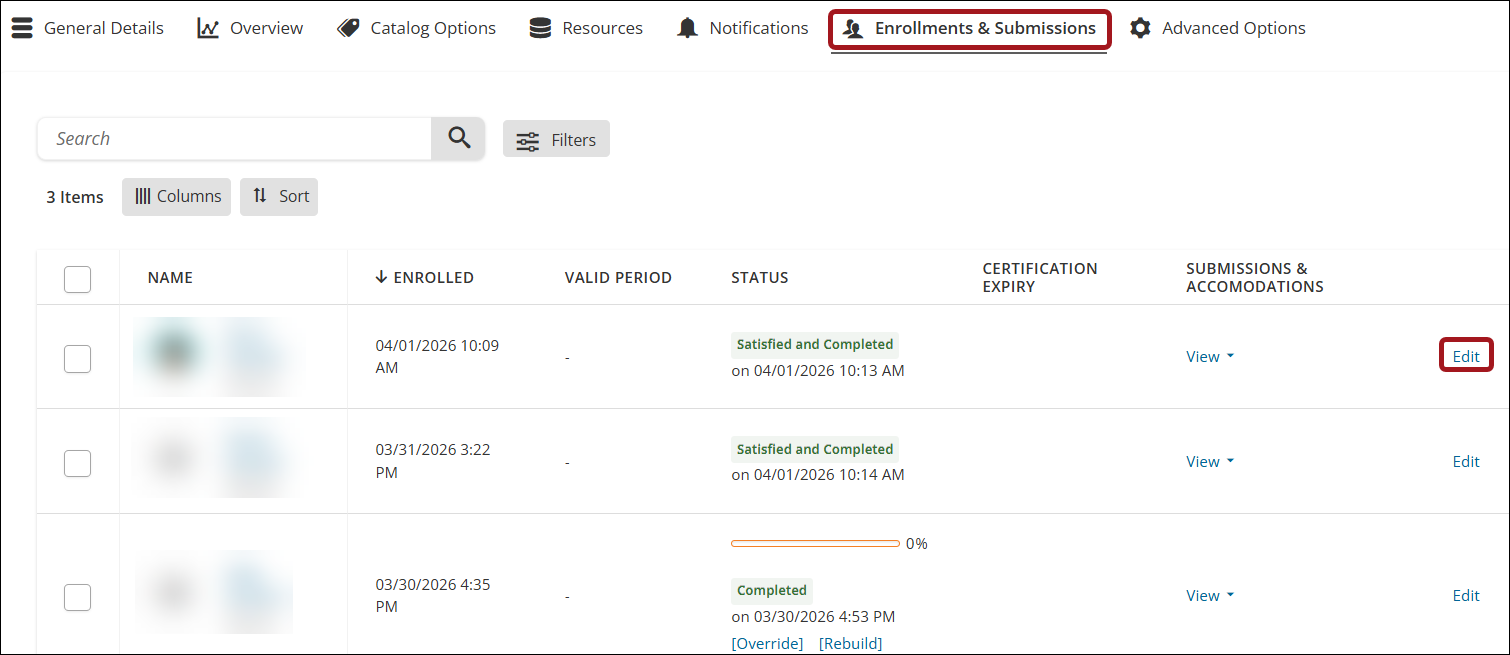
Go to the Learning Activity > Enrollments & Submissions.
-
Select Edit beside the relevant learner.
-
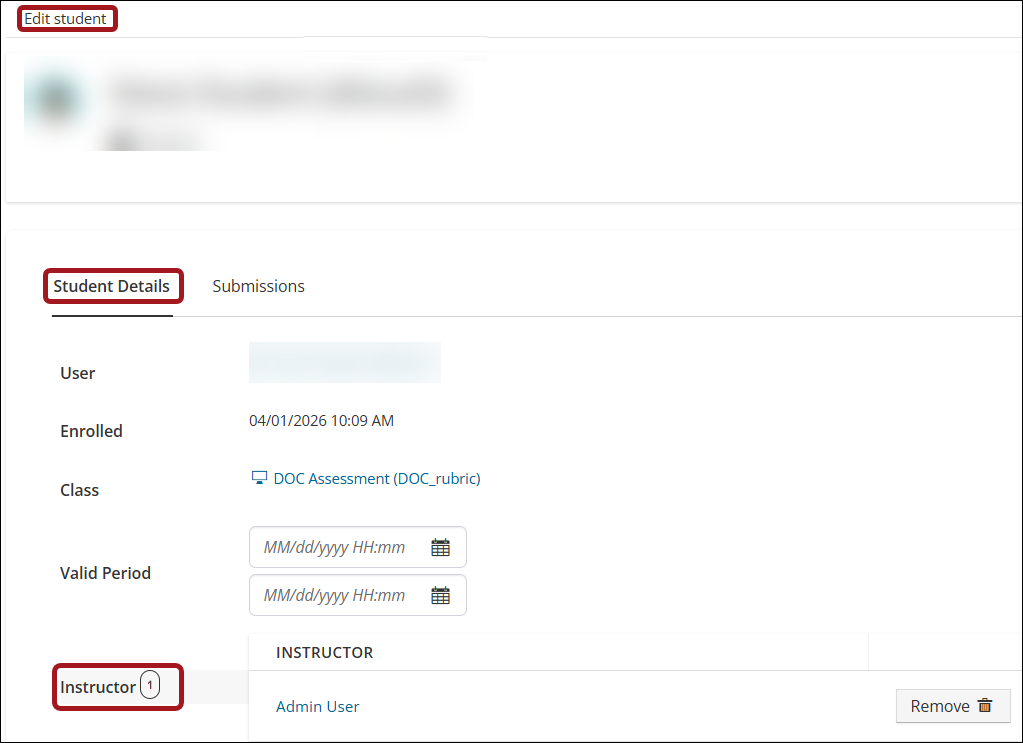
Under the Student Details tab > Instructor, click Add.
NoteOnly users that have been previously added as an instructor to the learning activity will appear as an option.
-
Click Save.
-
To navigate back to the learning activity, select Class.
Viewing the Rubric Assessment as an Instructor
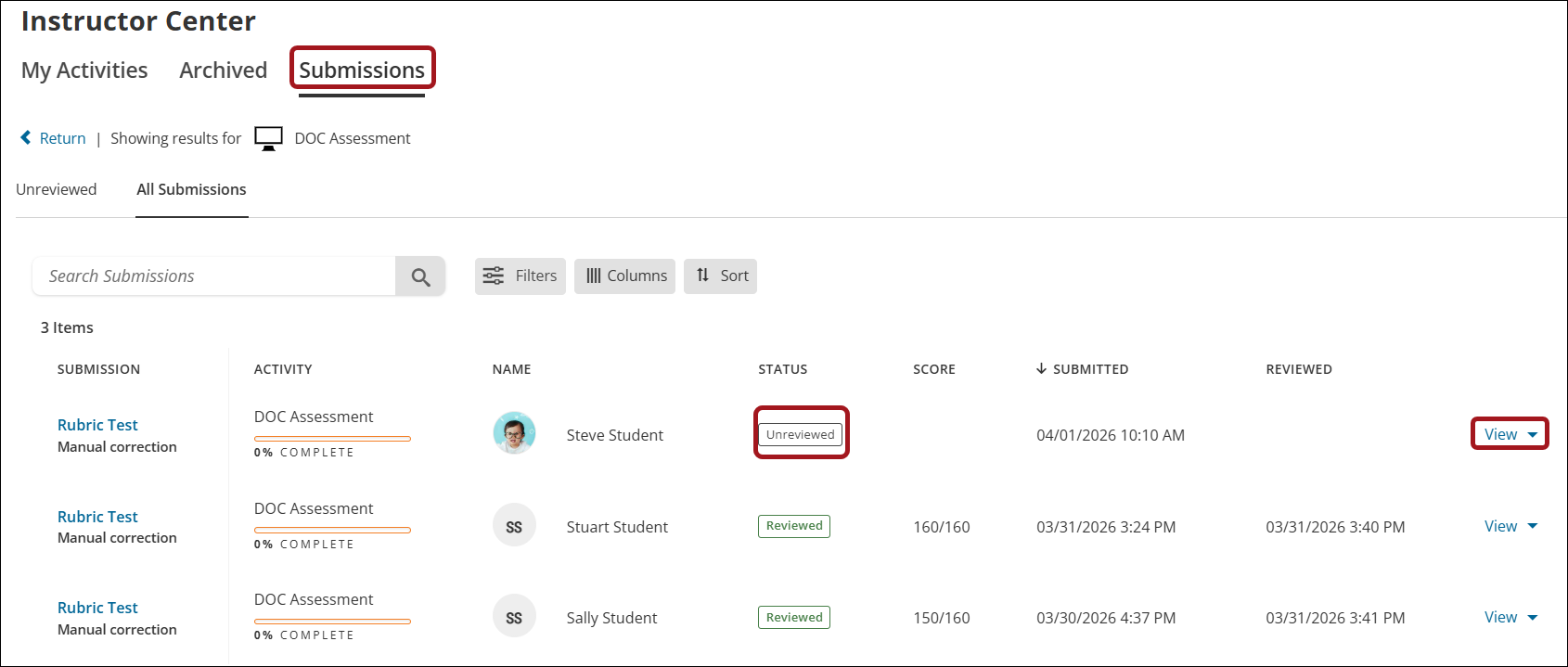
When a learner makes a submission for a rubric assessed learning activity, it will appear in the relevant instructor's Instructor Center.
To view and assess submissions as an instructor, do the following:
-
Go to Instructors Center > Submissions.
-
Use the Unreviewed tab to view submissions awaiting assessment, or the All Submissions tab to view reviewed and unreviewed submissions.
-
Select View beside the relevant learner.
-
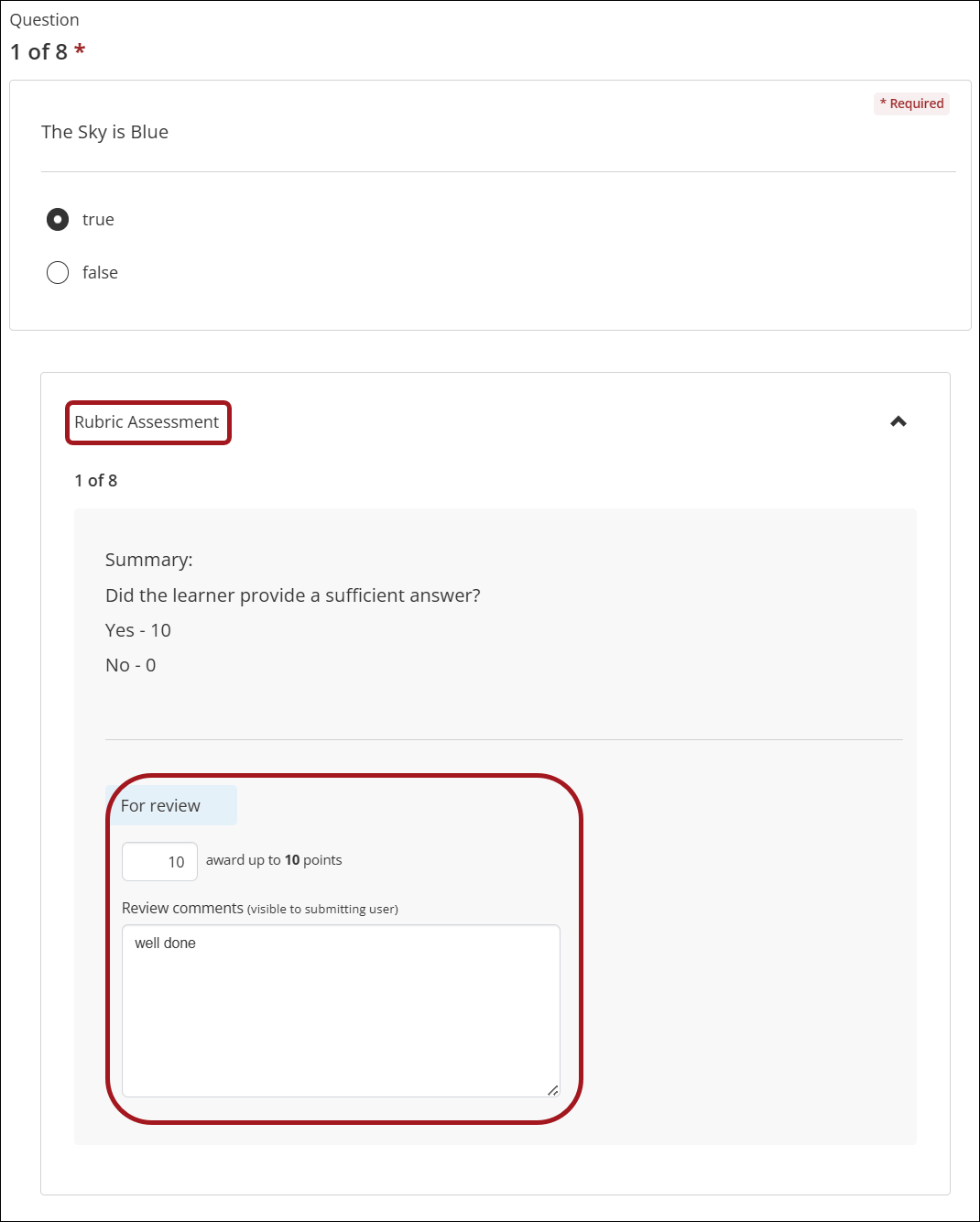
The instructor will see each answered question, along with the rubric assessment questions.
-
Use the rubric assessment questions to calculate the points to be awarded for the answer submitted.
-
Enter the Points to be awarded.
-
Enter Comments for the submitting learner.
-
When all questions have been graded, click Submit.
The learner will receive a notification to confirm their submission has been reviewed and can view their results in their Learning Center.
Updated 4 months ago