

Controlling access to tests with a PIN code
Adding PIN code access
In TopClass, Super Admin users can add an additional security layer for users with a PIN code. This restricts access to exam material until the PIN code has been shared.
Enabling the setting
Before adding a PIN code, the related setting must be enabled:
- Go to System Administration > System Settings.
- Click the Security tab.
- Update the Use PIN setting to Yes.
- Update the other PIN related settings as necessary:
- PIN characters - Select which types of characters are allowed in PINs.
- PIN expiry - Enter the number of days from when a PIN was last changed that it must be changed again. Set to 0 if PINs should never expire.
- PIN length - Enter the minimum PIN length allowed.
- Click Save.
Setting the test to request a pin
Do the following to configure the test to request a PIN:
- Go to Activities and Learning > Content.
- Search for and open the test.
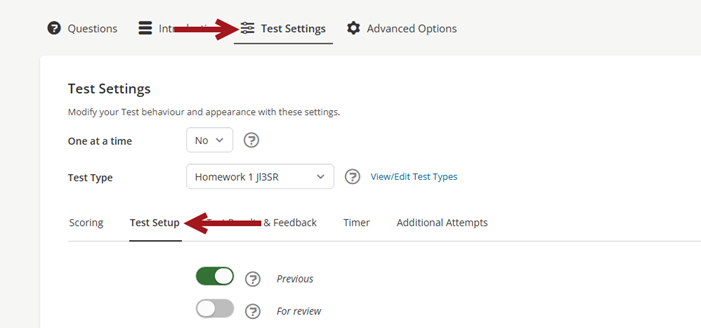
- Click the Test Settings tab.
- Click the Test Setup sub-tab.
-
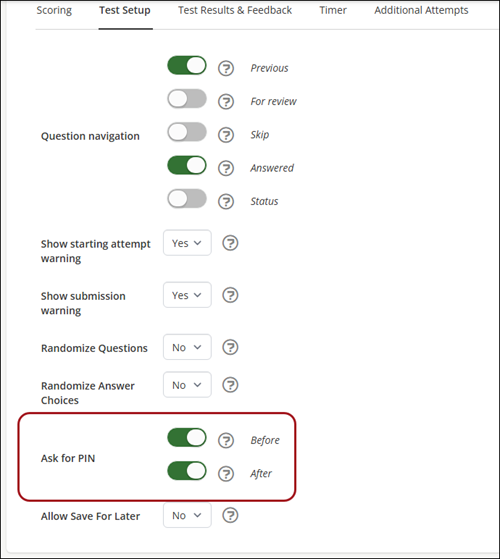
From the Ask for PIN setting, enable one or both:
- Before - Have the learner enter their PIN before taking the test.
- After - Have the learner enter their PIN after taking the test.
-
Click Save.
Issuing a group PIN code
You can assign and issue a group PIN code. Before you do, make sure the following are already completed:
- Create a group and add all relevant learners.
- Enroll the group in the Exam Learning Activity.
Creating a group PIN code
To assign PIN codes via a group operation, do the following:
- Go to Resource Management > Groups.
- Search for and select the group.
- Click the Advanced Settings tab, then choose Operations.
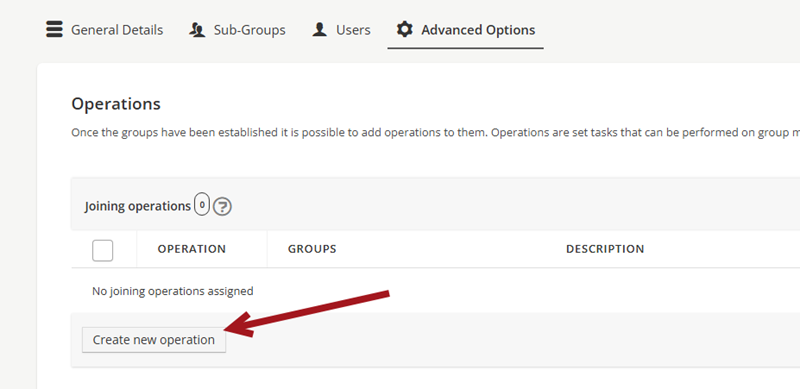
- Under Joining Operations, click Create new operation. Once a learner is added (joins) to the Group, the set task will be performed.
- Select Set advanced options.
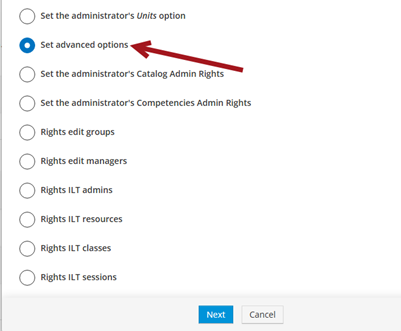
- Click Next.
- From the Set field drop-down, select PIN.
- In the To field, enter the desired code.
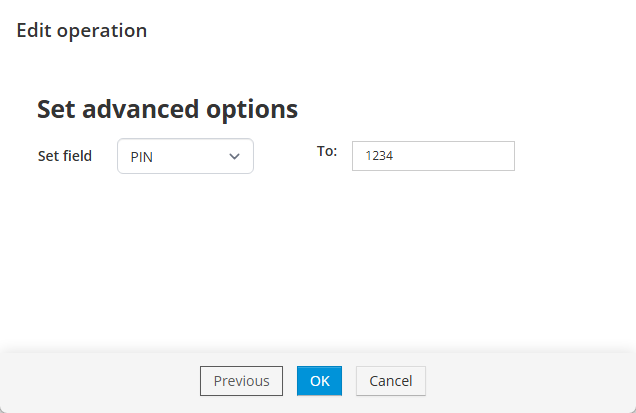
- Click OK.
- Click Save. The operation will apply to every learner added to the group.
Sharing the PIN code with learners
To share the PIN code with learners at the appropriate time:
- Go to Activities and Learning > Learning Activities.
- Search for and open the activity.
- Click the Enrollments & Submissions tab.
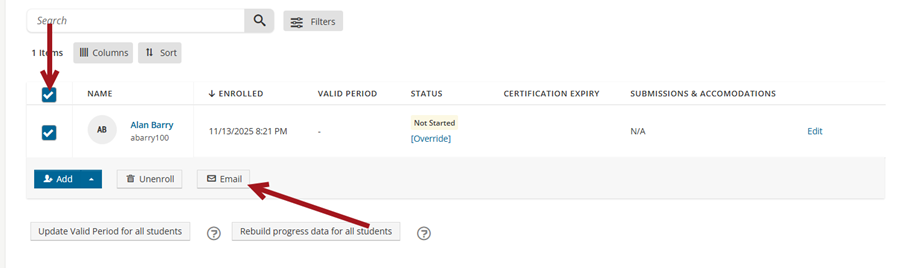
- Select all learners and click Email.
- Enter the email Subject and Message, including the PIN code set in the group operation.
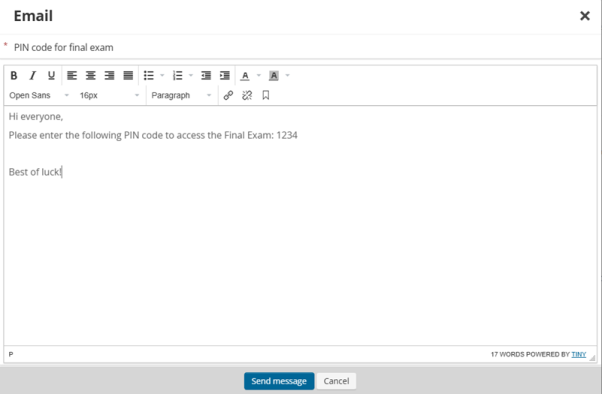
- Click Send message.
Updated 4 months ago
Did this page help you?