

Inviting users to the Learning Contract
Invitations can be sent in one of the following ways:
- As a Contract Admin from the Learning Contract Dashboard. See Using the Learning Contract Dashboard.
- As a System Administrator from the Learning Contract configuration.
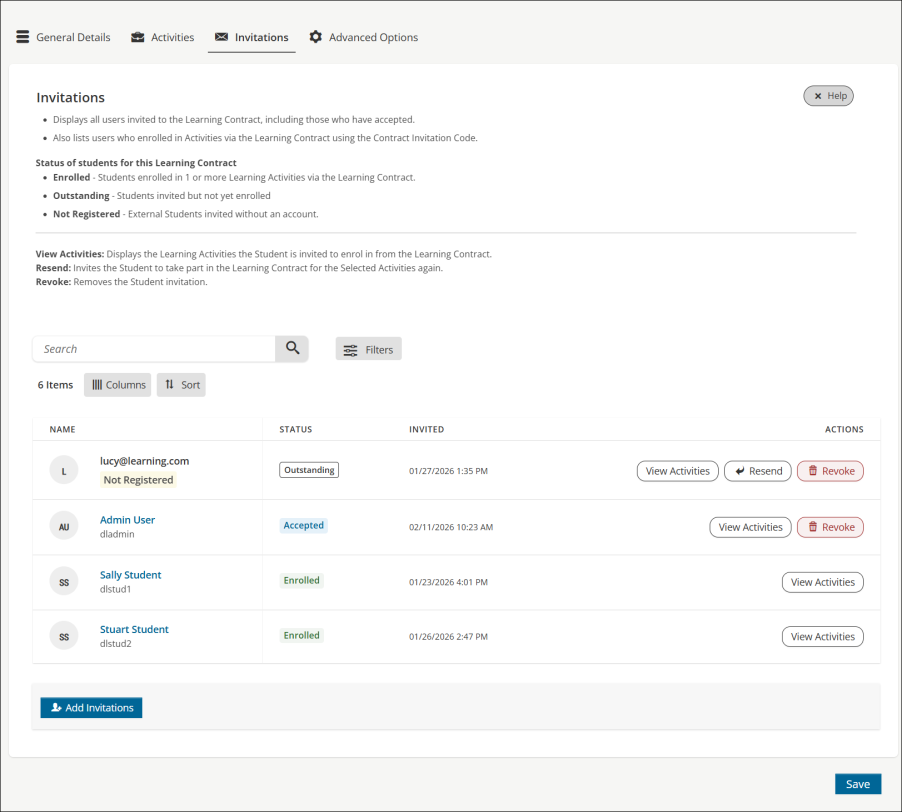
To invite users to the Learning Contract as a system administrator, do the following:
- Go to Activities and Learning > Learning Contracts.
- Search for and open the Learning Contract.
- Click the Invitations tab.
- Click Add Invitations:
- Upload CSV – Upload a list of valid email addresses, one per user invitation. This can be existing registered users or external unregistered users. See Using a CSV file to invite users for more information.
- Select individual users – Select from the list of all users in TopClass. Enable the row for each user that should be invited, then click Submit.
- For Subscription type contracts, click Add Users.
- For Voucher type contracts with more than one activity do the following:
- Click Step 2 of 2.
- Select one, some or all activities to be included in the invitation.
- Click Add Users.
Using a CSV file to Invite Users
To create a CSV file for uploading email addresses, you only need a single column. Each row should contain one email address, with no header row required.
You can use a program like Microsoft Excel, Google Sheets, or any text editor. In Excel or Google Sheets, type each email address in its own cell in the first column, then save or download the file as a CSV (Comma Separated Values) file.
If using a text editor, list each email on a separate line and save the file with a .csv extension. Once saved, your CSV file is ready to use for importing emails.
Resending or Revoking Access to the Learning Contract
To resend or revoke access to a Learning Contract, do the following:
- Go to Activities and Learning > Learning Contracts.
- Search for and open the Learning Contract.
- Click the Invitations tab.
- Use the search to locate the student, then click Resend or Revoke.
WarningYou can revoke an invitation only until the student has enrolled. Once a student has enrolled, you cannot revoke the invitation.
Updated 5 months ago