

SCORM pop-up blocker
If your SCORM content is set to open in a new window, students may need to disable their browser’s pop-up blocker to access it.
Do the following to help students disable their pop-up blocker:
- Ask students to navigate to their TopClass profile.
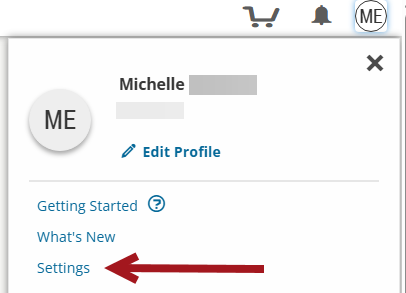
- Click Settings .
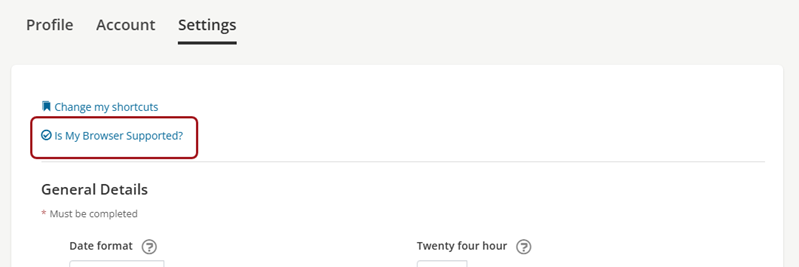
- Select Is My Browser Supported?
-
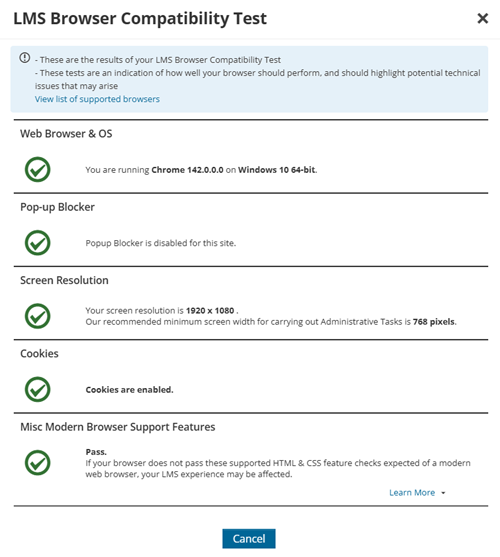
Students will see one of two messages:
- Pop-up Block is disabled – Students can access SCORM content without issue.
- Pop-up Blocker is not disabled – Student will need to disable the pop-up blocker.
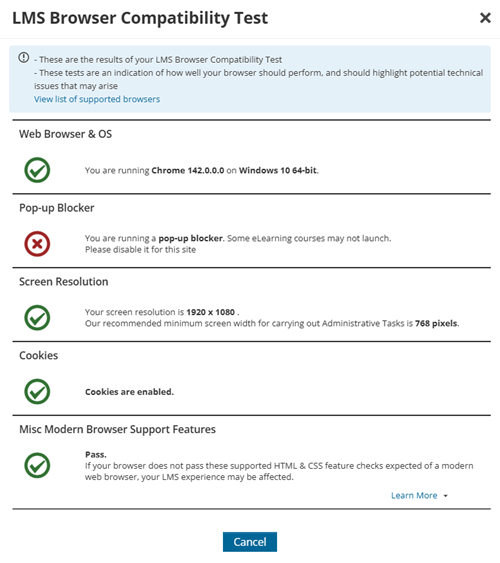
Students will see an icon in the browser’s URL bar, which allows them to disable the pop-up blocker for TopClass.
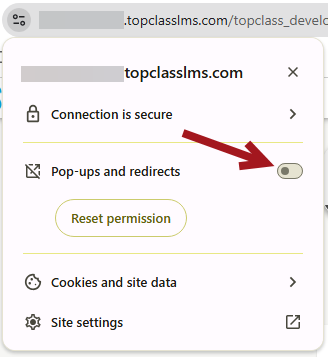
TipConsider including a link to the profile settings screen at the start of your course overview. This way, students can check and adjust their pop-up blocker settings before starting the course.
Updated 3 months ago
Did this page help you?