

Certification path configuration
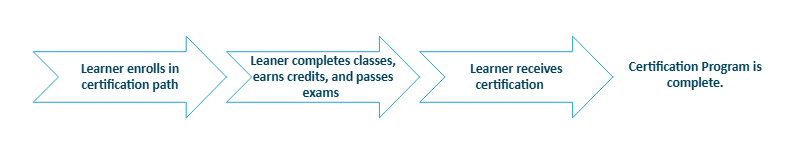
Certification paths are how the user attains the Certification Program. They contain all the classes that learners must attend, credits that learners must attain, and exams that learner must pass in order to get the certification. The learner enrolls in a certification path, completes all the items in it and receives their certification, therefore marking the Certification Program as complete. A certification path can be used as an initial cert path, a maintenance path, or both.
Creating a Certification Path
NoteBefore you can create a certification path, first create the Certification Program.
Do the following to create a certification path:
-
Go to Activities and Learning > Certification Programs.
-
Open the Certification Program by selecting Edit.
-
Click the Certification Paths tab.
-
Click Create.
-
Enter a Code and a Title. The Title is displayed to learners when they access the program through the catalog.
-
Enter the Registration Period dates, which control when the learner can choose the certification path. The certification path can only be chosen from the catalog within the registration period.
NoteIf no registration period is added, the certification path will not be available in the catalog.
- Choose the Type of certification:
- Certification - Specifies that it can be used for initial certification paths only.
- Maintenance - Specifies that it can be used for maintenance paths only.
- Both - Specifies that it can be used for initial certification and maintenance paths.
- The fields in the Completion, Maintenance, and Ownership section are initially populated based on the certification program settings when the path is created. To customize them so that they are different from the default settings, update the following:
NoteAny changes made to the settings at the path level will only affect students who enroll after the changes are saved. Students who were enrolled before the update will retain the previous settings for their path.
- Default Completion X days after the day the learner registers for it - Specify a number of days, if you want the initial certification on a Certification Program to have to be completed X days after the day the learner registers for it.
- Default Completion date - Specify a fixed date if you want the initial certification on a Certification Program to have to be completed by a fixed date.
- Maintenance to commence from - Specify the maintenance cycle rule:
NoteBased on the following settings, your student could potentially have a next maintenance cycle start date prior to the current certification path completion date. For example, if Year of Attainment is selected with the day set to 15 and month set to 01, and a student certifies in their current path on 3 March 2025, their next maintenance cycle will begin on 15 Jan 2025.
| Setting | Definition | Example(s) |
|---|---|---|
| Date of attainment | Means that the next maintenance cycle period begins from the date you attain the current certification path. | As a student, I certify on 10 Sept 2025 in my current certification path. My next maintenance cycle will begin on 10 Sept 2025. |
| Year of attainment | Means the next maintenance cycle period begins on a fixed day in the calendar year of your attainment of the current certification path. The fixed day is specified by the month and day fields which will appear below. | As an Admin, I have specified my day as 10 and my month as 10. As a student, I certify on 10 Sept 2025 in my current certification path. My next maintenance cycle will begin on 10 Oct 2025. |
| Year following attainment | Means the maintenance cycle period begins on a fixed day in the calendar year after your attainment of the current certification path. The fixed day is specified by the month and day fields which will appear below. | As an Admin, I have specified my day as 10 and my month as 10. As a student, I certify on 10 Sept 2025 in my current certification path. My next maintenance cycle will begin on 10 Oct 2026. |
| Start of Month of Attainment | Means the maintenance cycle period begins on the first day of the month of attainment of the current certification path. | As a student, I certify on 10 Sept 2025 in my current certification path. My next maintenance cycle will begin on 1 Sept 2025. |
| End of Month of Attainment | Means the maintenance cycle period begins on the last day of the month of attainment of the current certification path. | As a student, I certify on 10 Sept 2025 in my current certification path. My next maintenance cycle will begin on 30 Sept 2025. |
| Specific Day in the Month of Attainment | Means the maintenance cycle period begins on a specified day of the month of attainment of the current certification path. The fixed day is specified in the day field which will appear below. | As an Admin, I have specified my day as 25. As a student, I certify on 10 Sept 2025 in my current certification path. My next maintenance cycle will begin on 25 Sept 2025. |
| Day after Previous Path 'Completion Due by' date | Means the maintenance cycle period begins the day after the current certification path Completion Due by Date. You cannot use this setting if you do not have a Default Completion Date or Days set on your certification path. | As a student, I certify on 10 Sept 2025 in my current certification path. My path was due to be completed by 31 Dec 2025. My next maintenance cycle will begin on 1 Jan 2026. |
- Maintenance period in days - Specify the duration of the maintenance cycle for the certification program.
- Automatically begin maintenance cycle - Automatically begin maintenance cycle if there is only one valid certification path to use.
- Grace period in days - Enter the number of grace period days to allow users extra time to complete the certification program after its expiry date.
- Grade period credit mode - Choose one of the following:
- Record credits - Allows users to earn credits in the Credit Requirements section of their Certification Path until the grace period expiry date. Credits can be earned through TopClass activities or external training.
- Claim credits - Allows users to earn credits in the Credit Requirements section of their Certification Path until the certification path expiry date (completion due date). Credits earned during the grace period will not count toward certification requirements.
- Record Credits and Pay Fees - Allows users to earn credits in the Credit Requirements section of their Certification Path until the grace period expiry date, and pay any associated certification fees. Credits can be earned through TopClass activities or external training.
- Claim Credits and Pay Fees - Allows users to earn credits in the Credit Requirements section of their Certification Path until the certification path expiry date (completion due date), and pay any associated certification fees. Credits earned during the grace period will not count toward certification requirements.
- Complete All - Allows users to complete any item in the Certification Path until the grace period expiry date.
- Include previously achieved items - Enable to allow any courses the learner has attained prior to registering for the Certification Program to count towards their Certification Program.
- Include previous achievement period in days - Specifies how many days before registration previously completed courses can be counted toward the Certification Program.
- Use Equivalent Courses - Enable to use equivalent courses for certification paths.
- Click Save. Additional tabs become available.
Order Enforcement
Define the Sections Order Requirement:
- None - Learners can complete sections in any order.
- Sequential - Learners must complete sections in the specified order.
- The Credit Requirements section is not subject to this order.
- Empty sections are ignored.
- Final Section Last - The designated final section (if not empty) must be completed last.
- All other sections can be completed in any order.
- Empty sections are ignored.
Path Sections & Contents
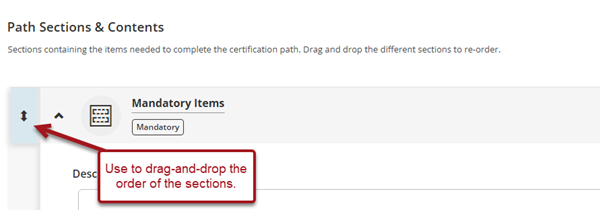
Sections containing the items needed to complete the certification path. Drag and drop the different sections to re-order.
Mandatory Items
Mandatory items are a list of activities that each learner must enroll in and complete for this certification path, in order to be awarded the Certification Program. Click Add to select activities to add to the mandatory items.
NoteThis includes online activities, ILT activities, and conferences. Activities do not need to be published in order to be added to Certification Programs.
NoteIt is possible to drag and drop items in the list the re-order them before saving.
Elective Items
Elective items are a list of optional activities that each learner can choose from to enroll in and complete for this certification path, in order to be awarded the Certification Program. The number of items a learner must complete from this list can be specified and shown to the learner.
NoteThis includes online activities, ILT activities and conferences. Activities do not need to be published in order to be added to Certification Programs.
- Number required for completion – Specify the number of items a learner must choose from this list to acquire in order to complete the section and count towards the overall attainment of the Certification Program. This must be at least 1, it is not possible to have 0 as the required number for elective items.
- Add – Click Add to select activities to add to the elective items.
NoteIt is possible to drag and drop items in the list the re-order them before saving.
- Remove – To remove an activity from the elective items, select the check box beside the activity you would like to remove and click on the Remove button. Alternatively click the delete icon for the activity you want to remove.
Credit Requirements
Credit requirements allow you to specify a set of credits that a learner must earn within the timescale of the Certification Program cycle. Each distinct credit requirement is made up of one or more credit types that must be achieved.
Learners earn credits by completing courses that award the specified type of credit. However, these courses cannot already be part of the mandatory or elective sections of the certification path. For example, if Course A is mandatory and awards 10 CEUs, and you also have a credit requirement for attaining 10 CEUs, completing Course A will satisfy the mandatory requirement but cannot also count toward the credit requirement.
In addition, learners can enter external training to award themselves credits. You can set up more than one set of credit requirements within a certification path, but learners only need to fulfill one of these sets to meet the overall requirement.
Do the following to define credit requirements:
- Click New Credits Requirement Option. It is possible to create multiple different credits requirement options and learners only choose one from these to achieve.
- To add the choice of credit types, click Add credit requirement:
- Required Value – Enter the number of credits required.
- Credit Type – Enter the type of credit that learners must attain.
- Sub Types – If the credit type has sub types, they are listed with an Include checkbox and a Minimum Required value:
- Leave Include unchecked for all sub types (or check all of them) if learners should be able to claim any sub type, or no sub type, toward the credit requirement.
- Check Include for one or more (but not all) sub types if learners should only be able to claim credits with those specific sub types toward the requirement.
- Enter a value in Minimum Required for a sub type to require learners to achieve at least that amount of credit for that sub type specifically, in addition to meeting the overall Required Value. Minimums are optional — a sub type can be included as a requirement without a minimum applied.
- Click Add Credit Requirement.
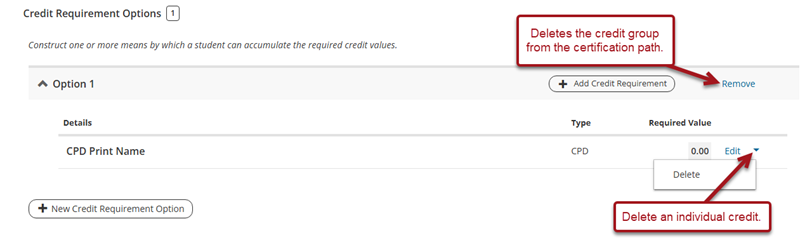
- Select Edit for the credit you want to update, or select the arrow next to Edit to Delete the credit.
- Select Remove in the top right corner of the credit requirement to delete the credit group from the certification path.
Learners see each credit requirement, along with which sub types can be claimed toward it and any sub type minimums, from the Certification Program on their Learning Center. If a credit requirement has multiple sub types and a learner meets the overall required value but not a sub type minimum, a warning displays on the Certification Program and on the learning center widget so the learner can see why the requirement (or program) has not yet rolled up as completed. Once the outstanding minimum is met, the requirement and/or program rolls up as completed.
NoteUpdating the sub type or minimum setup on an existing credit requirement only affects learners who enroll after the change is saved. Learners already enrolled keep the previous setup for their path.
Final Exams
Final exams are a list of exams that learners must pass/complete in order to complete the Certification Program. You can choose from a list of activities in the system to use as a final exam; online activities, ILT activities, and conferences:
- Add – Click Add to select items to add to the final exams.
NoteIt is possible to drag and drop items in the list the re-order them before saving.
- Remove – To remove an item from the final exams, select the check box beside the item you would like to remove and click on the Remove button. Alternatively click the delete icon for the item you want to remove.
Fees
It is possible to add fees that learners must pay as part of the Certification Path. Fees can be added to Certification (initial) paths and Maintenance/re-certification paths. Products such as DVD's, CD's and books can also be added as fees for learners to purchase.
- Add – Click Add to select fees and products to add to the path.
- Remove – To remove a fee or product, select the check box beside the item you would like to remove and click on the Remove button. Alternatively click the delete icon for the item you want to remove.
- Save - The Save button allows you to save any changes made to the Certification Program.
The following fee management options are available:
- Fee Payment Order Enforcement – Enforce the order in which learners must pay fees, so a learner cannot pay a later fee before an earlier one.
- Configurable Start and End Dates for Fees – Define when a fee becomes available or is due, based on either the learner's enrollment date or the certification path start date. Learners can view the start and end date for each fee directly in their certification path interface.
- Instructional Text for Fees – Add custom instructional text for a fee to give learners additional context about what it covers.
NoteTwo system-generated notifications, Upcoming Fee Availability and Upcoming Fee Deadline, can be set up to help keep learners informed as fee dates approach. See Certification program notifications for details.
See Adding late fees to Certification Paths for details on configuring fee payment periods and instructional text.
Enrollments
The Enrollments tab within a certification path lists all the learners that are currently enrolled in the certification path:
- Enroll - Click Enroll to select users to enroll in this certification path.
- Unenroll - To un-enroll users from the certification path, select the check boxes beside the learner s you would like to un-enroll and click on the Unenroll button. Alternatively click the delete icon for the learner you want to remove.
- Transfer - To transfer a learner from this certification path to another one within this Certification Program, click on the transfer icon for the learner you want to transfer and select the path you want to move them to from the pop-up.
- Award - To award the Certification Program to a learner, click on the award icon for the learner you want to award it to and confirm.
- Recalculate - If you manually edit any dates on this screen, the system will not automatically update the student's progress. To recalculate a student's progress after making date changes, click Recalculate.
- Revoke - To revoke the Certification Program from anyone who it has been awarded to, click on the revoke icon for the learner you want to revoke it for and confirm. This icon will only appear for learners who have been awarded the Certification Program.
- Save - Save any changes made on this screen.
Resources
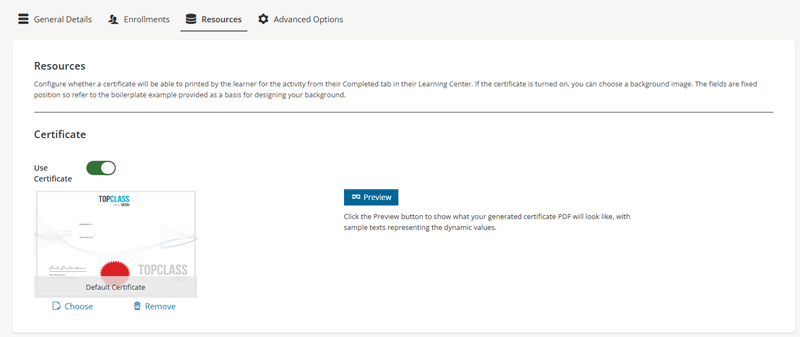
Configure whether a certificate will be able to printed by the learner for the activity from their Completed tab in their Learning Center. If Use Certificate is enabled, you can choose a background image. The fields are fixed position so refer to the boilerplate example provided as a basis for designing your background.
Advanced Options
Setup all the policy rules for the Certification Path. This includes Roll up rules and Actions which will fire when a learner is enrolled in, or has satisfied/completed, the Certification Path.
Actions
Click Add Action to set up an action, then choose a type:
- Add/Remove from Group – Automatically add a learner to, or remove a learner from, a specified group when they are enrolled in, or have satisfied/completed, the Certification Path. Set When to the trigger point, choose the group, and enable Remove if the action should remove the learner from the group instead of adding them.
NoteTopClass validates group actions so they don't duplicate unnecessarily — for example, an add to group action is skipped if the learner is already in the group, and a remove from group action is skipped if the learner is not in the group. For certification paths with maintenance requirements that can be completed multiple times, this check is applied each time the action would otherwise fire.
Updated 2 months ago