

Configuring Testimonials
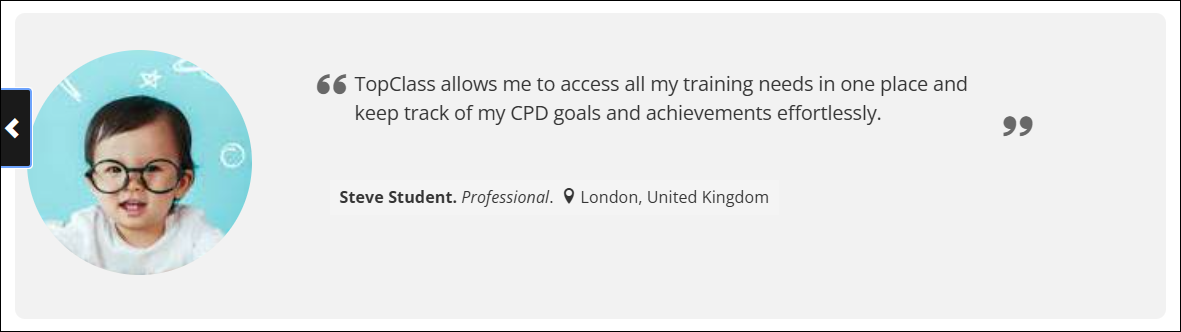
Testimonials play an important role in promoting and encouraging engagement with the Learning Platform and Learning Activities using peer reviewed insights. Testimonials appear on the Landing page as a Learning Stream, with more than one displayed in a carousel.
To configure testimonials, do the following:
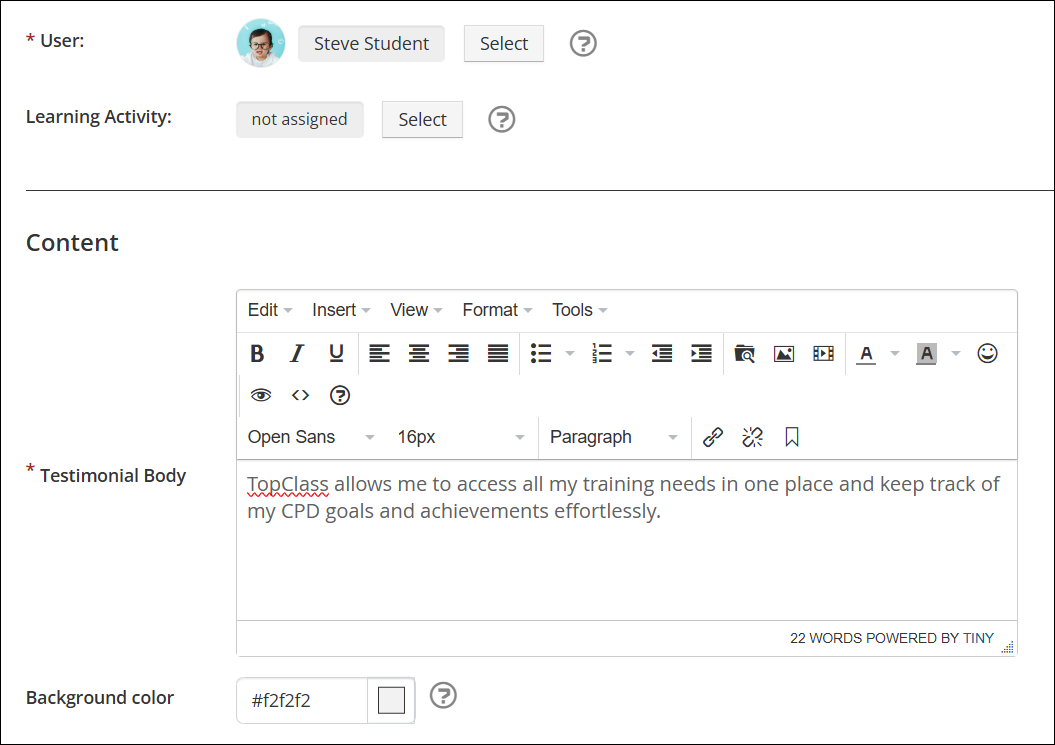
- Go to Customizations > News & Promotions > Testimonials.
- Click Create.
- Enter a Title. The title is for administrative purposes only and does not appear on the published testimonial.
- (required) Select the User associated with the testimonial. If the user has set a profile picture and job title or location (city/country) which has been set to show, it will be displayed on the testimonial.
- Select the Learning Activity associated with the testimonial. This field is optional and can be left blank if the testimonial relates to the platform in general, rather than a specific Learning Activity.
- (required) Add details of the testimonial in Testimonial Body. Text can be formatted, and images and links can be included.
- Click Create.
Once created, new options are available on the Testimonial screen:
-
Click the More Options (caret) icon beside the Delete button to Add New Testimonial or Preview the existing testimonial.
-
To make the testimonial visible to users, toggle the Published button to On.
-
The Published Date/Time field is informational only and does not appear on the published testimonial.
-
The Background Color of the testimonial can be customized.
TipUse this field to categorize testimonials by color.
Remember to click Save.
Use the Learning Streams customization settings to enable Testimonials on the Landing Page. See Learning Streams for details.
Updated 5 months ago