

Understanding transactions
Transactions allows super administrators to view all purchases made via the TopClass shopping cart. This allows administrators to track sales, manage payment statuses, and analyze revenue generated from learning offerings.
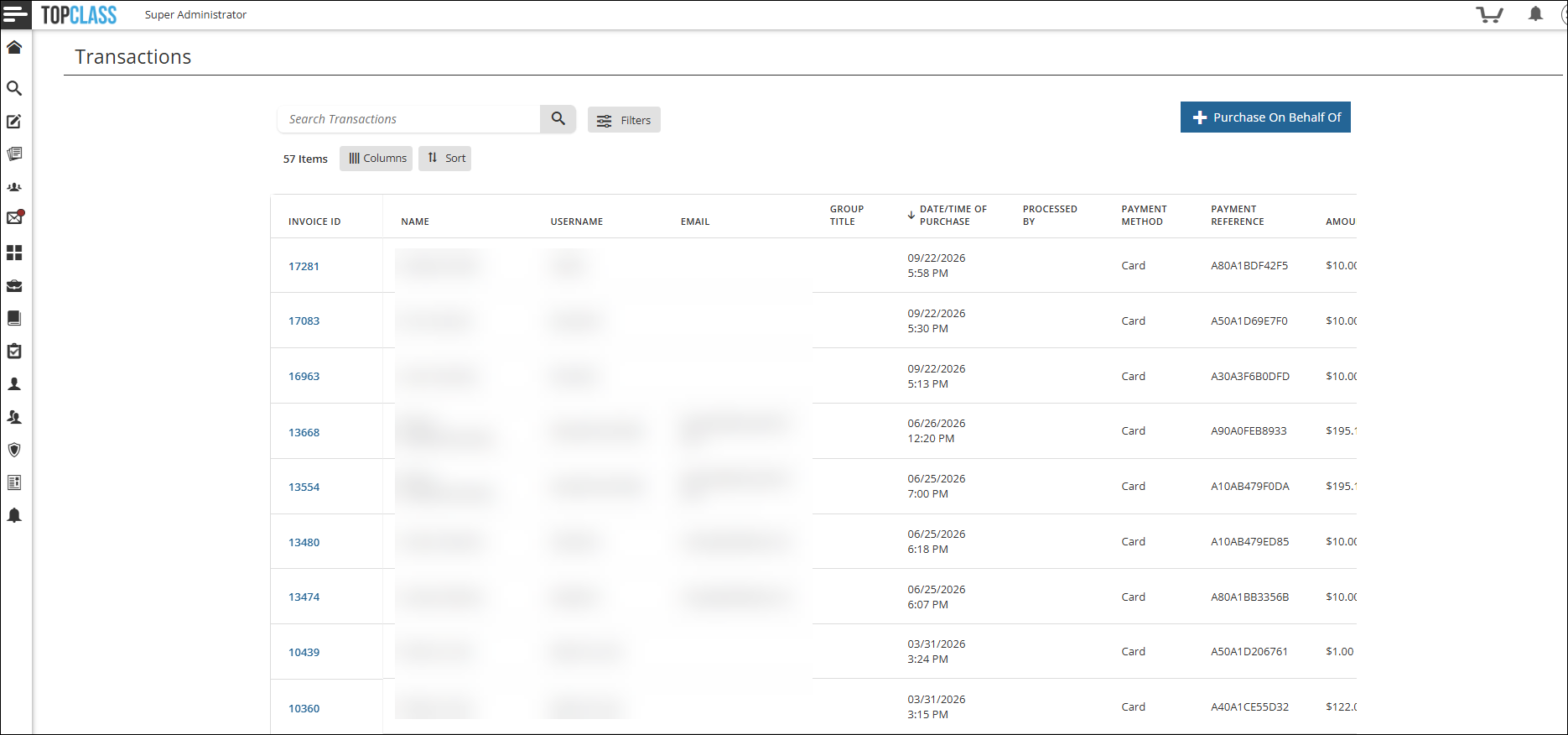
Use the Search, Filters and Sort tools to organize and find specific transactions.
Transaction payment statuses explained
The status of a transaction can be one of the following:
- Open - Transaction has been created, but not completed.
- Pending Approval - Requires manager approval before purchase can be completed.
- Rejected - Manager has not approved the transaction.
- Completed - Payment has been made.
- Broken - Card payment has not been successfully processed.
- Payment Pending - Transaction has been created on invoice and is awating payment.
Purchasing on behalf of another user
Administrators can make purchases from the catalog on behalf of another user. When on the transaction summary screen, do the following to purchase on behalf of another user:
-
Click Purchase On Behalf Of.
-
Select the user.
-
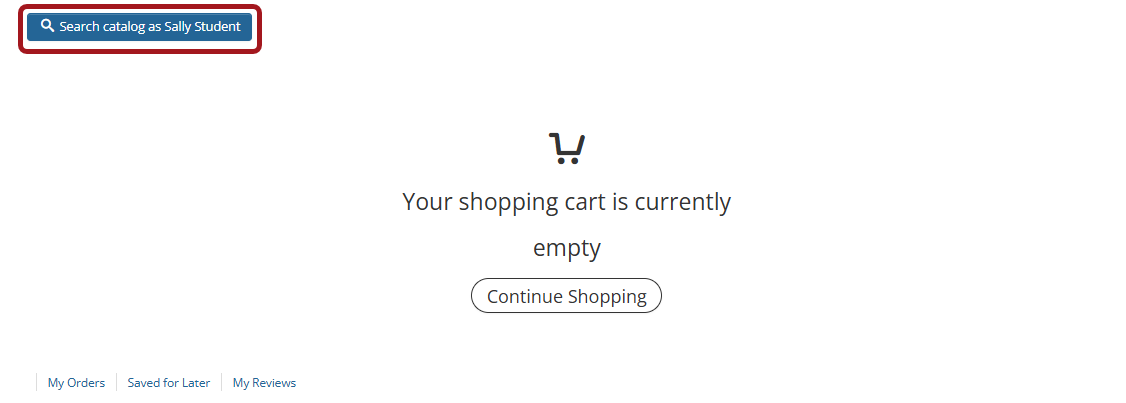
Click Search catalog as ...
-
You will be redirected to the catalog as the selected user.
-
Click Add to Cart on the relevant catalog offering and complete the purchase workflow.
Invoicing
To examine a specific transaction, click on the Invoice ID.
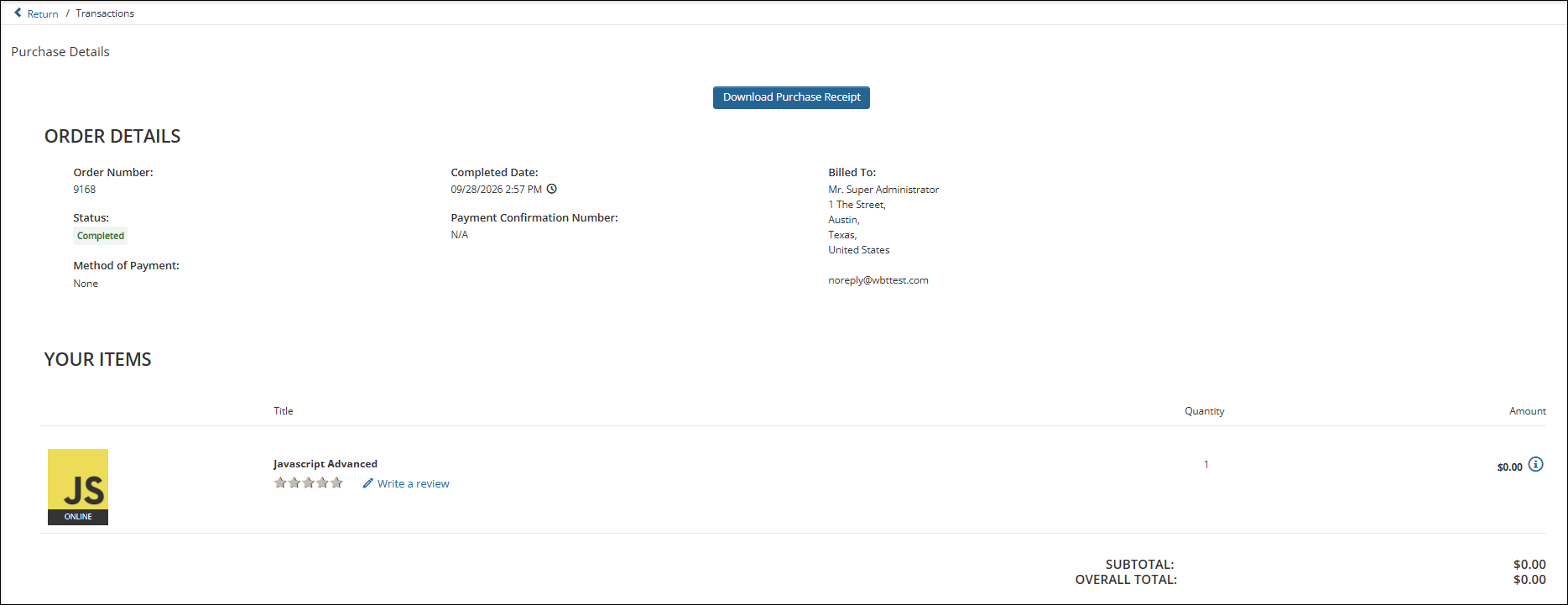
The following information is contained within the transaction details:
- Order Number/ Invoice ID - System generated.
- Status - Payment status of the transaction.
- Method of Payment - Payment can be made by one of the following:
- Card - Credit or debit card.
- Check - Check.
- None - Item has no charge.
- Completed Date - Date of transaction.
- Payment Confirmation Number - This is automatically generated for card payments and manually entered for check payments.
- Billed To - Name and address of purchaser.
- Your Items - Provides details for all items in the transaction. Click the information icon on each line to view a breakdown of the cost.
- Click Download Purchase Receipt to generate a PDF of the invoice.
- Select Return to navigate to the transaction summary screen.
Updated 2 days ago