

Customising the Learning Catalog
TopClass offers a selection of Catalog Themes, allowing you to modernize the look and feel of your learning catalog. Each theme changes the layout and presentation of the catalog's search and browse pages, offering details pages, and session/path selection screens.
NoteThe selected Catalog Theme is applied globally across all Partitions. Themes cannot be applied individually per Partition.
To access Catalog Theme settings, go to Customizations > Catalog.
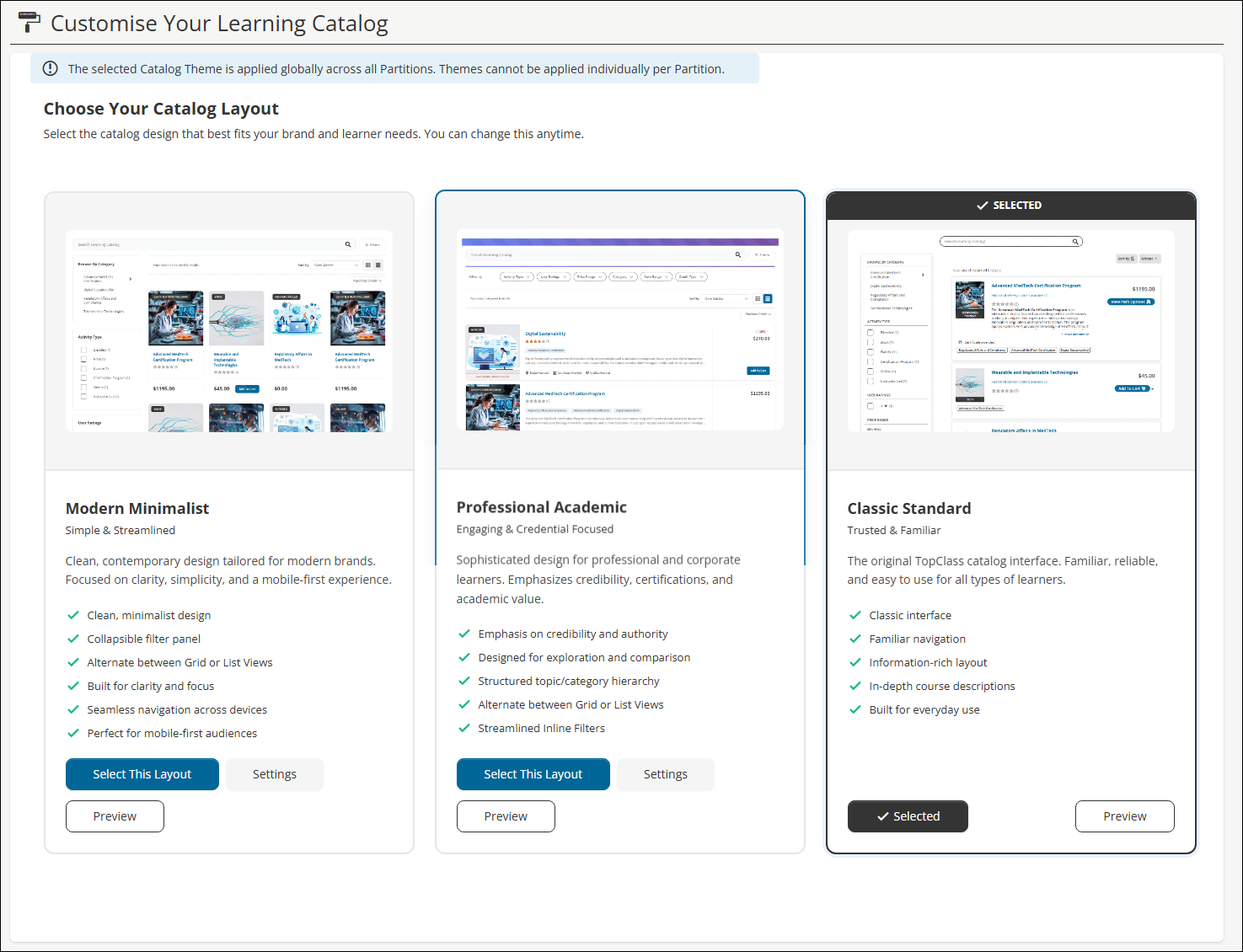
Choosing the Catalog Layout
The following catalog themes are available:
- Modern Minimalist – Simple & Streamlined. A clean, contemporary design focused on clarity, simplicity, and a mobile-first experience. Includes a collapsible filter panel, grid/list view toggle, and seamless navigation across devices.
- Professional Academic – Engaging & Credential Focused. A more sophisticated design aimed at professional and corporate learners, styled closer to third-party course marketplaces. Emphasizes credibility and academic value, with a structured topic/category hierarchy, sticky top-of-page filters, and more visible information on badges, certificates, and credits.
- Classic Standard – Trusted & Familiar. The original TopClass catalog interface. The default catalog theme.
Each theme card shows a summary of its key characteristics. From here you can do the following:
- Preview – Opens the theme in a new window using your existing catalog offerings. Previews are fully functional, so you can browse, filter, and drill into offerings, but no changes are applied or saved.
- Settings – Available for Modern Minimalist and Professional Academic. Configure default display options for the theme before applying it. See Configuring Theme Settings below.
- Select This Layout / Selected – Applies the theme. The theme currently in use is marked Selected with a checkmark banner.
Configuring theme settings
Click Settings on the Modern Minimalist or Professional Academic theme card to configure the following defaults:
- Default Layout View – Choose whether the catalog opens in Grid View or List View by default. Users can still switch views themselves while browsing.
- Default Sort Order – Choose the default order in which catalog results are displayed: Alphabetical, Type, Price: Low – High, Price: High – Low, Most Recent, or Highest Rated.
- Default Filters Visibility – Choose whether the filter panel is Visible or Hidden by default when a user opens the catalog. Users can still show or hide filters themselves.
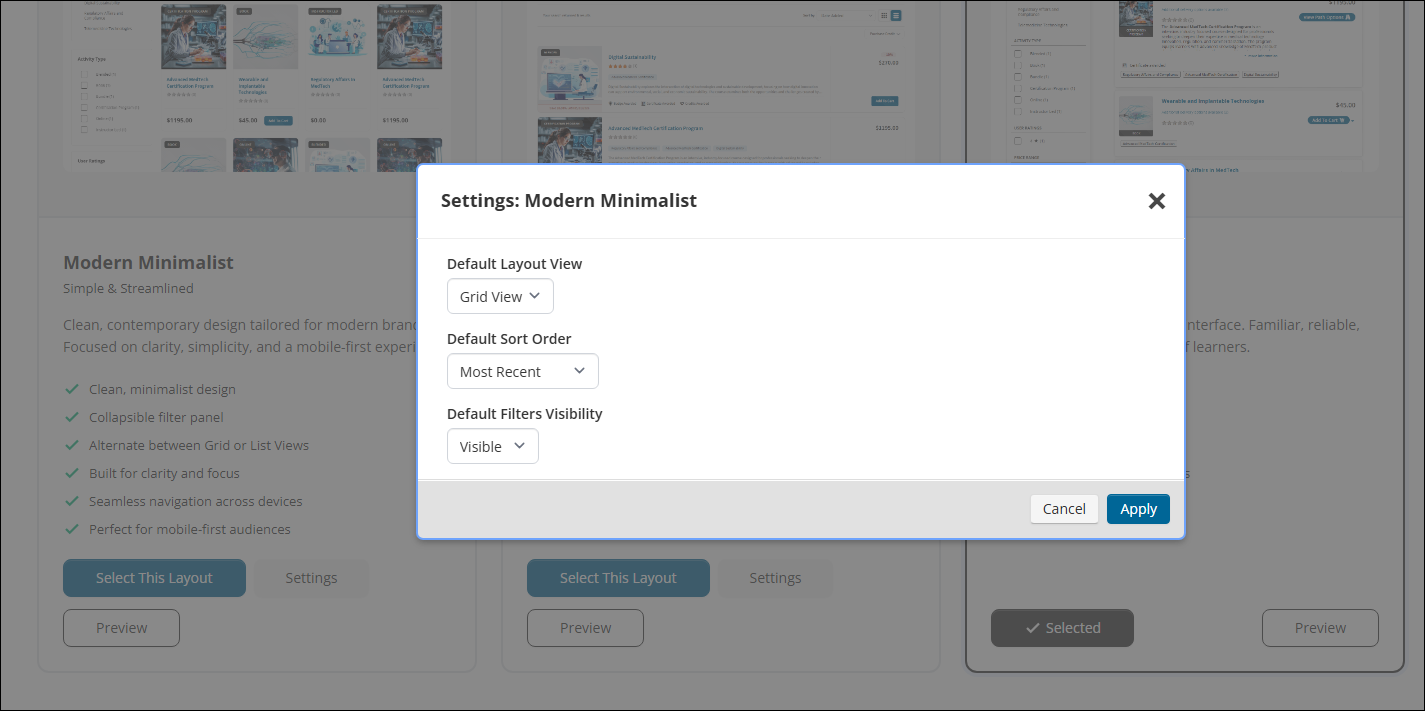
The Professional Academic theme includes one additional setting:
- Header Bar Accent Color – Enter a hex color code (or use the color picker) to set the accent color used across the theme's sticky header bar and filter controls.
Click Apply to save your settings, or Cancel to discard changes. Settings are saved independently of applying the theme — you can configure a theme's settings before deciding whether to switch to it.
Applying a theme
To switch your catalog to a new theme, click Select This Layout on the desired theme card.
NoteApplying a theme takes effect immediately for all users. You will be prompted to confirm before the change is applied. Click Apply to confirm and switch to the new theme, or Discard to cancel.
Once applied, all users who visit the catalog will see the new theme. You can switch back to Classic Standard, or to another theme, at any time using the same process.
Understanding the differences between the themes
The Modern Minimalist and Professional Academic themes introduce the following improvements over the Classic Standard catalog:
- Decluttered search and browse results – Less information is shown on each result card. Detailed information (full descriptions, extended pricing details, badges) has moved to the offering's own details page, reducing how much space each result takes up on screen.
- Collapsible filters – The filter panel can be hidden to give more screen space to search results, and shown again at any time.
- Grid and List views – Users can toggle between a grid layout and a list layout when browsing results.
- Simplified sorting – Sort options are consolidated into a single dropdown (for example, Most Recent, Highest Rated), matching common e-commerce conventions.
- Redesigned session and path selection – Selecting a session for an Instructor-Led Training (ILT) activity, or a path for a Certification Program, now opens in a larger, more spacious panel instead of a narrow dropdown. This also creates room for future additions such as extended sorting/filtering or sponsored content within the selection panel.
None of the above affect catalog functionality — filtering, sorting, pagination, adding to cart, purchasing credit, and wishlist behavior are unchanged from the Classic Standard theme.
Updated about 2 months ago