

AI Test Question Translator
The AI Question Translator allows administrators to quickly generate translations for native test questions that will then be displayed to learners when taking the test.
NoteTopClass includes optional AI-powered features designed to enhance the learning and administration experience. When enabled, AI is used only to support specific application functionality. No personal, private, or identifiable user data is shared with or retained by AI services. All AI usage within TopClass adheres to TopClass data privacy, security, and compliance standards. See the AI addendum in your TopClass Subscription agreement for more information.
ImportantLearners can only view question translations. They must provide their answers in the default language of the test.
Enabling the AI Test Question Translator
To enable the AI Test Generator, do the following:
- Go to System Administration > System Settings.
- Click the AI Services tab.
- Ensure Enable AI Services is toggled on.
- Set the AI Test Question Translations value to Yes.
- Click Save. AI services are now available.
Using the AI Test Question Translator
To use the AI Test Question Translator to generate translations for native test questions and answers, do the following:
- Go to the relevant question bank.
- On the Questions tab, set Enable Question Translation to Yes.
- Select a question.
- Click Translate Question and Answers.
- Click Translate.
-
Once complete, use the drop-down to preview the generated translations per language.
-
Click Close.
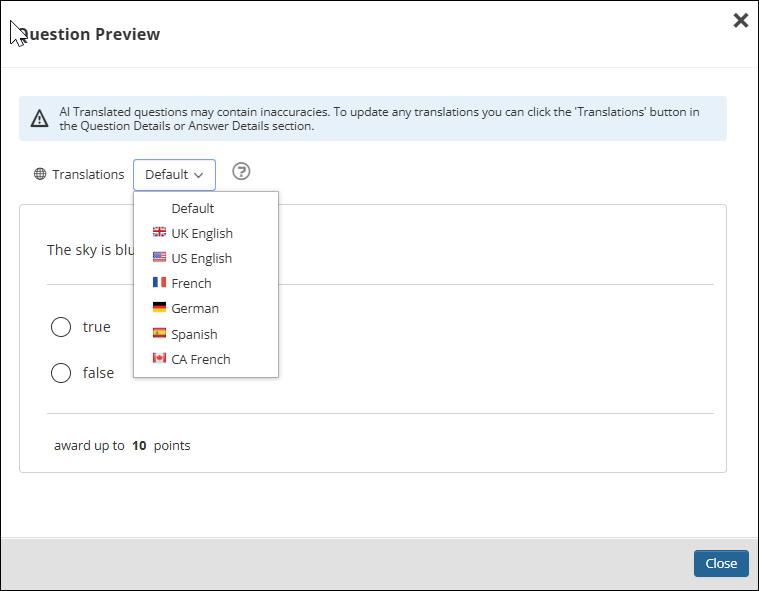
-
- Click Translations beside the question to view and edit the generated question translations for each language.
- Click Apply to save changes.
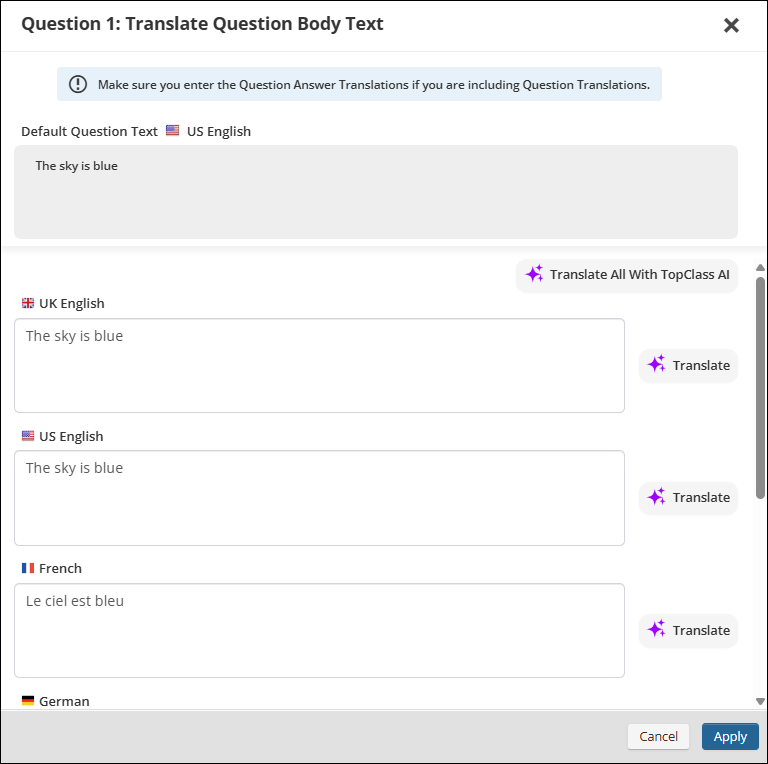
- Click Apply to save changes.
- Click Translations below the answers to view and edit the generated answer translations for each language.
- Click Apply to save changes.
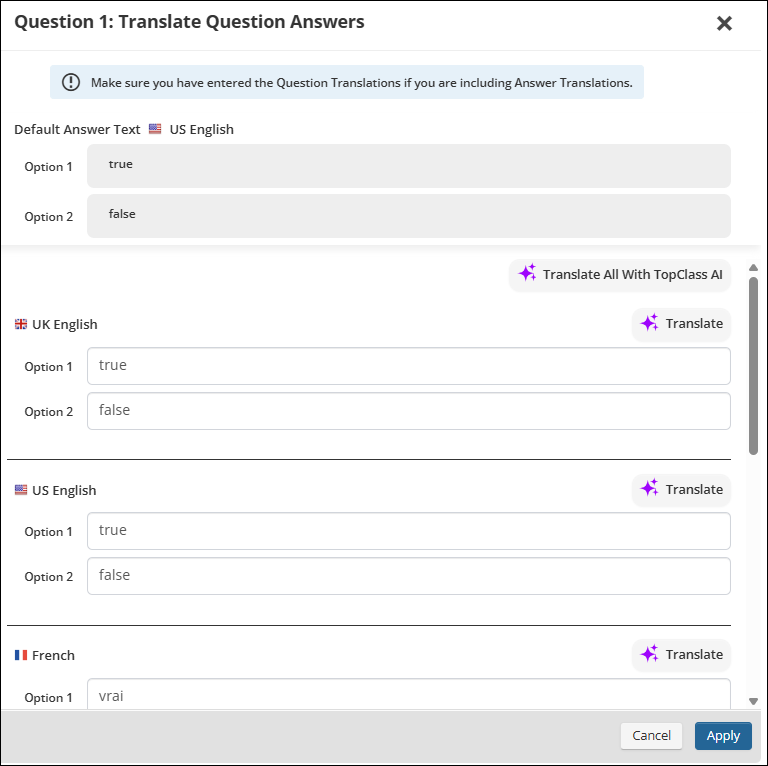
- Click Apply to save changes.
- Click Save.
Viewing question and answer translations as a learner
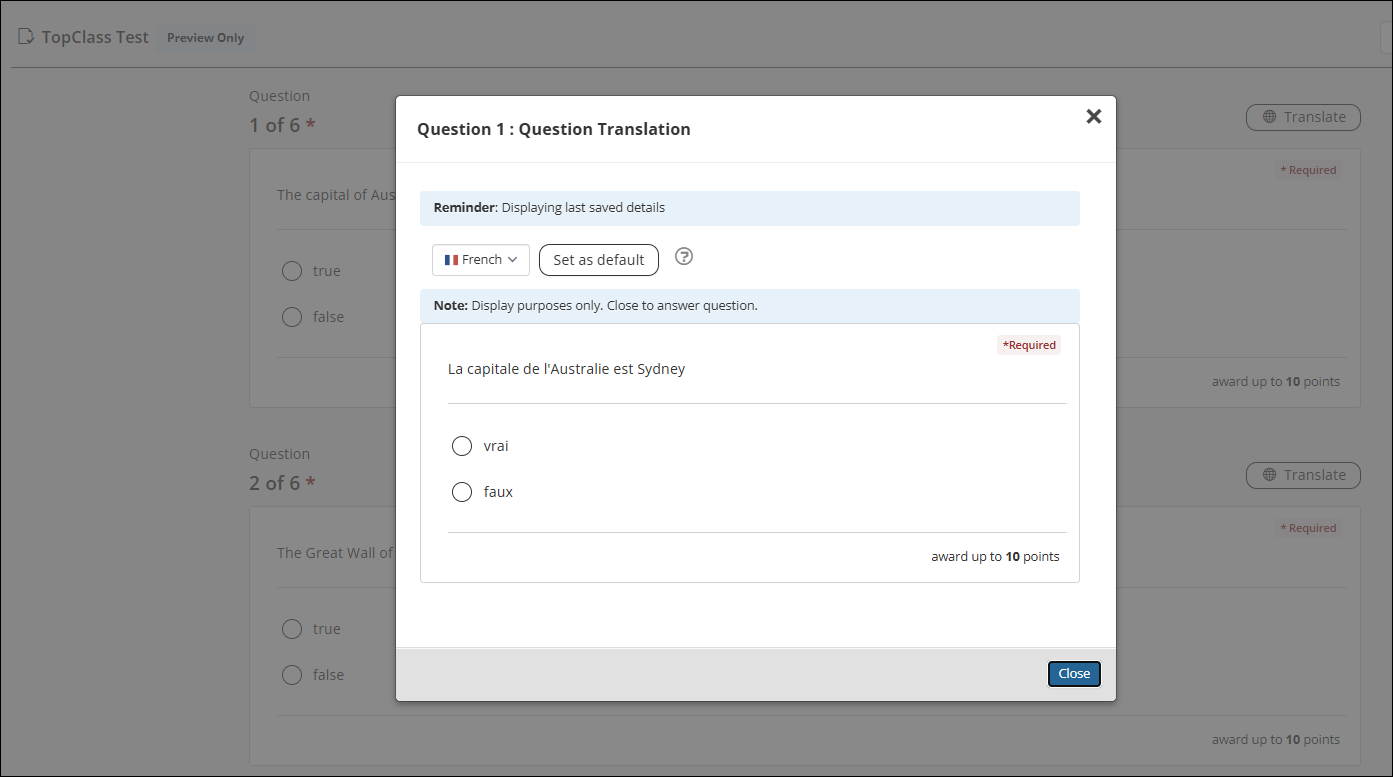
When enabled, learners will be able to view translations for questions and answers in a test.
A Translate button will be displayed beside each question.
To view the translation, do the following:
- Click Translate.
- On the Question Translation screen use the drop-down to view the different language translations.
- Click Default on a selected languge to save as a default for a questions in the test.
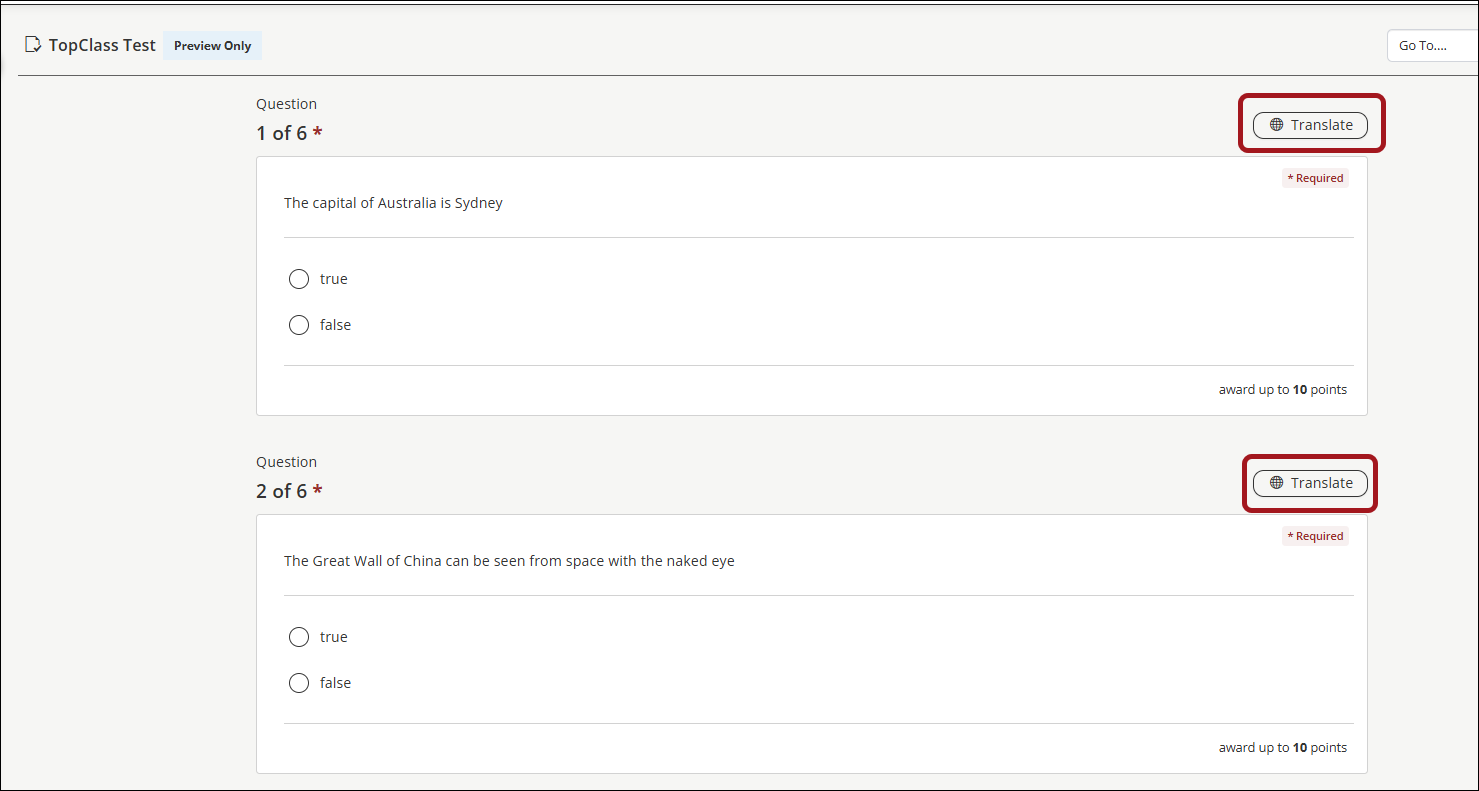
Updated about 2 hours ago