

2025 Release Notes
November 2025
This release introduces powerful enhancements to improve the learner experience and give administrators greater flexibility and control. From hosting recurring ILT sessions virtually to enforcing re-enrollment delays and customizing purchase receipts, these updates make managing and participating in learning programs easier than ever. Learners also gain more insight into their progress with the new My Credits Report.
To get started with this November 2025 release, review the following sections:
Key Enhancements
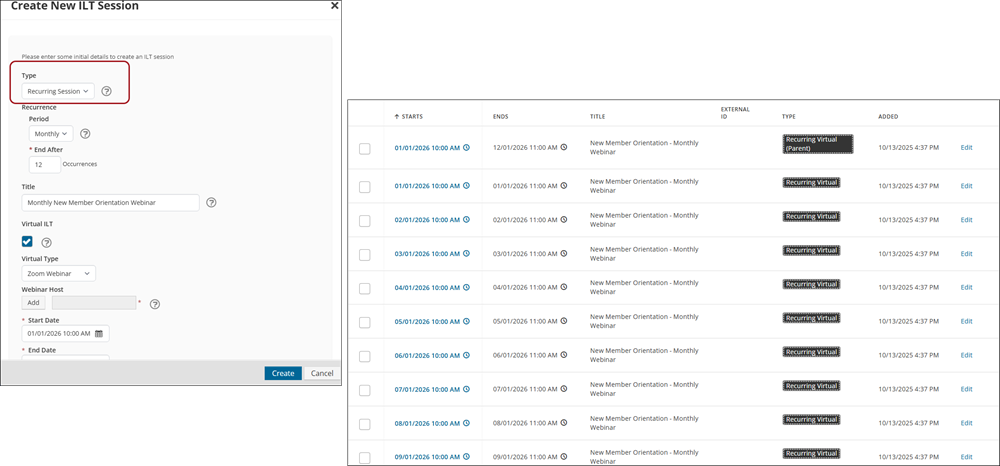
Recurring ILT sessions now available virtually
Easily host recurring ILT sessions virtually, giving learners more flexible options to attend and engage online. The following are now available:
- Create recurring ILT sessions with virtual options by manually entering a session URL.
- Automatically generate Zoom meetings for recurring ILT sessions through the extended Zoom integration.
- Ensure a seamless learner experience in the Learning Center by directing learners to the URL of the next upcoming session in the series when they click Attend.
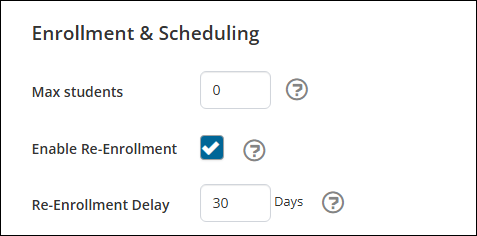
Defining a waiting period before activity re-enrollment
To provide greater control and ensure learners are not re-enrolling in activities that they just took, a new Re-enrollment Delay setting has been added to activities. This setting specifies a mandatory waiting period (in days) that learners must wait before re-enrolling in a completed activity. This enhancement ensures a more structured and fair re-enrollment process, helping you better manage credit accumulation and program requirements.
ExampleThe Re-enrollment Delay is set to 30 days and a learner completes an activity on September 1. The learner cannot re-enroll until October 1. The delay is calculated based on the date the learner completed the activity.
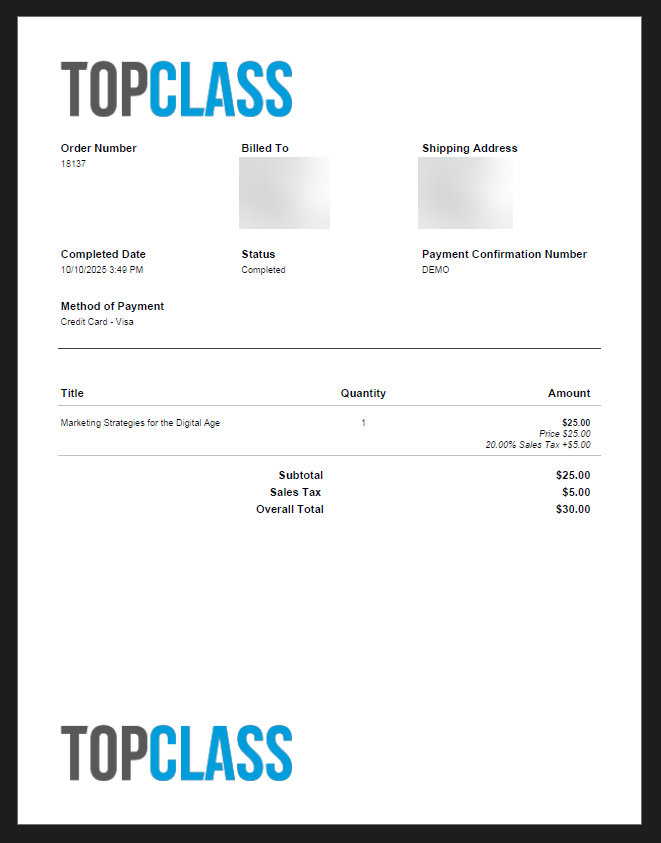
New branding features for purchase PDF receipts
Administrators can now customize PDF receipts for purchases with a header and a footer, creating exciting new branding opportunities. The maximum dimensions for logos uploaded for use as headers and footers is 532 pixels (width) x 60 pixels (height).
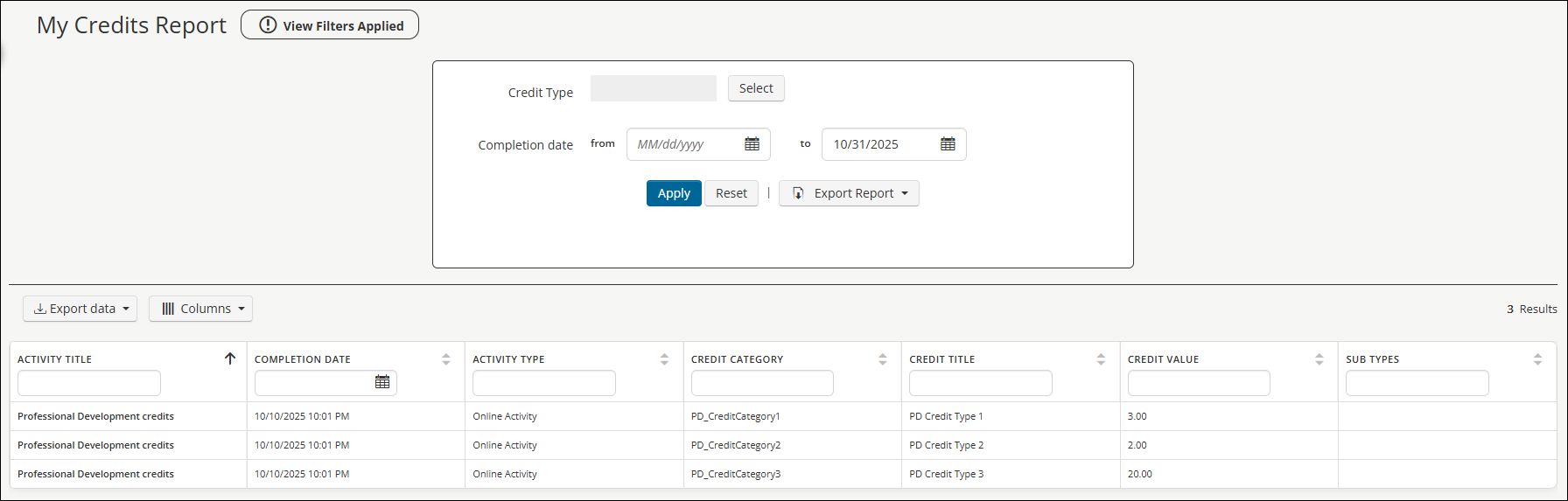
New report – My Credits Report
The new My Credits Report allows students to view a summary of their earned credits and sub-credits and apply filters for credit type and timeframe. Additionally, students can generate and export the report in PDF or Excel format.
To access the report, go to Reports > Launch Reports > My Reports.
Integrations
Automatically sync certification expiration dates with Wicket
When learners earn or renew a certification in TopClass, their certification expiration date is automatically synced to Wicket. Additionally, when a learner’s certification expires without renewal, Wicket’s grace period is respected, and the expiry date is not updated until after the grace period.
Reporting
New report – Managers: List of Groups Managed
The new Managers: List of Groups Managed report provides greater visibility into the groups managed by each manager. This new report lists all related Groups in detail, enabling deeper insight into group hierarchies and management responsibilities. This report is available to administrators only.
To access the report, go to Reports > Launch Reports > Administrator Listings.

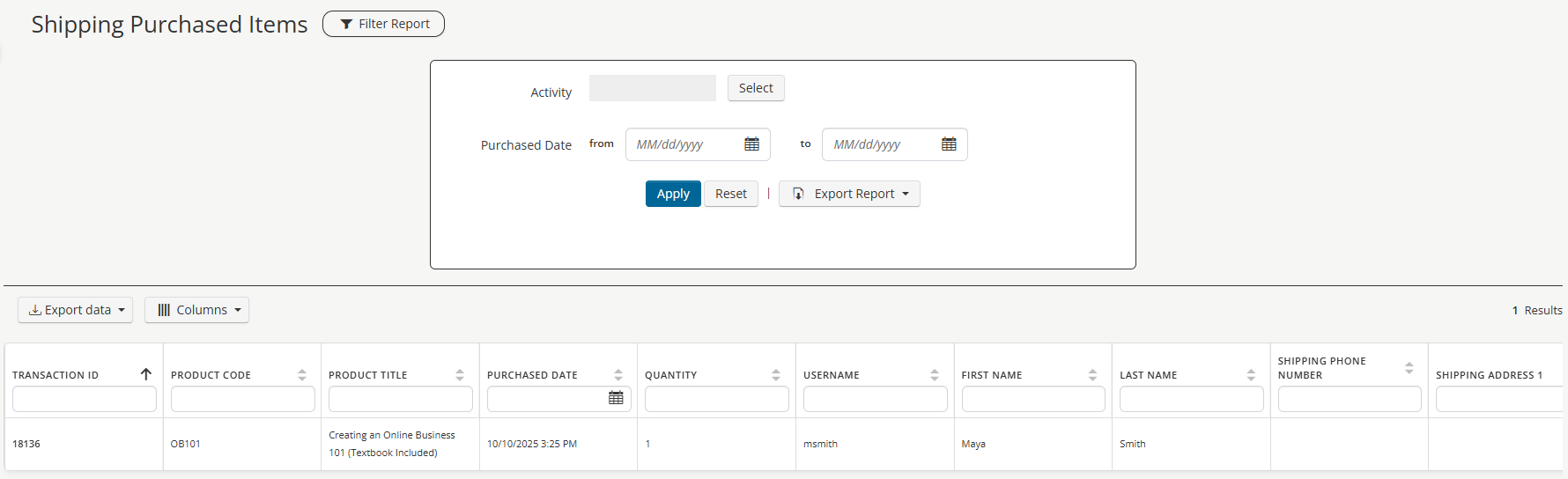
New report – Shipping purchased items
The new Shipping purchased items report provides details on shipping when a user has purchased a physical product through the shopping cart.
To access the report, go to Reports > Launch Reports > Finance. Currently, only super administrators can access this report.
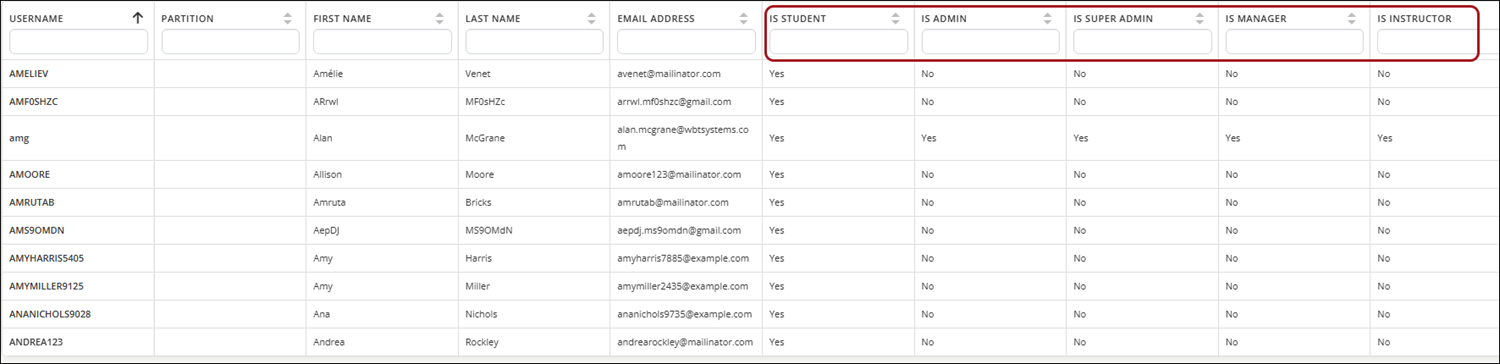
Enhanced Report – Users report updated to include user type columns
The out-of-the-box Users report includes optional columns for user types: Is Student, Is Admin, Is Super Admin, Is Manager, and Is Instructor. When added, each column displays a Yes or No value based on the user’s security settings.
To access the report, go to Reports > Launch Reports > Administrator Listings.
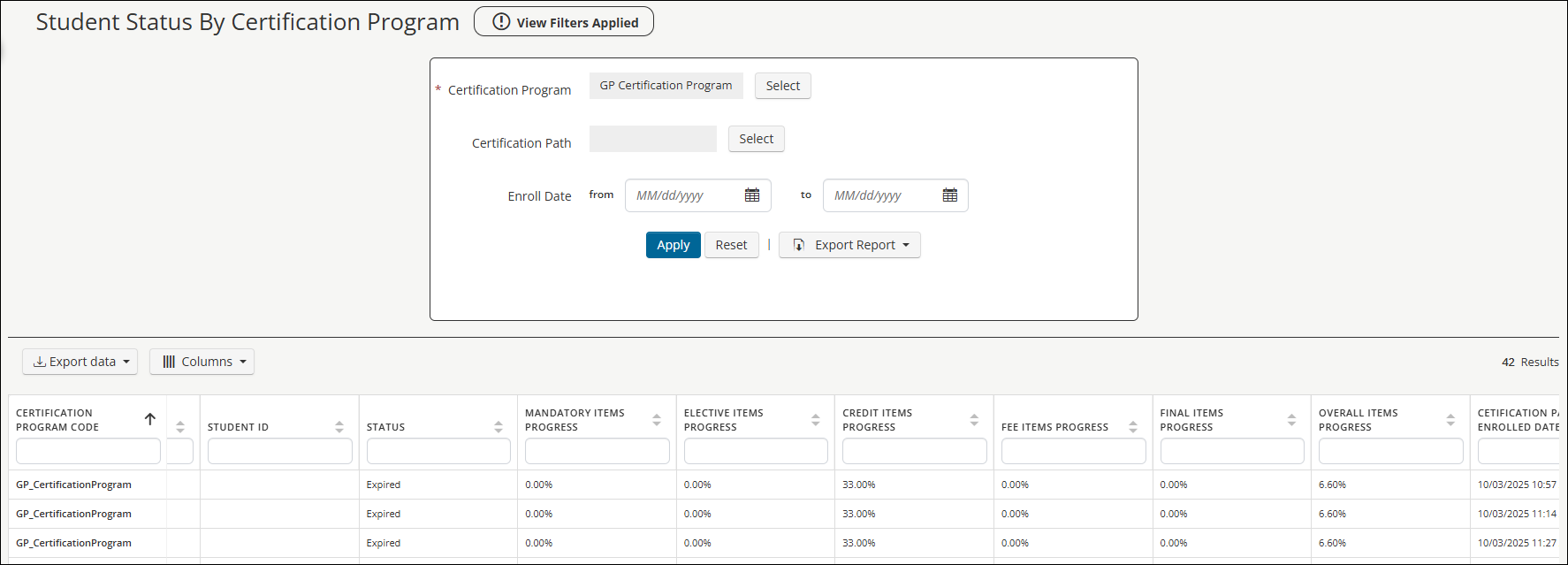
Enhanced report – Student Status by Certification Program
The Student Status by Certification Program report has been enhanced with new columns that track students’ progress through a Certification Program, allowing administrators to easily follow student progression across different aspects:
- Mandatory Items Progress
- Elective Items Progress
- Credit Items Progress
- Fee Items Progress
- Final Items Progress
- Overall Items Progress
Additionally, managers can now access this report, but they can only see users they manage.
Security & Access Management
Enforcing stricter password requirements
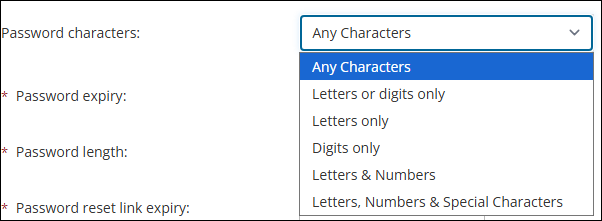
Newly added options to the Password characters setting (System Administration > System Settings > Security) provide stronger validation for passwords and improved user security:
- Letters & Numbers - Requires at least one letter and one number, while special characters are optional.
- Letters, Numbers, & Special Characters – Requires at least one number, one letter, and one special character for maximum security.
Password rules now apply to newly created or updated passwords, helping enforce consistent security standards. Existing passwords remain unchanged unless updated.
Enhanced privileges for administrators
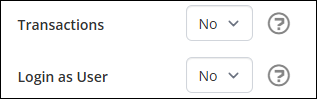
The new Transactions and Login as User privileges give administrators a new level of access:
- The Transactions privilege grants access to Transactions (E-commerce > Transactions), allowing administrators to view all users’ transactions history and to select the Purchase on Behalf Of button to complete purchases On Behalf Of any user.
- The Login as User privilege allows administrators to login as a user, either from the General Details tab of a user's profile or from the User List screen. Access to this feature is determined by the Users privilege on the Admin Privileges tab. For example, if an administrator has access to Own users only, the administrator can only log in as their own users. Administrators with the Login as User privilege cannot login as a super administrator or another administrator.
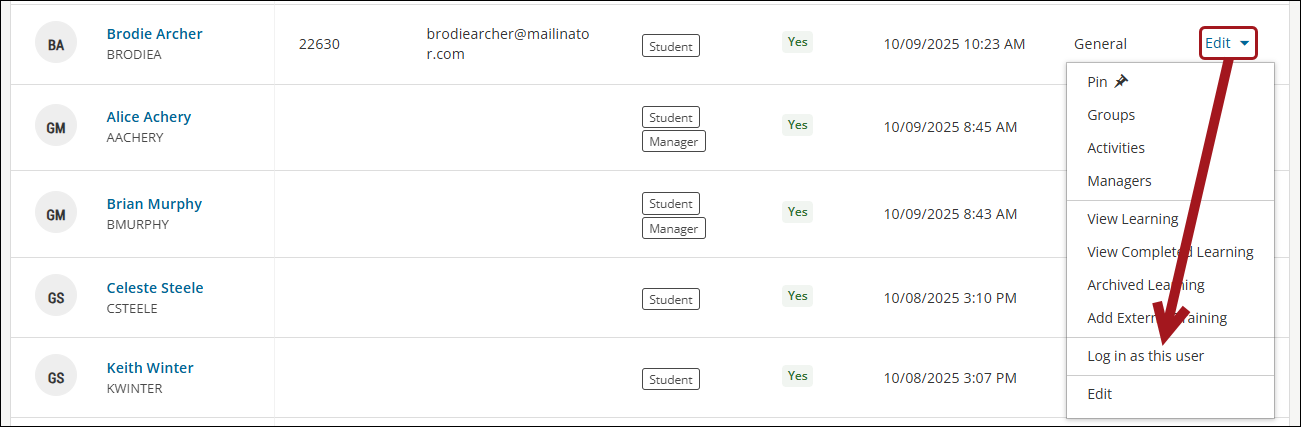
“Log in as this user” shortcut added to Users list
Admins with the Login as User privilege can now quickly access a user's account directly from the Users list via the Edit dropdown, reducing clicks and improving efficiency.
Learning & Training
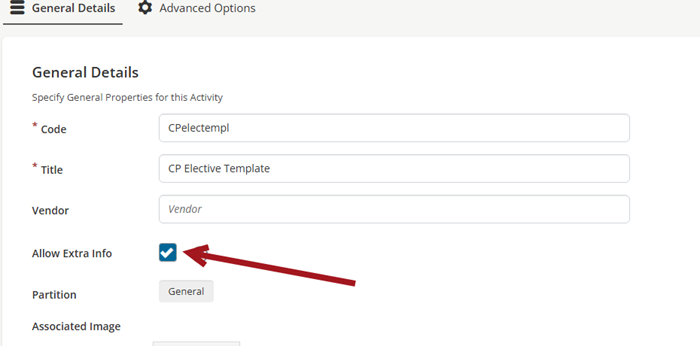
Controlling the visibility of the Extra Info fields per External Training Template
External Training Templates now have an option to either show or hide the Extra Info fields for learners. This enhancement gives administrators more control over the information displayed to learners when submitting external training records.
The Allow Extra Info setting is enabled by default for all new and existing templates. To disable the setting, go to Activities and Learning > External Training Templates, and select the template. Disable the Allow Extra Info setting and Save.
Additionally, Extra Info fields are now supported on ad-hoc external training records, allowing managers and learners to include additional details even when not using a predefined template.
Enhanced location information for Instructor-Led Training (ILT) activities
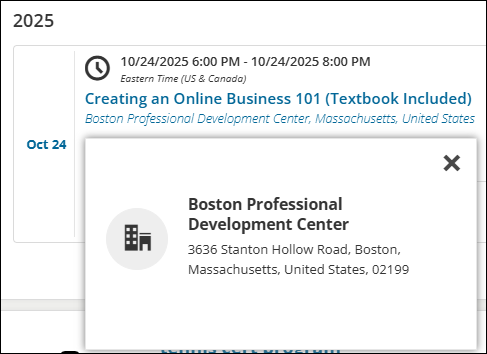
The user interface has been enhanced for ILT activities to add the full location and address details, reducing confusion about the ILT activity's physical address. New Address 1, Address 2, City, and Zip Code fields for locations provide additional physical location information.
These new fields appear in the ILT pop-up that appears when a user clicks on an ILT activity location in the Learning Center, as well as ILT activity notifications sent to students and other recipients.
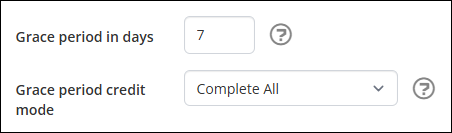
Enhanced grace period credit mode for Certification Paths and Programs
A new Grace period credit mode setting provides greater control over what enrolled students can do during a grace period in Certification Paths and Programs. Administrators can choose from the following options to define allowed actions before the grace period expires:
- Claim Credits – Allows the student to earn credits in the Credit Requirements section of their Certification Path through the Certification Path expiry date (completion due by date), such as External Training records.
- Record Credits – Allows the student to only earn credits until the grace period’s expiration date.
- Claim Credits & Pay Fees – Allows the student to pay any associated fees with the Certification Path and enter credits completed before the Certification Path expiry date (completion due by date) , such as External Training records.
- Record Credits & Pay Fees – Allows the student to pay fees and earn credits until the grace period's expiration date.
- Complete All – Allows the student to complete any item in the Certification Path until the grace period's expiration date.
Late fees for Certification Paths
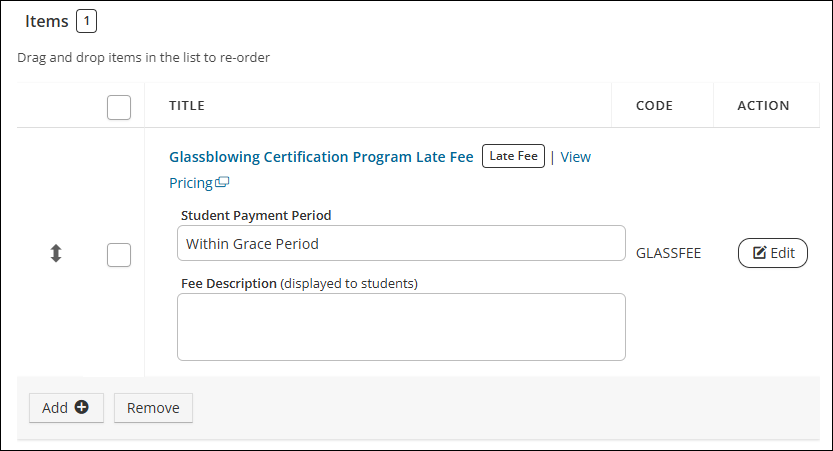
Administrators can set up late fees for users who enter a grace period for a Certification Path or a relative date (either a student's enrollment date or start date). These late fees are not visible to the student and automatically apply when the grace period or relative date begins, at which point they appear in the student’s Fees section.
August 2025
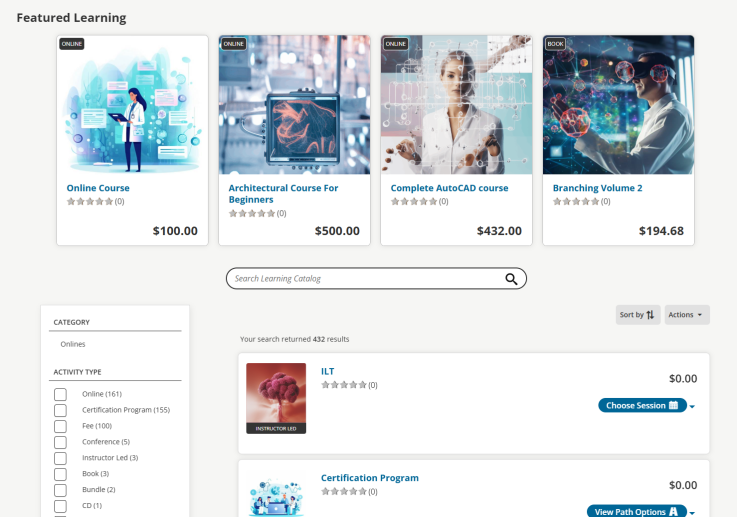
We’re excited to introduce a more intuitive and impactful way to highlight Featured Items in the TopClass Catalog. This release streamlines how Featured Activities are displayed, giving them greater visibility, and making catalog management more efficient.
Key Enhancements
- Simplified Catalog Layout: The previous ‘All’ and ‘Featured’ tabs have been removed. Instead, Featured Items now automatically appear at the top of the Catalog, ensuring prominent placement.
- Persistent Visibility: Featured Items remain visible at the top of the catalog, even when users apply filters or perform searches.
New Admin Capabilities
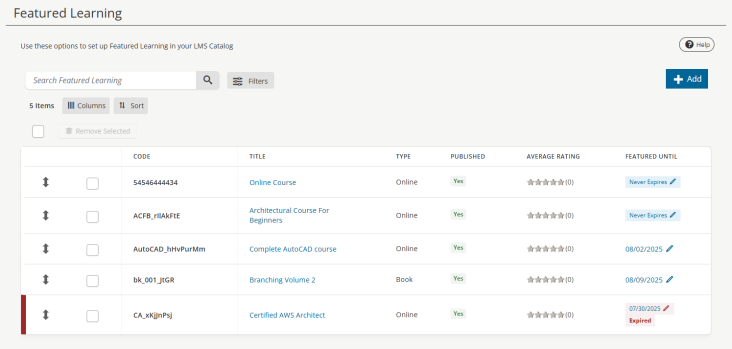
- A new centralized admin screen has been introduced for Super Admins to manage Featured Items. No more navigating to individual activities—Feature multiple items from a single interface.
Fee Management Enhancements for Certification Programs
We’re pleased to announce powerful new capabilities for managing fees within certification paths. These enhancements give administrators greater control over payment sequencing, visibility, and communication—while improving clarity and convenience for learners.
Key Enhancements
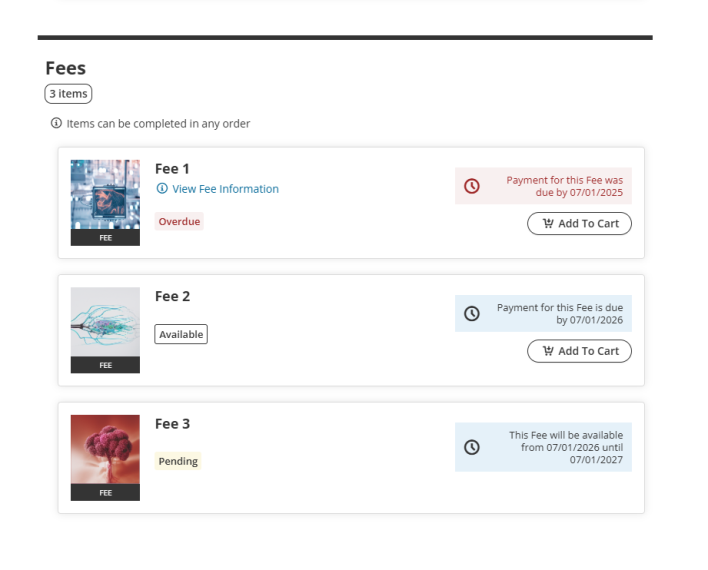
- Fee Payment Order Enforcement - Administrators can now enforce the order in which students must pay fees
- Fees in Certification Paths - Fees can now be added to both Certification and Maintenance certification paths.
- Configurable Start and End Dates for Fees - Admins can define when fees become available or due, using start/end dates based on each student's enrollment or path start date.
- Transparent Fee Timing for Students - Students can view start and end dates for each fee directly in their certification path interface, helping them stay informed and plan ahead.
- New Fee Notifications - Two new system-generated notification types help keep students on track: Upcoming Fee Availability and Upcoming Fee Deadline.
- Instructional Text for Fees - Admins can now add custom instructional text for each fee.
Enhanced Report Scheduler Functionality
We’re excited to introduce powerful new enhancements to the Report Scheduler feature, delivering more flexible scheduling options and dynamic date ranges to better support your reporting needs.
What's New
- Flexible Report Scheduling Options - You can now schedule reports with greater precision and flexibility to meet your organizational workflows.
- Expanded Scheduling Intervals:
- Run Once
- Daily / Weekly / Monthly
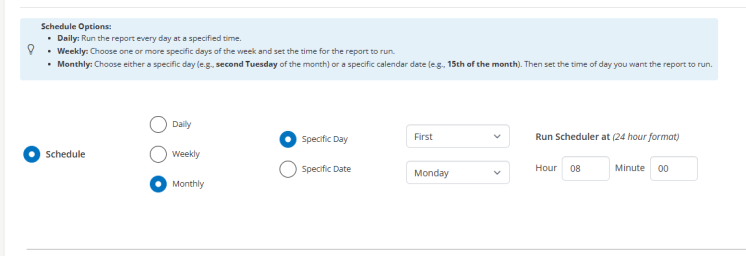
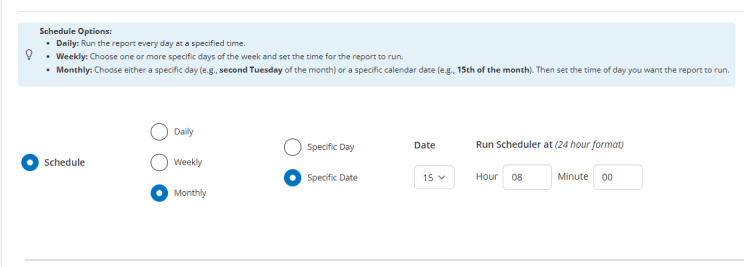
- New Monthly Scheduling Capabilities:
- Select Day in the Month (e.g. First Monday)
- Choose a specific date(e.g., 7th of the month)
- Expanded Scheduling Intervals:
-
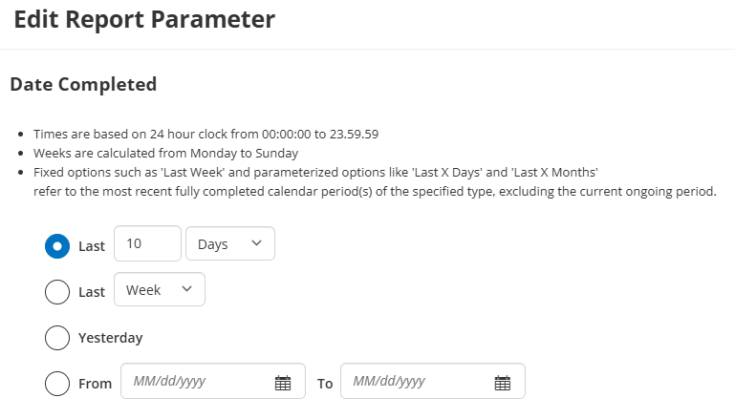
Dynamic Report Date Parameters - Gone are the days of manually updating report date ranges. With this release, you can now select dynamic date ranges that update automatically based on the current date.
New Dynamic Date Range Options Include:
- Yesterday – Automatically selects the previous day
- Last Week – From Monday to Sunday of the previous week
- Last Month – First to last day of the previous month
- Last Quarter – From the start to the end of the previous quarter
- Last X Days – Custom number of days before today
- Last X Months – Custom number of months before today
Access Controls Enhancements for Online Activity Attachments
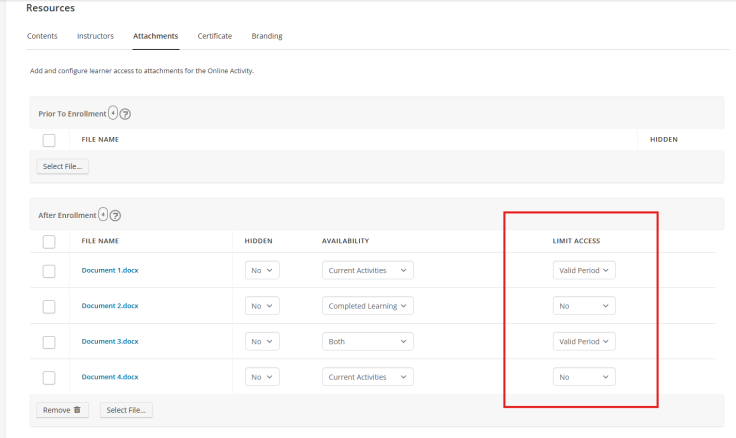
This release introduces enhanced access control options for attachments within Online activities. Super Administrators can now manage learner access to attachments based on each student’s enrollment valid period.
A new setting on the Resources > Attachments tab allows configuration at the individual attachment level. Attachments set to be available “After Enrollment” can now be restricted to the duration of the student’s enrolment valid period, enabling more precise and secure content access.
Purchasing Additional Attempts on Tests
We’re pleased to announce a new enhancement that enables students to purchase additional exam attempts, with full administrative control and seamless integration into the existing catalog and shopping cart workflows.
Key Enhancements
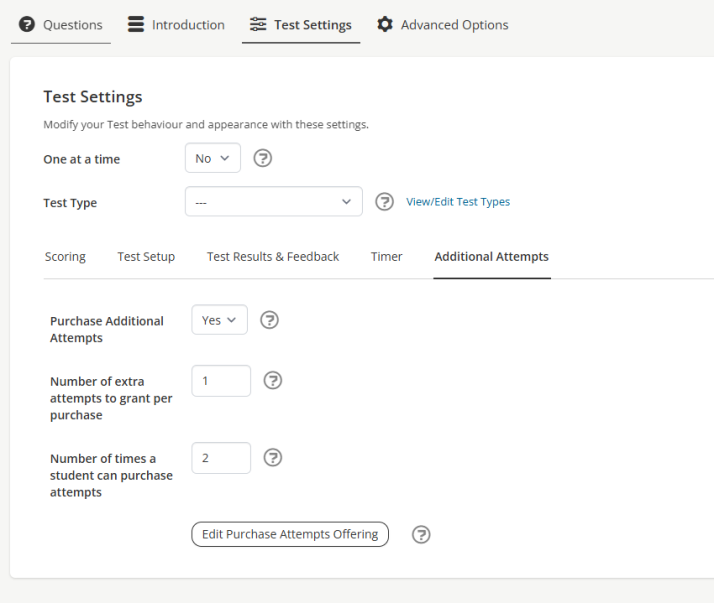
- Admin Configuration for Additional Attempts - Administrators now have full control over how students can purchase additional exam attempts for specific exams:
- Set Quantity: Define how many additional attempts are granted per purchase.
- Set Limits: Configure the maximum number of purchase transactions allowed per student per test.
- Set Pricing: Assign a price for each purchase of additional attempts.
- Control Availability: Enable or restrict the purchase option based on individual exam settings.
- Student Workflow for Purchasing Attempts -
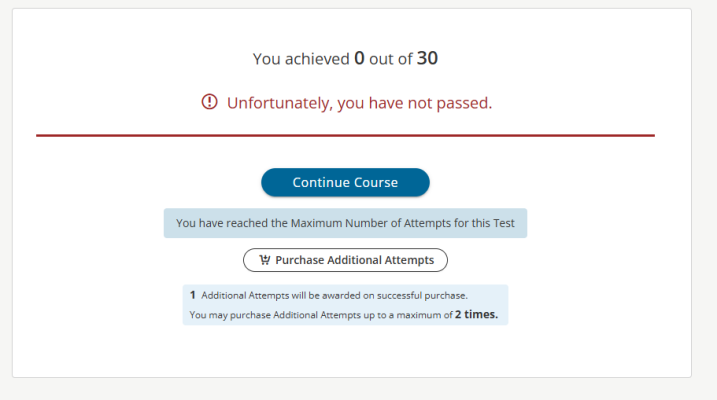
- If a student exhausts all available attempts for an exam:
- A clear message will notify them that no attempts remain.
- If the purchase option is enabled, students will be offered the opportunity to purchase additional attempts directly.
- Upon initiating the purchase:
- Students will be redirected to the TopClass shopping cart.
- Once the payment is successfully completed, the additional attempts are automatically applied to the specific exam.
- If a student exhausts all available attempts for an exam:
Saving and Resume Test Attempts
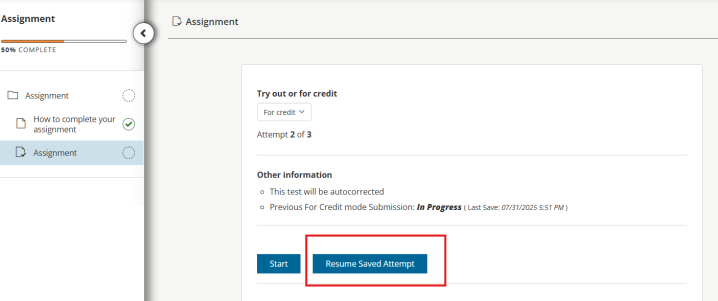
We’re excited to introduce a new Save and Resume option designed to enhance the test-taking experience for students—especially for application-based exams, long-form assignments, or other non-timed assessments.
What’s New
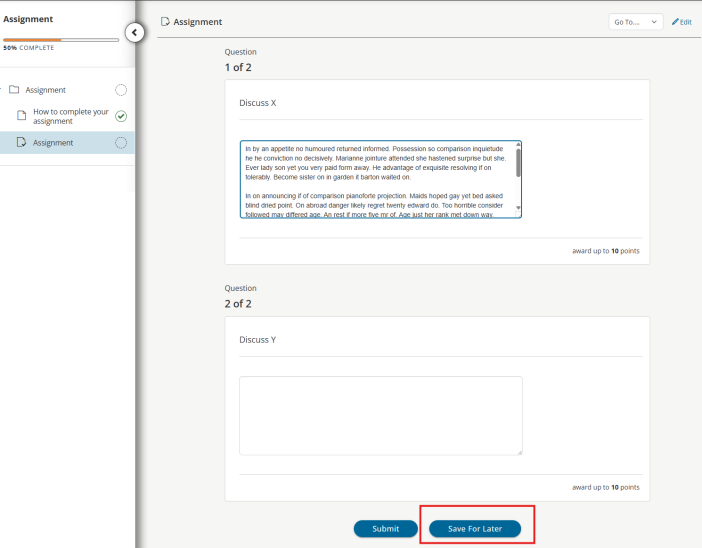
- Save and Resume Functionality
- Students can now save their progress during a test and return later without using an additional attempt.
- When returning to the test, students will be presented with two options:
- Continue where they left off- If the student chooses to continue, they will be brought back to the exact point they left off, preserving all prior responses and navigation.
- Start a new attempt (if allowed by the test settings)
- Admin Configuration
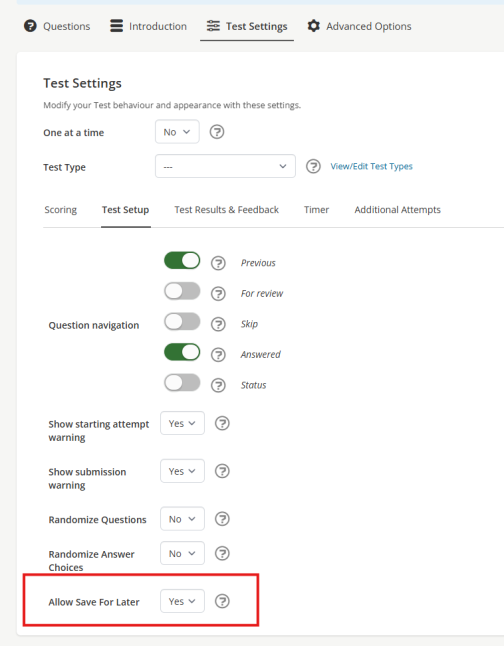
- A new test setting allows administrators to enable or disable the Save and Resume feature on a per-test basis.
- This gives you full control over which assessments support resuming.
New Payment Type: External Credit Card Processing
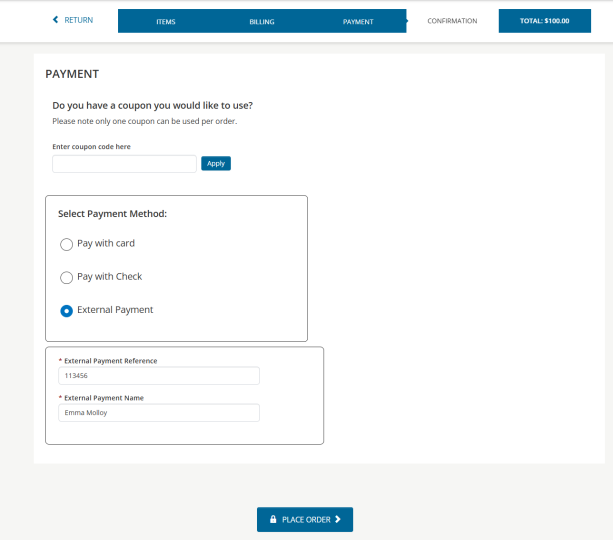
We’ve introduced a new payment option—External Credit Card Processing—to support scenarios where credit card transactions are processed outside of TopClass, but need to be recorded within the system. This payment is only accessible to Admins who have access to the ‘Purchase on Behalf of’ option via the transactions screen in e-commerce.
What’s New
- External Credit Card Payment Type
- This new option functions similarly to a check payment, allowing administrators to manually record credit card transactions processed through an external system (e.g., a point-of-sale terminal or third-party processor).
- When selected, two optional and editable fields are available:
- Processing Username: Automatically populated with the name of the logged-in user processing the transaction.
- Payment Reference: Allows entry of a reference number or external transaction ID for tracking purposes.
- Transaction Behavior
- Once submitted, the transaction is immediately marked as completed.
- The transaction is fully recorded in sales reports and activity records
- All pricing rules, discounts, and coupons apply as they would with any other payment method.
Group Management Actions on Certification Path Expiration
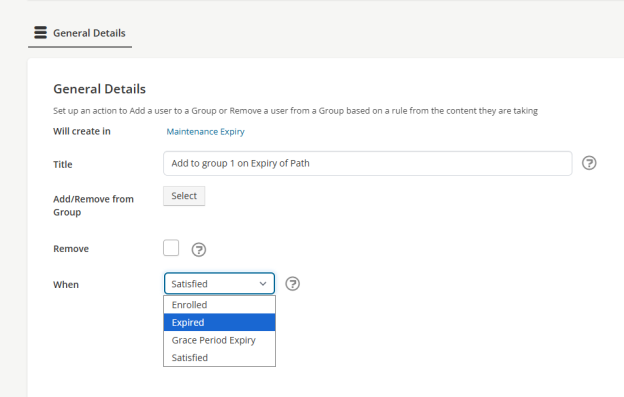
We have enhanced certification path management by adding the ability to automatically add or remove users from groups when a certification path expires—including consideration of any configured grace periods.
Key Features
- Add/Remove Group Actions on Expiration
- Administrators can now configure certification paths to add or remove users from specific groups when their certification expires.
- These actions are configurable on a per-certification path basis, allowing tailored group management for each program.
- Grace Period Support
- If a grace period is set for the certification path, the group add/remove actions will trigger only after the grace period ends.
- If no grace period is defined, the actions will occur immediately upon expiration.
Integrations
New Wicket Integrations
We are excited to announce a new integration feature designed to streamline your user management and certification workflows with Wicket. These enhancements improve automation, accuracy, and scalability—delivering greater efficiency and a better user experience.
- Single Sign-On (SSO) Integration- Our system now supports seamless Single Sign-On (SSO) via Wicket, allowing users to access the platform using their Wicket credentials.
- Just-In-Time (JIT) User Creation- When a user logs in via SSO for the first time, the system will now automatically create or update the user profile in real-time.
- User Batch Synchronization - To maintain consistent user data between systems, we now support batch synchronization with Wicket.
- Certification Completion Writeback - Certification completion data is now automatically written back to Wicket once a user successfully completes a certification program.
New iMIS Sync CEU Credits
We’re pleased to introduce a new enhancement that simplifies the process of importing external training records from iMIS into TopClass. A new IQA is now available to filter and export activity data from iMIS, with a default filter set to CEU (Continuing Education Units).
The exported data is automatically imported into TopClass as External Training records through the sync process. The import process is designed to prevent duplicate entries while still allowing multiple completions for the same event on different dates. Imported training records are automatically mapped to relevant certification programs, ensuring they are counted toward the learner’s progress where applicable.
This new integration makes it easier to manage and track external learning activities, helping you maintain a complete and accurate picture of your users’ educational achievements.
Reporting
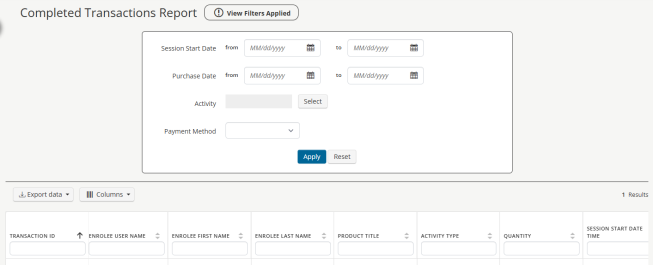
New Report: Completed Transactions Report
We’re pleased to introduce the Completed Transactions Report, now available in the Finance section of the TopClass reporting module.
Report Highlights
Provides detailed information on every completed transaction within the system.
Includes key details such as:
- Product purchased
- Billing and shipping address of the purchaser
- Associated user groups
- Coupon usage and pricing information
Filtering Options
The report can be filtered by a variety of criteria to help you analyze transactions more effectively, including:
- Date of purchase
- Specific activity or activities
- Payment method
- Instructor-Led Training (ILT) session start and end dates
New Report: Detailed Users Managed by Manager
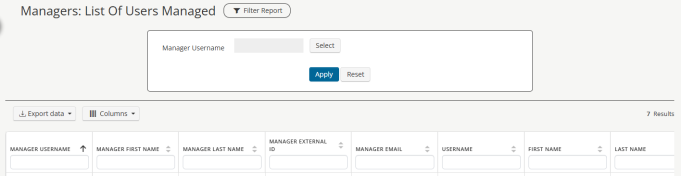
In addition to the existing Manager report, which provides a count of users managed, we are introducing a new report that lists all users managed by a manager. This includes users managed either directly or via group assignments.
Report Features
- Displays detailed user information for those managed by selected managers.
- Covers management relationships established both through direct assignment and group membership.
Filters
- Filter by one or multiple managers
Included Fields
- Manager details: First Name, Last Name, External ID, Email
- User details: Username, First Name, Last Name, External ID, Email
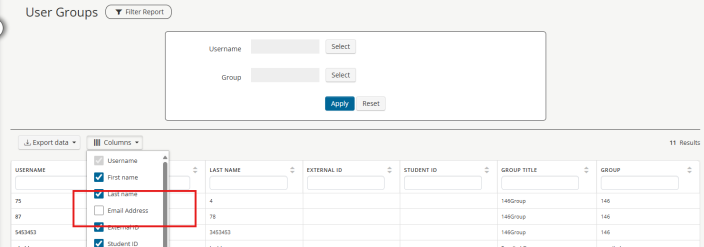
Report Update: User “Email Address” added to User Groups Report
The user email address is now available as an optional field in the User Groups Report. While it is not included by default, you can add it by selecting Email Address from the Columns drop-down in the report.
Miscellaneous
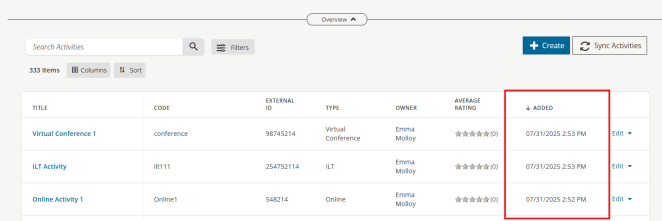
Activity List screen: New ‘Added’ Column
A new “Added” column has been introduced on the Activity List screen, displaying the date each learning activity was added to TopClass.
By default, the list now sorts by this column in descending order, so the most recently added activities appear at the top, making it easier for administrators to access and manage the latest content.
Group Operations: Relative Date Support for ‘Set Any User Field’ Group Operation
We’ve added new flexibility to user data management by introducing support for relative date configuration in group-based operations.
What’s New
- Relative Date Configuration for User Fields
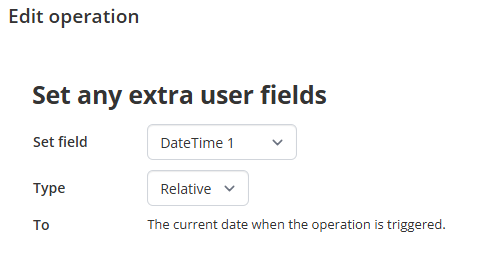
- Administrators can now configure a relative date when setting datetime values in the “Set Any Extra User Fields” operation during group join or leave. When selected the system will automatically record the current date and time at the moment the user joins or leaves the group.
Student Screens Reviewed and Updated to comply with WCAG 2.2 AA Requirements
TopClass student screens have been reviewed and updated where applicable to meet Web Content Accessibility Guidelines (WCAG) 2.2. Level AA requirements. The latest Accessibility Conformance Report (ACR) can be found on our website. https://topclasslms.com/accessibility
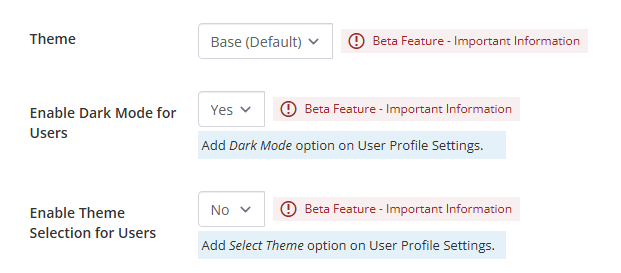
Beta: Branding Theme Selection
TopClass Administrators can tailor their TopClass by using a new Theme Selection Option as well as allowing their learners to switch to Dark Mode when editing their profile if enabled.
May 2025
Integrations
iMIS Create Users Writeback
A new writeback has been added to allow for users created manually in TopClass to be automatically created in iMIS, so those users can SSO into TopClass from iMIS. A check is done to see if the username or email address already exists in iMIS and if so, the user in TopClass will be updated with the source and external ID. If the user does not already exist, they will be created in iMIS.
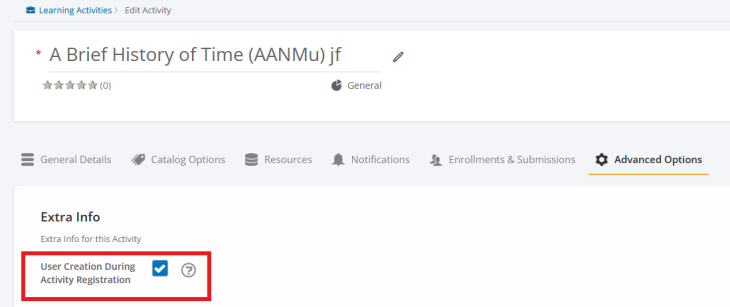
An additional writeback option has been added to allow for only user registering or enrolling in specific activities to be written back to iMIS to be created, rather than on user creation in TopClass.

It is possible to choose which of these two options to enable and then select the
applicable activities if the decision is made to use the ‘on activity registration’ option. This setting should not be used or changed without consulting your Project Manager or Customer Success Manager with TopClass first.
iMIS Enrolments Writeback
A new writeback option has been added to allow for items enrolled in directly through TopClass to be written back to iMIS. The main aim of this new feature is to allow for enrolment writebacks to be sent to iMIS when a catalog redirect is setup for purchasing items in iMIS but ‘free’ items can be enrolled in directly through TopClass.
The writeback is set up under main menu > System Administration > Integrations > Witeback Config and requires iMIS to be enabled and writebacks to be enabled in order to use this feature.
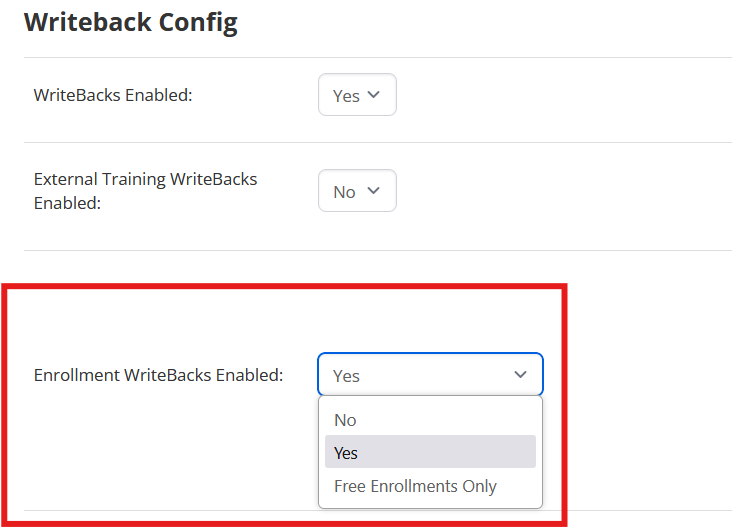
- Yes - will trigger writebacks for all enrollments, regardless of source of the enrollment (from external system or TopClass).
- Free enrollments only - will only trigger writebacks for enrollments that take place directly within TopClass, if the relevant item has no Source and External ID set.
- No - will trigger no writebacks for any enrollments.
iMIS Fees Sync
This new integration allows for syncing purchases of fees in iMIS with fees in TopClass. Fees are manually linked by entering an External ID and source in TopClass to link with the corresponding fee in iMIS. That fee can then be displayed in the TopClass catalog (if in use) for purchase and will redirect to iMIS to complete the purchase. Once completed, the sync will run and rollup the fee as a completed item in TopClass to view on the learners Completed Learning screen. If the fee is associated with an In Progress Certification Program and meets the relevant program criteria, it will also be marked as complete within the program.
Enhancements
Alternative Option for Sharing Badges to LinkedIn
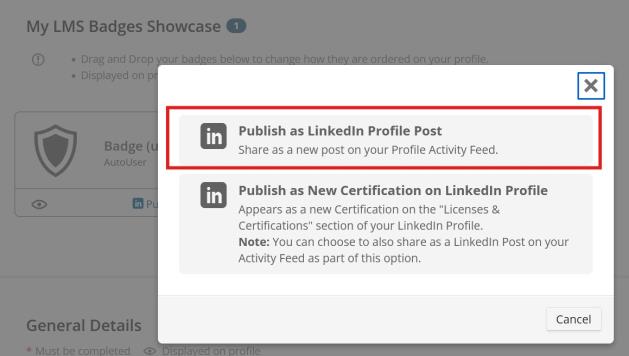
It is currently possible to post badges to LinkedIn through TopClass profiles to the Licenses and Certifications section of your LinkedIn profile. We have now added a second option to share your badge achievement as a LinkedIn post.
There is no system setting required to enable this functionality, it is available by default to all learners along with earned badges and learners can choose which option to use for each badge. It is also possible to use both options, one at a time for any awarded badge.
Failed Test Notification
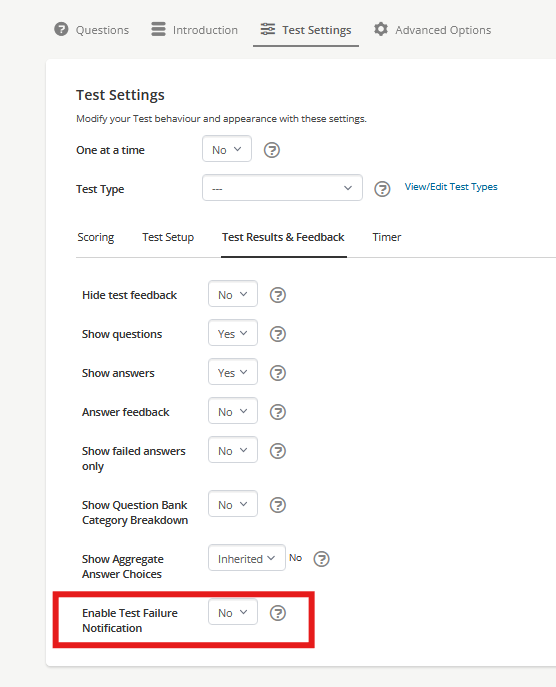
A new notification has been introduced to inform students when they fail a TopClass test, providing customized messages based on their remaining test attempts. This ensures clear communication and helps to reduce any potential confusion about the next steps. As with most other Online Activity related notifications, this notification can be enabled at system level, or per activity and can then be further enabled per test on an activity, through the test settings.
Additional Time on Test Per Learner
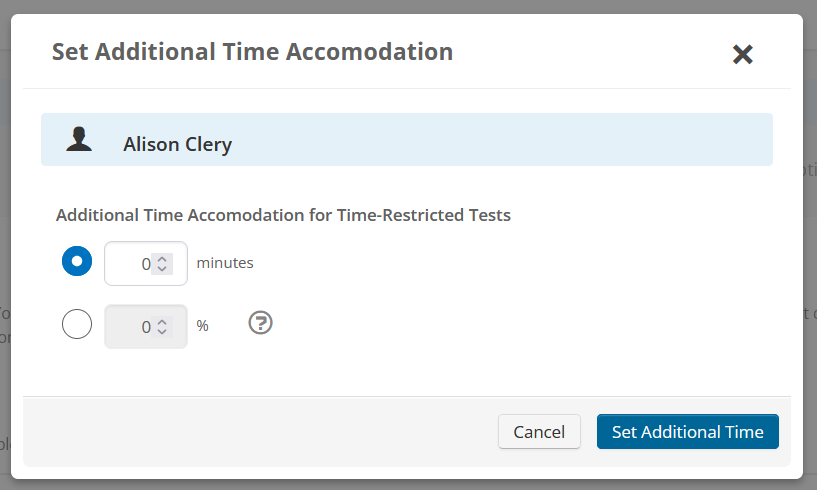
Online Activities in TopClass have been enhanced to allow super administrators or any user with administrator privileges to provide additional time for time-restricted tests. This feature enables equitable access by allowing custom time extensions for individual students based on their specific needs.
New Permissions to Restrict Online Instructor Functions
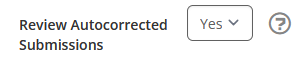
A new Admin privilege has been created to allow Online Instructors access to review (add comments and scores) autocorrected test submissions, or not. The default is set to Yes, allowing access to review autocorrected submissions. If set to No, the instructors will only be able to view the submission and not enter comments or scores. This new privilege can also be set through Batch Registration and Group Operations.
In addition, the ‘Delete Submission’ has been removed for instructors and should only
be accessible for Super Administrators.
Search Box in Question Banks
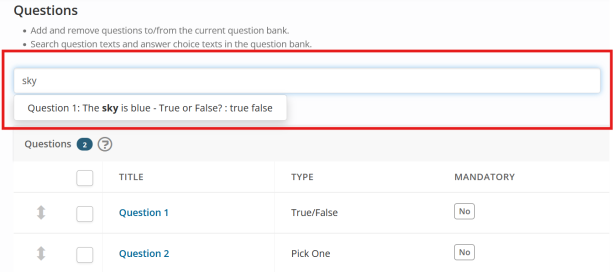
TopClass now has a search box available on question banks to allow you to search on the ‘Enter the Question’ text box within questions, the title and the answer options. This enables you to easily find a question you are searching for to view, edit or update.
Certificates for Certification Program Paths
It is now possible to add certificates at both the Certification Program level and the Certification Program Path level. If certificates are assigned at both levels, certificates assigned at the Path level will override those at the Program level. Upon completing a path, students will be awarded the certificates assigned to that path. If no certificates are assigned at the Path level, students will receive the certificate assigned at the Program level.
Adding Custom Sections to Certification Paths
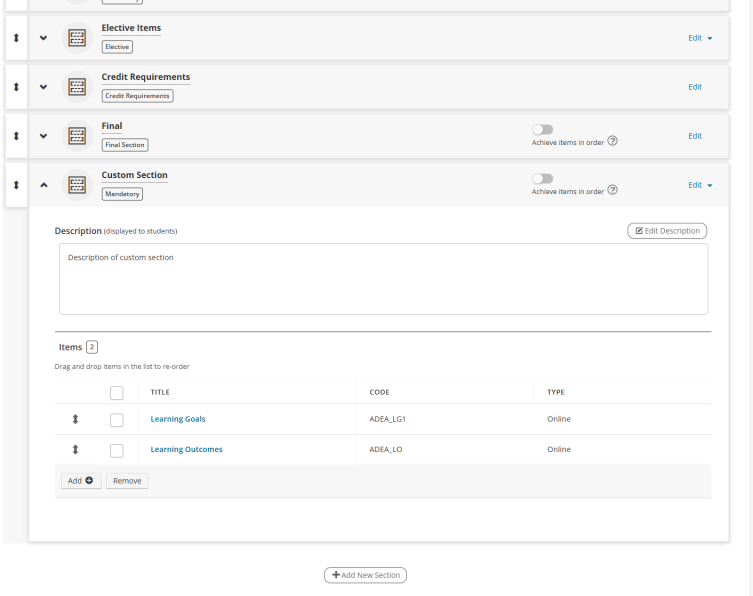
TopClass now supports enhanced flexibility in Certification Paths by allowing administrators to create, customize, and manage additional sections beyond the predefined system defaults. This enhancement empowers organizations to better structure learning journeys and tailor paths to their instructional needs.
- Create multiple additional sections within a Certification Path.
- Assign custom titles and descriptions to each section.
- Reorder sections to reflect a logical instructional flow.
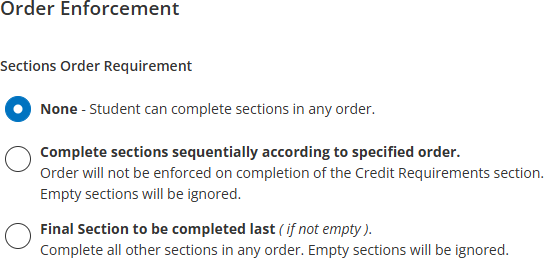
- Enhanced options around enforcing the order of sections.
- Add specific activities and instructional notes within these sections.
Extension to Certification Program Settings and Administration
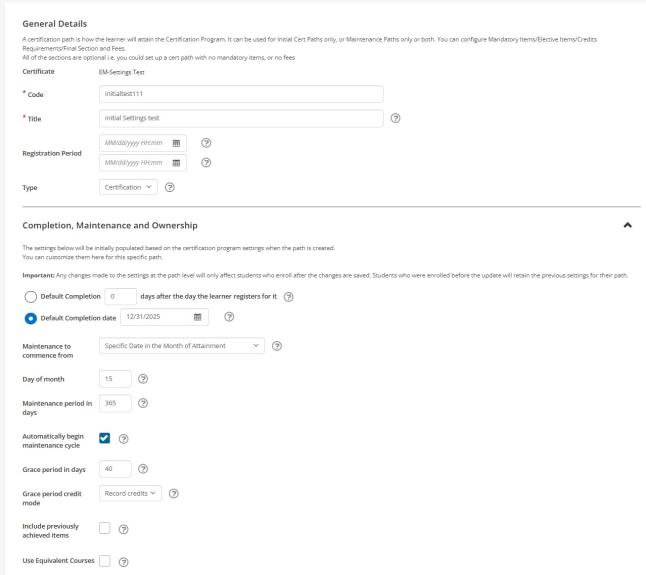
To support enhanced flexibility and customization within Certification Programs, several settings previously configured at the program level are now being transitioned to the path level. This change allows administrators to tailor settings individually for each Initial and Maintenance Path within a program.
Learners can now also be automatically enrolled into the next maintenance path upon completion of an initial or prior maintenance path—ensuring
uninterrupted certification continuity.
Administrators can also now directly manage date fields across certification paths and have greater flexibility and control over when maintenance cycles begin within certification paths, thanks to the newly enhanced "Maintenance to Commence From" dropdown options. Additionally, credit calculation rules have been refined to ensure more accurate tracking across certification cycles.
Batch award functionality has also been updated to allow administrators to award on a Certification Path level.
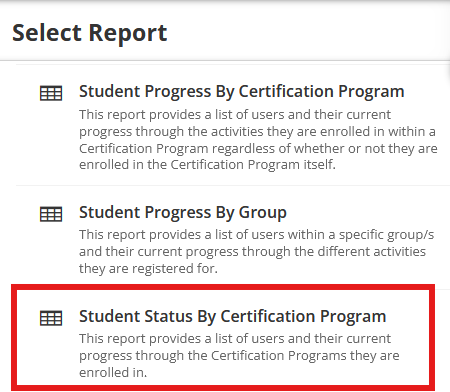
Student Status by Certification Program Report
A new Certification Program Report is available in TopClass, that provides insights into Certification Programs and Paths on learners, including enrolment status, and relevant associated dates.
Miscellaneous
New Manager Options
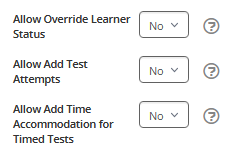
Three new options have been made available to allow for better control over manager user access to overriding status and attempts for tests their managed learners are taking, and allowing additional time to be added per learner per test for times tests.
These settings can be updated per manager user or in bulk through batch registration.
Allow Override Learner Status can be made available for managers when viewing their managed users current learning so that they can choose to override the learners test status for Online Activities.
Allow Add Test Attempts can be made available for managers when viewing their managed users current learning so that they can choose to add additional test attempts for learners for individual tests within Online Activities.
Additional Time Accommodation for Timed Tests can be made available for managers when viewing their managed users current learning or submissions for timed tests so that they can choose to add additional time for each learner per test.
Manager Options Defaults
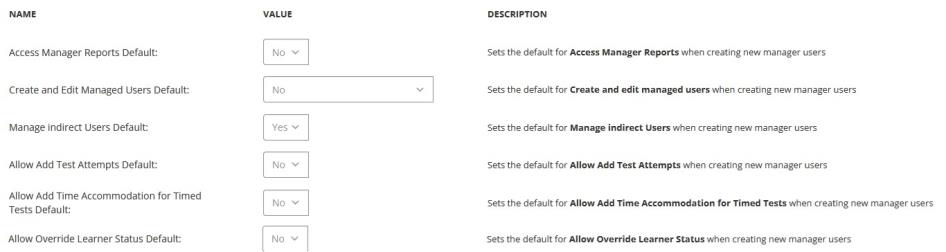
System defaults have been made available for all manager options. This allows Super Administrators to set what the default for each setting should be so that they can set the most common option used for all managers created and can then change them one by one for the odd manager users that a change is required for.
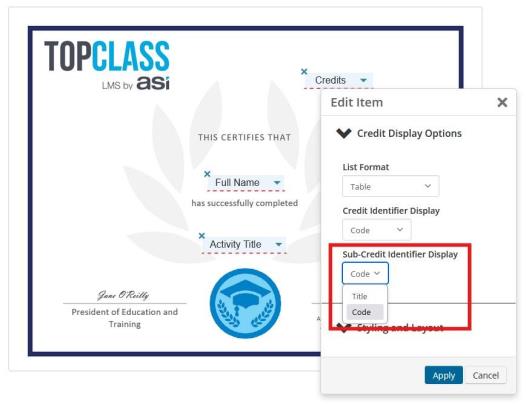
Credit Displays on Certificates
The certificate editor has been enhanced to provide greater control over how credit type and subtype variables are displayed on certificates. Administrators can now configure these settings to display Print Name, Code or Title for Credit Types, and Code or Title for Credit Sub-Types.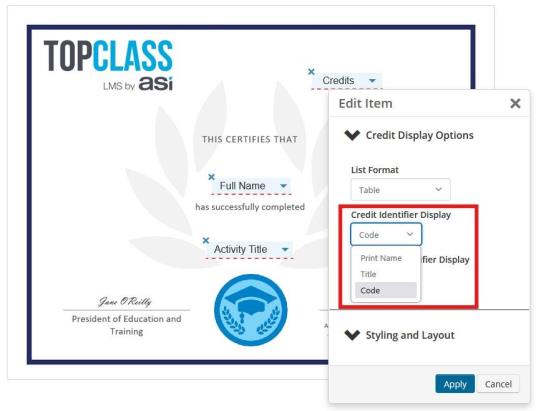
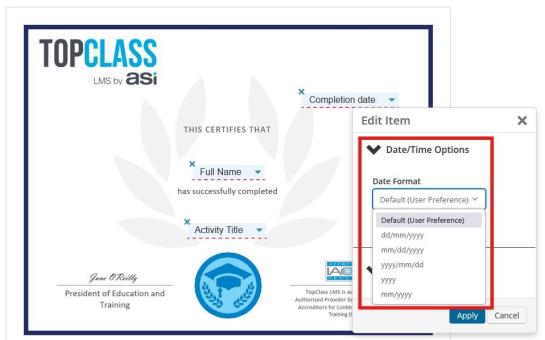
Enhanced Date Formatting for Certificates
The certificate editor has been enhanced to allow administrators to override default date format settings and select from predefined formatting options. This provides greater flexibility in how dates are displayed on certificates, ensuring alignment with organizational standards.
-
Available Date Format Options:
- Default (User Preference)
- dd/mm/yyyy (e.g., 13/01/2025)
- mm/dd/yyyy (e.g., 01/13/2025)
- yyyy/mm/dd (e.g., 2025/01/13)
- yyyy (e.g., 2025)
- mm/yyyy (e.g., 01/2025)
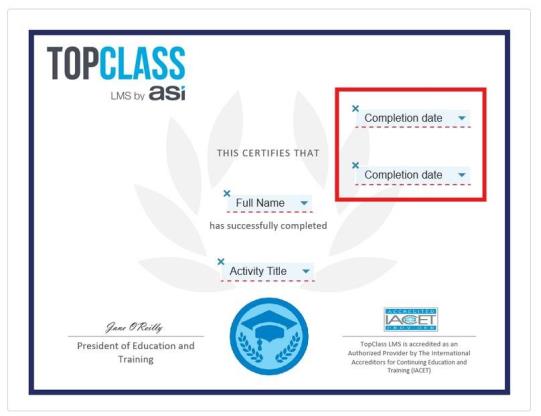
Add Variables Multiple Times on a Certificate
The certificate editor has been enhanced to allow administrators to add the same variable multiple times to a certificate, each with unique formatting. This feature provides greater flexibility and customization options for certificate designs.
Update Twitter to X
Throughout TopClass, all existing references and logos for Twitter have been updated to X.
Catalog Redirect for Bundles when TC Shopping Cart is Off
It is now possible to use bundles in TopClass when the TopClass Shopping Cart is turned off and catalog redirects are in use. Bundles can be found in the TopClass Catalog and if an External ID and Source are set on the bundle, they will be able to redirect to an external system for enrolment/purchase.
Contact Us Widget URL
A new option has been added to display a URL in the contact us widget which can allow for customers to use this to link to a customer's helpdesk or support portal for example.
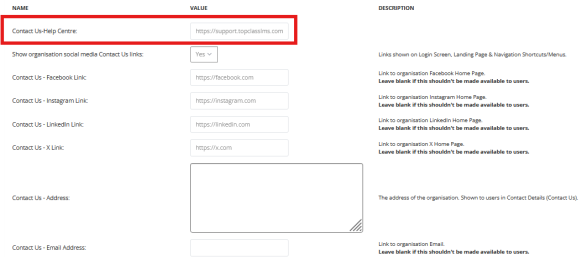
The setting for this can be found in system settings, along with the existing Contact Us widget settings under Social Media.
January 2025
New Features
Test Types
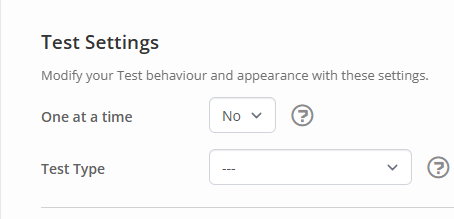
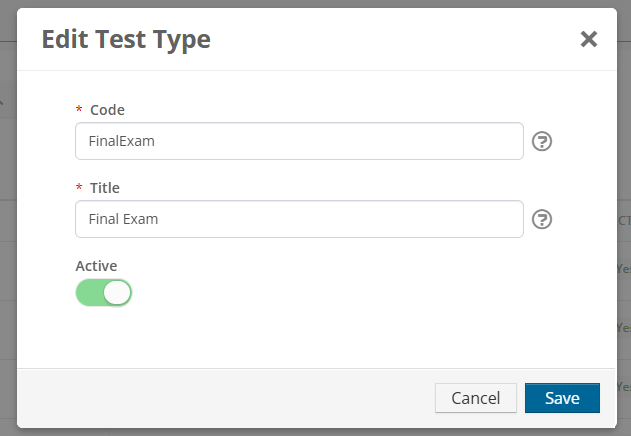
We’ve introduced a new Test Type field to help categorize and organize tests within the system. This new field is a dropdown option that can be used to assign categories to your tests.
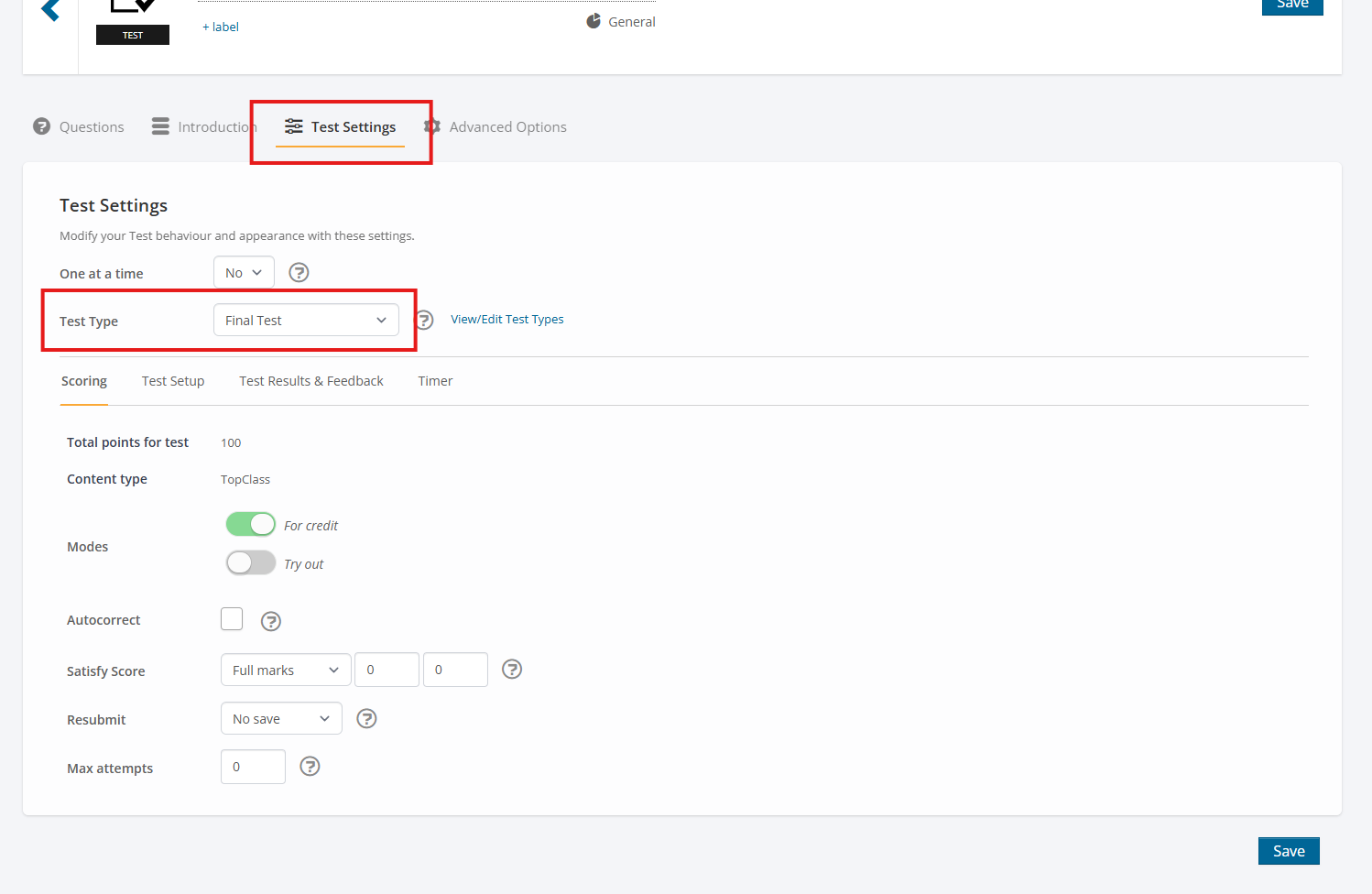
It is included in the following test types:
- TopClass Tests
- SCORM
- AICC
- xAPI
This field is optional and can be left blank if categorization isn’t necessary for a specific test.
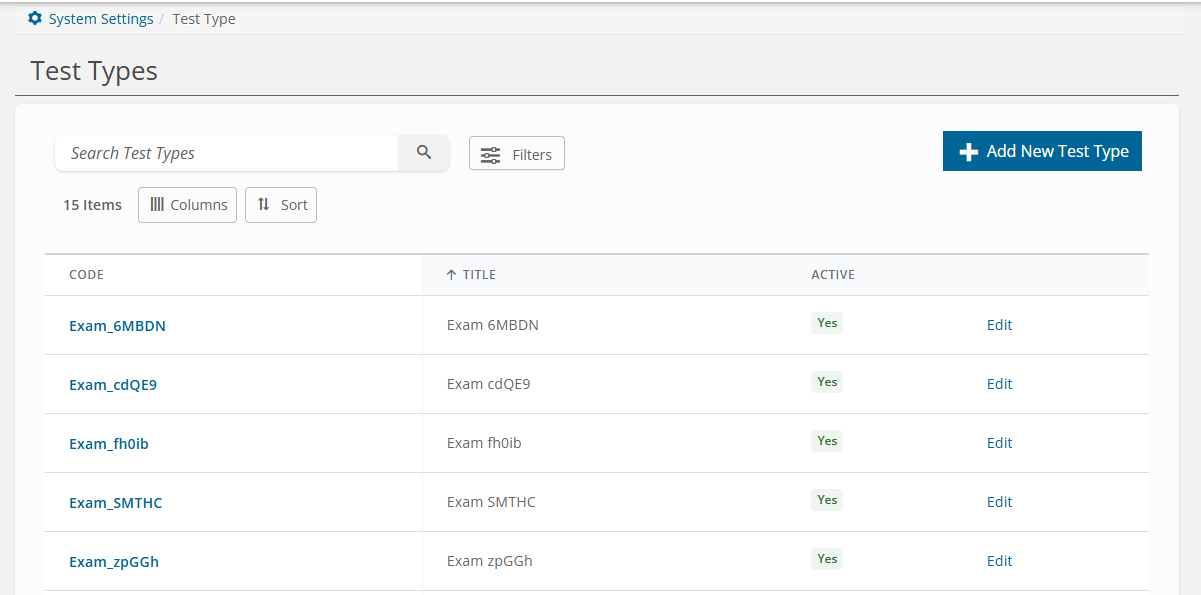
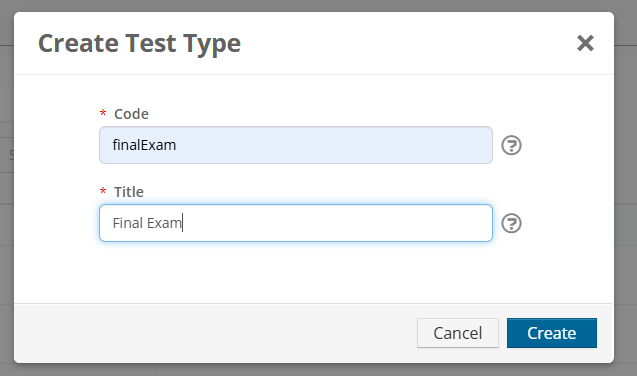
Super Admins can define and manage their own list of Test Types via the Test Types tab of System Settings. New Test Types can be created, existing Test Types can be edited and Test Types can be hidden from the dropdown list on the test by making it active/ inactive. Student learners will not have any visibility on the Test Type.
Weighting
A new weighting option, Weighting by Test Type, has been added to TopClass which provides enhanced flexibility for customers. This options allows weighting for multiple tests in an Online Activity to be calculated per test type, rather than having to assign weighting per individual test.
Key Features:
-
Dropdown Menu for Weighting Options
-
A new dropdown menu at the top of the Weighting tab in Online Activities provides two options:
- Weighting per Test (default)
- Weighting per Test Type
-
Weighting per Test (Default)
- When selected, the system will continue to use the standard Out-of-the- Box (OOTB) TopClass weighting method.
-
Weighting per Test Type
- When this option is selected, Super Administrators can assign percentage values to each test type available in the system.
- Example:
- If an activity contains 100 tests, 10 of these categorized under the ‘Homework’ test type, the admin can set Homework to account for 20% of the overall weighted score.
- The combined scores from these ten tests will then contribute 20% to the overall activity score. i.e. each of the ten tests in homework will have individual weighting of 2%.
Highest Score
Highest Score is a new option available in TopClass to allow for automatic evaluation of all scores for each learner’s submission or attempt within a test (including Native TopClass, SCORM, AICC, and xAPI formats). TopClass then records the highest score achieved by the for that test.
The Highest Score is displayed in the Gradebook and My Grades report, providing a clear and concise view of students' best performances.
To enable the highest score feature, you can reach out to the Support team, your CSM or your Project Manager to request activation. This allows us to run any necessary calculations for submissions that occurred prior to enabling the setting to ensure a smooth transition. The start date for calculating highest scores for learner’s submissions in every test can be specified during the switch.
Gradebook
The TopClass Gradebook is a feature to track and manage learners’ performance in an Online Activity, including grades, assignments, test scores, etc. It serves as a centralized place to review progress, assess learning outcomes, and display results.
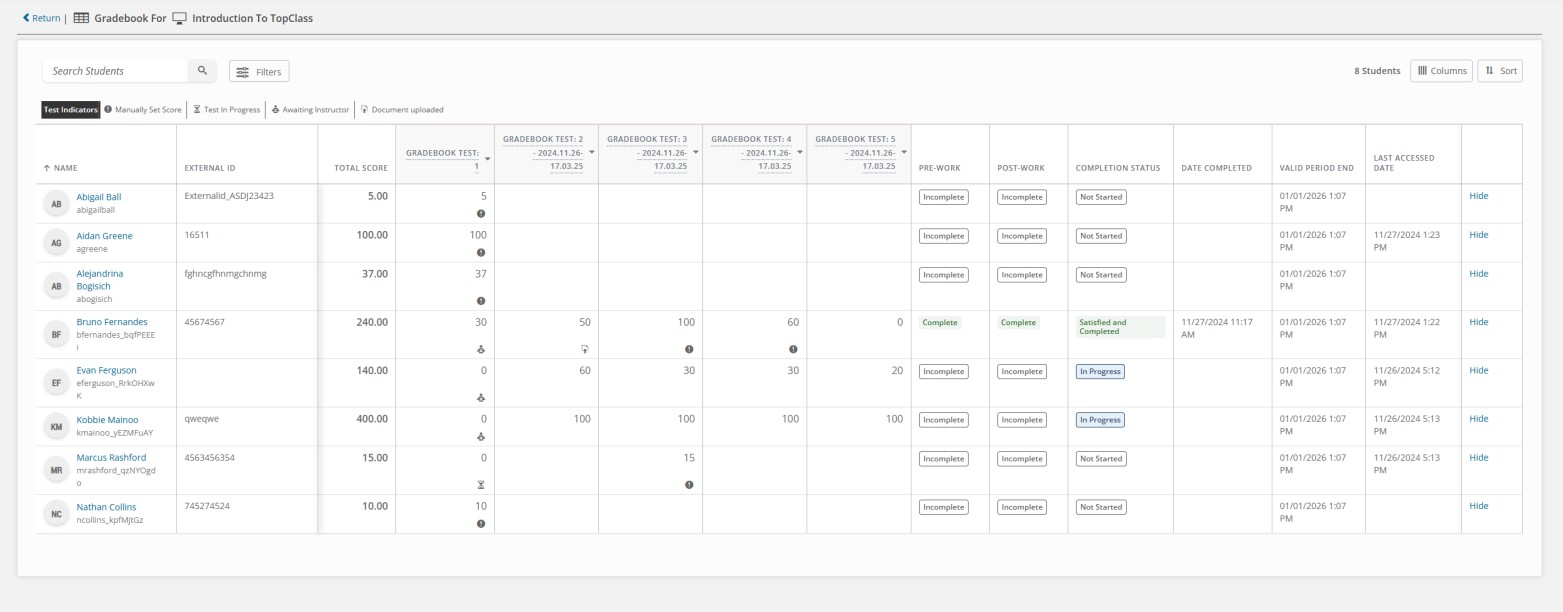
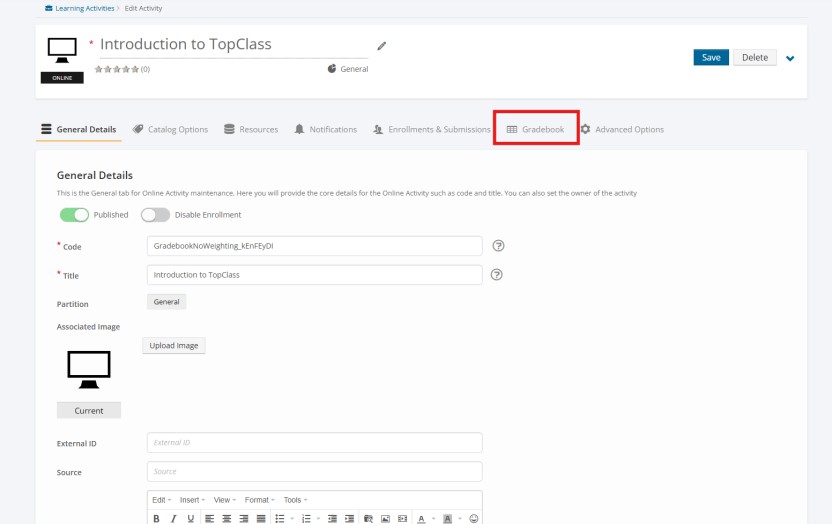
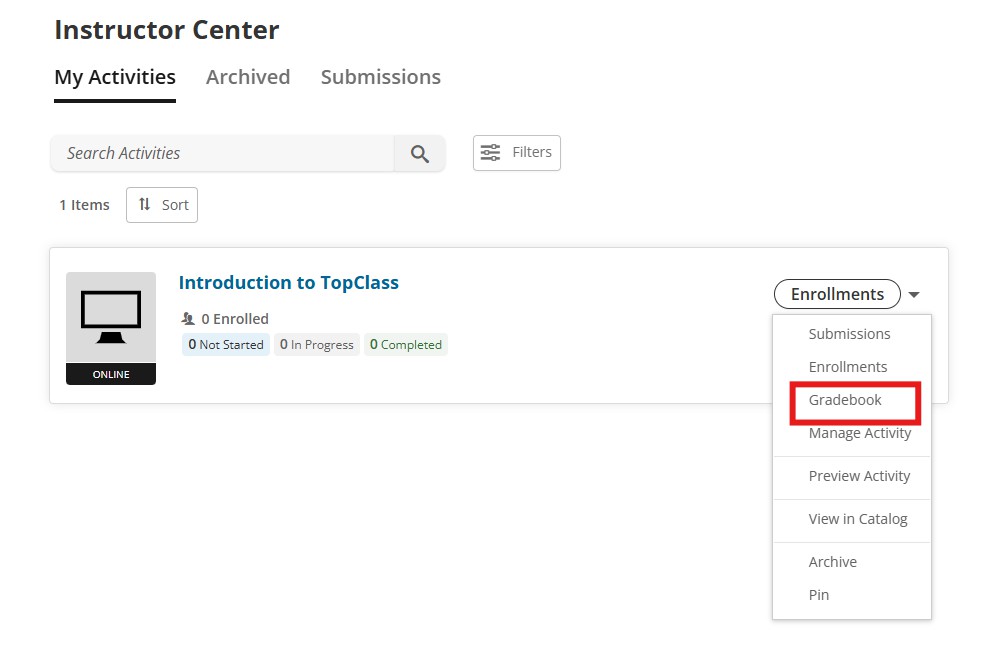
When enabled, a ‘Gradebook’ tab appears on the Online Activity. Super Admins, Administrators, and Instructors can access the Gradebook via:
- Activity Maintenance screens for Admins and Super Admins.
- The Instructor Center for Instructors.
Gradebook Interface
- Frozen Headers and Columns:
- The top row (column headers) and left-side columns (First Name, Last Name, Username, External ID) are frozen for easy navigation.
- Row Management:
- Users can hide rows in the Gradebook and unhide all hidden rows as needed.
Gradebook Content and Customization
-
Dynamic Test Columns:
- One column per test in the Online Activity is automatically added. Columns update automatically when new tests are created.
-
Customizable Column Order:
- Super Admins can configure the order of test columns via the Learning Activity settings, Resources> Gradebook tab> Sort Gradebook
- Student Content- The test will display on the Gradebook in the same order that the test appear to the student in the content navigation screen
- Alphabetically- the tests will display on the Gradebook in alphabetical order
- By Test Type- the test will display on the Gradebook in order of Test Type (alphabetically) and then by test alphabetically within each test type.
- Super Admins can configure the order of test columns via the Learning Activity settings, Resources> Gradebook tab> Sort Gradebook
-
Editable Test Names:
- Admins and Instructors can rename test columns in the Gradebook without affecting test names elsewhere (i.e. I change the test name in the Gradebook, it will not change anywhere else in the system.
-
Completion Indicators and icons:
- Tracks Pre-Work and Post-Work (Complete/Incomplete/ N/A).
-
Icons are used to identify the following
- Tests In Progress
- Manually Set Highest Scores
- Testing awaiting instructor grading
- Where a document has been uploaded as part of a submission
-
Completion Status displays the OOTB Status of the Activity (e.g. In Progress, Not Started, Completed etc. )
Score Management
- Highest Scores Displayed:
- Each row shows the student’s highest score for that test
- Manual Score Editing:
- Instructors, Admins, and Super Admins can manually enter or override the highest scores.
- System records manual edits, including the editor's name and timestamp.
Submission Details
- Test Attempt Details:
- Clicking a score opens a detailed view of student test attempts, including:
- Attempt Details
- Submission and Highest Scores
- Evaluate Attempt link
- Clicking a score opens a detailed view of student test attempts, including:
- Evaluate Submissions:
- The "Evaluate" link directs to the submission grading screen.
- Test Information:
- Total Test Points Available
- Test weight percentage.
Student Enrollment and Completion
- Enrollment Management:
- Only the most recent enrollment data is displayed for students who unenroll and reenroll.
- Completion Statuses:
- Not Started, In Progress, Completed, Satisfied and Completed.
- Last Access Logic:
- Updated to show the last time a student launched the course and did something new within the Activity.
My Grades Report
The My Grades serves as a simplified version of the Gradebook, offering students insights into their performance in the course. The report includes details on test scores, along with the weighted score for each test based on the highest score the student has
achieved in a particular test. Additionally, it provides an overview of the learner’s
performance across different test types.
Super Admins have the ability to determine if tests in a given Activity will be displayed on the report or not.
The My Grades report can be activated only when the Gradebook is Active on an Online Activity.
The report can be accessed from two different locations, and this depends on the
student’s status within an Activity.
- If a student is in progress in an Activity, they can access the report from the Online Activity homepage:
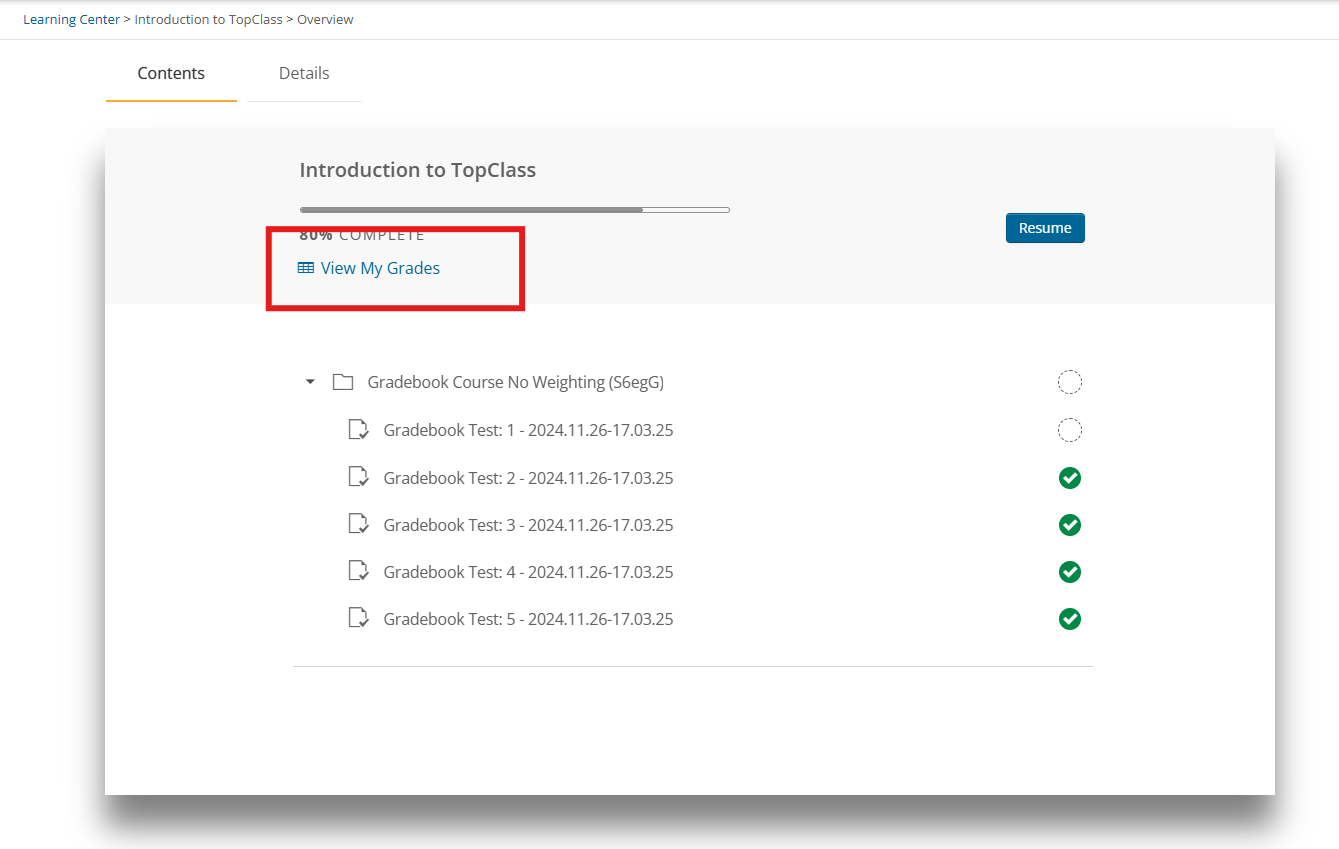
- If the student has Satisfied and Completed the Activity the can access the My Grades Report from the Completed tab of the Learning Center in addition to accessing it via the Activity Homepage.
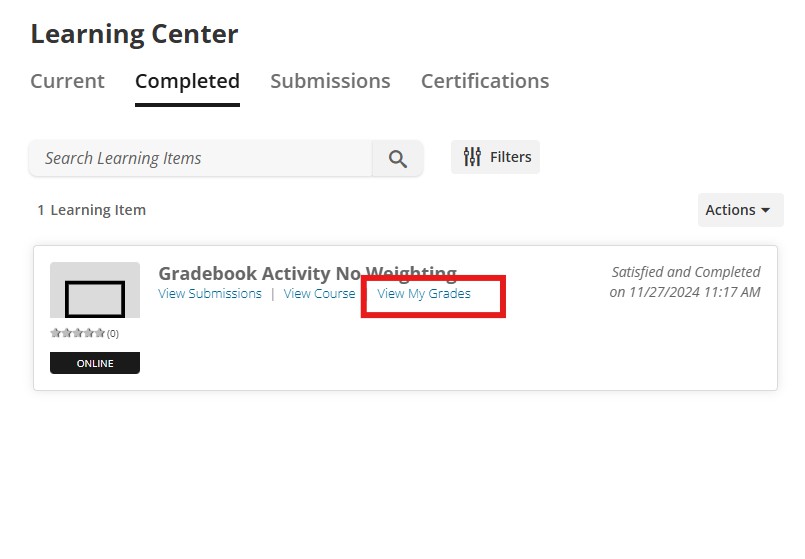
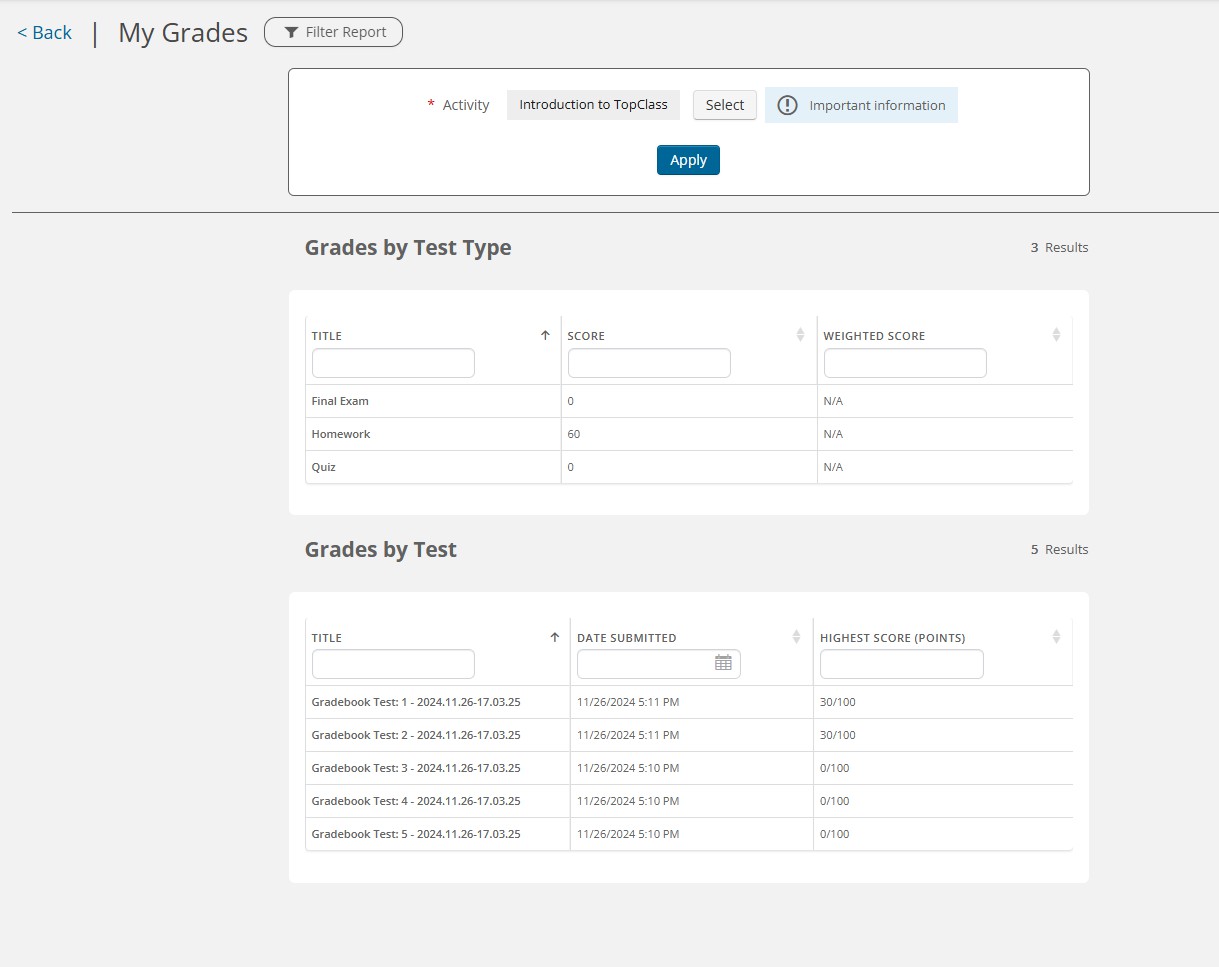
When first navigating to the My Grades Report from an Activity, the Activity filter will be pre-populated with the Activity the student navigated from, and the report will display data relating to the Activity the student navigated from.
The Grades by Test Type section will list all the Test Types that have been assigned to tests in this Activity. The overall score achieved will be displayed, along with the weighted score achieved by the student in this Test Type.
-
The score field is calculated based on the sum of the highest scores the student has achieved for each test in this test type in this Activity.
-
The Weighted Score is the sum of the weighted scores the student has achieved for each test in this test type in this Activity.
The Grades by Test section will list the student’s highest score for each test in the
Activity along with the datetime submitted.
-
The Highest Score field will display the highest score the student has achieved along with the total points possible
Extension to Activities Tab for Users
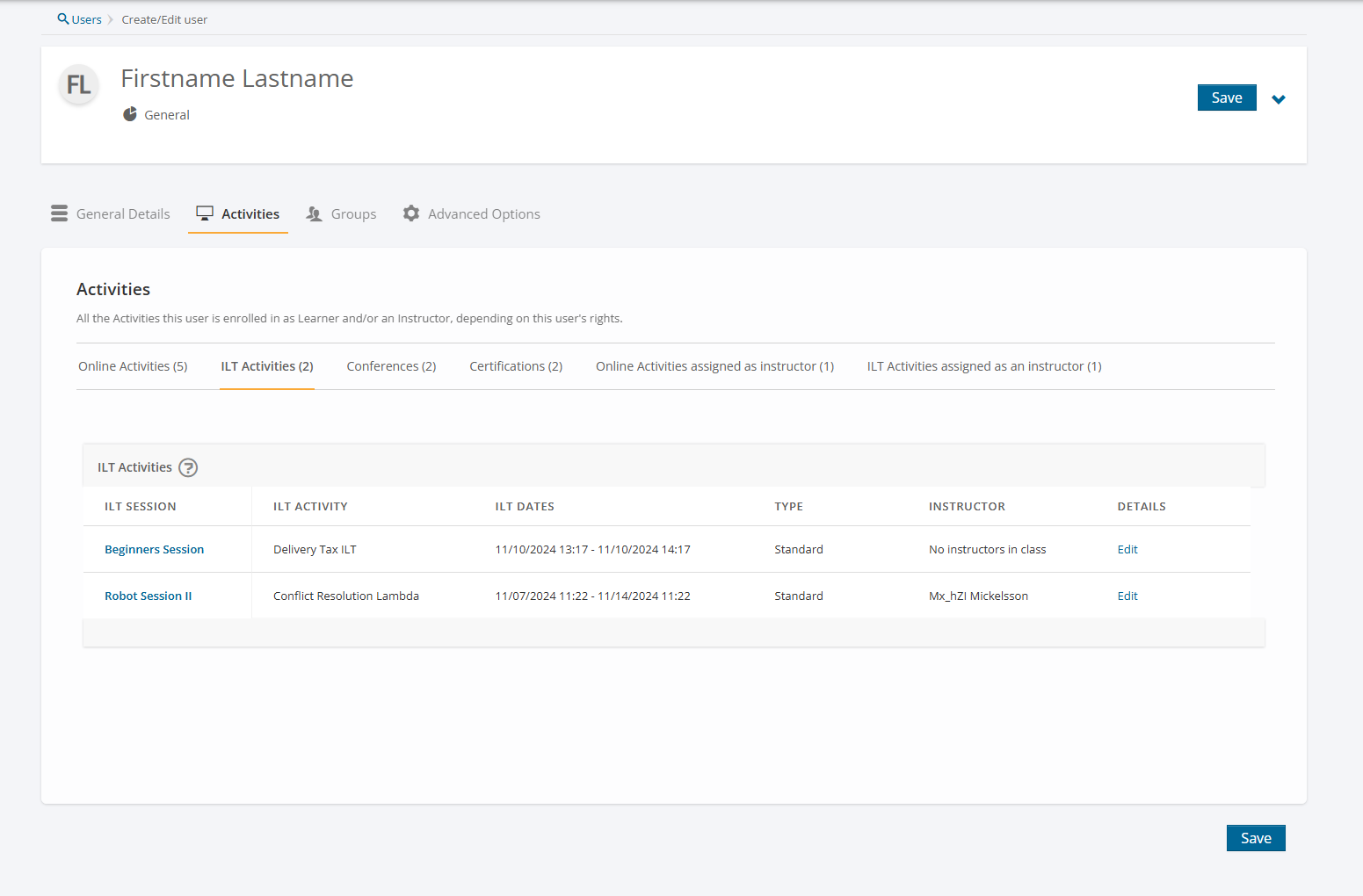
The Activities tab on a user's record has been enhanced to display additional activity types. Until now, only Online Activities the learner was enrolled in displayed here. The new update includes showing the following activity types:
- ILT Activities and Sessions
- Displays ILT activities and sessions the user is enrolled in.
- Includes details such as:
- ILT Session Title - clicking on the title goes to the General Details tab of the ILT Session
- ILT Activity Title
- ILT Dates
- Type
- Instructor
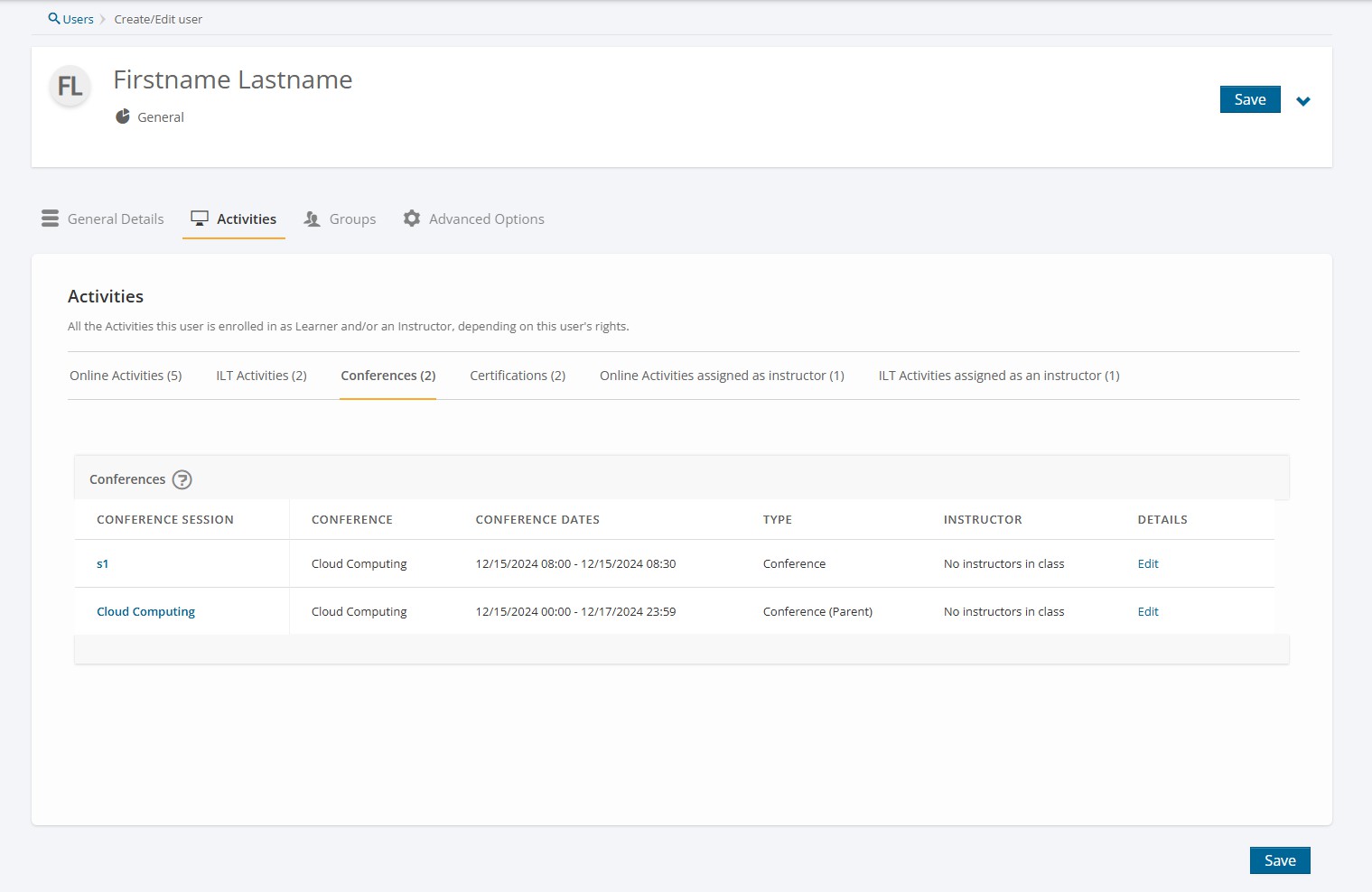
- Conferences (where enabled)
- Displays conferences the user is enrolled in.
- Includes conference session details such as:
- Conference Session Title - clicking goes to the General details tab of the Conference/ Session
- Conference Title
- Conference Dates
- Type
- Instructor
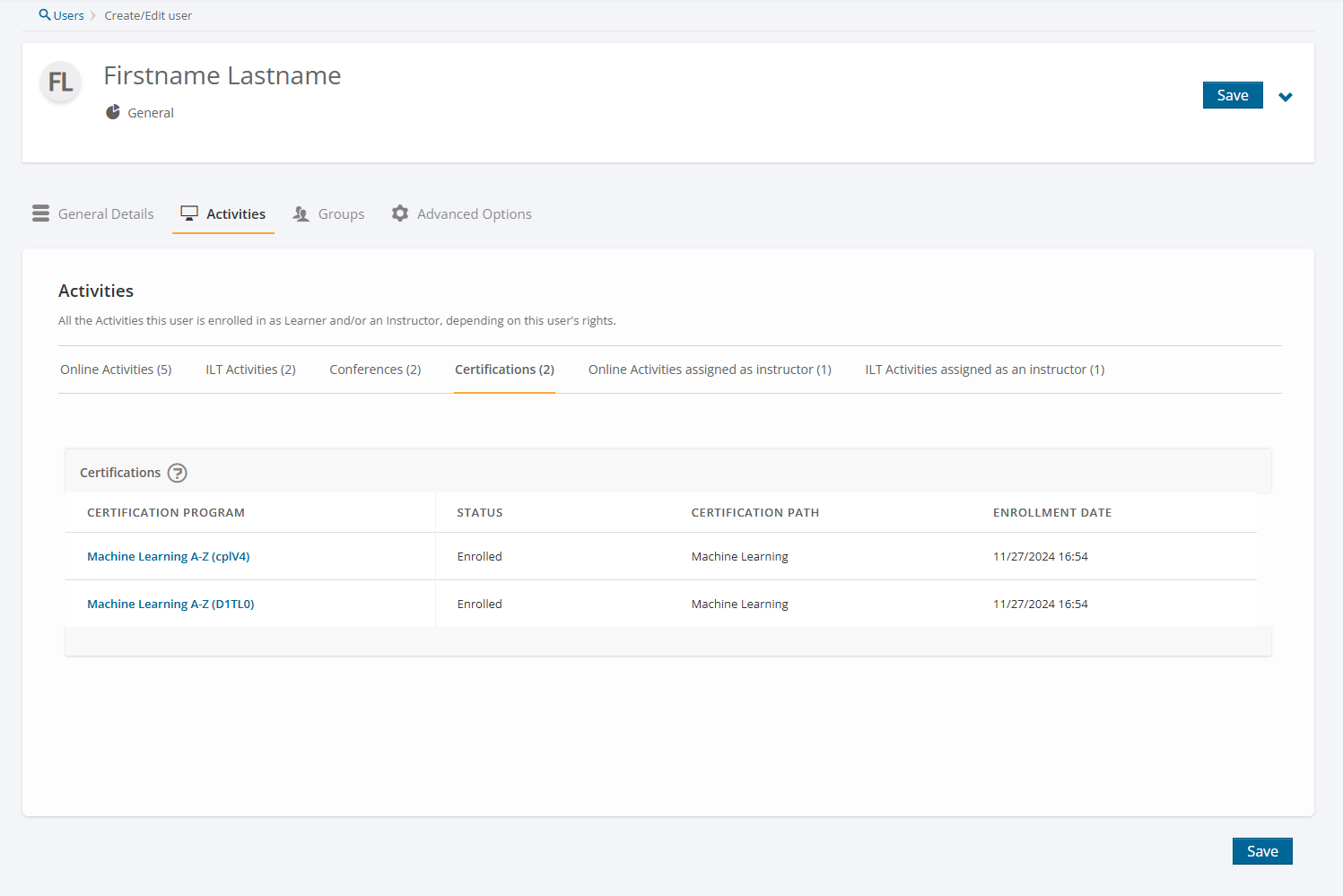
- Certification Programs (where enabled)
- Displays certification programs the user is enrolled in.
- Includes information on:
- Certification Program title – clicking on the title goes to the General Details tab of the Certification Program
- Status
- Certification path
- Enrollment Date
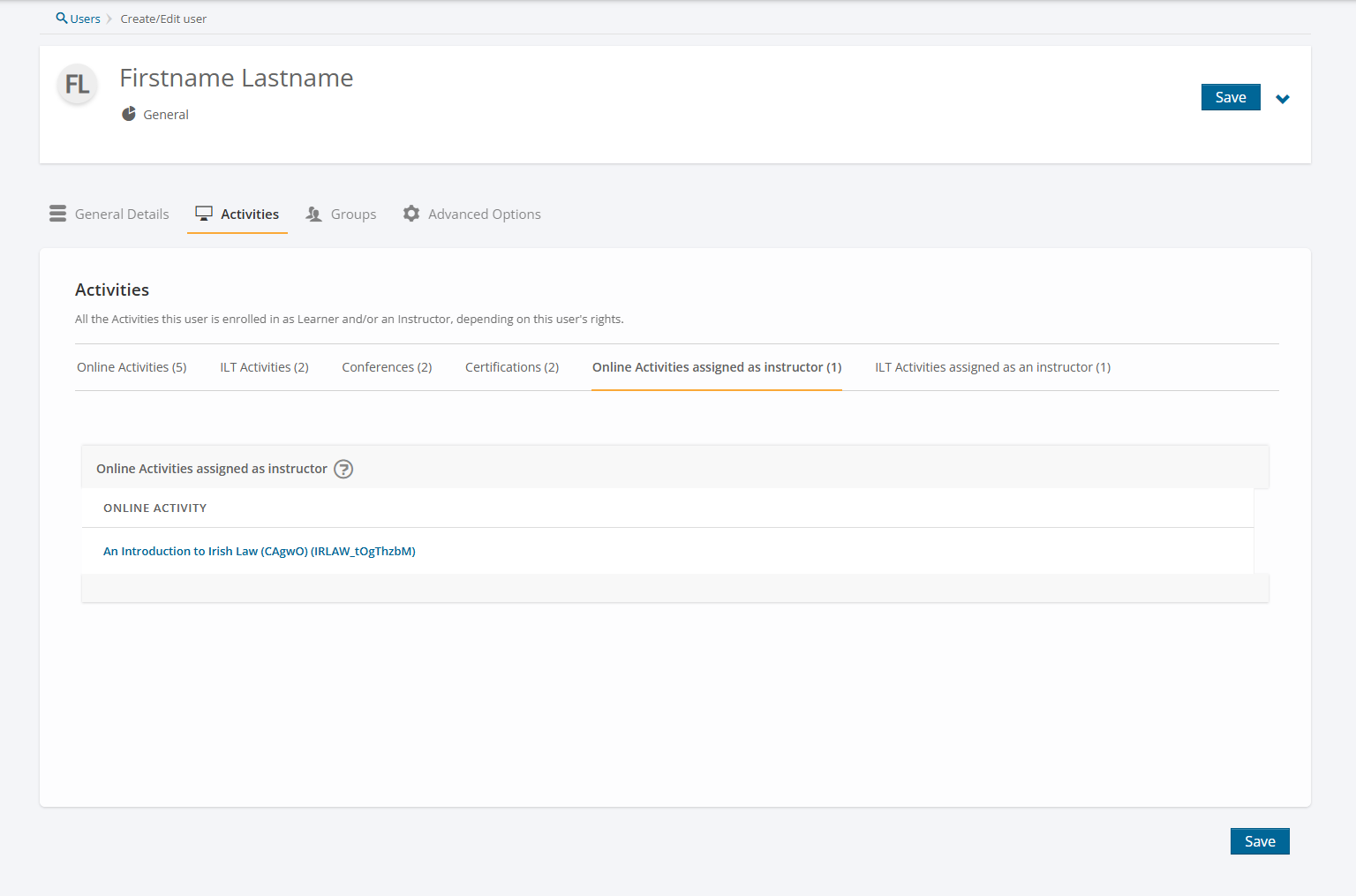
- Online Activities the user is an Instructor for
- Displays online activities assigned to the user as an instructor.
- If the user is not an instructor for any Online Activities then this tab will not be visible on the user record.
- Includes information on:
- Online Activity title - Clicking on the title to the Activity goes to the General details tab of the Activity
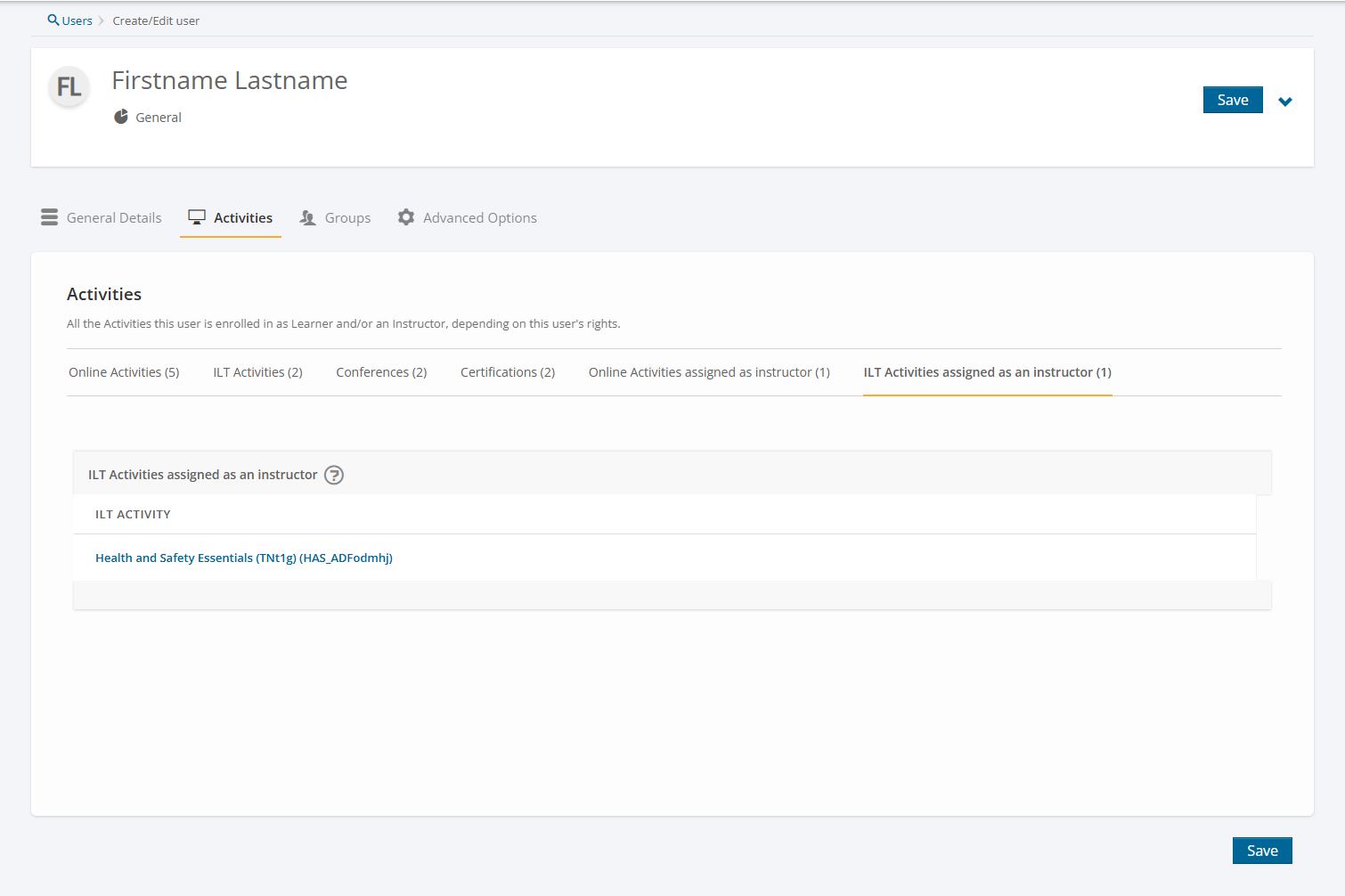
- ILT Activities the user is an Instructor for
- Displays ILT activities assigned to the user as an instructor.
- If the user is not an instructor for any ILT Activities, then this tab will not be visible on the user record.
- Includes information on:
- ILT Activity title - Clicking on the title to the Activity goes to the General details tab of the Activity.
Proctoring
TopClass can now integrate with Integrity Advocate to bring proctoring to TopClass tests. This allows for learners to be recorded while taking a TopClass test, which is then reviewed by the team at Integrity Advocate to determine if the attempt was valid or invalid in relation to the rules specified in the customers Integrity Advocate account/license.
An API Key and API ID is required from Integrity Advocate in order to integrate with TopClass.
A new setting has been introduced at test level which is required to be set in order for proctoring to work on the test. This new setting can be found under Test Settings > Test Setup on the exercise.
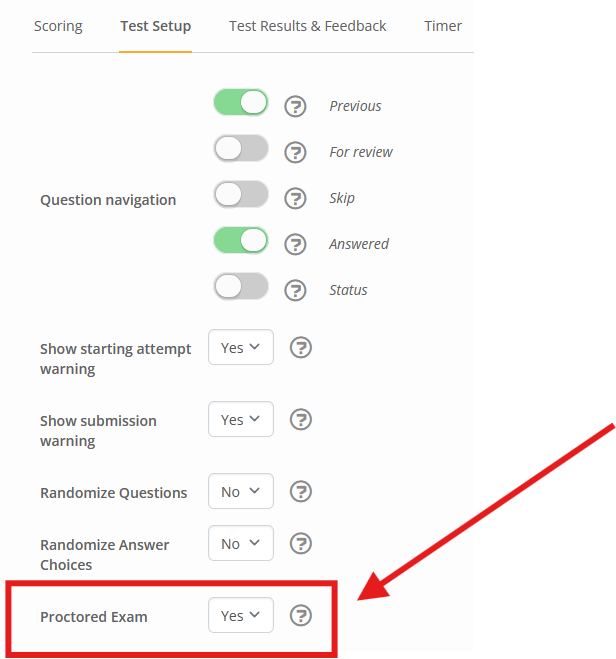
If explanatory text is required to be shown to learners to let them know about the proctored exam that they are going to take, this can be added to the Introduction section of the test, which will display to learners on the test start page while taking content.
Proctoring is not available in preview or try out modes for tests.
Once proctoring is set up a new tab will display on Online Activities and Blended
Activities for ‘Integrity Advocate’. This tab contains an admin widget provided directly by Integrity Advocate that will be automatically filled out with necessary information. There are three tabs within the admin widget: Participants, Activity, Admin.
Participants Tab
As a super admin, when viewing the participants tab it will be empty if no users have taken the proctored test yet, e.g.:
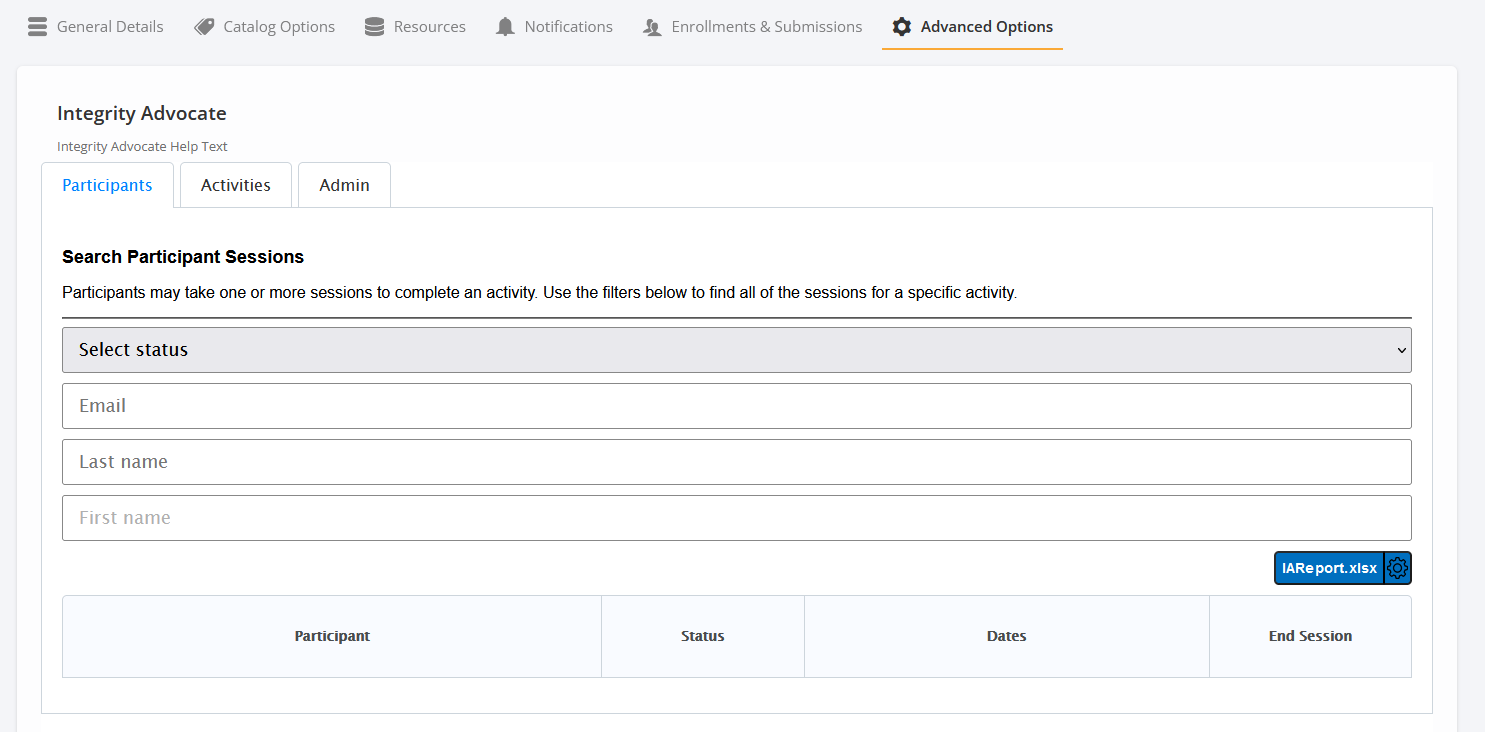
The participants tab will show a list of enrolled learners who have taken the test once the activity is live, and learners have begun participating.
Activities Tab
When viewing the activities tab, it will show a list of tests from the content that have the field ‘proctored exam’ set to yes. These can each be set to enable the IA integration on them or not, and have the rules set based on the license(s) that are enabled as part of the client account with IA. The activities will be empty until a test within the linked content of the activity has been marked as a proctored exam.
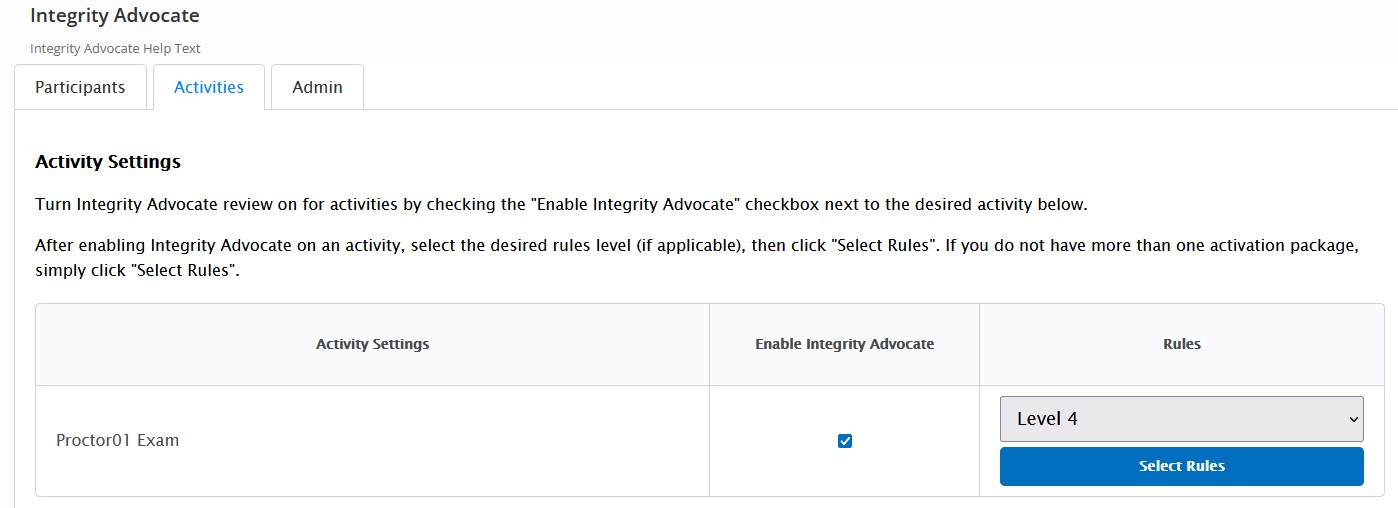
If demo mode is available as a license option for IA clients and the test is set to use demo mode, learners will not show in the participants tab after taking the proctored test. They will only appear here if a valid usable license type is applied to the proctored test.
Admin Tab
The admin tab of the admin widget will contain information relevant to the organization that has purchased IA (client and license information).
From the learners perspective, very little in the content workflow has changed. When a learner is taking the content as part of an Online Activity the first difference they will see is once they reach the test within the content. Once the learner clicks to begin the test, they will be presented with some information, rules and verification processes from Integrity Advocate. This will all occur within the TopClass window without directing the user outside TopClass at all, making the experience completely seamless for end users.
Once the learners have completed the rules and verification steps for IA the test will begin as normal. As part of the proctoring, the learners screen and camera will be recorded so a small window with a view of the learner in their camera will appear on the screen while they are taking the test.
If a learner tries to click around to other places while taking the proctored test, e.g. another page in the content, they will see a warning that they are leaving and if they accept, the proctoring session will end. If they chose to stay, the session would continue until they submit the test.
When a learner submits a proctored test, they will not see the results page, but instead will see a submission verification message, the proctoring session will end and the camera view will disappear.
The test is then sent for manual review by Integrity Advocate and will be in a status of Awaiting Review until a valid or invalid response comes back from IA to let the user know if they passed or failed the proctoring review.
There are 3 different override options for activities with proctored tests.
- TopClass Activity override which is available on the Enrolments tab of the activity. If this is used while a test is awaiting proctoring, the activity will still roll up for the end user as Satisfied and Completed.
- TopClass Test override which is available on the Enrolments tab of the activity under the view option for each tests. If this is used while a test is awaiting proctoring, the test will still roll up for the end user as Satisfied and Completed.
- Integrity Advocate Test override which is available on the participants tab of the IA widget on the activity. If this is used, only the proctoring element of the test will be overridden, if the test is set for manual correction in TopClass, the manual correction will still be required to be done in order for the test to roll up as Satisfied and Completed.
Integrations
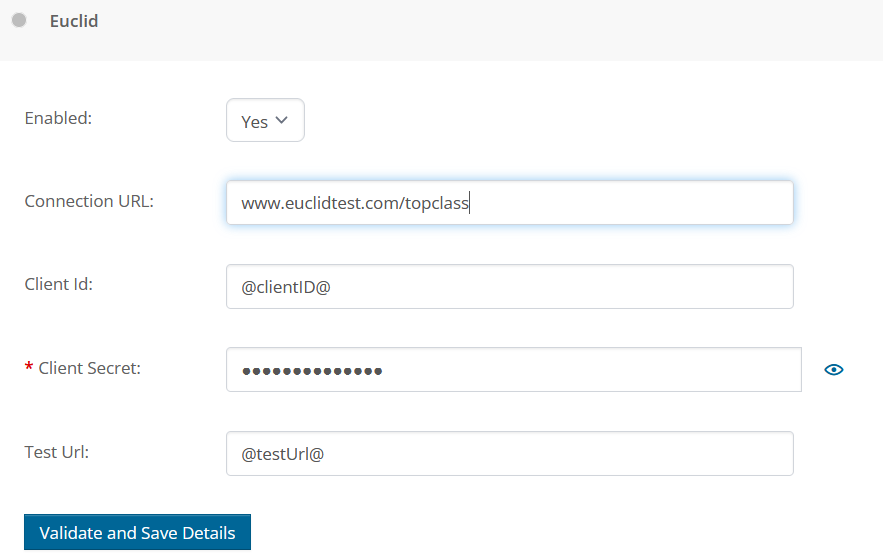
Euclid ClearVantage
A new integration has been added with Euclid ClearVantage. The integration includes the following standard syncs:
- User (Members) ETL
- User (Members) JIT
- Online (Product) ETL
- Online (Product) Enrollment ETL
- Online (Product) Enrollment JIT
Enhancements
Discussion Forum Notifications
Three new real-time notifications have been added to TopClass to let learners and moderators know about activity in Forums they are monitoring or have posted in. These notifications are all turned off by default.
- New Discussion in Moderated Forum Notification
A real-time notification to notify a Discussion Forum moderator (if there is one) that a new post/discussion has been added to their moderated forum.
This notification is fired to the Discussion Forum Moderator whenever a learner creates a new discussion in a moderated Discussion Forum. It will only fire if the forum has a moderator assigned.
- New Reply to Discussion in Discussion Forum Notification
A real-time notification to notify a learner that someone has replied to their post/discussion in a Discussion Forum.
This notification is fired to a learner whenever someone replies directly to their discussion post. This is only for direct replies to a discussion.
- New Reply to Reply in Discussion Forum Notification
A real-time notification to notify learner that someone has replied directly to their reply to a post/discussion in a Discussion forum.
This notification is fired to a learner whenever someone replies directly to their reply in a discussion forum.
- Opt-Out
All users have access to an ‘opt-out’ checkbox if they no longer want to receive these notifications. This opt-out setting applies to all three notifications together, it is not possible to only opt-out of one or two of them.

This can be accessed under the Profile Settings > Notifications section. By default, all users are opted-in.
New Credit Options for Certification Programs
As part of Certification Programs, it is possible to set up credit requirements to be achieved in order to certify or recertify in a program. An update has been made to this setup to allow for specific credit subtypes to be set with each credit requirement and a minimum subtype value added, if required.
As a Super Administrator, during the credit setup, once the Credit Type and Amount have been added, any available subtypes for that credit type will be available to select:
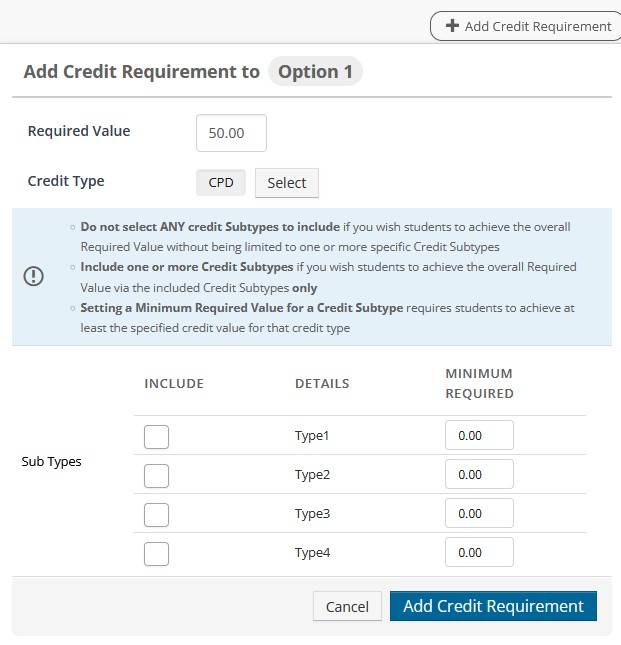
- Minimums are not required to be set. It is possible to select a subtype as a requirement for the credit requirement without applying a minimum to be achieved.
- If all or no subtypes are selected, learners will be able to claim any subtypes or no subtypes against the credit type in order to achieve the credit requirement.
- If one or more, but not all, subtypes are selected, learners will only be able to claim credits with those subtypes against the credit requirement.
- If a minimum value is set on a subtype, learners must meet that minimum before the credit requirement can roll up as completed.
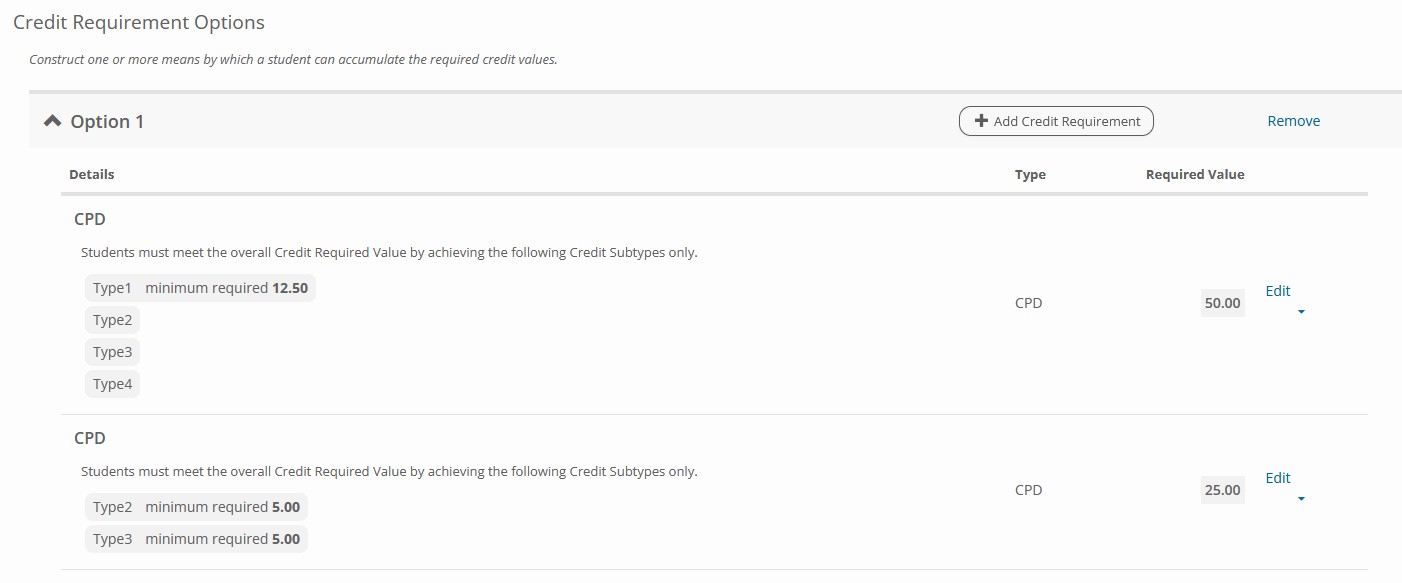
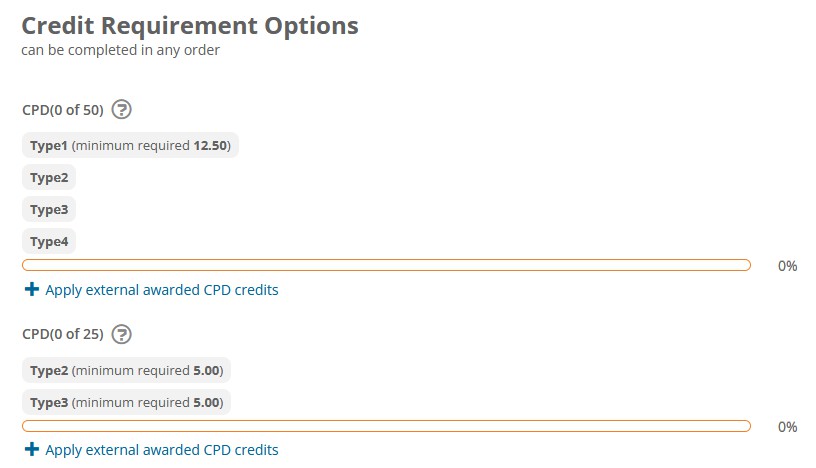
When viewing the Certification Program from the Learning Center, learners can clearly see each credit requirement and which subtypes can be claimed in order to meet the requirement. The subtype minimums will also be displayed, if applicable.
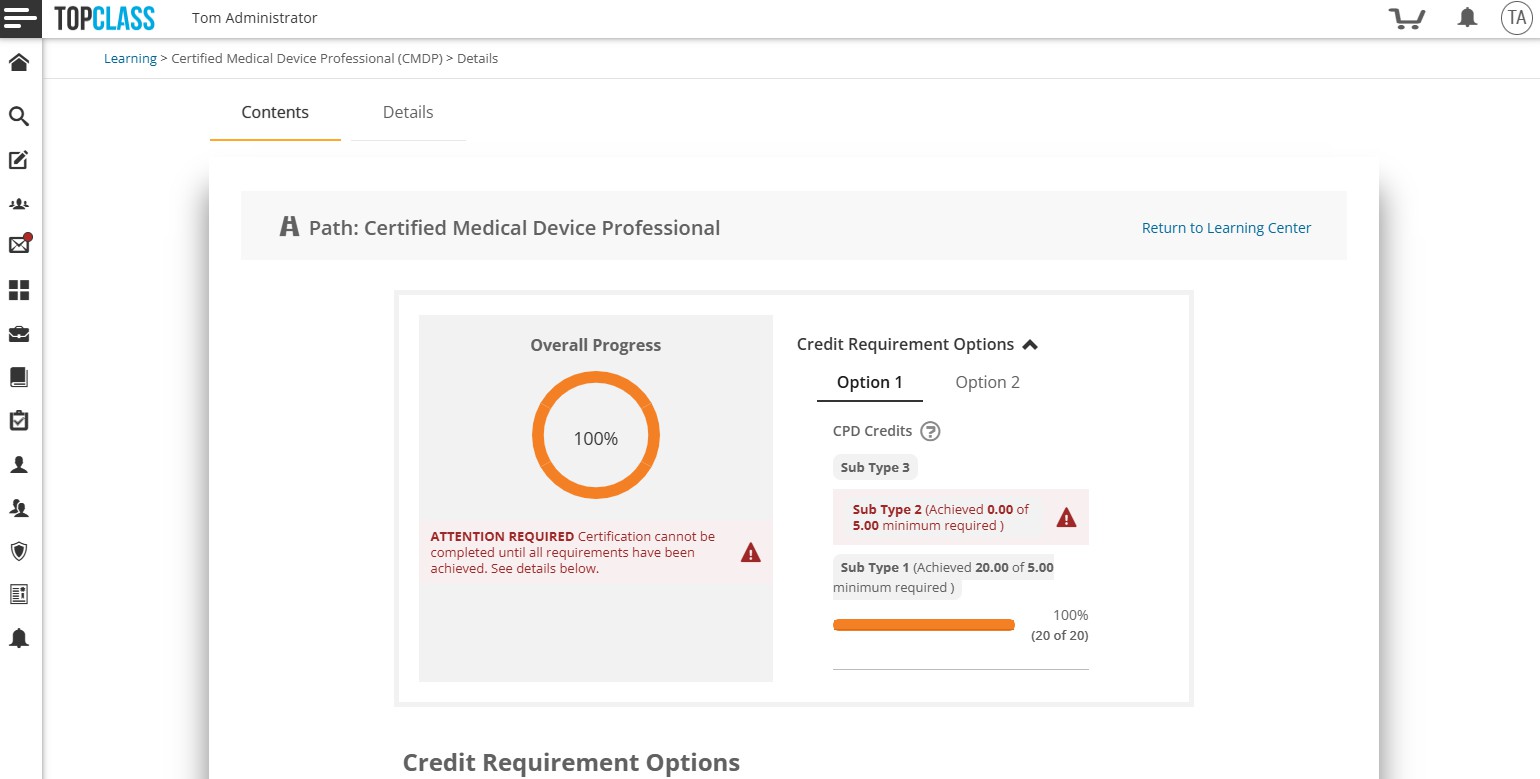
If a credit option has been set up where multiple subtypes can count towards it and the learner satisfies the credit requirement but has not met the minimum subtype amount set, a warning will display on the Certification Program display and the widget on the learning center so learners can clearly see why their requirement or program has not yet rolled up as completed. Once they meet the outstanding minimum, the requirement and/or program will rollup as completed.
On release of this new functionality, existing customer setups will not be affected. Customers can create new programs using this setup or choose to update existing Certification Programs to use this new setup. However, for any existing programs that are updated, the changes will only apply to newly enrolled learners.
Activity Ratings and Reviews Report
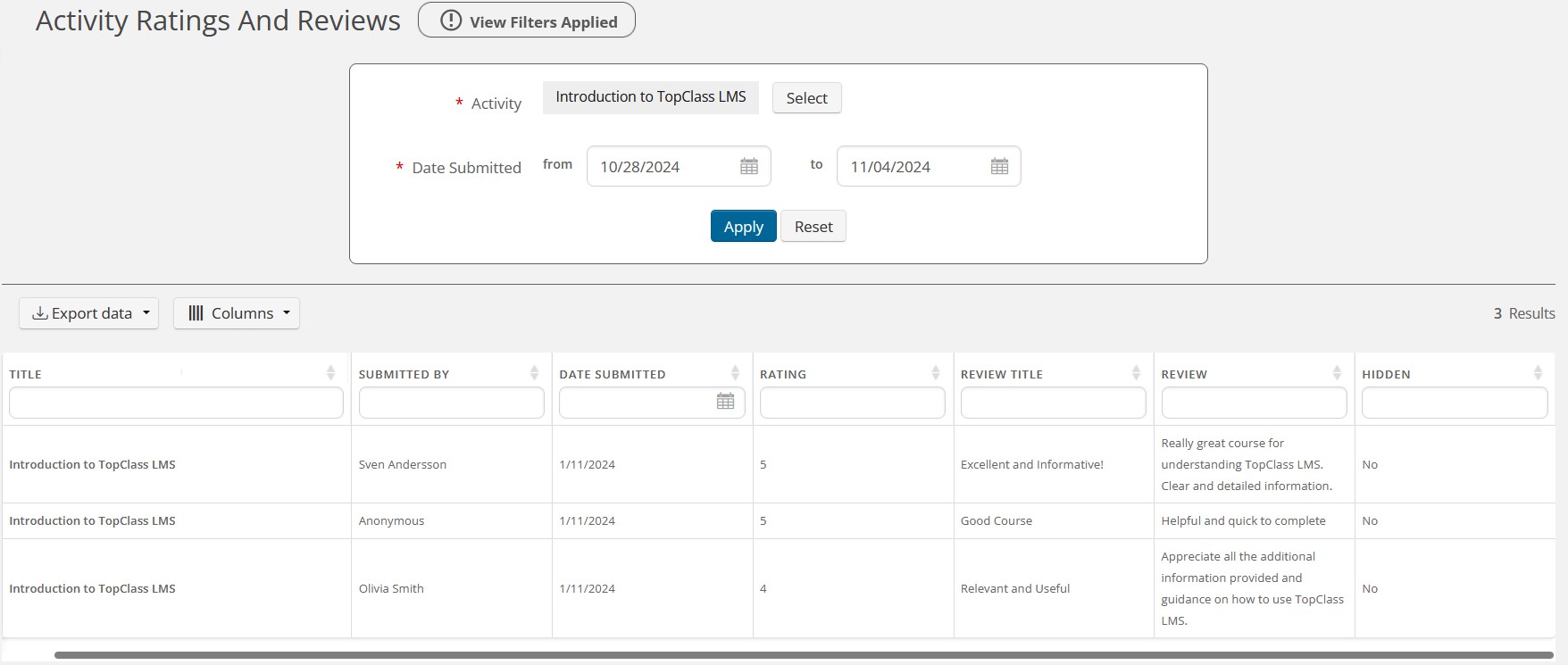 A new report is now available to facilitate comprehensive reporting on reviews and ratings submitted by learners for courses and activities in TopClass.
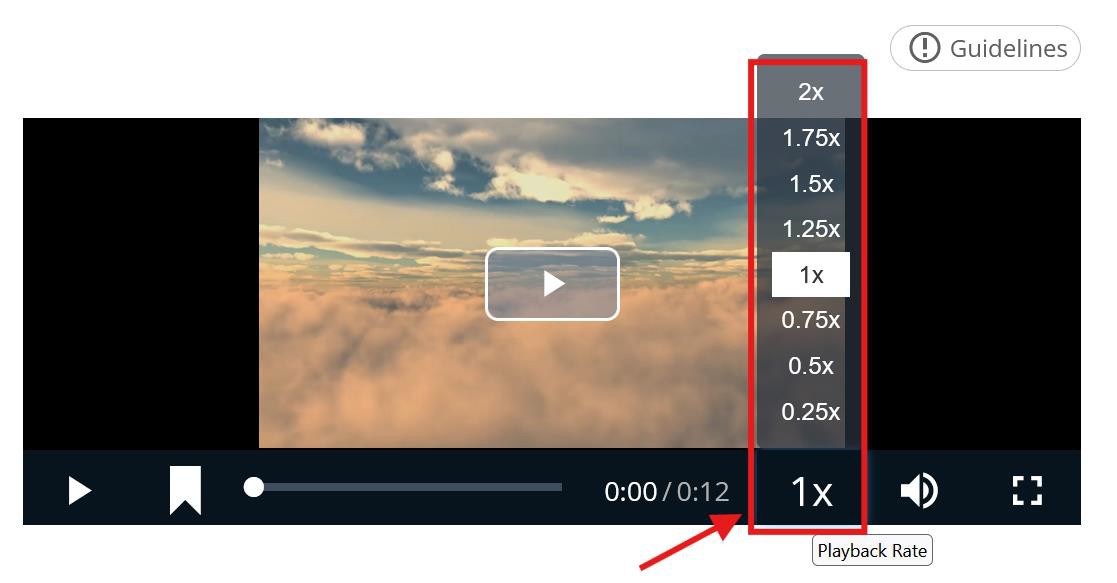
Speed Up Videos
The Interactive Videos in TopClass have had new functionality added to allow Learners can now speed up or slow down interactive videos they are watching while taking content in TopClass. This feature is available by default on all interactive videos.
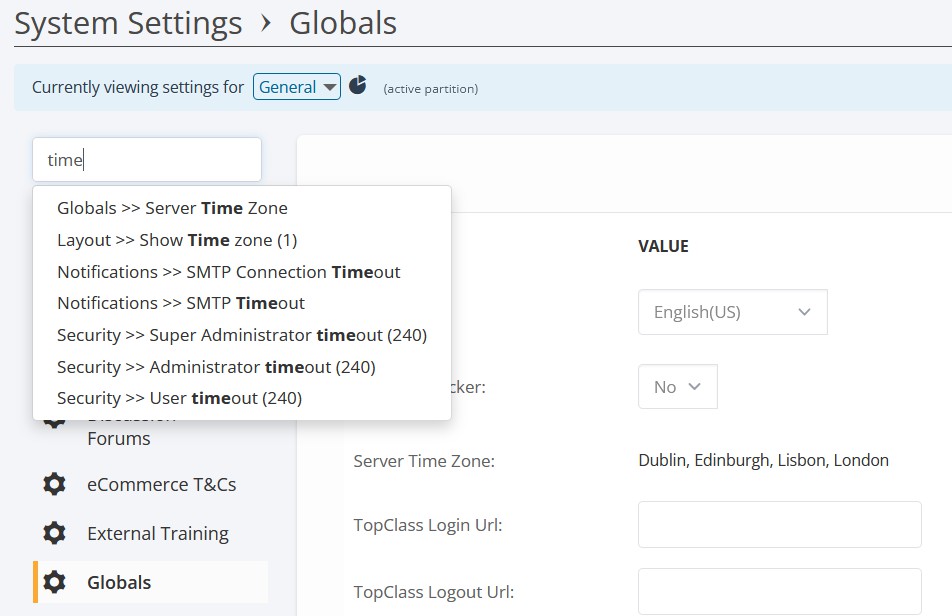
Search System Settings
Searching System Settings is now available for TopClass. The search bar is available at the top of the left-hand tab menu when viewing System Settings. It uses typeahead functionality which allows you to start typing and it will then provide some
suggestions.
The search is available across all system settings tabs. The dropdown will display the setting path so you can see which section the setting is in.
For Boolean settings, i.e. setting with a yes/no option, the current value will display in brackets next to the setting in the typeahead dropdown. And for integer settings, the value will display in brackets next to the setting in the typeahead dropdown also.
As a reminder, if you have questions on any system setting, please reach out to your TopClass representative before activating.
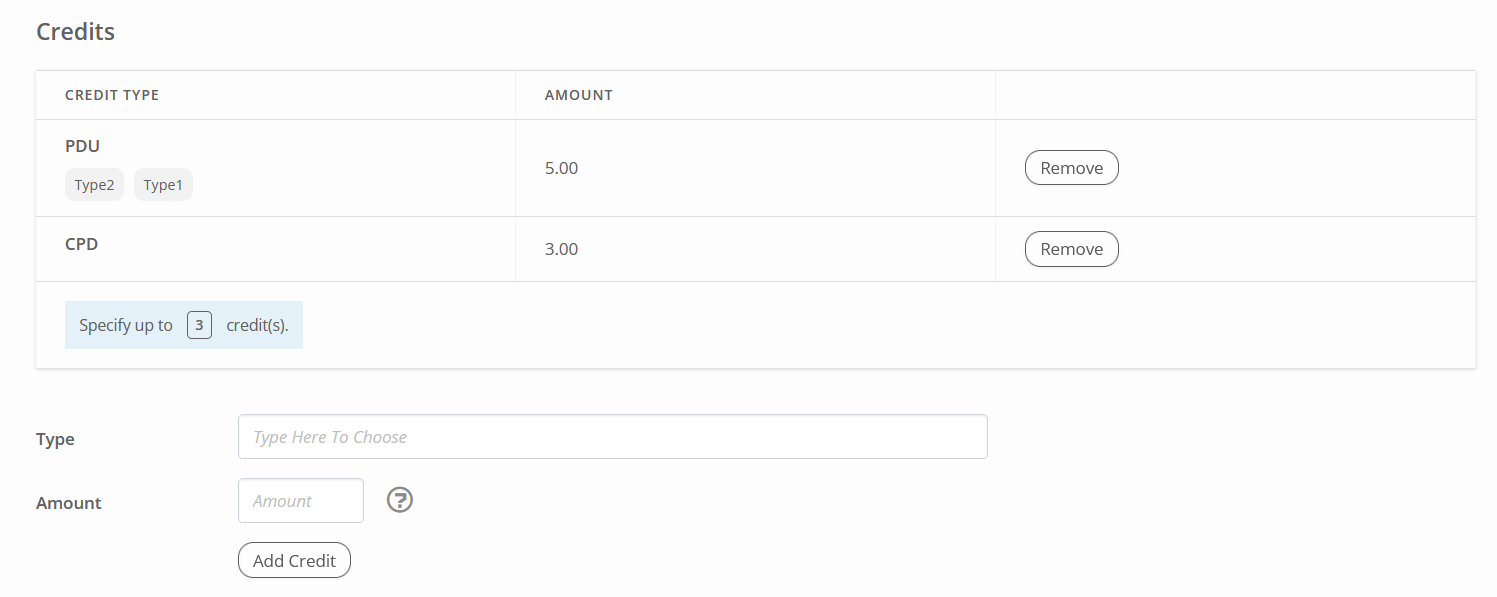
Multiple Credits for External Training
As a learner, when creating an external training record, it is now possible to enter multiple credit types, subtypes and amounts for that record.
Super Administrators also have the ability to add multiple credit types, subtypes and amounts to external training templates to be claimed.
A new system setting has been introduced to System Settings > External Training called ‘Limit for credit options for claiming external training’. This setting limits the number of credit options a learner can claim for adhoc external training, or for external training templates if the setting ‘Allow Override of Credits for External Training’ is set to Yes. If set to 0, it means learners can claim unlimited credit options.
If the setting ‘Allow Override of Credits for External Training’ is set to No, when a learner is creating an external training record from a template, they will only be allowed to claim the credits preset on the template and will not be allowed to change them, add more, or remove any.
If approval is required for external training, the approver(s) can see and approve/reject all credit types and amounts being claimed.
If a Super Administrator or Manager is creating an external training record for themselves or on behalf of other users, the same rules as above apply, based on the settings in place at the time of claiming.
The Completed Learning screen will display all credit types and amounts claimed for each External Training Record.
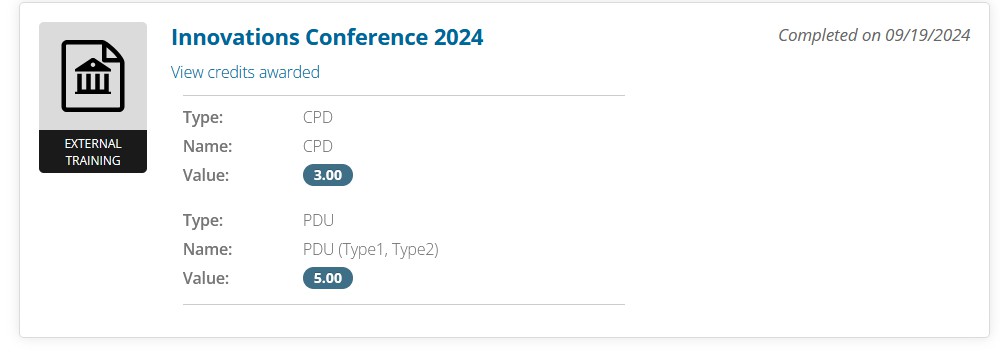
The following two reports will continue to display external training records created, with a single record per external training item. The credit types and amounts will be shown as a comma separated list in the single column ‘Credits’.
- Adhoc External Training Completions
- External Training Template Completions
In addition, the following two reports will continue to display external training records created with a single record to display per credit type claimed.
- Completed Learning Credits by User (a single line per credit type)
- Completed Learning Credits by Group (a single line per credit type and per group)
Contact Us Widget
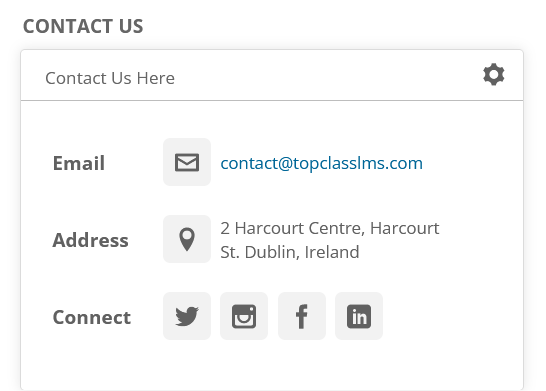
A new Contact Us widget is available for customers to use to provide information to their learners on how best to reach out to them if needed.
The information that can be provided currently is as follows:
- Facebook Link
- Instagram Link
- LinkedIn Link
- Twitter Link
- Street Address
- Email Address
Learners have control over showing/hiding the widget on the Learning Center as they do with other widgets.
UI Updates
Testimonials List Screen
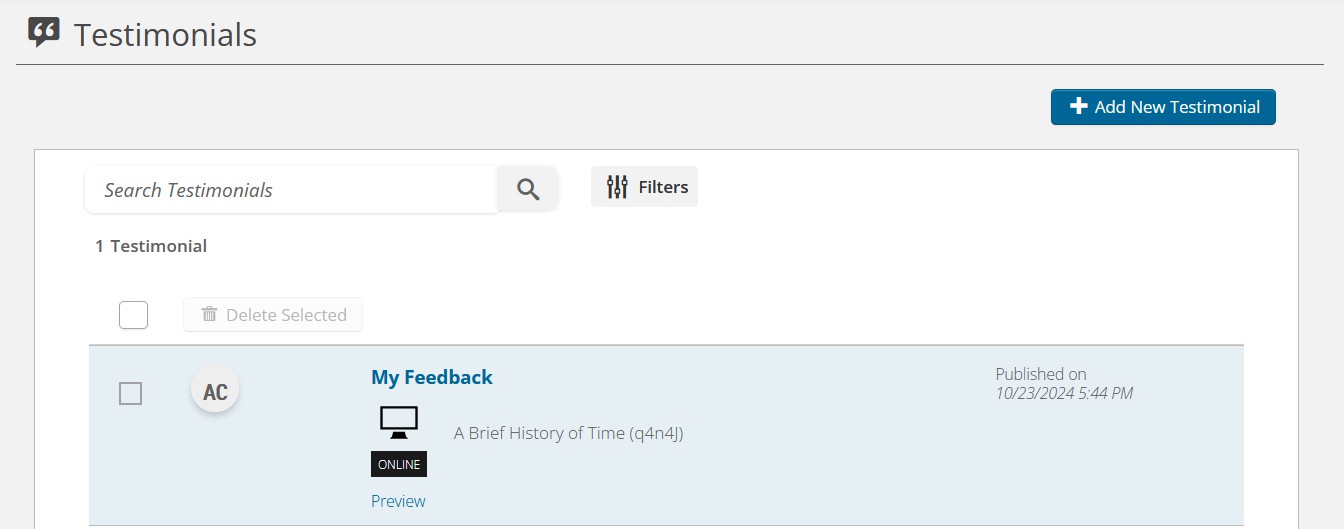
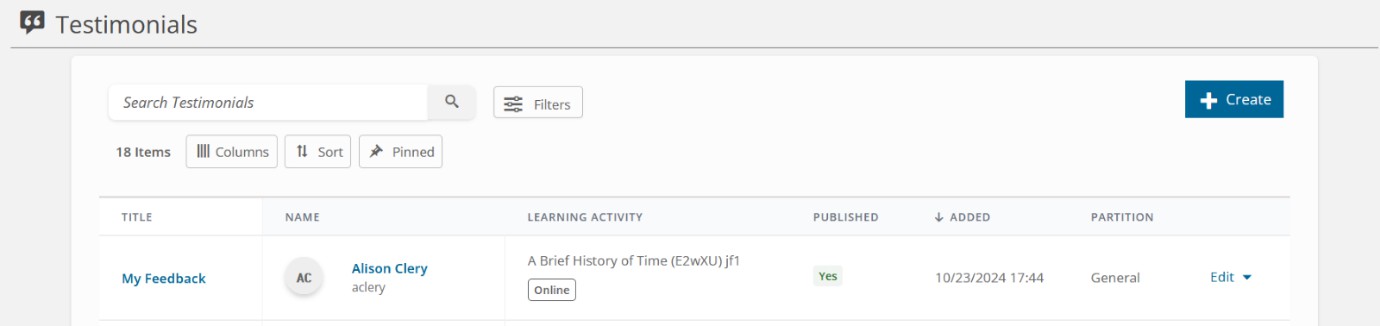
The Testimonial list screen has been updated in this release to be more consistent with other UI Updates made recently for TopClass.
The old Testimonial list screen:
The new Testimonial list screen:
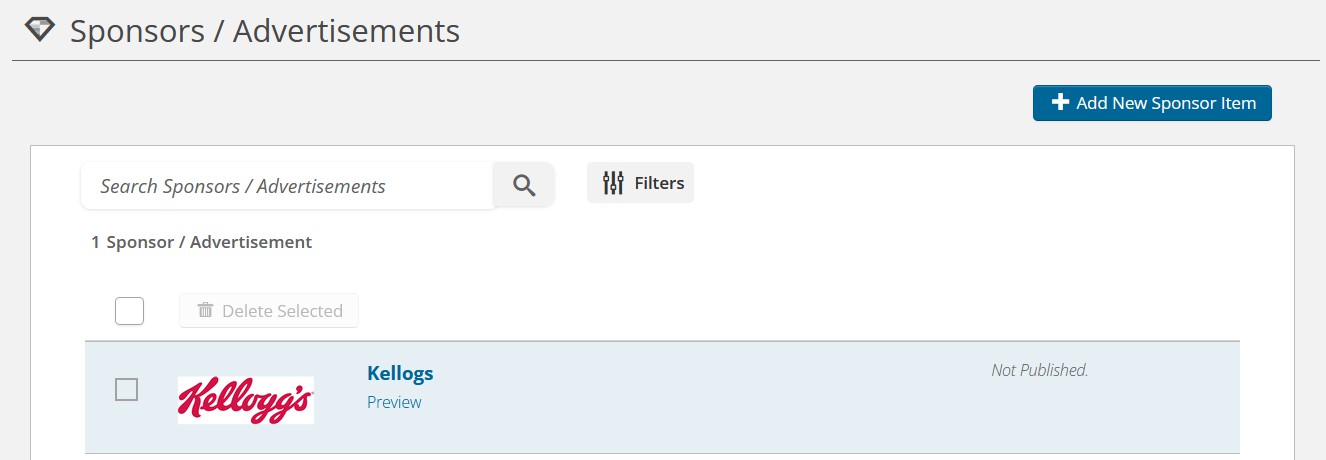
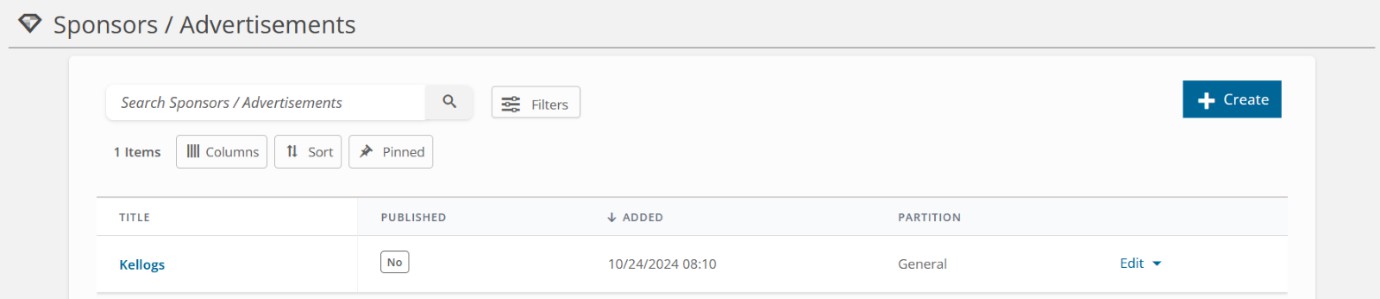
Sponsors/Advertisements List Screen
The Sponsors/Advertisements list screen has been updated in this release to be more consistent with other UI Updates made recently for TopClass.
The old Sponsors/Advertisements list screen:
The new Sponsors/Advertisements list screen:
Activity Ratings/Review Tab
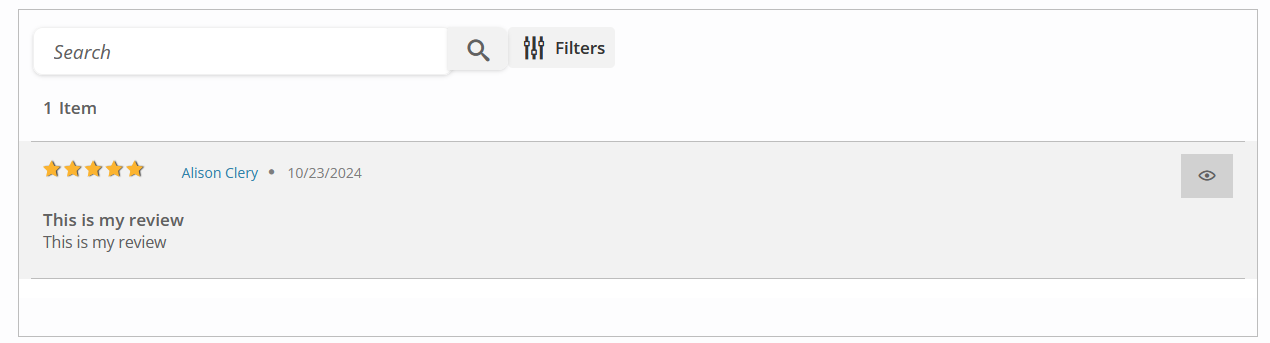
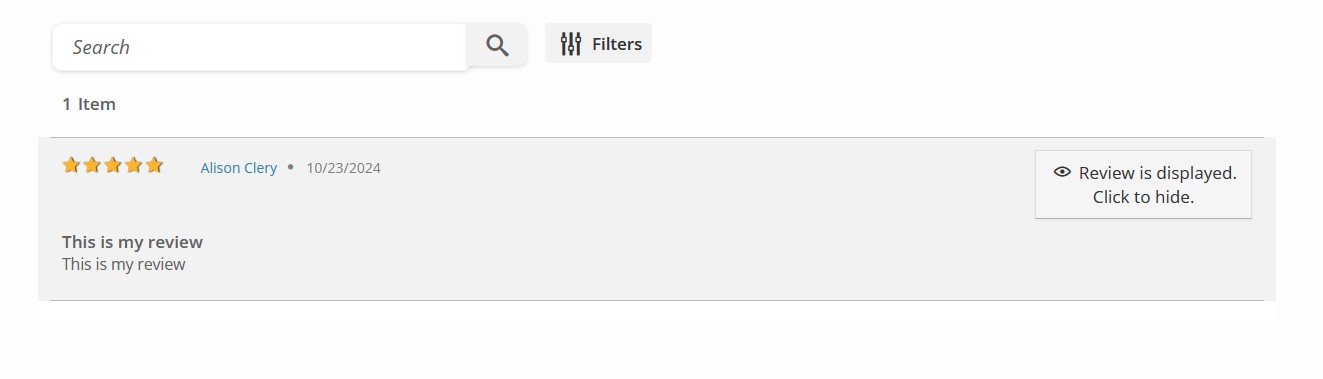
The Activity Ratings/Review tab on an activity has been updated in this release to be more consistent with other UI Updates made recently for TopClass.
The old Activity Ratings/Review tab:
The new Activity Ratings/Review tab:
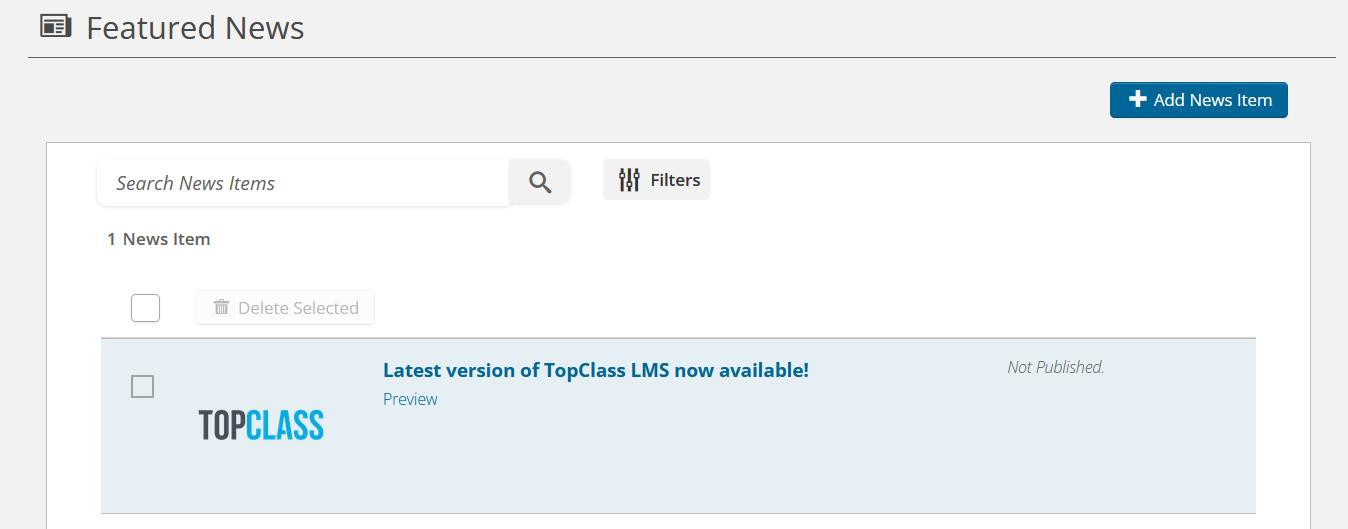
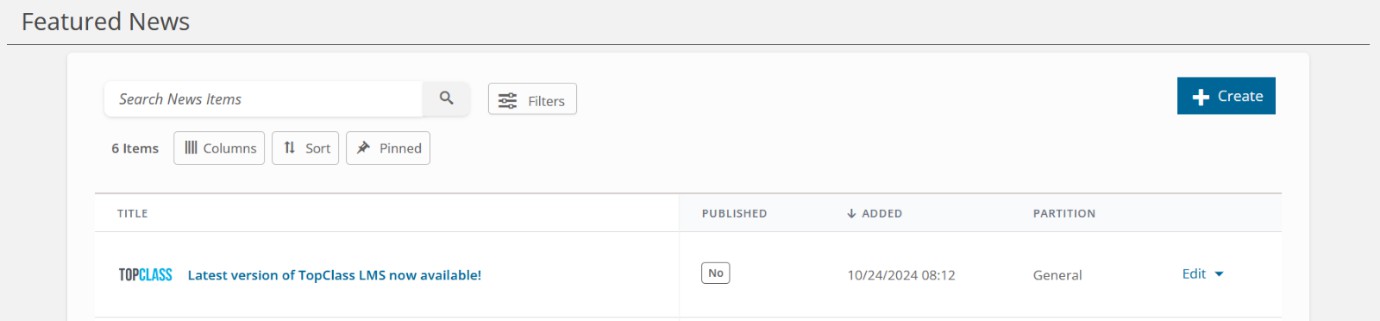
Featured News List Screen
The Featured News list screen has been updated in this release to be more consistent with other UI Updates made recently for TopClass.
The old Featured News list screen:
The new Featured News list screen:
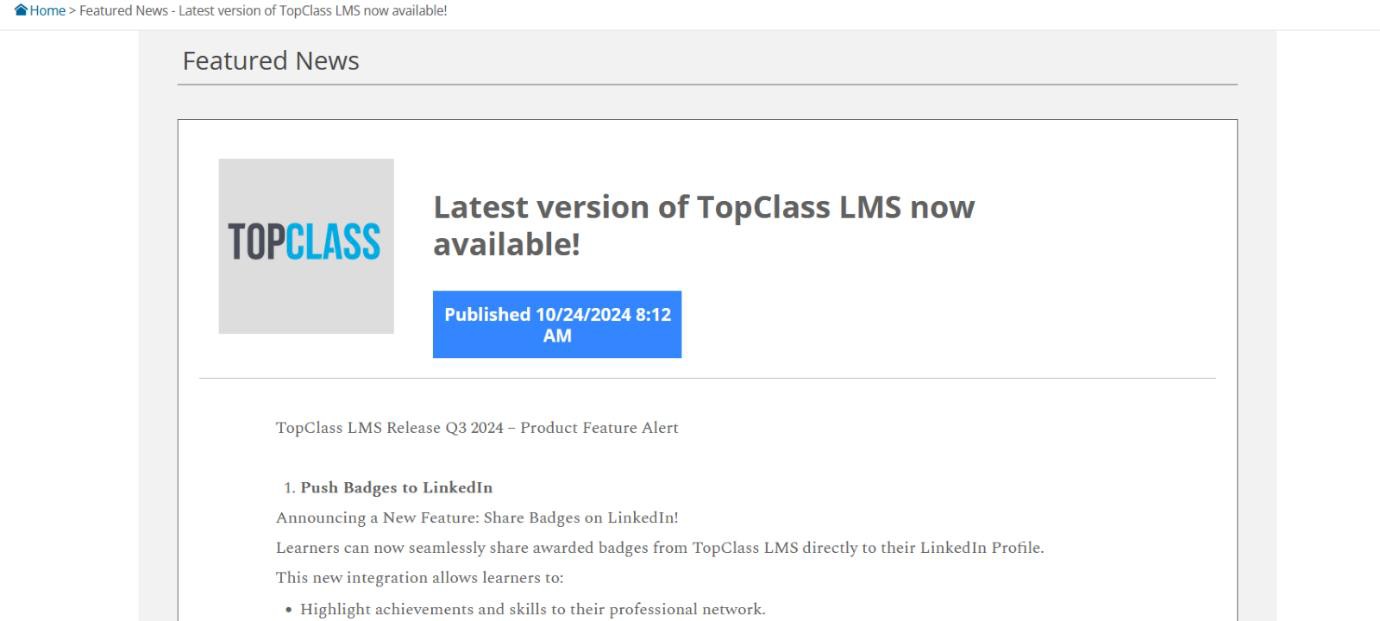
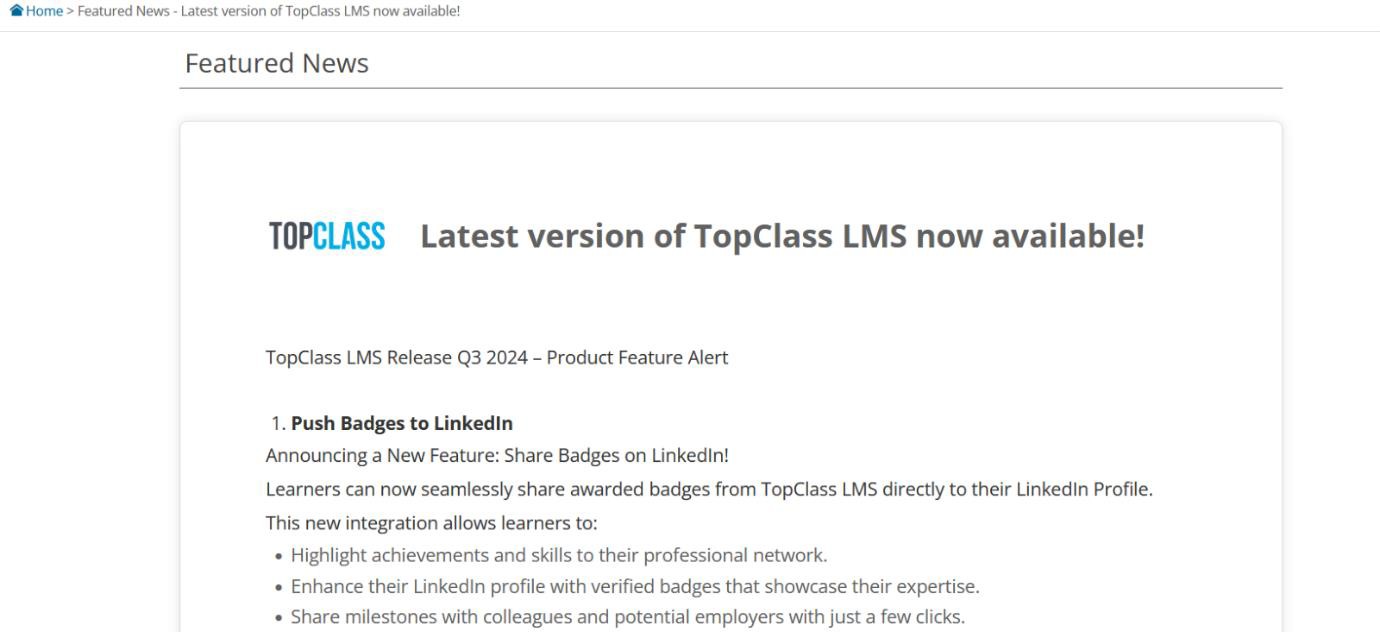
The view Featured News screen for end users has also had some updates to be more consistent with other UI Updates made recently for TopClass.
The old view Featured News screen:
The new view Featured News screen:
Access to Attachments While Taking Content
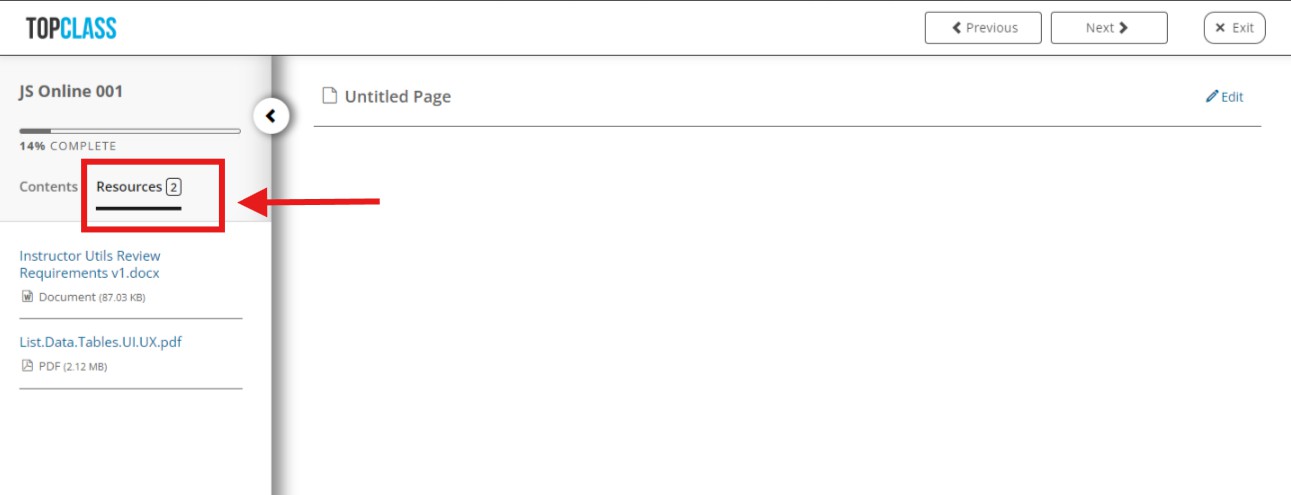
A resources tab is now available in the content pane while viewing content and will allow learners easy access to the attached activity resources, if there are any documents attached to the Online Activity.
Reminder to Complete Activity Notification
A new batch notification has been added to TopClass to enable learners to be reminded of the enrolment in an Online Activity if they have not yet completed it.
This notification can be set per activity and will trigger X days after enrolment, only if the learner has not satisfied and completed the activity.
If a learner is outside their valid period, they will not receive this notification.
If a learner’s valid period expires and they get their valid period extended later, if the notification was due to be sent while their valid period was still expired, they will not receive the notification. But if the notification was due to be sent after their valid period was renewed, they will receive the notification.
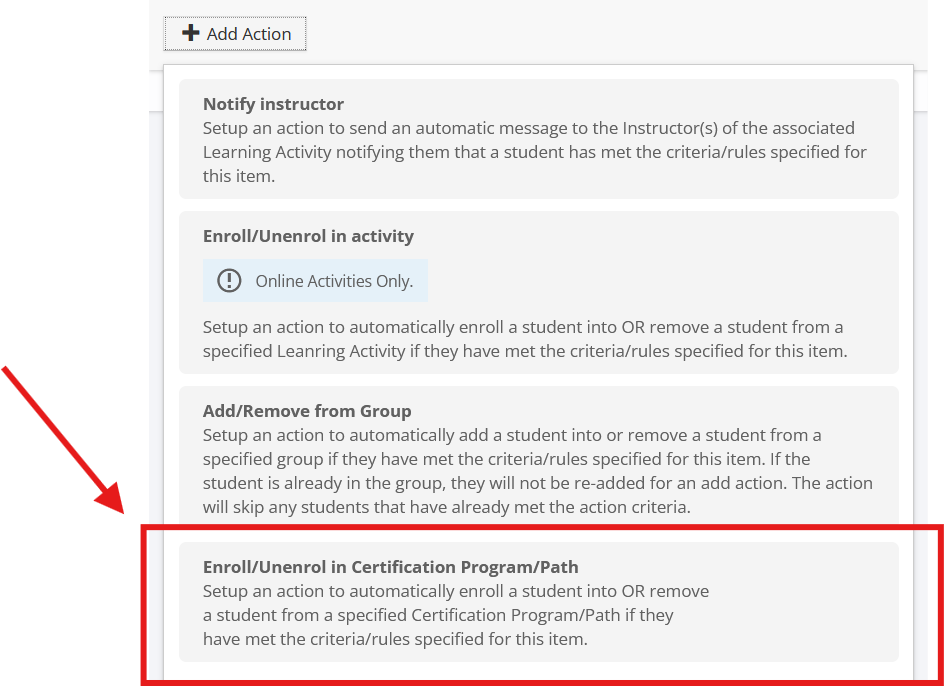
Action to Enrol Learners in a Certification Program
A new enrol action has been added to Online Activities and ILT Activities to cater for enrolling learners automatically into a Certification Program and/or Certification Path when enrolled in or satisfied and completed in the Online or ILT Activity. The new action also caters for unenrolling a learner from a Certification Program and/or Certification Path when enrolled in or satisfied and completed in the Online or ILT Activity.
The fields required in this new action for Online Activities are as follows:
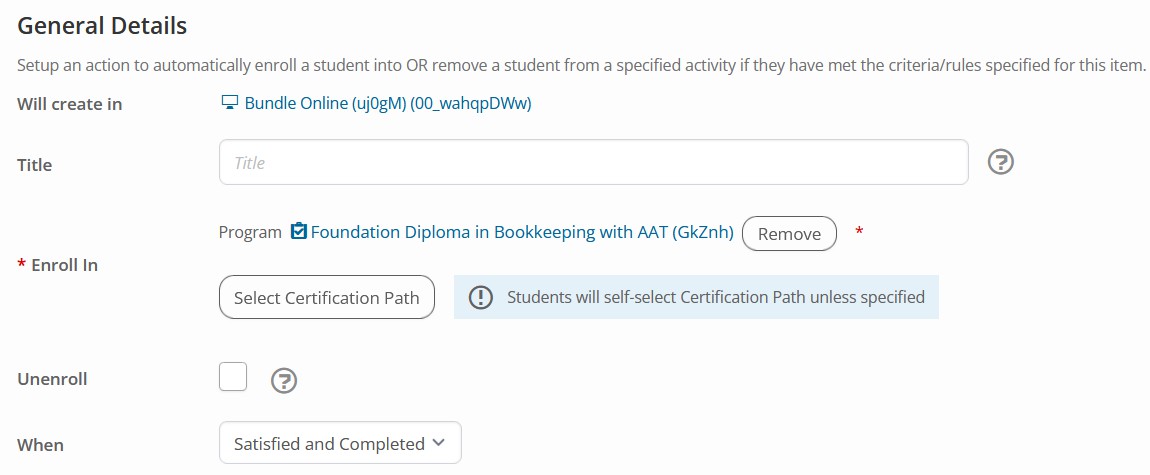
The ‘when’ field allows for Enrolled, Satisfied and Completed.
The fields required in this new action for ILT Activities are as follows:
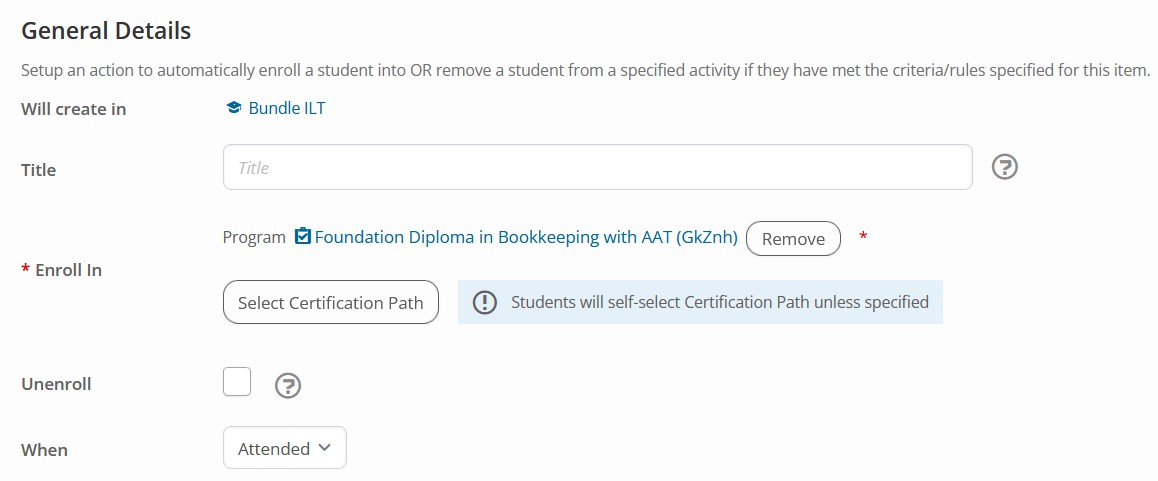
The ‘when’ field allows for Enrolled, Attended (which includes Partial Attendance).
- If a cert path is included in the enrol action, a learner will be added to the top level program and cert path.
- If no cert path is included in the enrol action, a learner will be added to the top level program and have to select a path themselves.
- If a cert path is included when the enrol action is set to unenroll, the learner will only be removed from the cert path if they are enrolled in it.
- If no cert path is included when the enrol action is set to unenroll, the learner will be removed from the entire program.
Action to Add Learners to a Group from a Certification Program
A new add/remove from group action has been added to Certification Program paths to cater for adding learners automatically into a group when enrolled in or satisfied and completed in the Certification Path. The new action also caters for removing a learner from a group when enrolled in or satisfied and completed in the Certification Path.
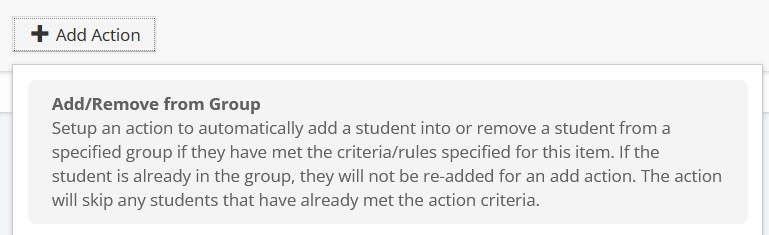
The fields required in this new action for Certification Paths are as follows:
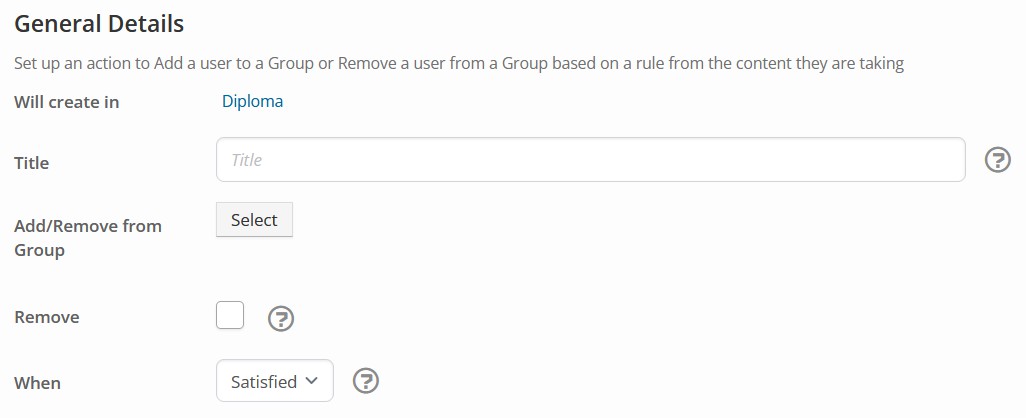
TopClass will validate that group add/remove actions don’t duplicate actions unnecessarily (e.g., skipping "add to group" if the user is already in the group).
For certification paths that have maintenance requirements and can be completed multiple times:
- If the user is already in the target group, the “add to group” action will be skipped.
- If the user is not in the target group, the “remove from group” action will be skipped.
Miscellaneous
Default Catalog to Featured View
A new system setting has been added to TopClass to allow the Featured view of the catalog to be the default view when a learner navigates to the catalog. The setting can be found under Main Menu > System Administration > System Settings > Catalog > Default Catalog to Featured.
If a search is done when the default is Featured, the search will be done on Featured items only and the learner must switch to view All items in order to search all items.
If the Featured list is empty, learners will be directed to the All tab by default instead.
Static Names on Certificates
Four new variables have been added for certificates to help prevent learners from changing their names and reprinting certificates for other learners.
- Award Time First Name
- Award Time Last Name
- Award Time Full Name
- Award Time Username
These variables will stay static with the name of the learner that was set on their account at the time of award and will not change. The older fields for first name, last name, full name and username are still present and can be used but will continue to show the learners name set at the time of viewing the certificate so can still be changed.
Updated 5 months ago