

External training templates
External Training refers to any activity, course, or learning completed outside of TopClass. You can create templates that students can select to add completed external training to their Learning Center. Alternatively, students can add external training manually without using a template.
Configuring approval for External Training
You may want to provide the ability for external training but still want to maintain control over what learning activities are officially recognized or credited by your organization.
To configure approval for External Trainings, do the following:
- Go to System Administration > System Settings.
- Click External Training.
- From the External Training Requires Approval setting, select Yes. This will require approval for external training records submitted by students. The training will only appear on a student’s Completed Learning list once approved by a designated user or group, ensuring the accuracy and validity of recorded activities.
- Configure one of the following:
- External Training Approver Group – Enter or select the group responsible for approving student-submitted external training records. Any member of this group can review and approve training before it appears in the student’s completed learning history.
- External Training Approver User – Enter or select the specific user responsible for approving external training submissions. This setting ensures a designated approver reviews all learner-entered training records for accuracy and relevance.
- Click Save.
The user or group who is the Approver will see all requests for External Training when user clicks on their Requests tab.
Creating a new External Training Template
Do the following to create a new External Training Template:
-
Go to Activities and Learning > External Training Templates.
-
Click Create.
-
From the General Details tab, define the following:
-
Code – A unique Code that does not contain spaces.
-
Title – A Title that is visible to students.
-
Vendor – The Vendor who is providing the external training.
-
Allow Extra Info – Enable to allow users to view and update all extra information on external training records. Disable to hide the Extra Info fields from the learner. To see what the Extra Info fields are, click the Advanced Options tab, then choose Extra Info.
NoteContact TopClass Support if you are not seeing the Extra Info settings, and someone will enable them for you.
- Partition – Select a Partition if the external training belongs to a specific partition.
- Associated Image – Select an image to pair with the training.
- Description – Enter a detailed Description that describes the training.
- Certification Program Only – Enable to specify the external training is a certification program only. The template will not show to students when Certification Program Only is enabled, and are available only in certification programs.
-
-
Click Save.
-
(optional) Click Advanced Options > Credits.
-
Locate the credit to be awarded for taking the training.
-
Enable Active, then enter a Value.
-
Click Save.
Adding External Training as a student
Students can do the following to add external training to their account:
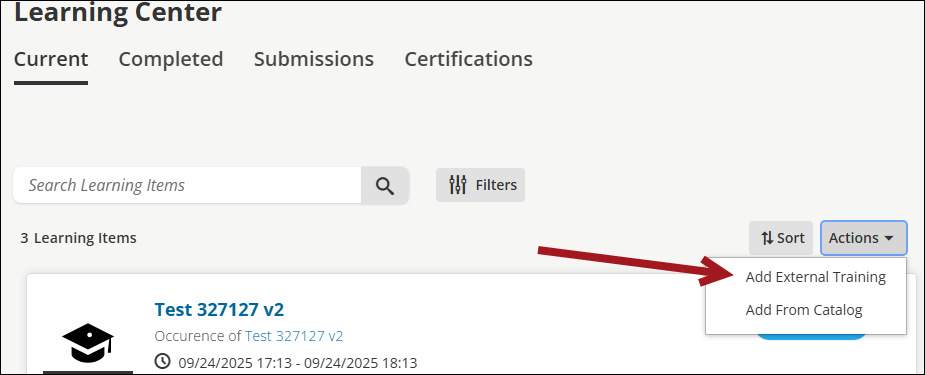
- From the left navigation, click Learning Center.
- Click Actions > Add External Training.
- Use the provided search to search for the training.
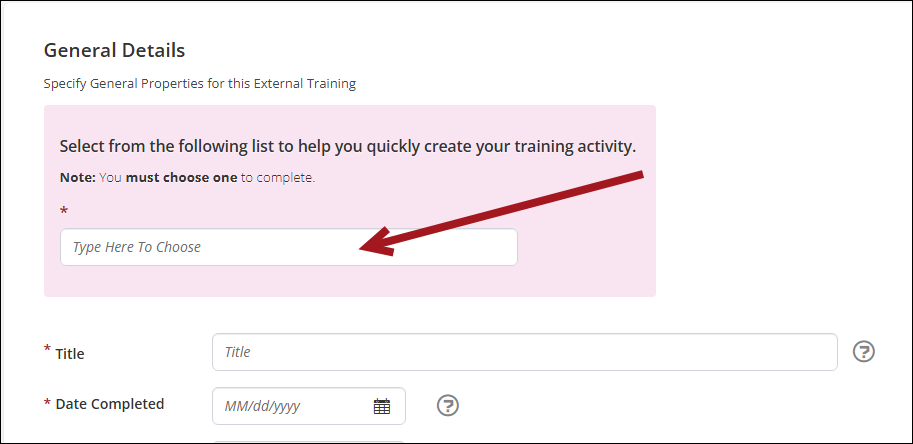
- Select the Date Completed.
- If there is an expiration date associated with the training, select the Expiry Date.
- From Credits, select the Type and enter an Amount.
- From Supporting Documentation, upload any supporting documents, such as certificates, badges, or anything else you obtained from the training.
- Click Create.
- Navigate back to the Learning Center and click the Completed tab.
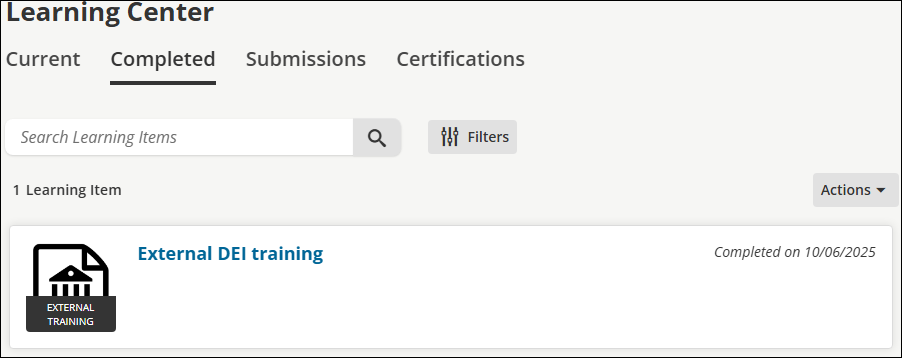
NoteAlternatively, students can create their own training template to be recorded on their Completed tab. This training template is only available for their record and is not saved for other students to use.
Updated 5 months ago