

Creating Question Banks
Question Banks are repositories for questions to be used within TopClass tests and pre/post work survey tests. Multiple question banks can be used in a single test, and each question bank can be added to multiple tests, therefore reducing the administrative burden when creating tests.
For details on how to add question banks to tests, see Creating and Configuring Tests.
Creating Question Banks
To create a question bank, do the following:
- Go to Activities and Learning > Content.
- Click Questions.
The question bank screen displays all question banks with the ability to search and filter.
Question banks can be created the following ways:
- Question Bank Import
NoteSee Question Bank Import Overview for details.
- Manually
To manually create a question bank, do the following:
- On the question bank screen, click Create.
- Enter the Title of the question bank.
- Select if the question bank will contain Rubric criteria.
Note
See Using Rubric assessments for details.
- Click Create.
Setting the General Details for the Question Bank
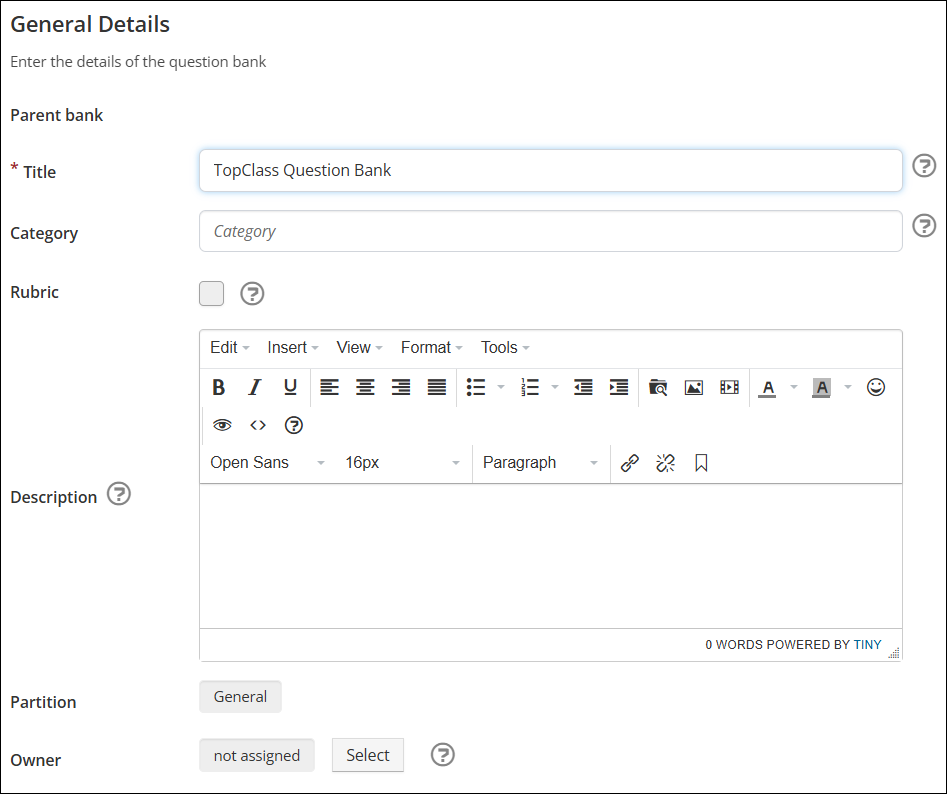
Use the General Details tab to configure the following:
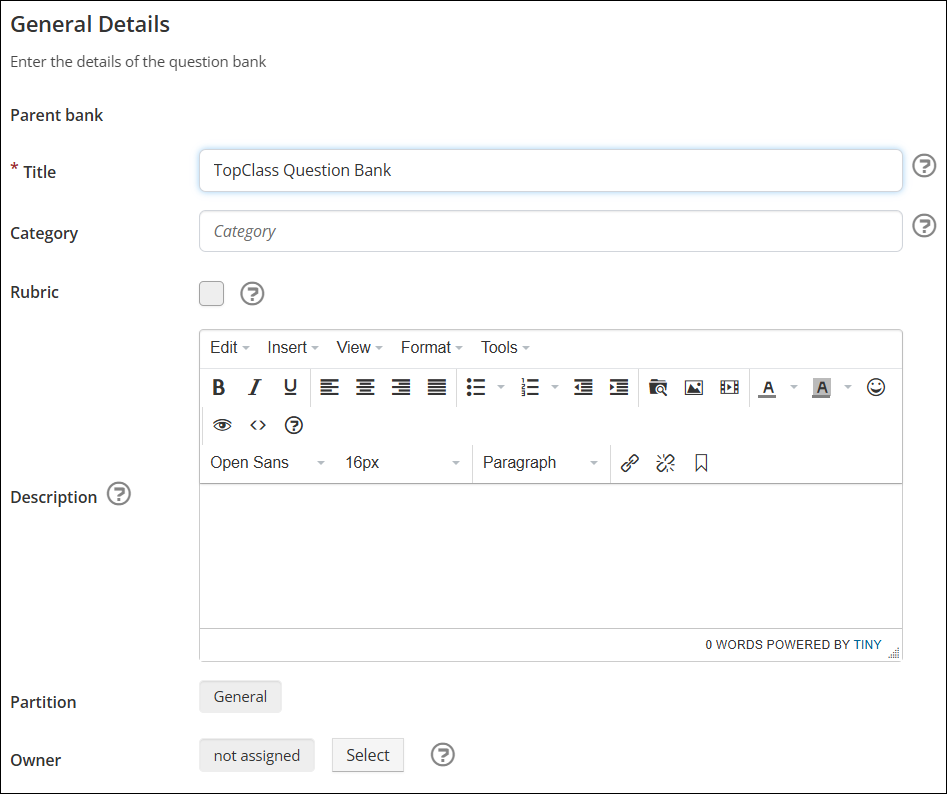
- Edit the question bank Title.
- Specify a Category – This is an informational field and can be used for reporting.
- Select if the question bank will contain Rubric criteria.
- Enter a detailed Description of the question bank.
- Assign an Owner (optional) who will have full edit rights on the activity regardless of the permissions set under the user privileges.
Click Save.
Adding Questions to the Question Bank
Under the Questions tab, click Add Question to create a new question.
There are eight question type options available:
- True/False (Boolean) – The question requires a True or False value as the response.
- Pick One – The learner must choose only one out of several possible answers.
- Multiple Response – The learner may choose one or more possible answers.
Note
Each answer may award positive or negative marks.
- Text Answer – The learner may enter text for the answer.
Note
This can be used to collect open-ended feedback.
- List Matching – The learner must pair items from one list with items from a second list.
- Upload – The learner can upload files or documents directly as part of their test submission.
- Acknowledge – The learner can submit an acknowledgement response as part of their test.
- Likert Scale – A 5-, 7-, or 9-point agreement scale, used to measure the learners' attitudes.
See Creating Questions for details on creating and configuring each question type.
- Use the Search bar to search for specific questions within the question bank. This is helpful for large question banks.
- Use the sort arrow icons to re-order questions within the question bank.
Creating Question Sub-Banks
Use the Sub-Banks tab to create question sub-banks within the question bank. This function is helpful in organising large question sets.
NoteThe sub-bank creation process follows the same steps as the question bank creation process.
Viewing Associated Tests
The Tests tab shows a list of the tests that the question bank has been added to.
Advanced Options
The Extra Info section under the Advanced Options tab is a placeholder for future enhancements.
Updated 4 months ago