

Customizing languages with custom strings
Out-of-the-box, TopClass supports French, French Canadian, German, and Spanish localizations in addition to English. Administrators who want to customize these localizations or set up their own localizations can use Custom Strings to replace Default Values for a language.
Access Custom Strings by going to System Administration > System Settings > Custom Strings.
Setting up Custom Strings
To set up Custom Strings, do the following:
-
Go to System Administration > System Settings > Custom Strings.
-
Click the Default Values tab.
-
From the Language drop-down, select the language to customize.
-
Set up custom strings:
-
In the content field, highlight strings to customize.
-
Right-click the selected strings and choose Copy.
-
Click the Custom Values tab.
-
Paste strings into the content field.
-
Modify the strings to contain the desired translation.
WarningDo not modify string names. Only string values, which are the text after the = sign in each string, can be modified.
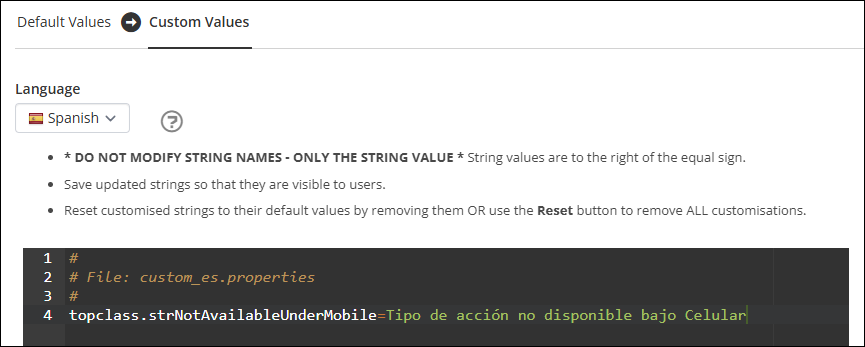
- Select Save.
-
Adding new Custom Strings after TopClass updates
TopClass offers the ability to download new localization strings added in updates as a deltas.zip file, allowing Administrators to translate newly-added strings with ease and then copy the strings into the Custom Values area. The .zip file contains the following files:
- help.properties
- onboarding.properties
- resources.properties
Do the following:
- Go to System Administration > System Settings > Custom Strings.
- From the Language drop-down, select the language to customize.
- Select Download Latest String Updates to download the deltas.zip file.
- Right-click the deltas.zip file and choose Extract All....

-
Translate the strings:
- Open one of the files.
- Replace each string after the = sign with the new translation.
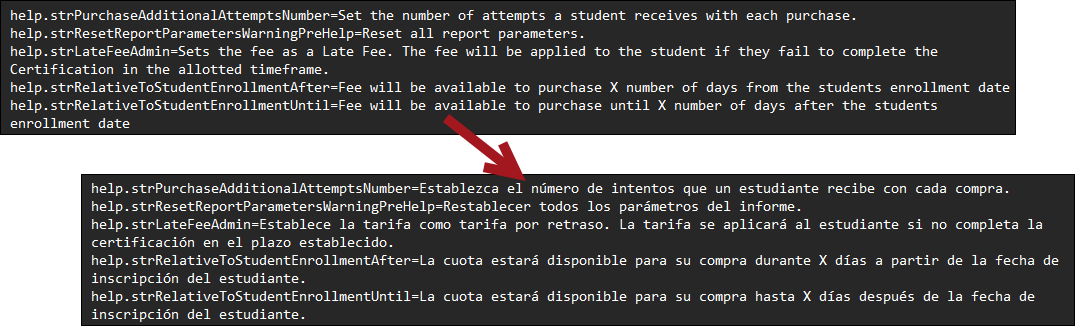 Example
Eusebía is a Super Administrator, and she is setting up a Latin American Spanish translation to better serve her community. She replaces the string help.strPurchaseAdditionalAttemptsNumber=Set the number of attempts a student receives with each purchase. with help.strPurchaseAdditionalAttemptsNumber=Establezca el número de intentos que un estudiante recibe con cada compra.
- Repeat steps a-c for all files.
-
Add the custom strings to TopClass:
- Go to System Administration > System Settings > Custom Strings.
- Click the Custom Values tab.
- From the Language drop-down, select the language to customize.
- From the custom string files edited in step 5, select the text, then right-click and Copy the strings.
- Right-click and Paste the strings into the Custom Values content field.
- Click Save.
Updated 5 months ago