

Group purchasing option: Bill Me
The Bill Me option allows users to purchase items using their group billing account. If a user belongs to a group with the Bill Me option enabled, the user can select which payment option they would like to use.
Viewing a Bill Me transaction
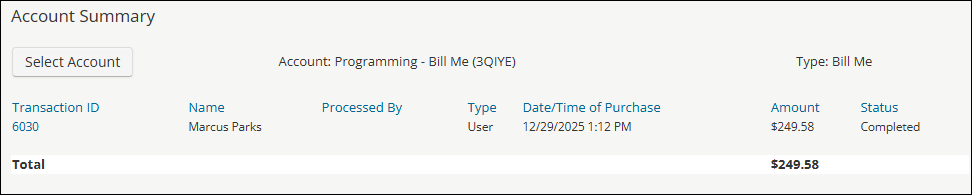
When a user makes a purchase using the Bill Me option, administrators can view the transaction that was made through the Account Summary screen.
Do the following to view a transaction:
- Go to eCommerce > Account Summary.
- Click Select Account.
- Choose the Bill Me account from the list.
The account is visible with all transactions and their total cost.
Completing a Bill Me transaction
A user that belongs to a group that has the Bill Me option enabled can purchase an item and select the Bill Me option to pay for the purchase.
To make a Bill Me transaction as a user who belongs to a Bill Me group, do the following:
-
Go to Search Learning Catalog.
-
Add an item to the shopping cart and checkout:
- Choose an item to purchase.
- Click Add to Cart.
- Click the shopping cart icon.
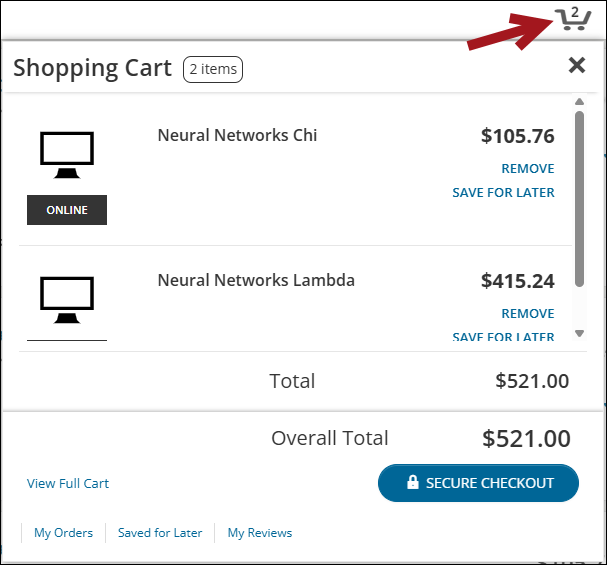
- Click Secure Checkout.
-
Purchase the item:
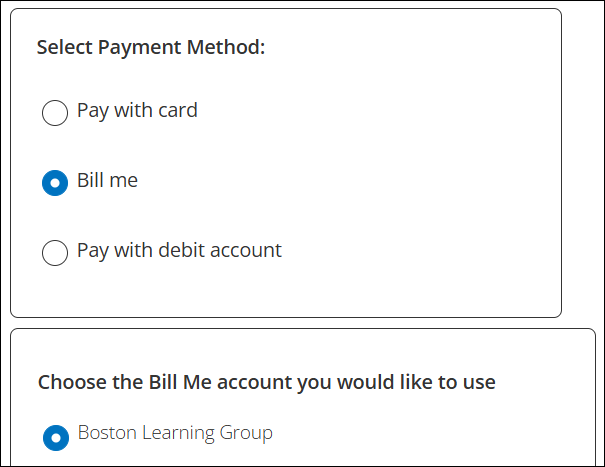
- In the Select Payment Method pane, select Bill me.
- Choose the Bill Me account associated with the group.
 Note
NoteIf a user belongs to multiple groups with Bill Me enabled, the user will see multiple groups to choose from.
- Click Pay.
ExampleBob Student is part of the Student_Group group. This group has enabled the Bill Me option, and Bob Student wants to purchase an online course that costs $50.00. In the shopping cart, Bob Student chooses the Bill Me option to pay for the online course, then he selects the Student_Group group. He then selects Pay $50.00 to complete the transaction. The manager of Student_Group can review the transaction in the Account Summary.
Updated 5 months ago