

Creating Learning Contracts via the Learning Contracts Module
Super Administrators and Administrators (with privileges) have the ability to view, create, edit, and delete Learning Contracts manually using the Learning Contracts module.
Do the following to create a Learning Contract:
-
Go to Activities and Learning > Learning Contracts.
-
Click Create.
-
Enter the General Details:
-
Enter a Code. This is the unique identifier of the Learning Contract.
-
Enter the Title. This is the display name learners will see.
-
Enter the Description for the Learning Contract.
-
If the learning contract should be linked to a specific Group, select the group.
NoteThis field is informational only and may be used for reference purposes.
-
External ID and Source are optional fields used only for integrations.
-
-
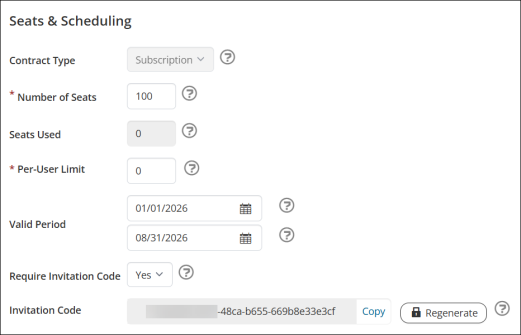
Configure Seats & Scheduling:
-
Choose the Contract Type:
WarningYou cannot change the Contract Type after you create the Learning Contract.
-
Voucher – A seat is consumed when a user enrolls in an activity from their invitation:
- One user enrolls in one invited activity = one seat used
- One user enrolls in two invited activities = two seats used
- Two users each enroll in one invited activity = two seats used
Each activity enrollment counts separately.
-
Subscription – A seat is consumed per user at the time of enrollment, not per activity:
- One user enrolls in an activity under the contract = one seat used, even if they later enroll in multiple linked activities
- That user can access all activities included in the contract
- Two users enroll under the contract = two seats used, regardless of how many activities each user takes
Seats are tied to the person, not the number of activities.
WarningSome Learning Contract configuration options will vary depending on the contract type chosen.
-
-
Enter the Number of Seats available for the learning contract.
NoteSeats Used is a read-only field that displays the total number of seats used for the learning contract.
-
If there is a limit on the number of activities in the contract that a user can enroll in, enter the Per-User Limit. A value of 0 means there is no limit.
-
Enter the Valid Period date range for which the learning contract is active and usable. The start date is when the learning contract becomes active, and the end date is when the learning contract expires. During this window, contract admins can invite users, users can enroll in linked activities, and seats can be consumed. After the end date, no new invitations can be sent, users typically cannot enroll in activities through that contract, and any unused seats expire.
-
Require Invitation Code:
-
Yes – The student must enter an invitation code in their Learning Contract Invitations widget to enroll, even if they have received an invitation notification.
-
No – The activity will automatically appear in the student’s Learning Contract Invitations widget once they are invited, and no invitation code is required to enroll.
NoteUpdating this setting does not affect existing invitations.
-
-
-
Click Create. After the Learning Contract is created:
- The Contract Type cannot be changed.
- The Invitation Code is generated and can be copied or regenerated.
-
From the Contract Admins section, add administrators for the Learning Contract. These are the users that can manage the learning contract invitation. See Managing Learning Contracts in [Using the Learning Contracts Dashboard](/docs/using-the-learning-contract-dashboard) for more information.
-
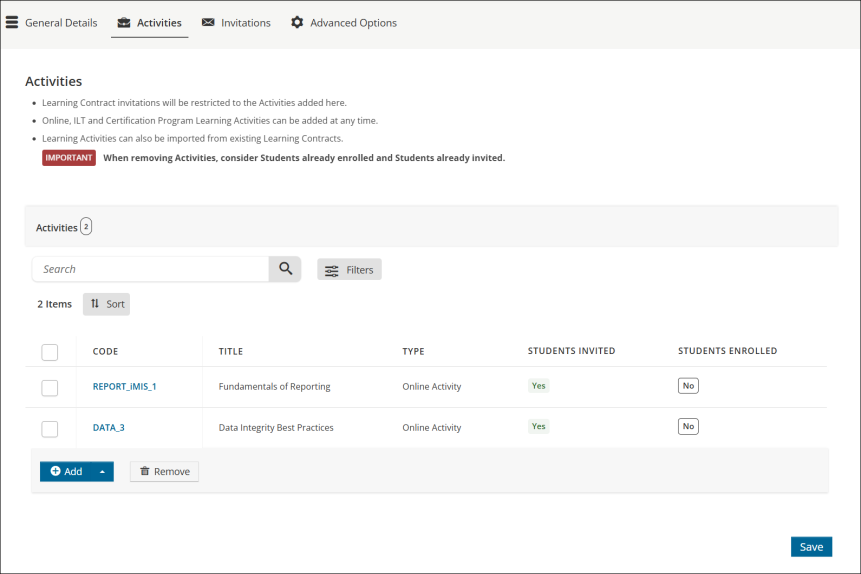
Click the Activities tab to select the Learning Activities included in this contract. Invitations are limited to the activities added here.
WarningRemoving an activity may affect students who are already enrolled or invited.
WarningFor Subscription type Learning Contracts, invitations will be updated to include any additional activities added after invitations have been sent. For Voucher type Learning Contracts, adding an activity after invitations have been sent will not update the invitations. Additional activities will need to be added to existing invitations on the Invitations tab
To add an activity, do the following:
- Click the Add arrow, then choose one of the following:
- Add Learning Activities – Add Online, ILT, and Certification Program activities.
- Import Activities from Existing Contract – Import activities from another contract.
- Click the Add arrow, then choose one of the following:
-
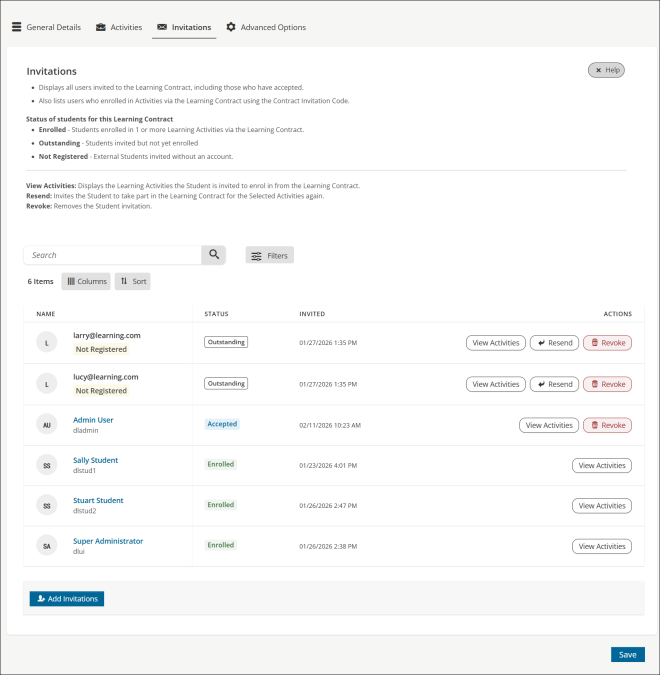
Click the Invitations tab to review the following:
- All users invited to the Learning Contract, including those who have accepted.
- All users enrolled in the activities through the Learning Contract using the contract invitation code.
The status of students will be one of the following:
-
Accepted – Students who have redeemed the Learning Contract invitation but have not yet enrolled in a Learning Activity.
-
Enrolled - Students enrolled in one or more Learning Activities via the Learning Contract.
-
Not Registered - External Students invited without an account.
-
Outstanding - Students invited but have not yet redeemed the Learning Contract invitation.
-
Revoked – Students whose invitations have been revoked. Students can be re-invited if they have previously had the invitation revoked.
NoteThe Revoked status record will remain, and a new record will be created.
The following actions can be executed:
- View Activities – View the activities included in a student's invitation. For Voucher type contracts, system administrators can add activities to a student’s invitation that are included in the Learning Contract.
- Resend – Resend the Learning Contract invitation. This is only available for status Outstanding.
- Revoke – Invitations can be revoked only if the student has not enrolled in a Learning Contract activity.
Invitations for the Learning Contract can be sent using the Add Invitations button. See Inviting users to the Learning Contract for details.
-
Click Save.
Updated 5 months ago